How to Change Assistive Technology Settings in Windows 11

This article explains how to change the Assistive Technology Sign-in settings in Windows 11.

In Windows, you can have its assistive technology feature start automatically when you sign in, after you sign in, or both.

Assistive technology is a suite of features allowing people with disabilities to use Windows easily. These include a Narrator to help users read text on the screen, a Magnifier to make items on the screen larger, Stikcy keys to help press keyboard shortcuts one key at a time, Filter keys to help ignore extras presses with repeated keys, and Toggle Keys.

Here’s how to use the assistive technology sign-in settings in Windows 11.

As described above, Assistive technology helps users with disabilities be productive and creative and easily use Windows.

Below is how to change Windows assistive technology settings.

First, open the Control Panel app.

When the Control Panel app opens, go to Control Panel -> Appearance and Personalization -> Ease of Access Center.

Click the Change sign-in settings link on the left of the Ease of Access Center page.
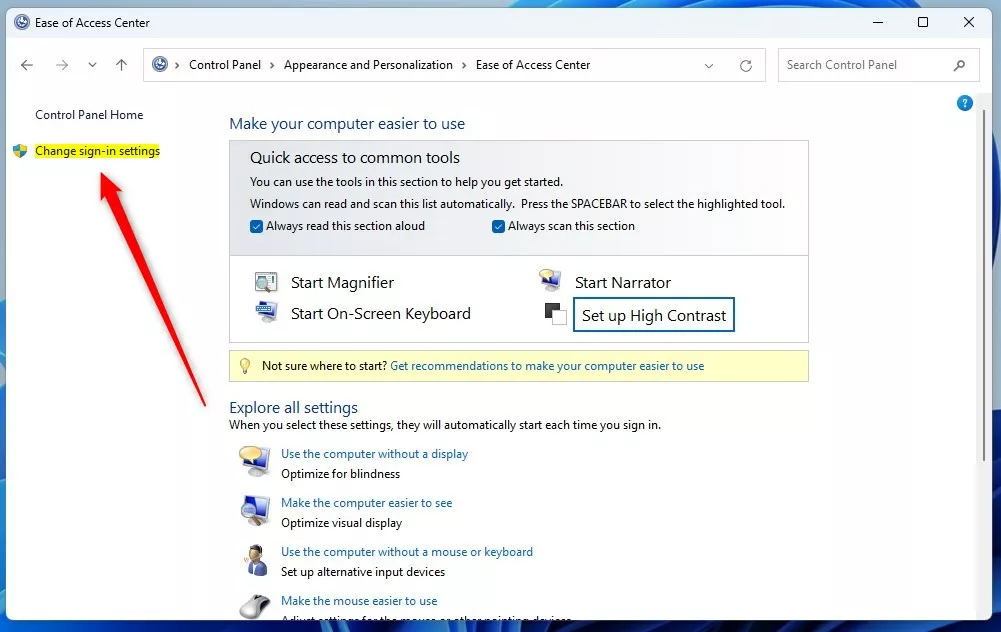
Windows Control Panel Change sign in settings link
Windows Control Panel Change sign-in settings link.

Next, select the checkboxes for each option you want to use, and click on OK when finished.
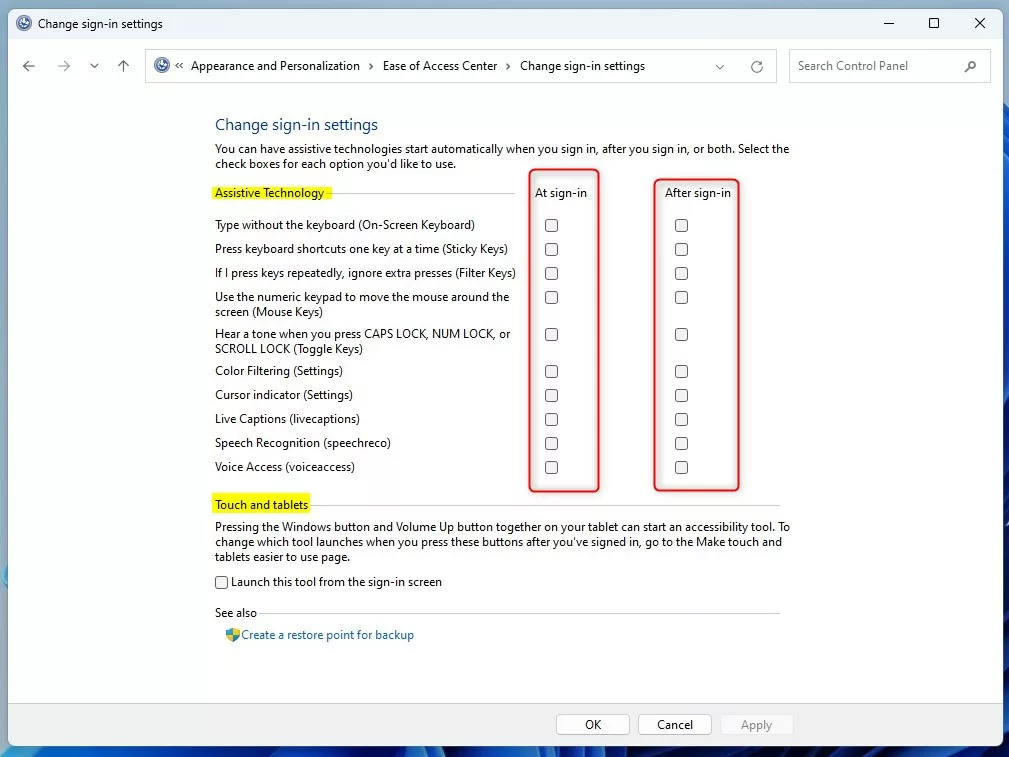
Windows Control Panel Change assistive technology options

That should do it!

Conclusion:

  • Windows 11 offers various assistive technology features to empower users with disabilities.
  • Changing the Assistive Technology Sign-in settings can enhance accessibility and user experience.
  • The process involves accessing the Control Panel, navigating to the Ease of Access Center, and modifying the sign-in options.
  • Following the steps outlined in this article, users can effectively customize their Windows 11 assistive technology settings to suit their needs.


Frequently Asked Questions

How do I access assistive technology settings in Windows 11?

To access assistive technology settings in Windows 11, open the Control Panel, navigate to Appearance and Personalization, and then select Ease of Access Center. From there, you can change the sign-in settings for assistive technology.

What assistive technology features are available in Windows 11?

Windows 11 offers several assistive technology features including Narrator, Magnifier, Sticky Keys, Filter Keys, and Toggle Keys. These tools are designed to help users with disabilities navigate and use their devices more effectively.

Can I set assistive technology to start automatically when I sign in?

Yes, you can configure assistive technology to start automatically upon signing in. This can be done by selecting the appropriate checkboxes in the sign-in settings within the Ease of Access Center.

What is the purpose of the Ease of Access Center in Windows 11?

The Ease of Access Center in Windows 11 is designed to provide users with tools and settings that enhance accessibility. It allows users to customize their experience based on their specific needs, making it easier for individuals with disabilities to use the operating system.

How do I save changes to my assistive technology settings?

After selecting your desired options in the assistive technology sign-in settings, simply click on the OK button to save your changes. This will apply the new settings the next time you sign in to Windows 11.

Categories:

Tags:

Leave a Reply

Your email address will not be published. Required fields are marked *

Exit mobile version