How to Block Untrusted Fonts in Windows 11

This guide will show you how to block or allow untrusted fonts on your Windows 11 PC. Blocking untrusted fonts helps keep your computer safe from harmful files.
You can block untrusted fonts in Windows 11 by using the Local Group Policy Editor or Registry Editor. Navigate to Computer Configuration > Administrative Templates > System > Mitigation Options in the Group Policy Editor and enable “Untrusted Font Blocking.” Alternatively, use the Registry Editor to create or modify the “MitigationOptions_FontBlocking” DWORD value.
What Are Fonts and Untrusted Fonts?
Fonts are the different styles of letters and numbers on your computer, and untrusted fonts are those that come from outside the safe, official Windows font folder, potentially causing security risks.
Untrusted fonts are fonts that are installed outside this main fonts folder. They might come from unknown or unsafe sources, which can cause security problems.
Why Block Untrusted Fonts?
Sometimes, attackers use bad fonts to try to harm your computer. Windows 11 includes a feature called Blocking Untrusted Fonts that helps protect you by preventing unsafe fonts from running.
How to Control Untrusted Fonts in 🪟 Windows 11
You can control untrusted fonts in Windows 11 by choosing to block them entirely, audit which apps use them, or exclude specific apps from these restrictions.
- On – Blocks unsafe fonts from loading outside the trusted font folder and records these events.
- Audit – Does not block fonts but keeps a log of apps that use untrusted fonts.
- Exclude apps – Lets you allow certain apps to use untrusted fonts, even if blocking is on.
Method 1Use the Local Group Policy Editor
The Local Group Policy Editor offers a direct way to manage untrusted fonts, letting you turn the blocking feature on or off for your Windows 11 system.
- Press Windows key + R, type
gpedit.msc, and press Enter to open the Local Group Policy Editor. (If you don’t know how to open it, see this guide: How to open Local Group Policy Editor) - In the editor, go to:
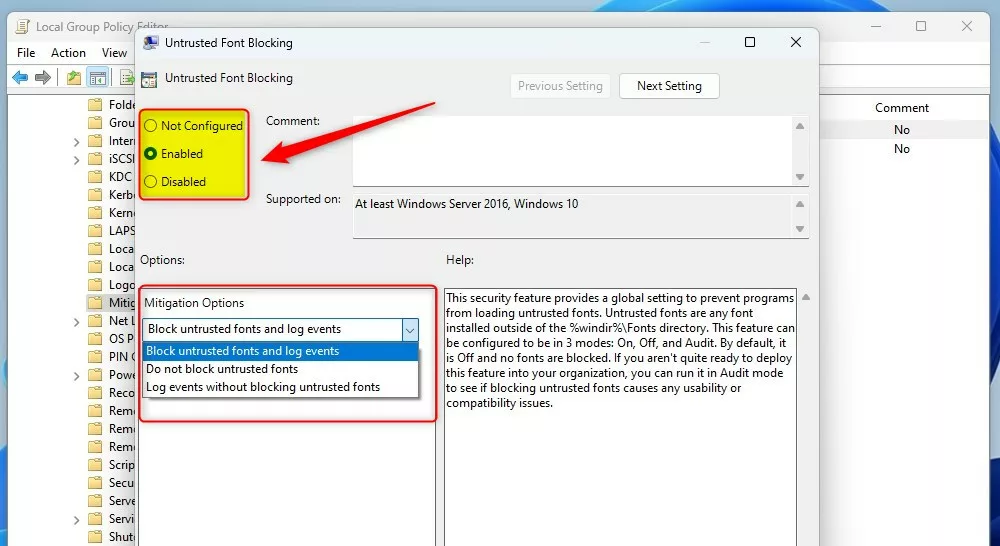
Computer Configuration > Administrative Templates > System > Mitigation Options - On the right side, find and double-click
Untrusted Font Blocking. - Choose one of these options:
- Not Configured (default) – No fonts are blocked.
- Enabled – Blocks untrusted fonts and logs events.
- Disabled – Same as Not Configured, no fonts are blocked.
- Click OK to save your changes and close the window.
Method 2Use the Windows Registry Editor
If you can’t use the Group Policy Editor, like on Windows Home, the Windows Registry Editor lets you block untrusted fonts by changing specific settings.
- ⚠️ Requires admin privileges – Press Windows key + R, type
regedit, and press Enter to open the Registry Editor. (If you need help, see: How to open Windows Registry Editor) - In Registry Editor, go to this folder:
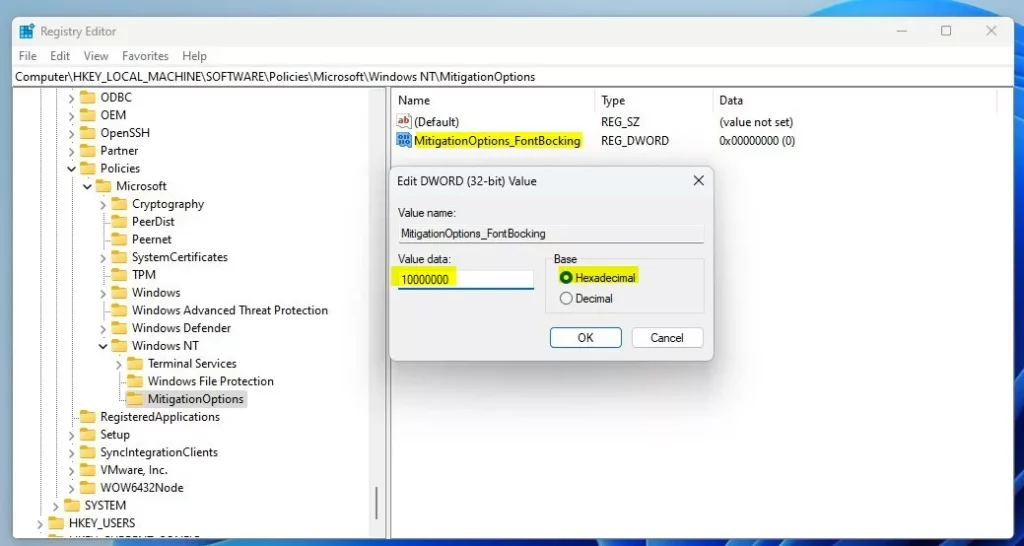
HKEY_LOCAL_MACHINE\SOFTWARE\Policies\Microsoft\Windows NT\MitigationOptions - If you don’t see the MitigationOptions folder, right-click
Windows NT, selectNew > Key, and name itMitigationOptions. - Right-click on the right side of the MitigationOptions folder and select
New > DWORD (32-bit) Value. - Name this new value:
MitigationOptions_FontBlocking - Double-click this new value to edit it. Set the base to Hexadecimal and use one of these values:
1000000000000– Turn on blocking.2000000000000– Turn off blocking.3000000000000– Audit only (log events, don’t block).
- Click OK and close the Registry Editor.
- Restart your computer for the changes to take effect.
Summary
- Blocking untrusted fonts helps protect your Windows 11 PC from harmful files.
- You can control this setting using either the Local Group Policy Editor or the Registry Editor.
- Choose to block, audit, or allow untrusted fonts based on your needs.
- Remember to restart your PC after making changes.
- If you want to learn more about fonts on Windows 11, check out this easy guide on how to install fonts in Windows 11.
Blocking untrusted fonts is a key step to protect your Windows 11 PC from dangerous files, and you can manage this setting using either the Group Policy or Registry Editor.
Microsoft – Block Untrusted Fonts
If you have questions or want to share your experience, please leave a comment below!
How do I block untrusted fonts?
Open the Group Policy editor (type gpedit.msc and press Enter). Navigate to ‘Computer Configuration > Administrative Templates > System > Mitigation Options > Untrusted Font Blocking.’ Change the setting to ‘Enabled’ and choose ‘Block untrusted fonts and log events’ (see screenshot).
What are block fonts good for?
Bold fonts, widely known for their striking appearance, are ideal for conveying strong messages. The bold font you choose can make your headlines, posters, ads, and other designs stand out.
Does Windows use TTF?
Yes, Windows uses TTF, which stands for TrueType font, a format developed by Apple and Microsoft to work across both Windows and Mac computers.
Was this guide helpful?

About the Author
Richard
Tech Writer, IT Professional
Richard, a writer for Geek Rewind, is a tech enthusiast who loves breaking down complex IT topics into simple, easy-to-understand ideas. With years of hands-on experience in system administration and enterprise IT operations, he’s developed a knack for offering practical tips and solutions. Richard aims to make technology more accessible and actionable. He's deeply committed to the Geek Rewind community, always ready to answer questions and engage in discussions.


No comments yet — be the first to share your thoughts!