

This post describes the steps to delete trash content in Ubuntu Linux automatically.
When you want to free up more space on your computer’s hard drive or improve its performance, you may have to clear out your trash and delete unwanted temporary files.
Users can manually empty their trash and remove temporary unnecessary files, but they can also set Ubuntu Linux to do this for them automatically.
Temporary files are not meant to be kept indefinitely on your computer. Instead, they are created by applications to increase performance by providing a copy of downloaded or computed data.
They should regularly be removed from your computer.
Below is how to set up Ubuntu Linux to automatically delete trash content and temporary files.
How to automatically delete temporary files in Ubuntu Linux
As described above, when you want to free up space in Ubuntu Linux, you can empty your trash and remove unwanted temporary files.
You can do that manually or set up Ubuntu Linux automatically. Below is how to configure Ubuntu Linux to automatically empty trash and remove unneeded files.
Ubuntu Linux has a centralized location for the majority of its settings. From system configurations to creating new users and updating, all can be done from the System Settings panel.

Alternatively, click on the System menu at the top-right corner of the top bar on your desktop.
On the System menu, select Settings, as highlighted below.

Click on the Privacy tile to open the panel in the Settings app.
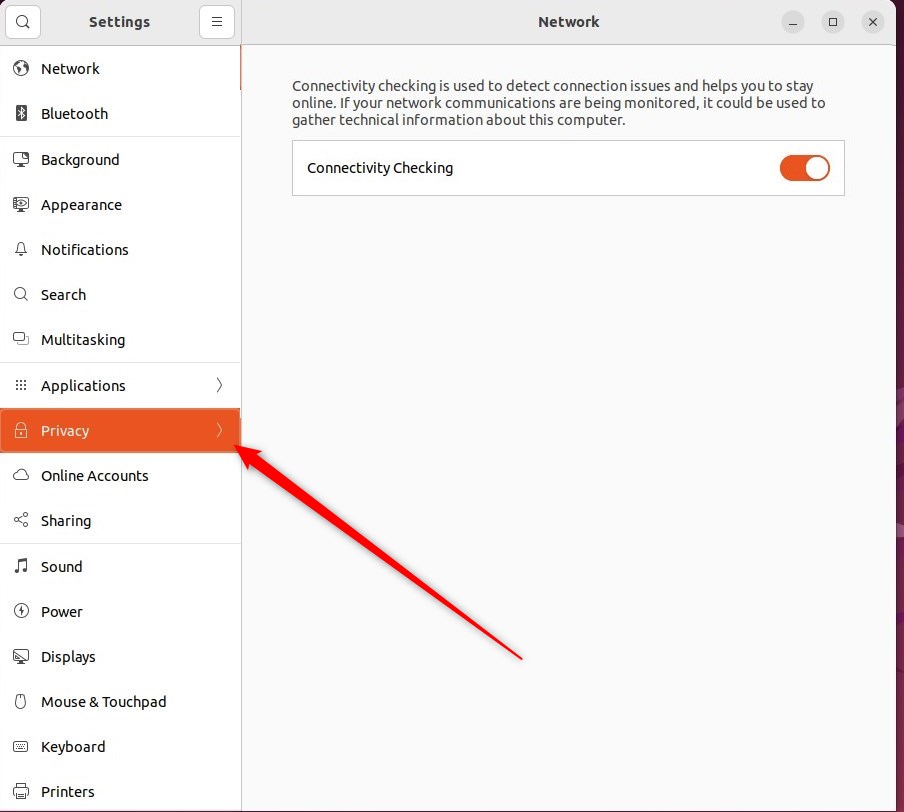
In the System Settings -> Privacy settings panel, open the panel under File History & Trash.
Then switch On or Off one or both of Automatically Delete Trash Content or Automatically Delete Temporary Files.
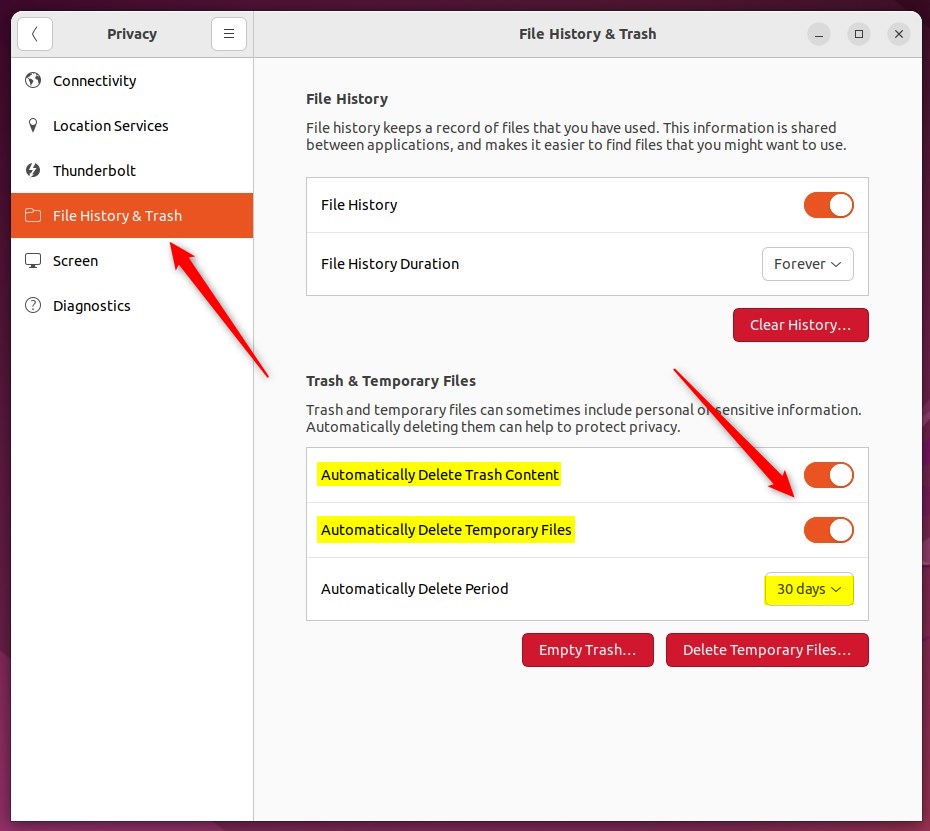
Set how often you would like your Trash and Temporary Files to be purged by changing the Automatically Delete Period value.
The value can be an hour to up to 30 days.
You can immediately empty the trash and delete temporary files from the screen panel window.
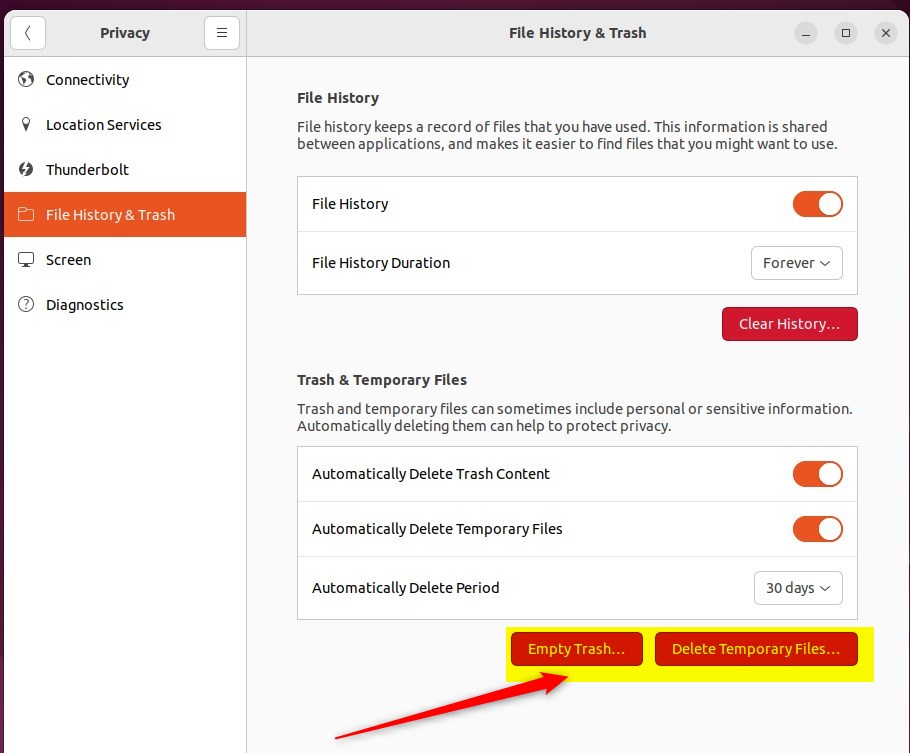
That should do it! You can now close the Settings app.
Conclusion:
- Clearing out trash and temporary files is essential for optimizing the performance and freeing up space on your Ubuntu Linux computer.
- Ubuntu Linux allows users to automatically delete trash content and temporary files through the System Settings panel.
- The System Settings panel allows to toggle the automatic deletion of trash content and temporary files and specify the deletion frequency.
- Users can also manually empty the trash and delete temporary files from the screen panel window for immediate cleanup.


Leave a Reply