
Do you record your gameplay on Windows 11? You might want your videos to look smooth and clear. This guide will help you change the video frame rate (how many pictures per second) and video quality for your game clips.
What Are Frame Rate and Video Quality?
Frame rate means how many images (frames) show up every second in your video. A higher frame rate (like 60 frames per second) makes your video look smooth. A lower frame rate (like 30 fps) might look choppy.
Video quality is about how clear and sharp your video looks. Higher quality videos look better but take more space on your computer. Lower quality videos save space but might look blurry or pixelated.
Where Are Your Game Videos Saved?
When you capture a game moment, Windows saves it in your Videos folder. You can also change this save location if you want to save your videos somewhere else, like a different drive.
How to Capture Game Clips
To capture a cool moment while gaming, press:
This will save a short video of the last few seconds of your gameplay.
Steps to Change Frame Rate and Video Quality
Follow these easy steps to pick the best frame rate and video quality for your game clips:
- Open Settings: Click the Start menu button and select Settings. Or just press
Windows key + Ion your keyboard. - Click Gaming: In the Settings window, click on Gaming on the left side.

- Click Captures: Click on Captures on the right side to open capture settings.

- Find Video Settings: Find the options for Video frame rate and Video quality.
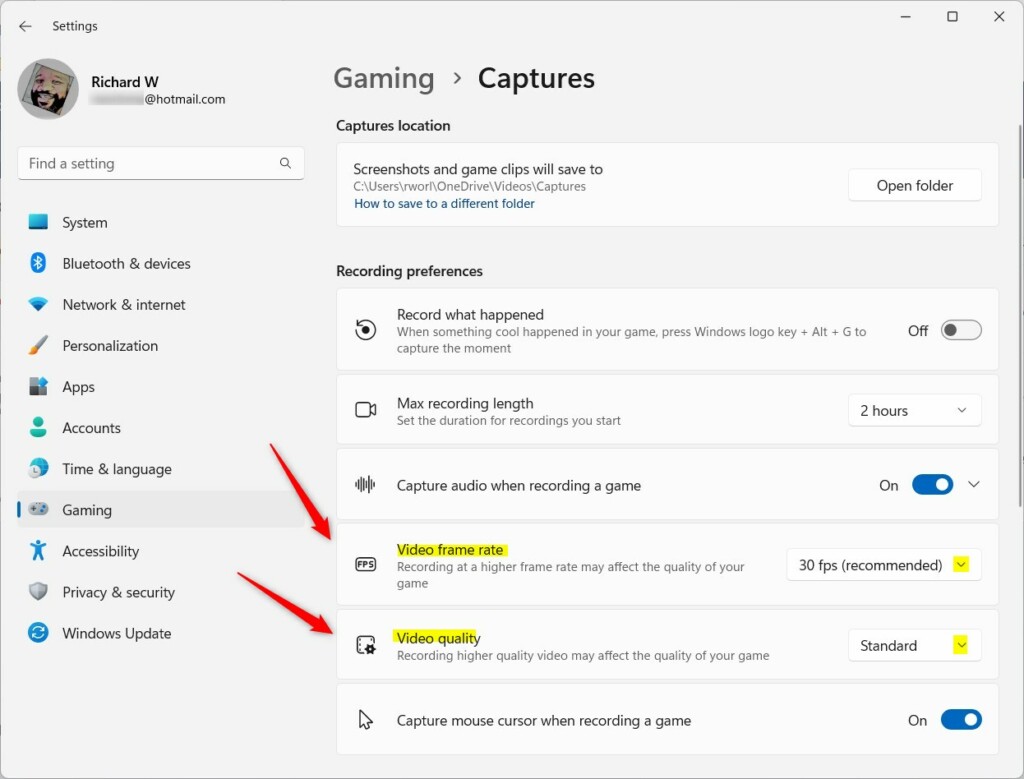
- Click the Arrow: Click the small arrow next to each setting to see more options.
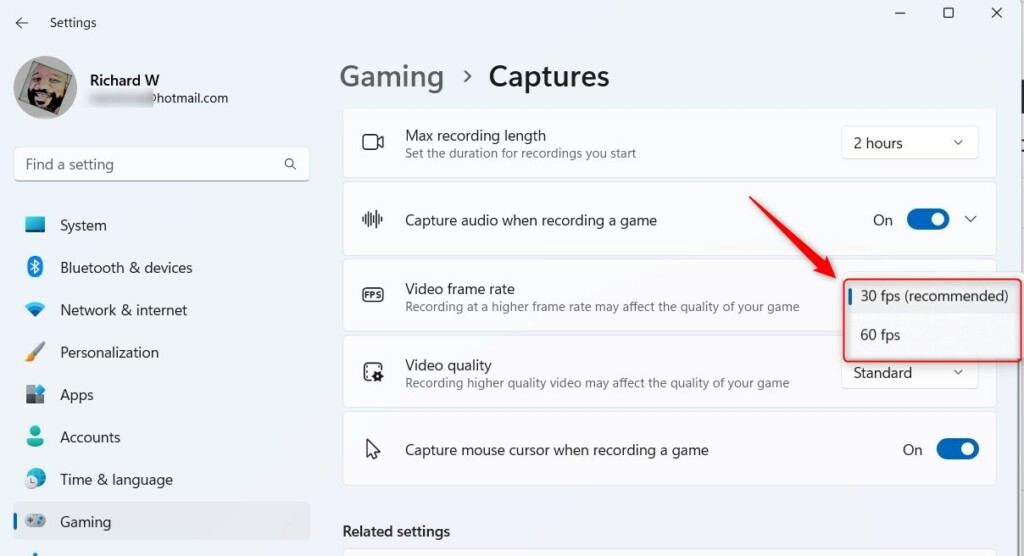
- Choose Your Frame Rate: Pick the frame rate you want. Usually:
- 30 fps – Good for most computers and saves space.
- 60 fps – Smoother video but uses more space and needs a stronger PC.
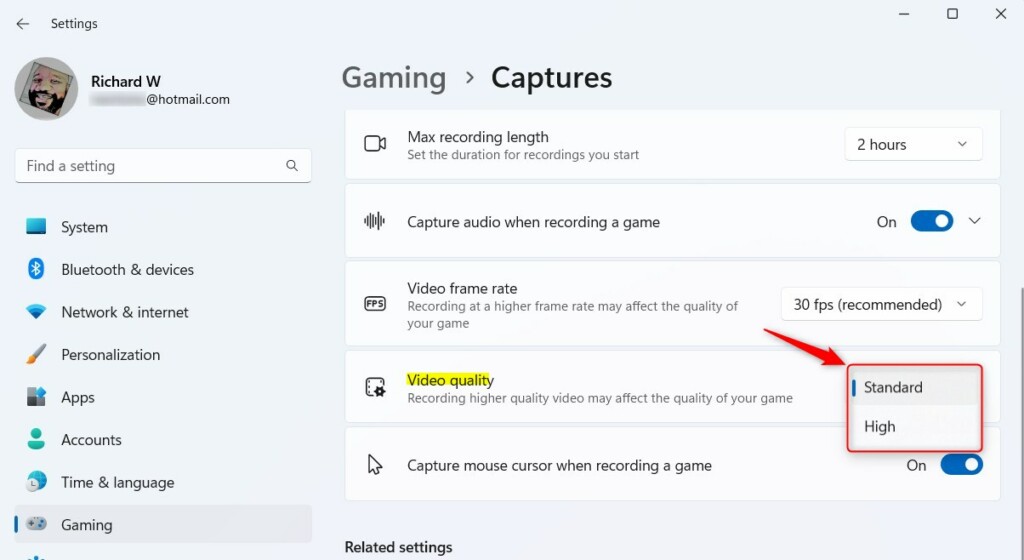
- Choose Your Video Quality: Pick your video quality:
- Standard – Smaller file size, good for casual use.
- High – Sharper and clearer, but bigger file size.
- Close Settings: When you’re done, just close the Settings window.
Summary
- Adjusting frame rate and quality helps your game videos look better and smoother.
- Windows 11 lets you pick settings that work best with your computer.
- Try different options to see what looks best and saves enough space.
- If you have questions or tips, feel free to leave a comment below!



Leave a Reply Cancel reply