How to Enable Desktop Stickers in Windows 11

You enable desktop stickers in Windows 11 by adding a specific registry key.
Desktop stickers are a feature that allows you to place decorative images directly onto your Windows 11 desktop background. These visual enhancements persist even when you change your wallpaper, offering a persistent way to personalize your digital workspace.
This guide helps you unlock this fun customization option. You’ll need to access the Registry Editor and make a small modification to activate the feature, typically found under the {🗝️HKEY_LOCAL_MACHINE\SOFTWARE\Microsoft\Windows\CurrentVersion\Shell\Stickers} path.
Prerequisites and Compatibility
This feature is currently hidden. It is primarily available for users in the Microsoft Insider Preview program on build 25162 or later. It is not supported on Windows 11 SE or when using a slideshow background. If you use a slideshow, the stickers feature will be disabled.
How to Enable Desktop Stickers via Registry Editor
Follow these steps to unlock the feature:
1. Press ⊞ Win+R, type regedit, and press Enter. This requires administrative privileges.
2. Navigate to the following path:
HKEY_LOCAL_MACHINE\SOFTWARE\Microsoft\Windows\CurrentVersion\Stickers
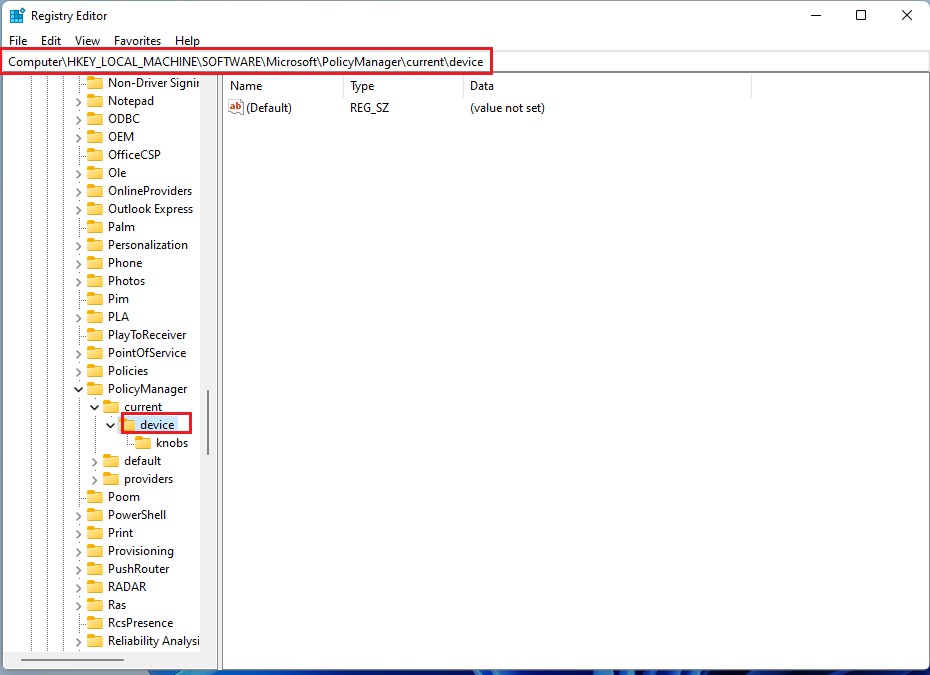
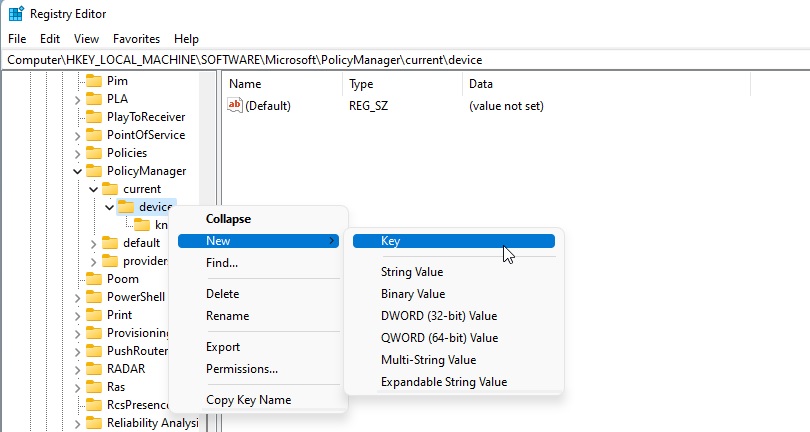
3. If the Stickers key does not exist, right-click the CurrentVersion folder, select New > Key, and name it Stickers.
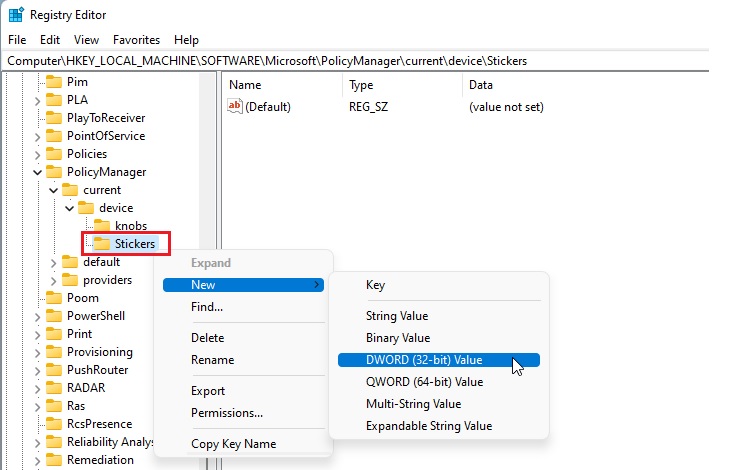
4. Right-click the Stickers key, select New > DWORD (32-bit) Value, and name it EnableStickers.
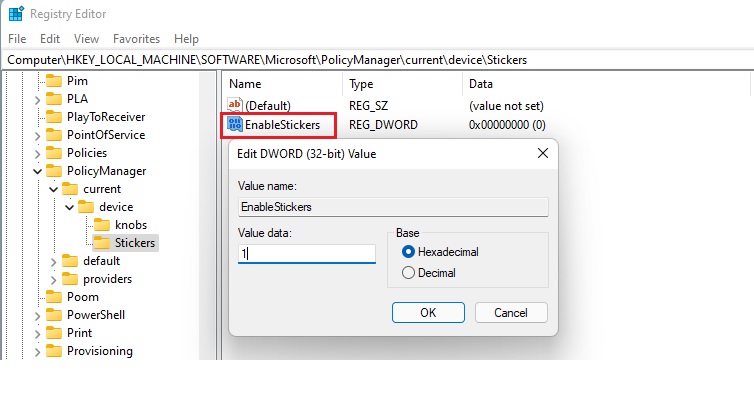
5. Double-click EnableStickers and set the value data to 1.
6. Restart your computer to apply the changes.
Alternative: Group Policy Configuration
For enterprise environments, administrators can manage this via the Group Policy Editor (gpedit.msc). Navigate to Computer Configuration > Administrative Templates > Windows Components > Desktop Stickers. Enable the policy to allow stickers across the organization.
Managing and Removing Stickers
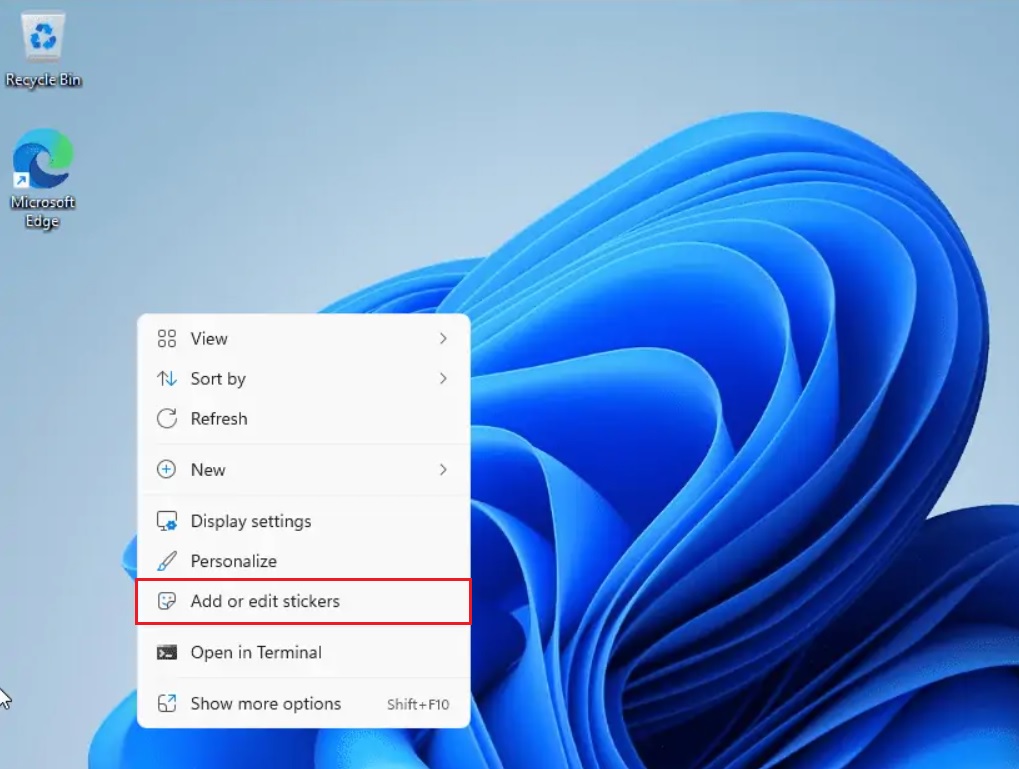
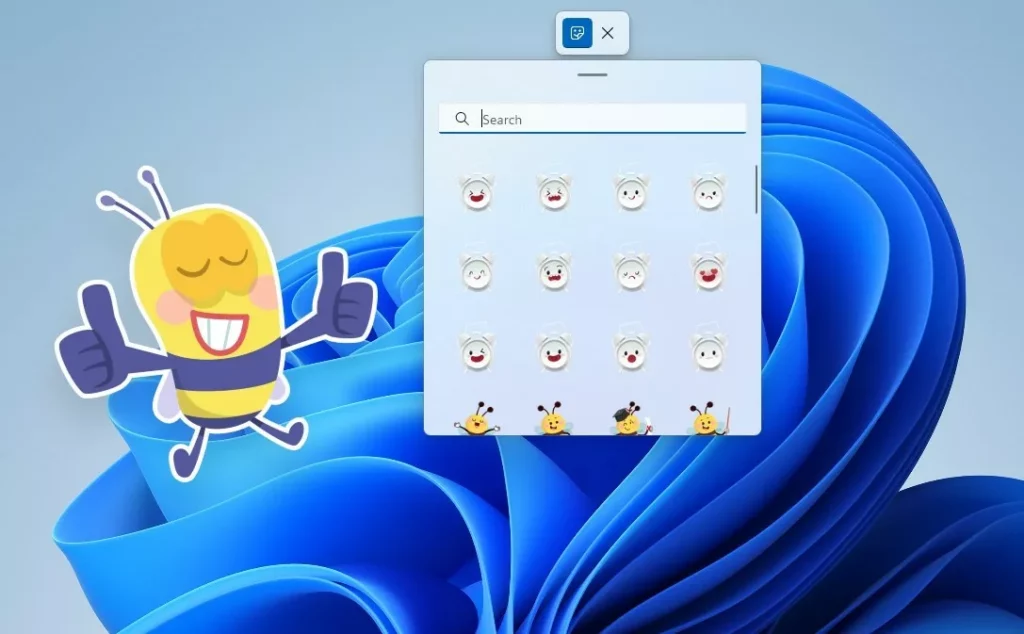
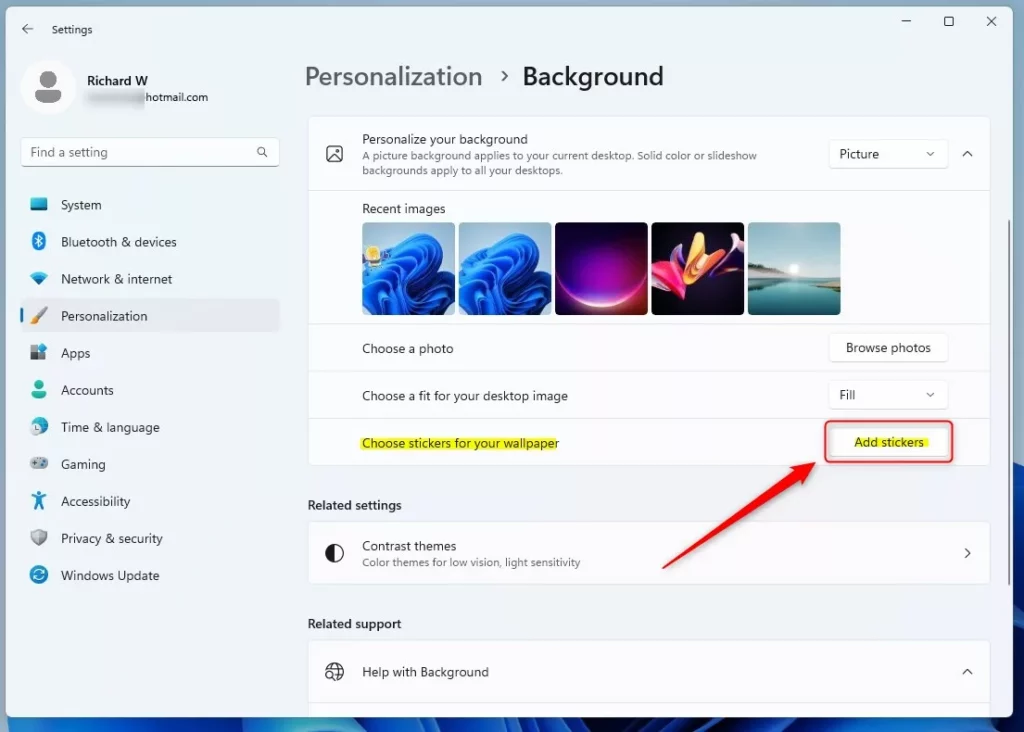
Once enabled, right-click your desktop and select Add or edit stickers. You can also go to Settings > Personalization > Background and click Choose stickers for your wallpaper. To remove them, simply open the sticker editor and delete the ones you no longer want.
Summary
Desktop Stickers allow for creative desktop personalization in Windows 11. While hidden by default, they can be enabled via the registry or Group Policy for advanced users. Remember that this feature requires specific Insider builds and does not support slideshow backgrounds or custom image uploads. Always use caution when editing system registries.
Can I use custom images as desktop stickers?
Currently, Windows 11 only supports the pre-installed library of stickers provided by Microsoft. You cannot upload or use your own custom image files as stickers at this time. The feature is limited to the official collection available within the sticker editor interface.
Why are desktop stickers disabled on my 🪟 Windows 11 version?
Desktop stickers are a hidden feature intended for testing. If you are not on a supported Insider Preview build, or if you are using Windows 11 SE, the feature is locked. Additionally, using a slideshow background will automatically disable the stickers functionality on your desktop.
Was this guide helpful?

About the Author
Richard
Tech Writer, IT Professional
Richard, a writer for Geek Rewind, is a tech enthusiast who loves breaking down complex IT topics into simple, easy-to-understand ideas. With years of hands-on experience in system administration and enterprise IT operations, he’s developed a knack for offering practical tips and solutions. Richard aims to make technology more accessible and actionable. He's deeply committed to the Geek Rewind community, always ready to answer questions and engage in discussions.


No comments yet — be the first to share your thoughts!