

This guide will help you easily add or remove Natural Voices for the Narrator feature in Windows 11. Narrator is a built-in tool that reads out text and other items on your screen. It’s especially helpful if you have trouble seeing or reading on your computer.
What is Narrator?
Narrator is a screen reader that comes with Windows. It reads text, buttons, links, and other things aloud so you can use your PC without looking at the screen.
Windows 11 has made Narrator better. Now, it can help you send emails, browse websites, write documents, and more.
What Are Natural Voices?
Narrator offers two types of voices:
- Legacy voices: Older and less clear voices.
- Natural voices: Newer, clearer voices that sound more like real people.
Natural voices use advanced technology to sound better. They work even if you’re not connected to the internet.
How to Add Natural Voices to Narrator
Follow these easy steps to add Natural Voices to your Narrator:
Step 1: Open Windows Settings
Click the Start menu and select Settings, or press Windows key + I on your keyboard to open Settings quickly.
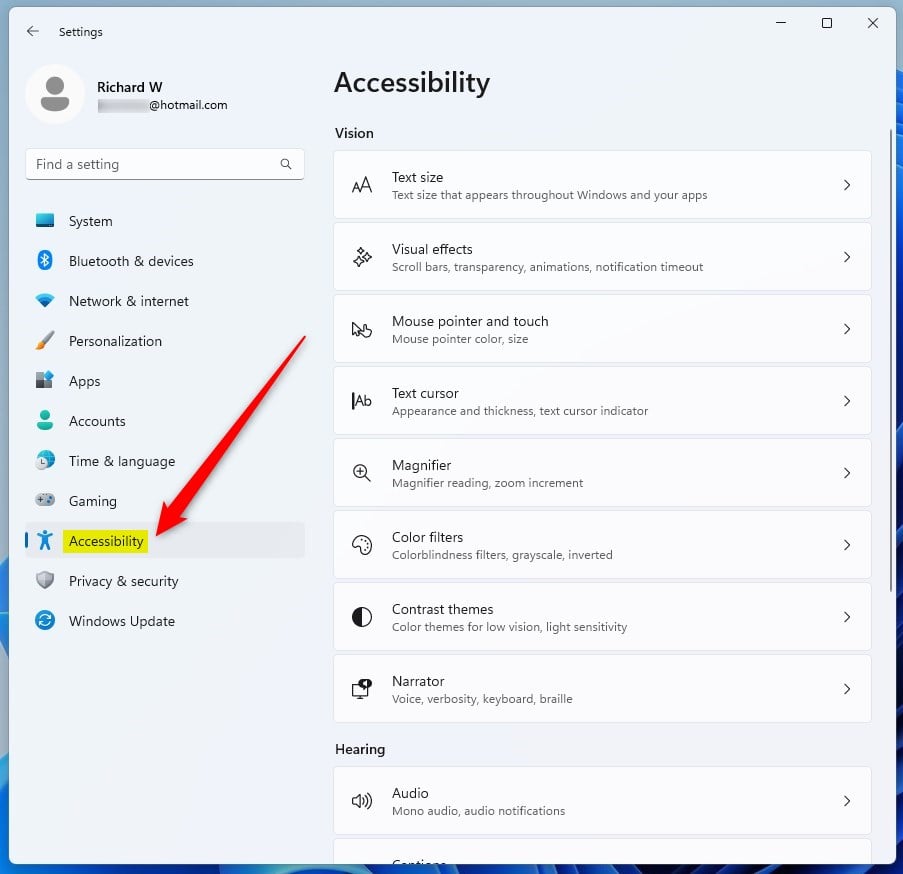
Step 2: Go to Accessibility
In the Settings window, click Accessibility on the left sidebar.
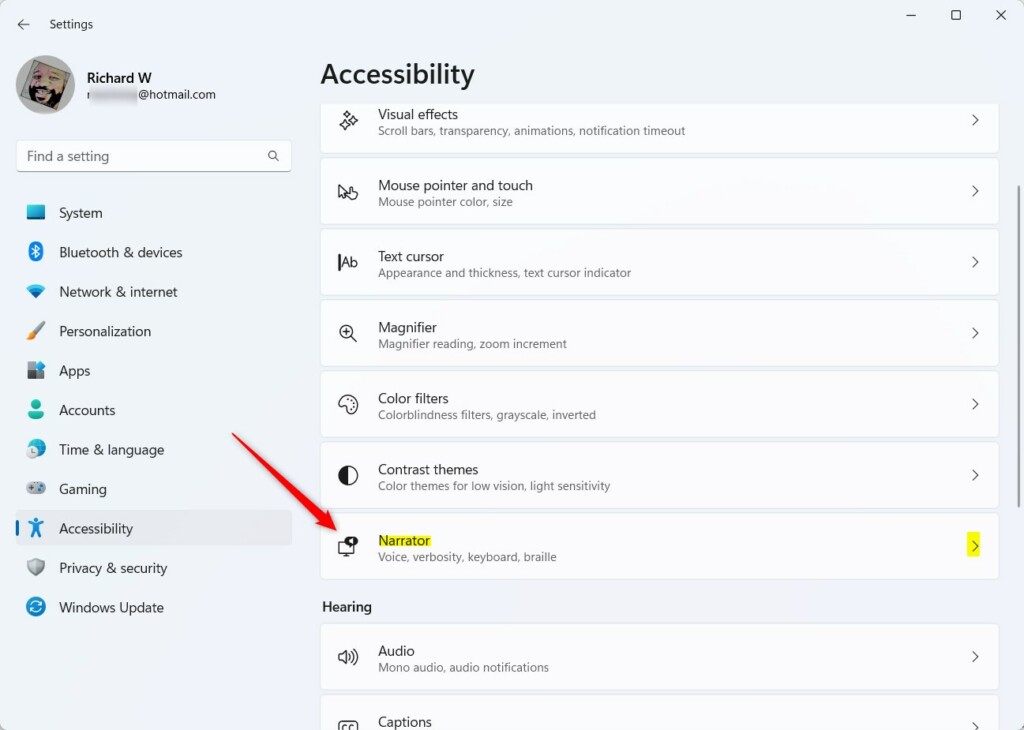
Step 3: Select Narrator
Find and click on the Narrator option on the right side.
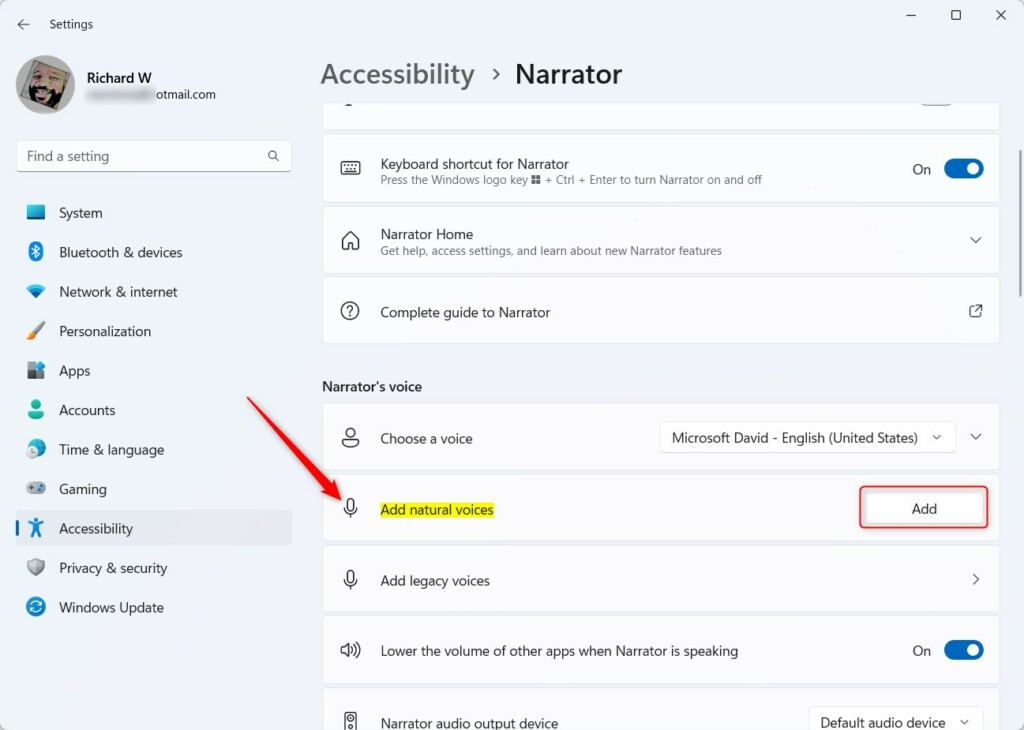
Step 4: Add Natural Voices
Look for the tile that says “Add natural voices” and click it.
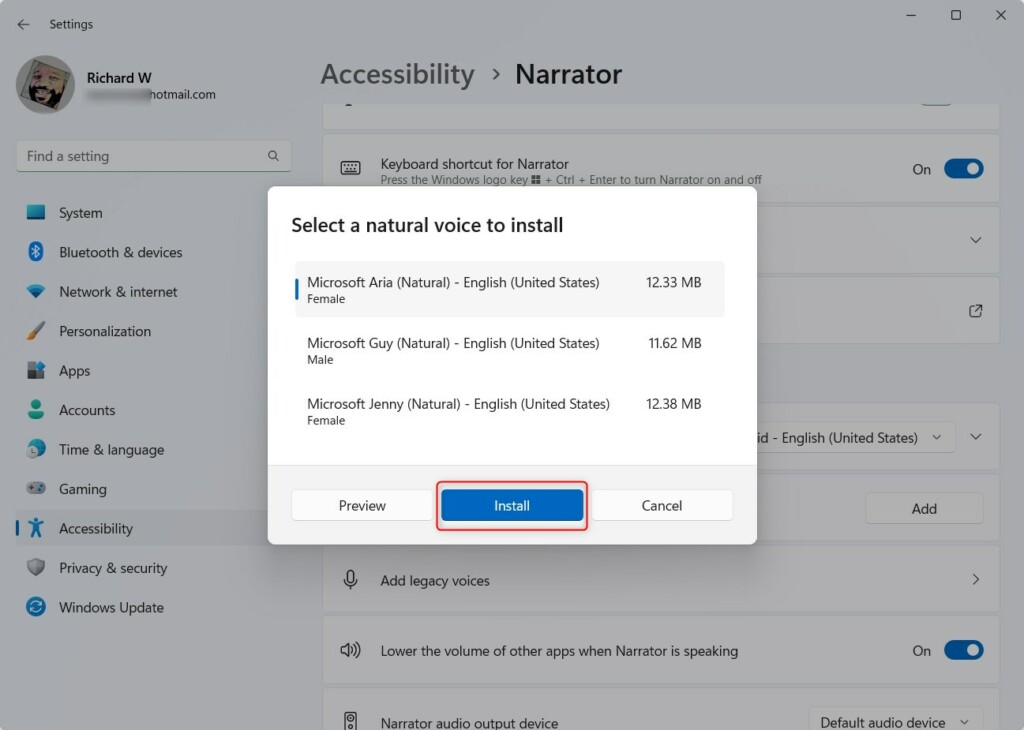
Step 5: Choose Your Voice
Choose the natural voice you want from the list, then click the Install button.
Step 6: Wait for Installation
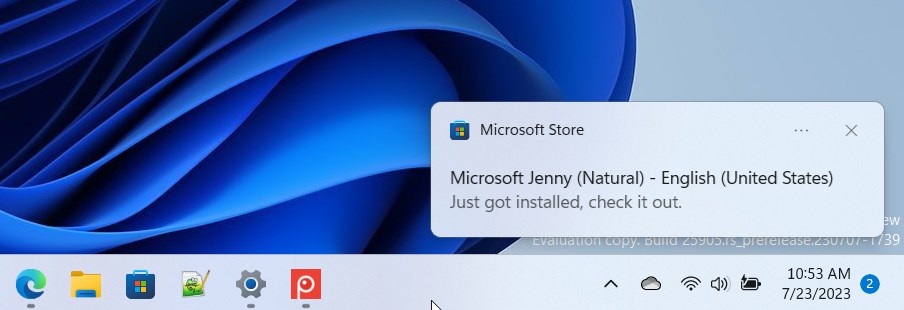
Wait a moment while the voice installs. You’ll see a notification when it’s ready.
Step 7: Use Your New Voice
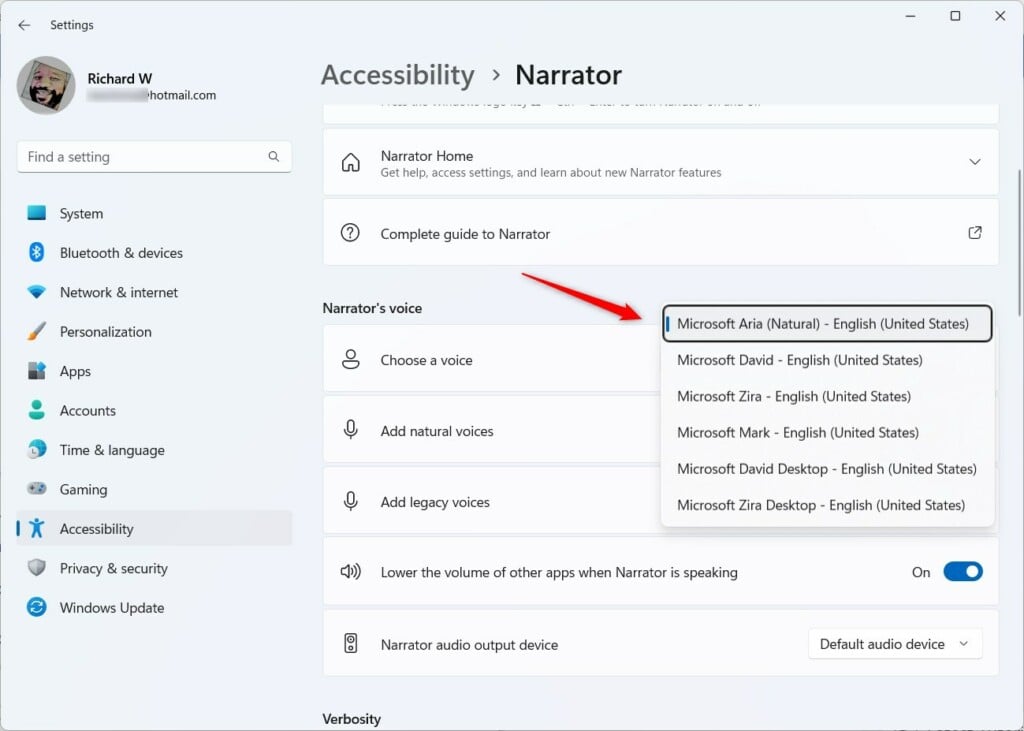
Go back to the Narrator settings, and you can now select your new natural voice to use.
How to Remove Natural Voices
If you want to remove a natural voice you installed, you’ll need to use Windows PowerShell:
Step 1: Open Windows PowerShell
⚠ Admin privileges required
Open PowerShell by searching for it in the Start menu. Right-click it and select Run as administrator.
Step 2: List All Natural Voices
Type this command and press Enter to see all installed natural voices:
Get-AppxPackage -Name "*Voice*" | Select Name, PackageFullName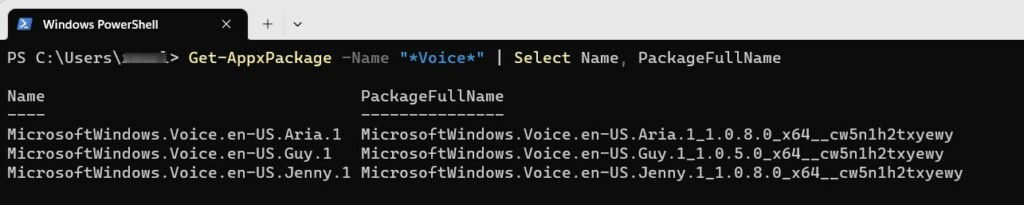
Step 3: Find the Voice You Want to Remove
Find the voice you want to remove and copy its full package name.
Step 4: Uninstall the Voice
Use this command to uninstall the voice. Replace PackageFullName with the full name you copied:
Remove-AppxPackage -Package PackageFullNameThat’s it! The voice will be removed from your computer.
More Information
Learn about new accessibility features in Windows 11 from the Windows Experience Blog.
Summary
- Adding or removing natural voices in Narrator is simple and makes the voice sound much better.
- Narrator helps you use your PC by reading things aloud, even helping with emails and browsing.
- Natural voices sound clearer and work even offline.
- Legacy voices are not as clear or natural sounding.
- You can customize Narrator voices anytime to fit your needs.



Leave a Reply Cancel reply