How to Access UEFI BIOS in Windows 11 – Easy Steps

You access UEFI BIOS in Windows 11 by navigating through the Windows Recovery Environment.
UEFI BIOS, or Unified Extensible Firmware Interface Basic Input/Output System, is the modern firmware interface that replaces your computer’s traditional BIOS, managing your system’s startup process and hardware configurations before Windows loads.
Accessing this critical interface, often necessary for tasks like changing boot order or enabling virtualization features, is straightforward within Windows 11’s advanced startup options.
For example, you can typically enter UEFI BIOS by holding the Shift key while clicking “Restart” from the Windows 11 Start Menu.
What is UEFI BIOS?
It stands for Unified Extensible Firmware Interface. It’s the modern version of the old BIOS system, helping your computer start up faster and work better with new software.
Method 1Use Keyboard Keys When Starting Your Computer
Most computers let you enter the UEFI BIOS menu by pressing a certain key right after turning on your PC. Watch the screen carefully when your computer starts — you might see a message like “Press F2 to enter Setup.”
Common keys to try include:
- Esc
- Delete
- F1
- F2
- F10
- F11
- F12
If you have a tablet, try holding the Volume Up or Volume Down buttons while turning it on.
Once inside the UEFI BIOS screen, you can make changes like adjusting the boot order or enabling hardware features. Remember to save your changes before exiting!
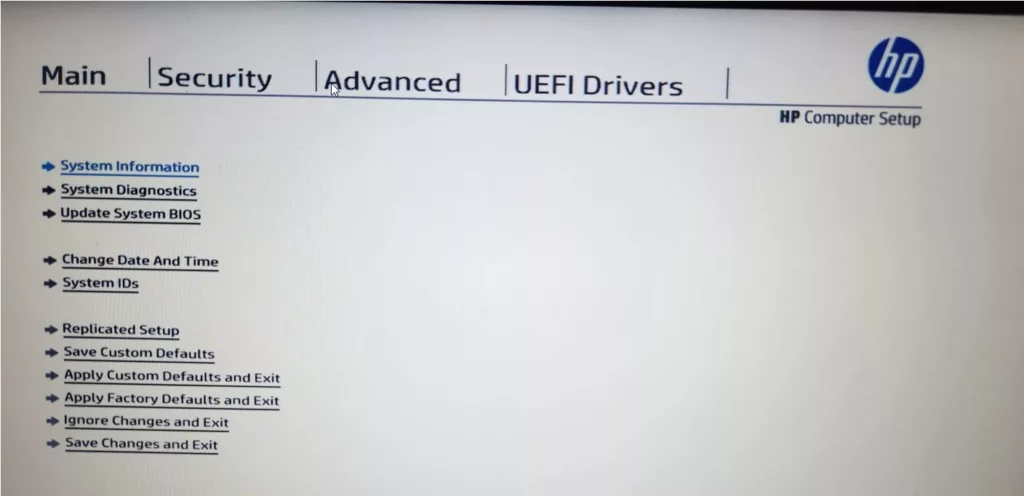
Method 2Use 🪟 Windows 11 Advanced Startup Settings
If the keyboard shortcut method is tricky, you can also access UEFI BIOS through Windows 11’s settings:
- Click the Start button, then go to Settings.
- Choose System > Recovery.
- Under Advanced startup, click Restart now.
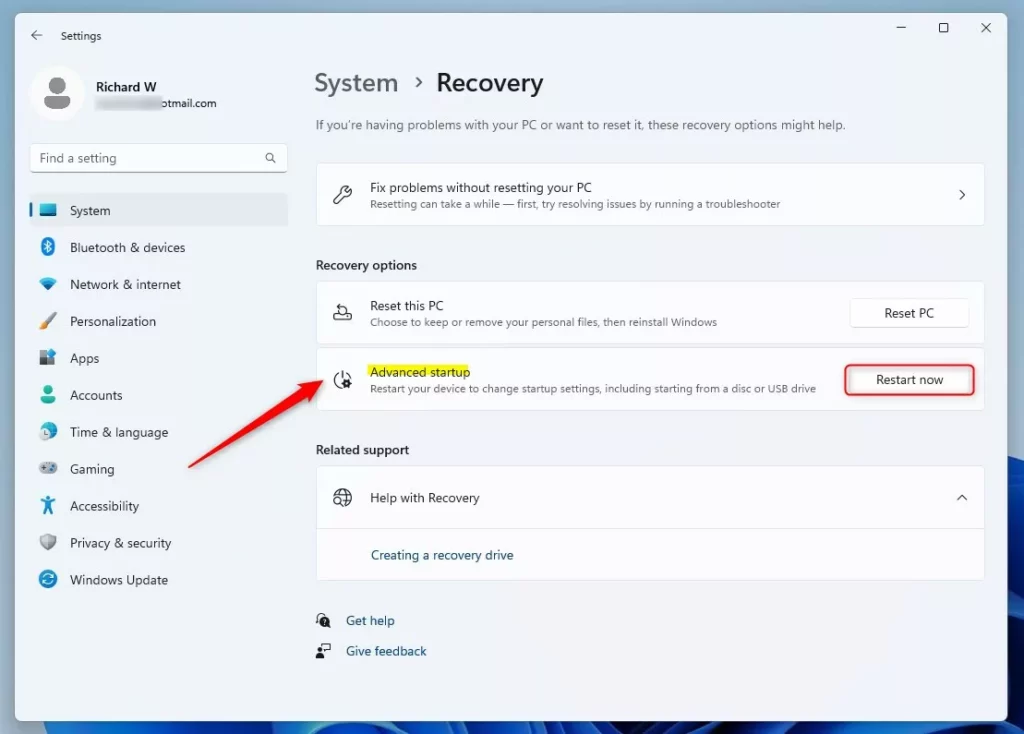
After your computer restarts, follow these steps:
- Select Troubleshoot.
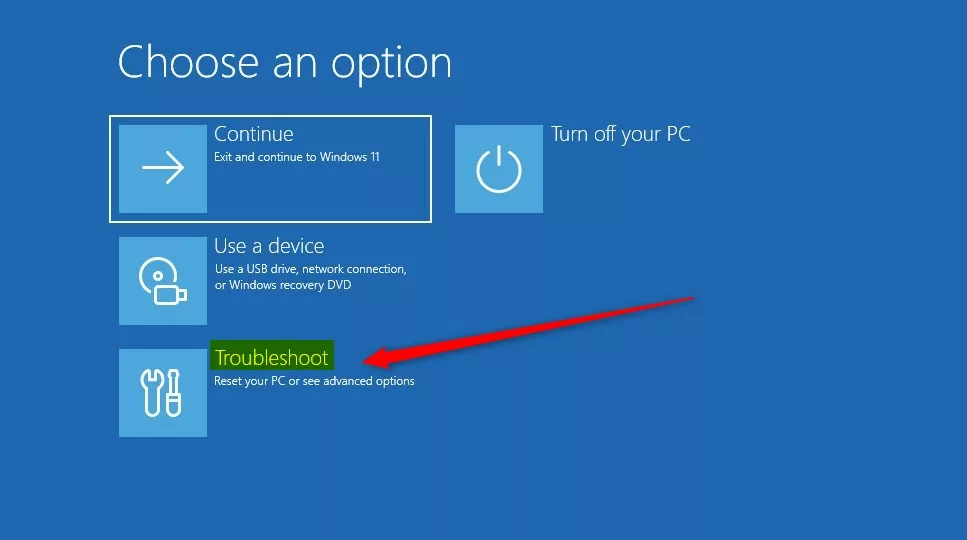
- Select Advanced options.

- Select UEFI Firmware Settings.
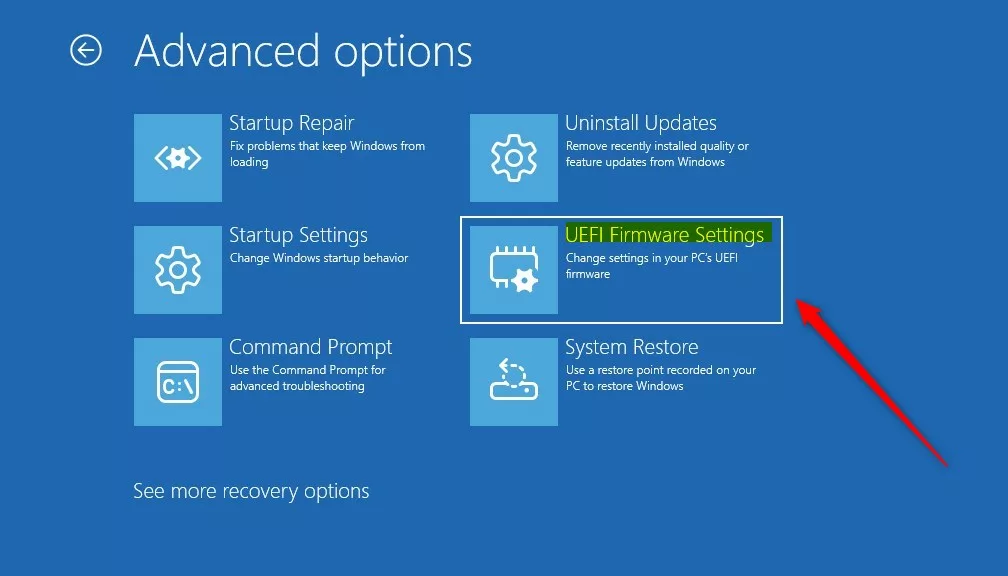
Your computer will restart and open the UEFI BIOS menu automatically.
Method 3Use a Command to Restart into UEFI BIOS
You can also use a simple command to restart your PC directly into the UEFI BIOS menu:
shutdown /r /fw /t 0Here’s how:
- [Admin Required] Right-click the Start button and select Windows Terminal (or open Command Prompt or PowerShell).
- Type or paste the command above and press Enter.
- Your PC will restart and take you straight to the UEFI BIOS settings.
Summary
- UEFI BIOS lets you control how your computer starts and runs.
- You can enter UEFI BIOS using keyboard keys during startup, Windows Advanced Startup, or a simple command.
- Knowing how to access UEFI BIOS helps you customize and fix your device.
Want to learn more? Visit the official Microsoft UEFI page here: Microsoft UEFI Firmware Info
Was this guide helpful?

About the Author
Richard
Tech Writer, IT Professional
Richard, a writer for Geek Rewind, is a tech enthusiast who loves breaking down complex IT topics into simple, easy-to-understand ideas. With years of hands-on experience in system administration and enterprise IT operations, he’s developed a knack for offering practical tips and solutions. Richard aims to make technology more accessible and actionable. He's deeply committed to the Geek Rewind community, always ready to answer questions and engage in discussions.



No comments yet — be the first to share your thoughts!