How to Enable or Disable Title bar window Shake in Windows 11

Go to Settings > System > Multitasking and toggle the “Title bar window shake” option on or off. This feature lets you minimize all other windows by shaking the active window’s title bar.
What is Aero Shake?
Aero Shake is a handy feature in Windows 11 that helps you clean up your screen quickly. When you click and hold a window’s title bar (the top part of the window) and shake it with your mouse, all other open windows will minimize. Shake it again, and those windows come back!
This feature was first introduced in Windows 7. It lets you focus on one window by minimizing all the others with a quick shake of your mouse. Why would you use this? It’s useful when you have many windows open and want to see just one quickly.
How to Use Aero Shake
- Click and hold the top bar (title bar) of the window you want to keep open.
- Move your mouse quickly back and forth (“shake” the window).
- All other windows will minimize.
- To bring those windows back, shake the same window again.
How to Turn On or Off Aero Shake in 🪟 Windows 11
If Aero Shake is not working for you or you want to turn it off, follow these simple steps:
Step 1Open Windows Settings
- Click the Start menu (the Windows icon at the bottom left) and select Settings.
- OR press
Windows key + Ion your keyboard to open Settings quickly.
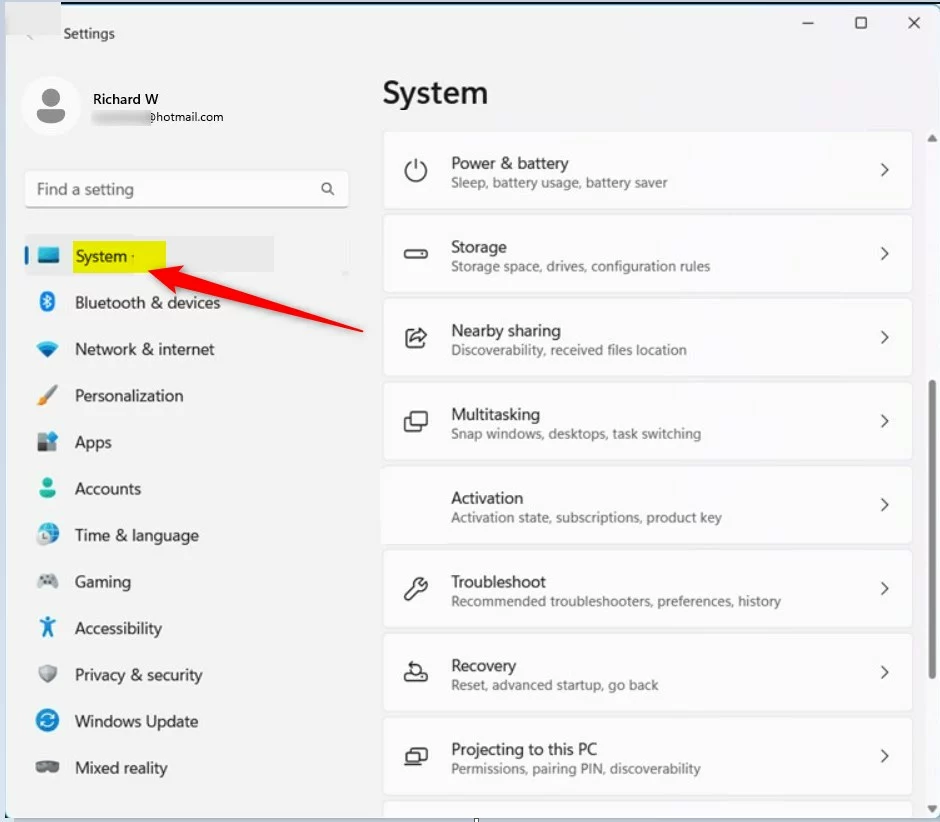
Step 2Go to System Settings
On the left side of the Settings window, click System.
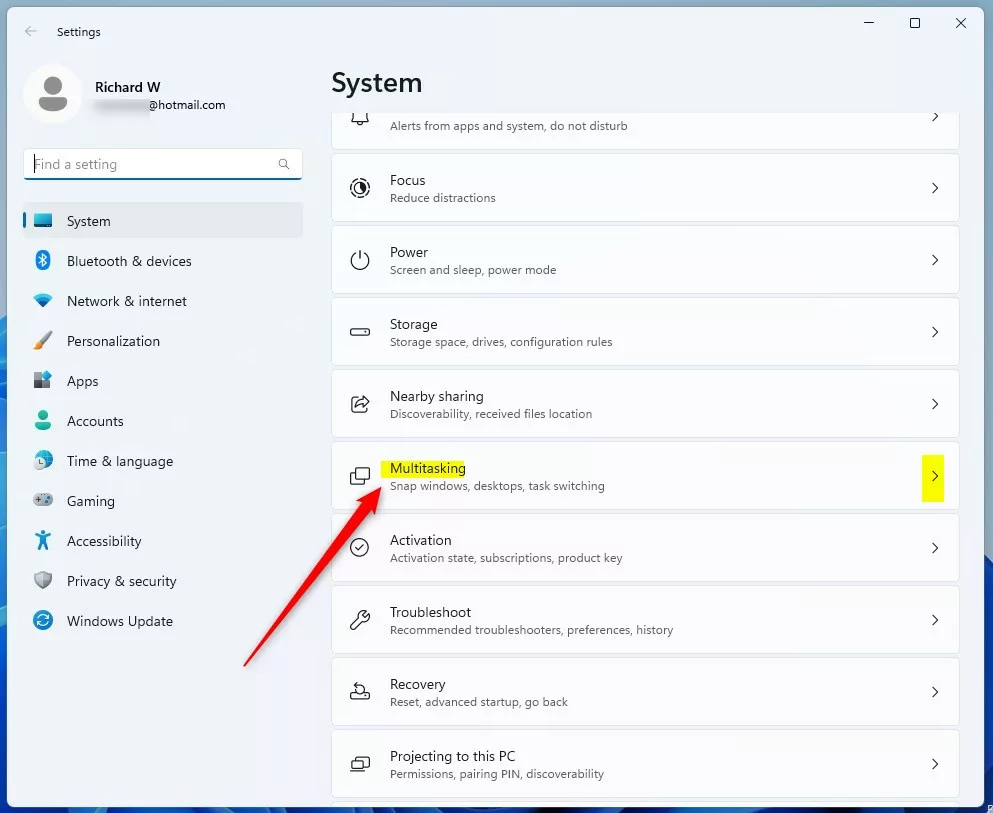
Step 3Open Multitasking Settings
On the right side, find and click the Multitasking section to open it.
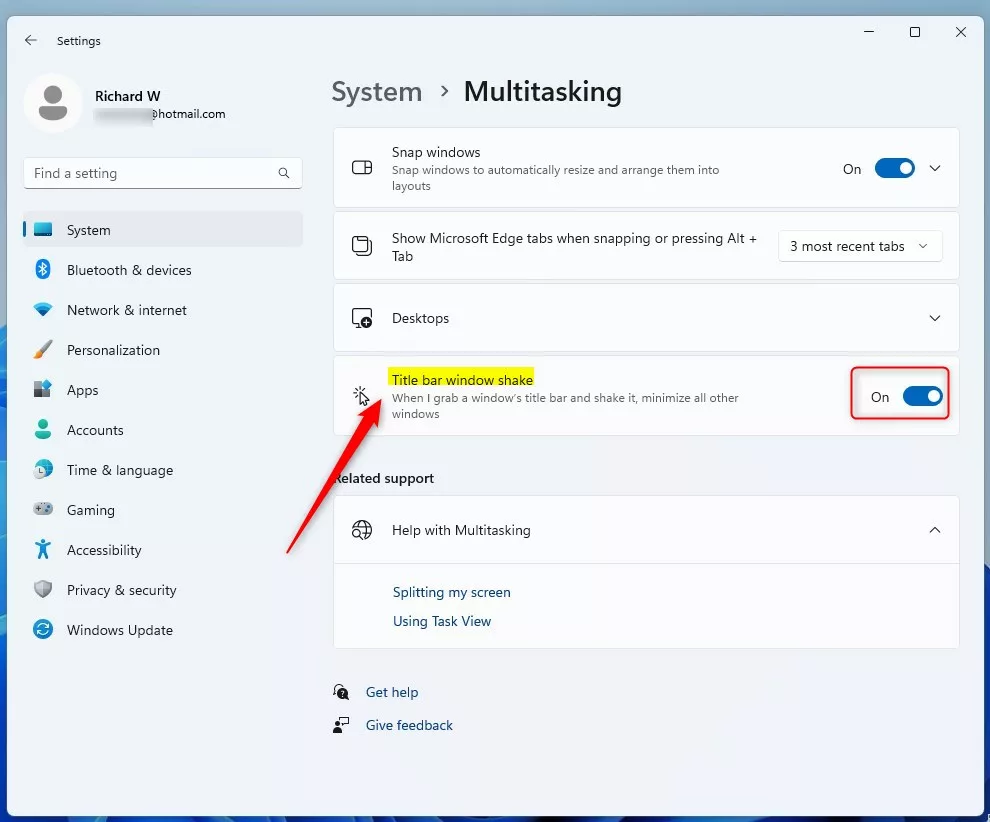
Step 4Enable or Disable Aero Shake
Look for the option called Title bar window shake. Use the switch to turn it on or off:
- Turn the switch On to enable Aero Shake.
- Turn the switch Off to disable Aero Shake.
That’s it! You have now turned Aero Shake on or off in Windows 11. Try shaking a window’s title bar to see it in action!
Summary
- Aero Shake helps you quickly minimize all windows except the one you want to focus on.
- To use it, click and hold a window’s title bar and shake it with your mouse.
- Turn Aero Shake on or off through the Settings app under System > Multitasking.
- This feature is easy to enable and disable, so you can choose what works best for you.
- For more Windows 11 tips, visit Geek Rewind.
Does 🪟 Windows 11 have aero shake?
In Windows 11, Aero Shake is not enabled by default, so you may need to turn it on manually. Here are the steps to enable Aero Shake: Open Windows Settings: Click on the Start button or press the Windows Key + I to open the Settings menu. Navigate to Multitasking: In the Settings menu, go to System > Multitasking.
Does 🪟 Windows 11 use Aero?
Unfortunately, Windows 11 does not currently provide an official “Aero Glass” theme like Windows 7 .
Was this guide helpful?

About the Author
Richard
Tech Writer, IT Professional
Richard, a writer for Geek Rewind, is a tech enthusiast who loves breaking down complex IT topics into simple, easy-to-understand ideas. With years of hands-on experience in system administration and enterprise IT operations, he’s developed a knack for offering practical tips and solutions. Richard aims to make technology more accessible and actionable. He's deeply committed to the Geek Rewind community, always ready to answer questions and engage in discussions.


No comments yet — be the first to share your thoughts!