How to Turn On or Off Print Screen Key to open Screen Capture in Windows 11

You can enable or disable the Print Screen key’s ability to launch the Screen Capture tool in Windows 11 with a simple setting change.
This means you control whether pressing your Print Screen key takes a screenshot or opens the Snipping Tool for advanced capture options.
As of Windows 11 version 22H2, the default behavior for the Print Screen key may not activate screen capture directly.
You can easily reconfigure this setting to suit your workflow, allowing you to capture exactly what you need using just that one key.
Open Settings, go to Accessibility, then Keyboard, and toggle “Use the Print Screen button to open screen snipping” to On. Restart your computer to apply the change.
How to enable the Print Screen shortcut
You can easily set up your Print Screen key to open the Snipping Tool in Windows 11, making it super quick to grab screenshots without needing a special keyboard combo.
1. Open Settings by pressing Windows key + I or clicking Start then Settings.
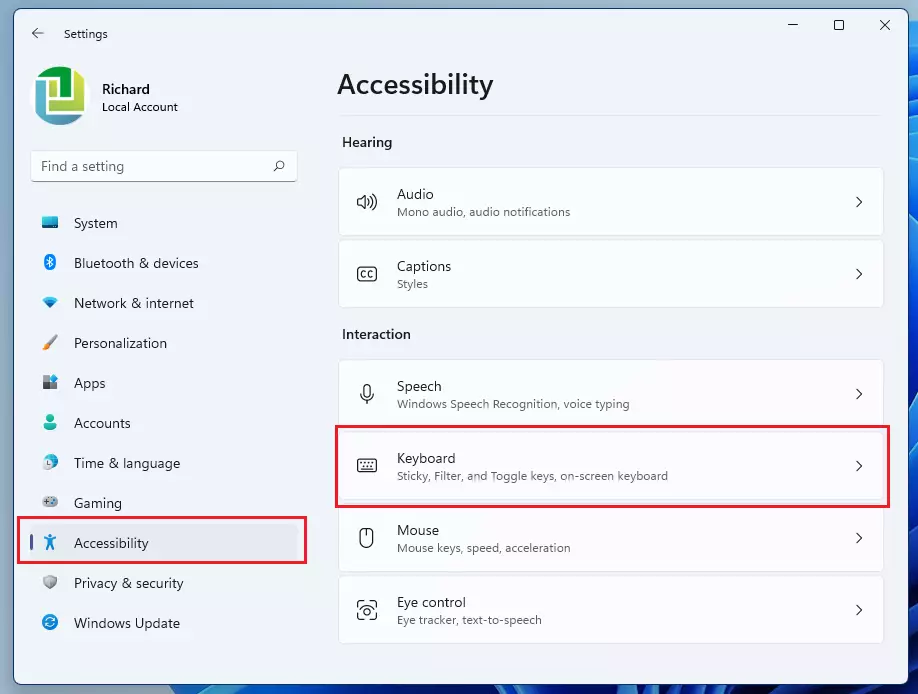
2. Click Accessibility on the left, then select Keyboard on the right.
3. Toggle the switch for Use the Print Screen button to open screen snipping to On.
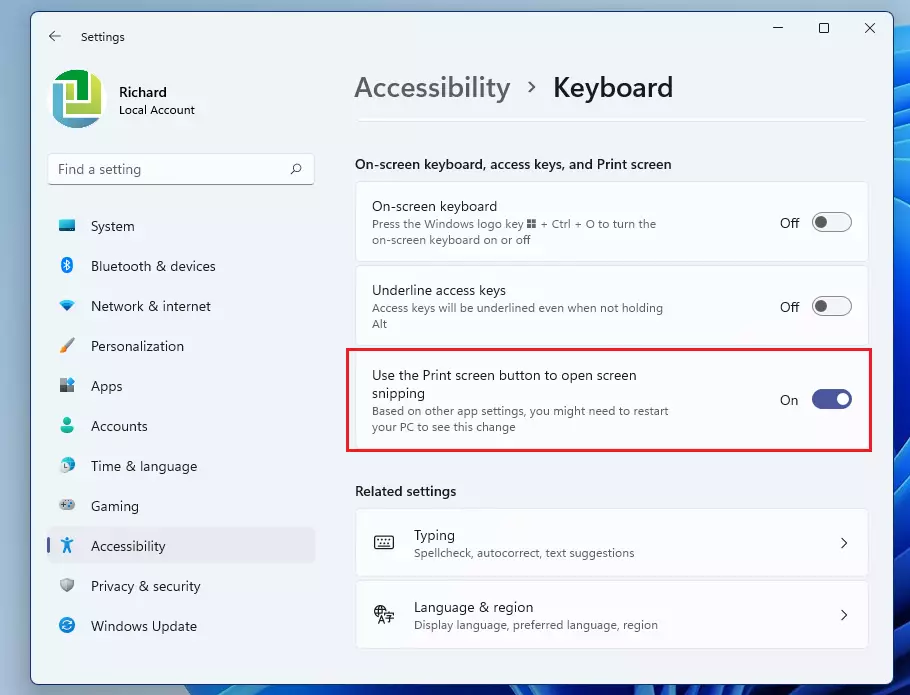
4. Restart your computer to apply the change.

Note: If you are on a laptop, you might need to press Fn + PrtScn.
Essential Snipping Tool Features
The Windows 11 Snipping Tool is more than just a camera for your screen. It includes a color picker to grab hex codes (those are the codes that represent specific colors), a redact tool to hide sensitive info, and a delay timer for capturing tricky drop-down menus.
How to use the delay timer
Open the Snipping Tool app, click the clock icon, and choose a delay (e.g., 3 seconds). This gives you time to open a menu before the screen freezes for the capture.
Screen Recording and Editing
Yes, the Snipping Tool supports screen recording! Select the video camera icon in the app, draw your area, and click Start. You can also edit your images by adding arrows, highlighting text, or cropping the edges.
Frequently Asked Questions
Summary
Turning your Print Screen key into a shortcut for the Snipping Tool is a simple way to capture screenshots faster in Windows 11.- The Print Screen key can be mapped to open the Snipping Tool for faster access.
- Use Windows key + Shift+S if you prefer not to change settings.
- The Snipping Tool includes video recording, editing, and redaction features.
- Screenshots are stored in the Pictures folder by default.
- Always restart your PC after changing keyboard settings for the best results.
Where are my screenshots saved?
Your screenshots automatically go to 📁C:\Users\Username\Pictures\Screenshots. You can also paste copied snips directly into apps like Word or Paint. Plus, check the Snipping Tool’s history for recent captures.
How do I take a screenshot without the Print Screen key?
You can always use the keyboard shortcut Windows key + Shift+S to trigger the capture tool. Alternatively, search for Snipping Tool in the Start menu and click New to start a capture manually without needing any specific keys.
Was this guide helpful?

About the Author
Richard
Tech Writer, IT Professional
Richard, a writer for Geek Rewind, is a tech enthusiast who loves breaking down complex IT topics into simple, easy-to-understand ideas. With years of hands-on experience in system administration and enterprise IT operations, he’s developed a knack for offering practical tips and solutions. Richard aims to make technology more accessible and actionable. He's deeply committed to the Geek Rewind community, always ready to answer questions and engage in discussions.


[…] 11 comes with a new Snipping Tool app which replaces the classic Snip & Sketch app in previous versions for taking screenshots. The classic Snip & Sketch and the new Snipping […]
[…] 11 has a new Snipping Tool app that replaces the classic Snip & Sketch app in previous versions for taking screenshots. The classic Snip & […]
[…] of devices under nearby Share when sharing a local file from the desktop, File Explorer, Photos, Snipping Tool, Xbox, and other apps that use the built-in Windows share window has been enhanced by using UDP […]
[…] of devices under nearby Share when sharing a local file from the desktop, File Explorer, Photos, Snipping Tool, Xbox, and other apps that use the built-in Windows share window has been enhanced by using UDP […]