
Your Windows 11 computer uses the Windows Security app to help keep you safe. One part of this app is called Firewall & Network Protection. It can send you messages (notifications) about your computer’s security.
By default, Windows Security will send you alerts about important things, like when the firewall blocks a new app or if there is a security problem.
These notifications include information about your firewall, antivirus, and other security features like Windows Defender SmartScreen.
Sometimes, these messages are just to keep you informed and you might not need to do anything. If you prefer not to get these notifications, you can easily turn them off. Or, if you want to stay informed, you can turn them back on.
How to Turn On or Off Firewall & Network Protection Notifications in Windows 11
Follow these simple steps to control the firewall notifications on your computer:
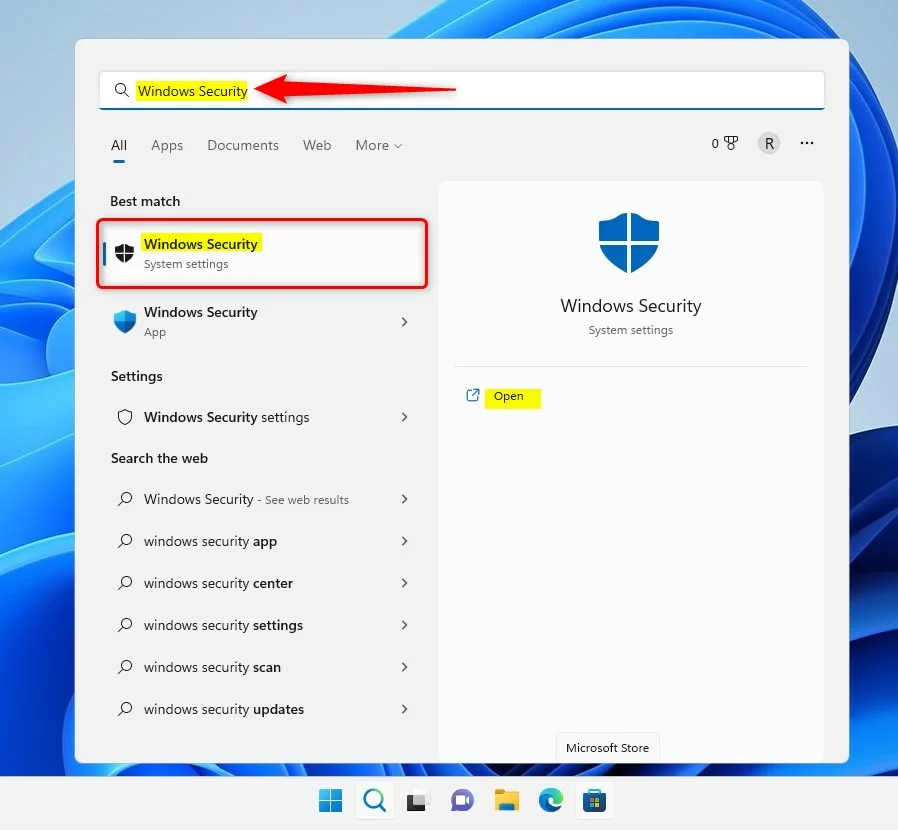
- Open the Start menu: Click the Start button (the Windows icon) on the bottom-left of your screen.
- Search for Windows Security: Type
Windows Securityinto the search box and click the Windows Security app from the list.
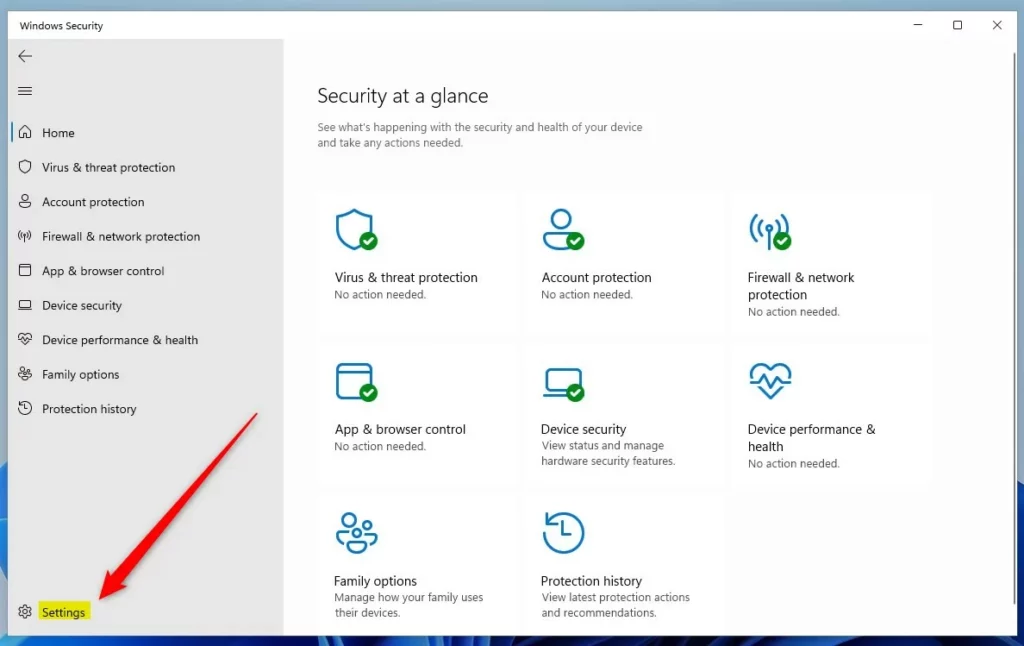
- Open app settings: In the Windows Security app, click the Settings button (it looks like a gear) near the top-left corner.
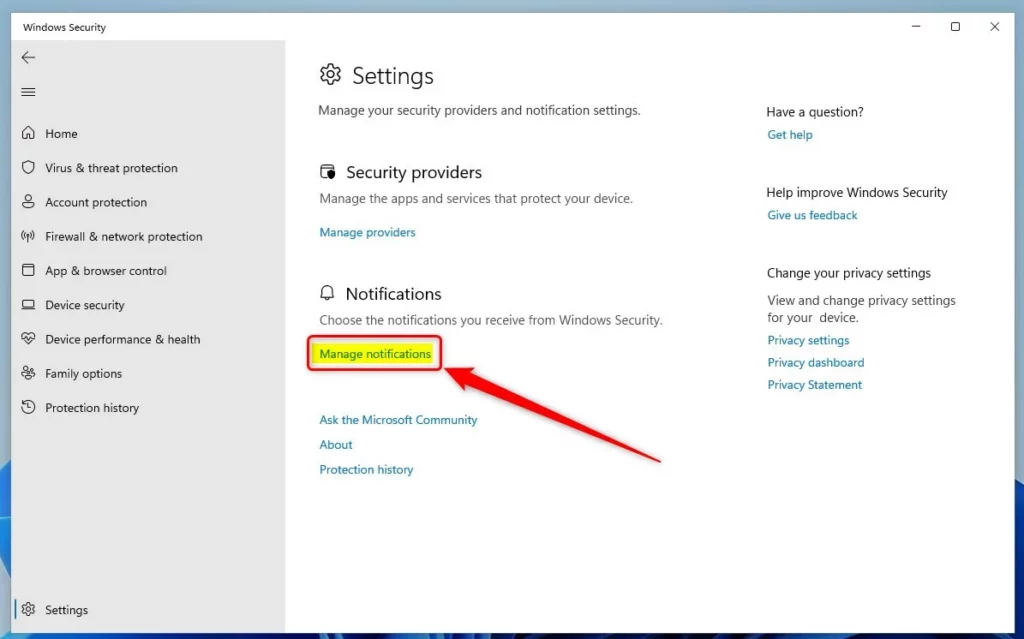
- Manage notifications: On the Settings page, find the Notifications section and click the Manage notifications link.
- Turn notifications on or off: Under Firewall & network protection notifications, use the toggle switch to turn notifications Off or On.
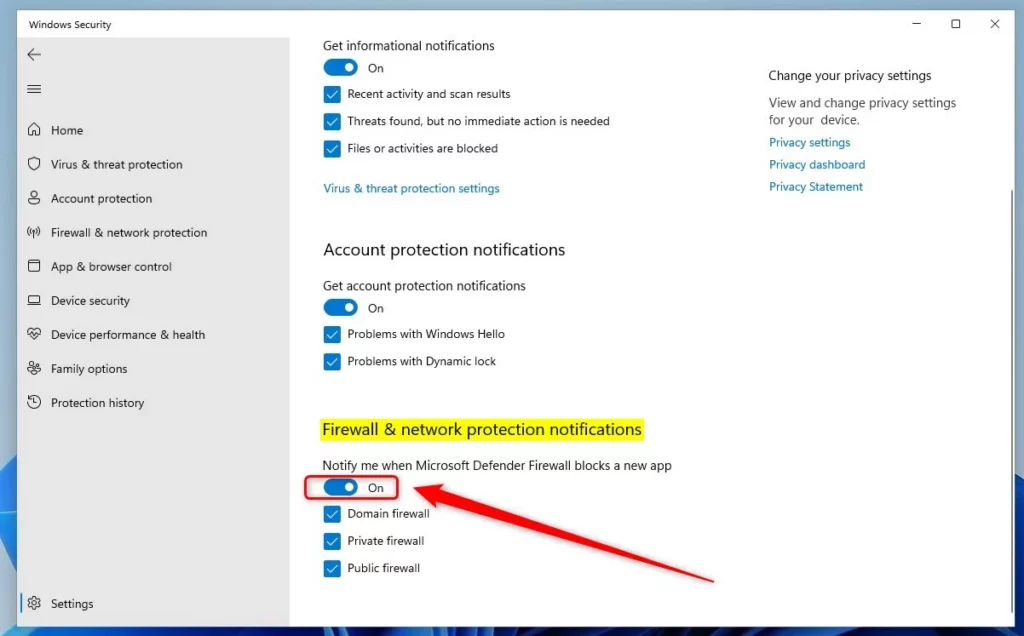
You can also choose which types of notifications you want by checking or unchecking options for Domain firewall, Private firewall, and Public firewall.
Note: Even if you turn off these notifications, Windows will still alert you if there is a serious problem that needs your immediate attention.
That’s it! You’ve now learned how to control your firewall notifications in Windows 11.
More Info
For more details, you can visit the official Microsoft page about notifications in Windows Security: Microsoft.com – Hide Windows Security notifications
Summary
- You can turn firewall and network protection notifications on or off using the Windows Security app.
- These notifications help keep you informed about your computer’s security.
- Follow simple steps to open Windows Security, go to settings, and manage notifications.
- Choose which firewall notifications you want to see, or turn them off if you don’t want any messages.
- Windows will still alert you for urgent security issues no matter your notification settings.
If you found this helpful, feel free to share your thoughts or ask questions in the comments below!
Leave a Reply Cancel reply