How to Enable or Disable Blinking Cursor on Braille Display in Windows 11

You enable or disable the blinking cursor on a Braille display in Windows 11 by adjusting Narrator settings.
The blinking cursor on a Braille display indicates your current position on the screen, and you can choose to have it blink or remain static to suit your preference.
Windows 11 includes Narrator, a built-in screen reader that assists users with visual impairments by reading screen content aloud. You can customize various Narrator features, including the Braille display cursor behavior, to enhance your computing experience.
This setting is part of the broader accessibility options available within Windows 11, offering granular control over how you interact with your PC.
Adjust Narrator settings in Windows 11 to control the blinking cursor on your Braille display. Navigate to Settings > Accessibility > Narrator > Braille, then toggle “Blink cursor on braille display” to your preference.
How to Turn the Blinking Cursor On or Off for a Braille Display
Follow these easy steps to change the blinking cursor setting on your Braille display in Windows 11:
- Open Windows Settings: Click the Start menu (the Windows icon at the bottom left), then click Settings. Or press Windows key + I on your keyboard to open Settings quickly. Learn more about opening Settings
- Go to Accessibility: In the Settings window, click Accessibility on the left side.
- Select Narrator: On the right side, find and click the Narrator section to open its settings.
Narrator option in Windows 11 Settings - Find Braille Settings: Scroll to the Braille section, then click Use a braille display with Narrator to open braille options.
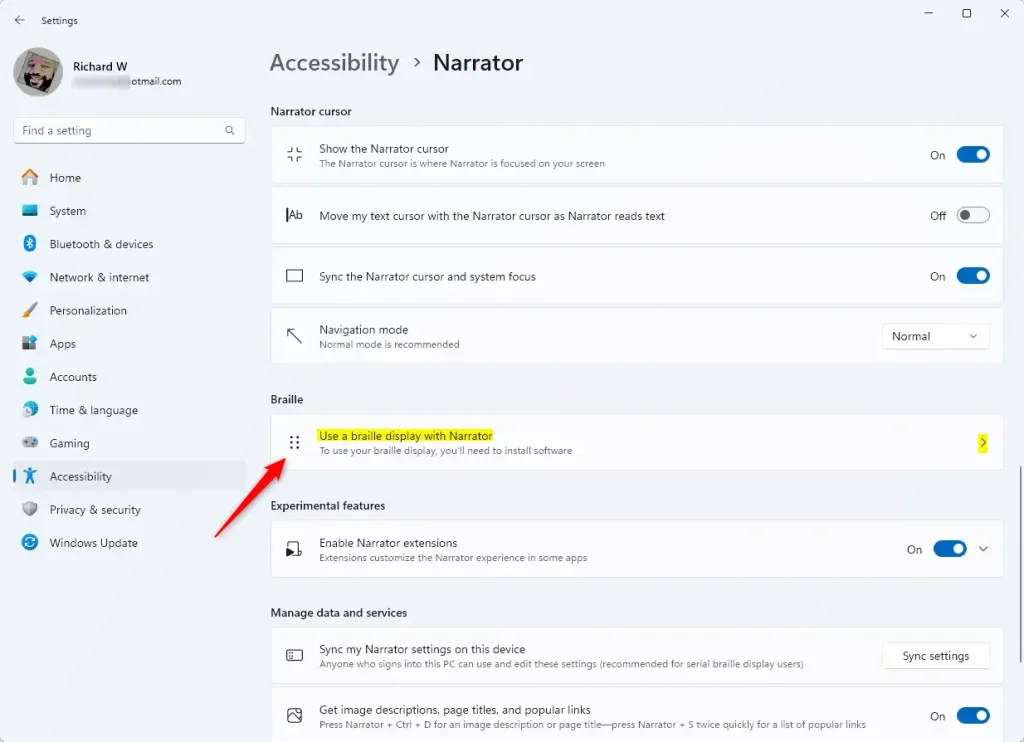
Braille display settings in Narrator - Install Braille support if needed: If you haven’t installed Braille support yet, click Download and install braille. More on installing Braille support
- Add your Braille display: Click Add a braille display and choose your Braille display’s brand and how it connects to your PC.
- Turn the blinking cursor on or off: Under the Braille cursor section, find Blink cursor on braille display. Toggle the switch to turn it On or Off.
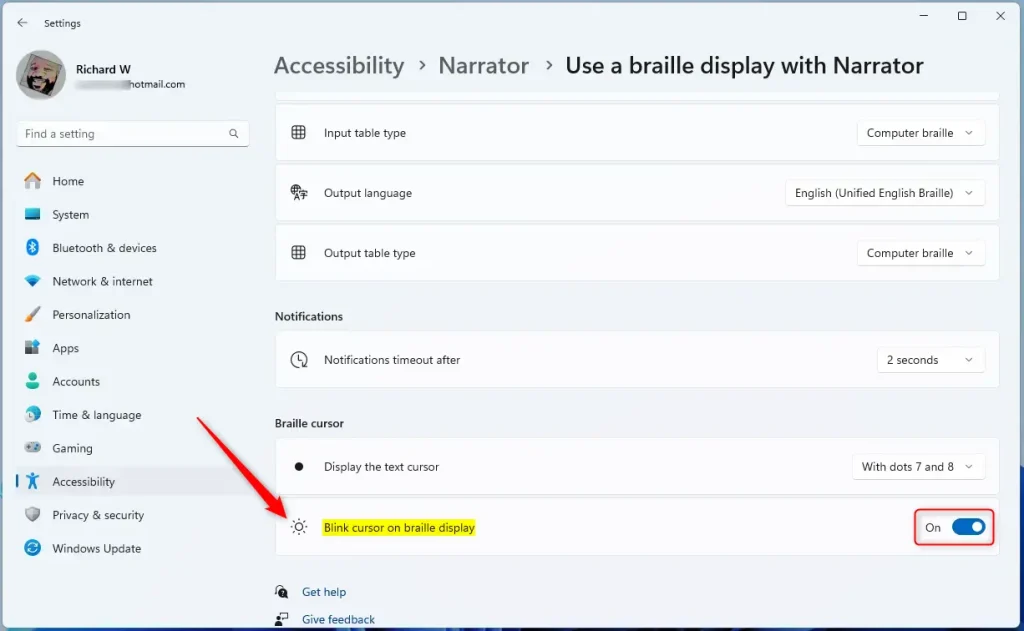
Toggle blinking cursor on Braille display in Windows 11
That’s all! You’ve now set your Braille display cursor to blink or stay still, whichever you prefer.
Summary
- You can choose to have the cursor blink or not on your Braille display in Windows 11.
- Changing this setting is easy through Windows Settings and the Narrator app.
- This helps make Windows more comfortable and easier to use for people who rely on Braille displays.
Was this guide helpful?

About the Author
Richard
Tech Writer, IT Professional
Richard, a writer for Geek Rewind, is a tech enthusiast who loves breaking down complex IT topics into simple, easy-to-understand ideas. With years of hands-on experience in system administration and enterprise IT operations, he’s developed a knack for offering practical tips and solutions. Richard aims to make technology more accessible and actionable. He's deeply committed to the Geek Rewind community, always ready to answer questions and engage in discussions.




No comments yet — be the first to share your thoughts!