
Want to show or hide the scrollbar in the Windows Terminal app? This guide will walk you through easy steps to change the scrollbar settings on Windows 11.
What is Windows Terminal?
Windows Terminal is a modern app where you can use command-line tools like Command Prompt, PowerShell, and even Linux commands if you have Windows Subsystem for Linux (WSL) installed.
You can customize many things in Windows Terminal, like language, window size, default profile, and how it starts. One useful thing you can change is the scrollbar — the bar on the side that helps you scroll through long command outputs.
Why change the scrollbar?
The scrollbar helps you move up and down when there’s a lot of text. Sometimes you might want it always visible, sometimes hidden, or only visible when you move your mouse near it. Changing it can make using the Terminal easier and more comfortable for you.
How to change the scrollbar visibility in Windows Terminal
- Open Windows Terminal:
Click theStart menu, typeTerminal, and click Windows Terminal from the results.

- Open Settings:
Once Terminal is open, click the small down arrow (˅) near the top, then select Settings. Or pressCtrl + ,on your keyboard.

- Go to Defaults & Appearance:
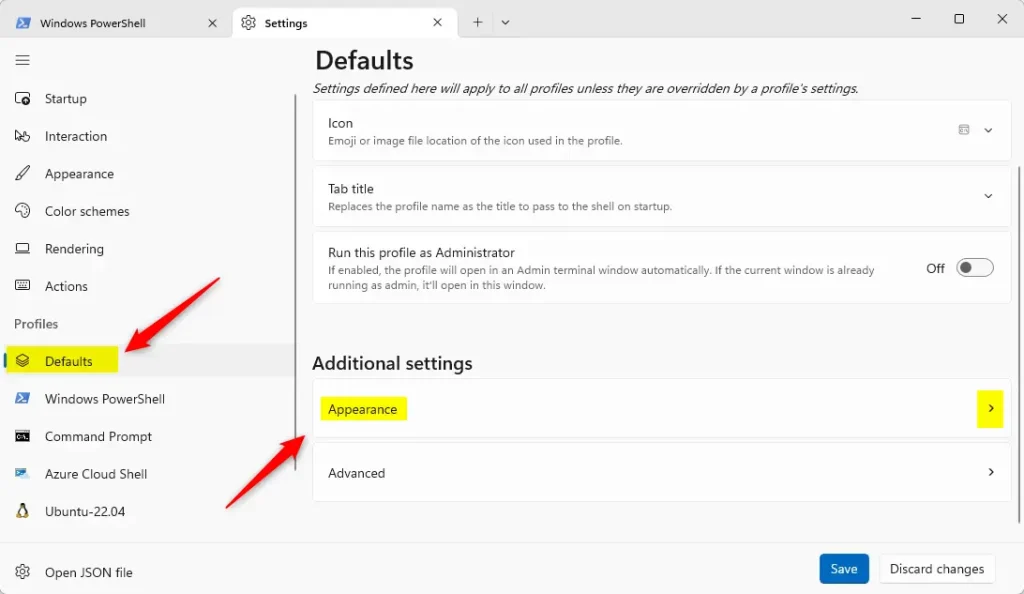
In the Settings window, find and click onDefaultsunder the Profiles section on the left side.
Then click on the Appearance section on the right to open it.
- Change Scrollbar Visibility:
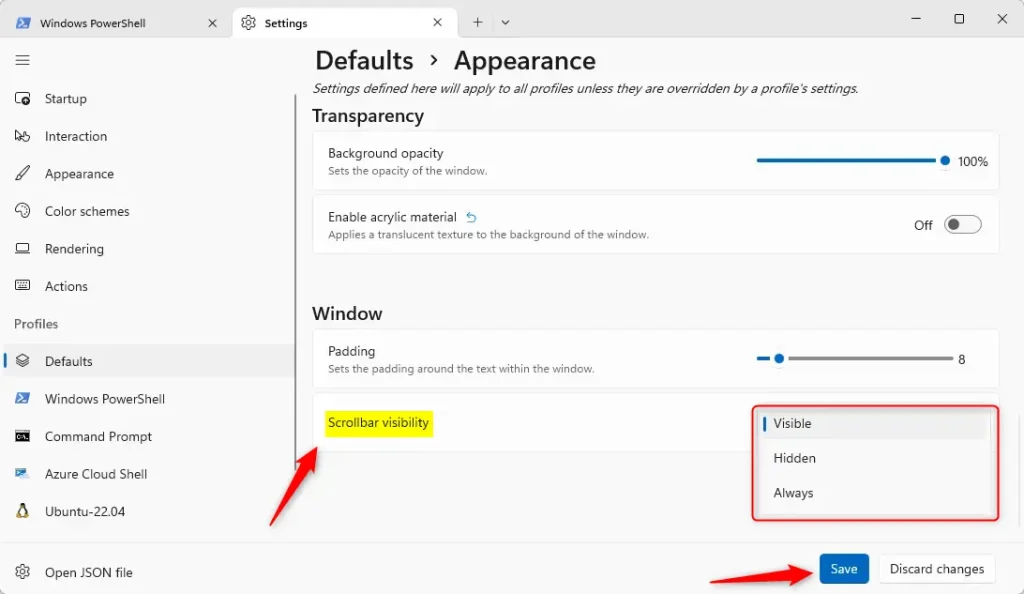
Scroll down until you see Scrollbar visibility under the Window section.
Click the dropdown menu and choose one of these options:- Visible (default): Scrollbar appears only when you move your mouse near the edge.
- Hidden: Scrollbar is always hidden.
- Always: Scrollbar is always visible.
- Save your changes:
Click the Save button at the bottom right to apply your new scrollbar setting.
That’s it! Your scrollbar will now behave the way you want.
Summary
- You can easily change when the scrollbar shows up in Windows Terminal.
- This helps you scroll through long command outputs more comfortably.
- Just open Settings, go to Defaults → Appearance, and pick your scrollbar option.
- Feel free to try each option and see what works best for you!
If you have questions or want to share your tips, leave a comment below!


Leave a Reply Cancel reply