
If you use a laptop, you may want to decide what happens when you close its lid. This guide will show you how to easily change those settings on Windows 11 using simple steps.
What Are Lid Close Settings?
These settings tell your laptop what to do when you close the lid. Usually, laptops go to sleep mode by default. But you can make your laptop stay awake, shut down, or hibernate instead.
Why Change This?
For example, if you connect your laptop to an external screen, you might want it to keep working even when the lid is closed. Or, if you want to save battery, you may want it to sleep when you close the lid.
How to Change Lid Close Settings in Windows 11
Windows 11 made it easier to change these settings using the Settings app. Here’s how to do it:
- Open the Settings app:
- Click the Start menu and select Settings, or
- Press
Windows key + Ion your keyboard to open it quickly.
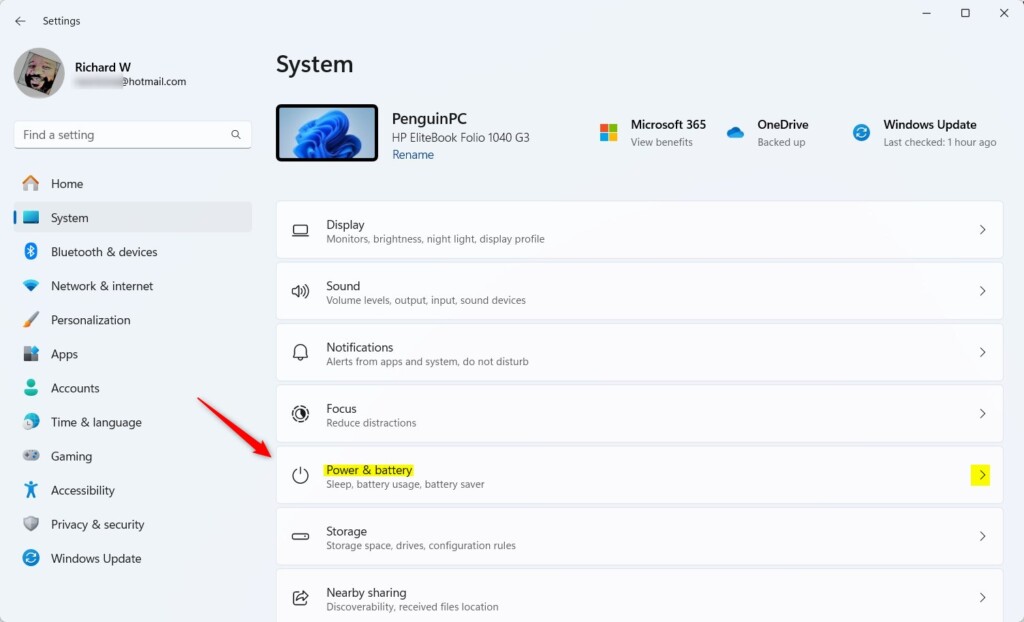
- Go to System settings:
In the Settings window, click System on the left side.

- Open Power & battery:
On the right side, find and click the Power & battery section to expand it.
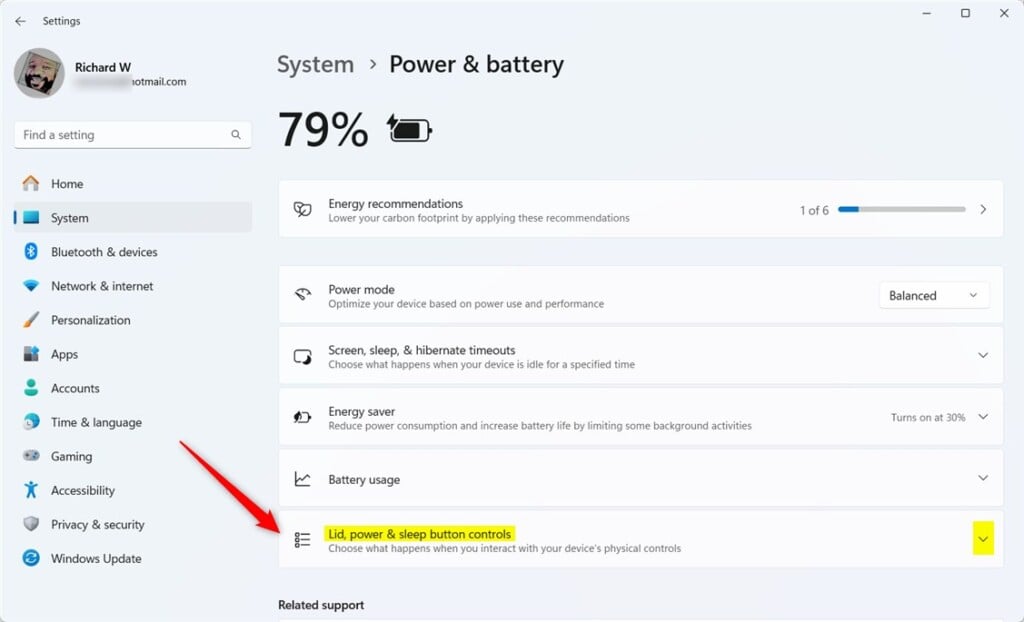
- Find Lid, power & sleep button controls:
Click to open the Lid, power & sleep button controls area.
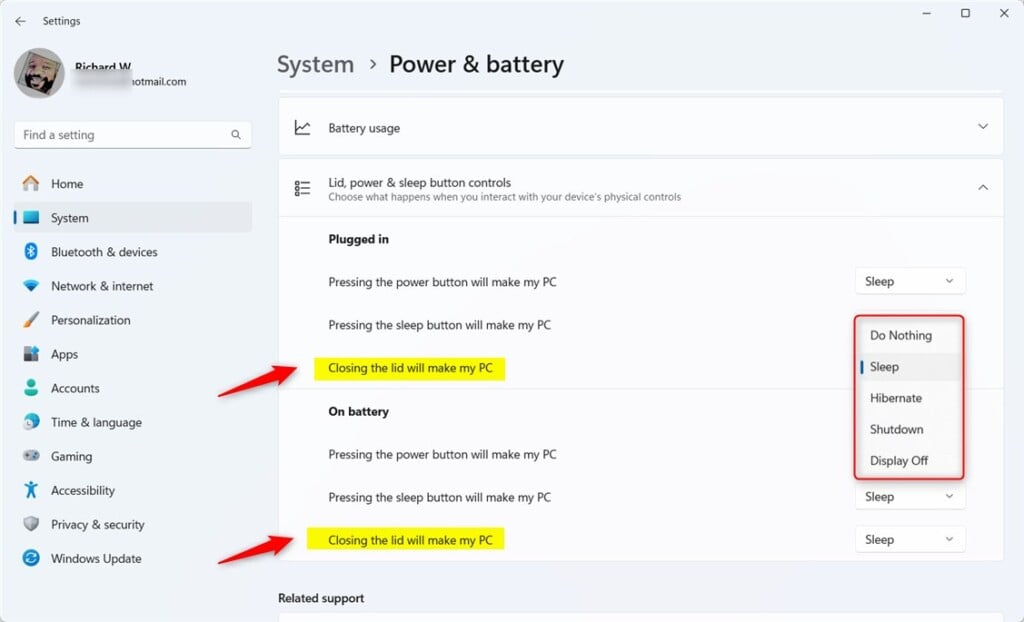
- Choose what happens when you close the lid:
Under Plugged in or On battery, click the dropdown menu below “Closing the lid will make my PC”. Select one of the options:
- Do Nothing – Your laptop stays on and does nothing.
- Sleep – The laptop goes to sleep (default).
- Hibernate – Saves your work and turns off using very little power.
- Shutdown – Turns off the laptop completely.
- Display Off – Turns off just the screen but keeps the laptop running.
- Close the Settings app:
Once done, you can close the Settings window. Your choice will be saved automatically.
That’s it! Your laptop will now behave exactly how you want when you close the lid.
Summary
- Windows 11 lets you easily change what happens when you close your laptop lid.
- You can make your laptop sleep, shut down, hibernate, turn the display off, or do nothing.
- This is helpful if you use an external monitor or want to save battery when you close the lid.
- The new Settings app method is easier and more modern than the old Control Panel way.
If you have questions or want to share tips, feel free to leave a comment below!
For detailed tutorials on related topics, check out these helpful links:
Change Screen and Sleep Settings in Windows 11
How to Shut Down a Windows 11 PC

Leave a Reply Cancel reply