

This article explains how to rename a Bluetooth device in Windows 11.
Bluetooth is a wireless technology. It lets devices talk to each other over short distances. In Windows, you can use Bluetooth to connect many devices to your PC. These devices include speakers, headphones, smartphones, and other computers. You don’t need cables.
When you pair a Bluetooth device with your computer, you can transfer files, stream music, make calls, and more. It depends on what your device can do.
If your Bluetooth device is connected but doesn’t have a friendly name, you can rename it to something easier to remember.
Why Rename Your Bluetooth Device?
Renaming a Bluetooth device in Windows 11 involves opening the Devices and Printers folder, right-clicking your device, selecting Properties, navigating to the Bluetooth tab, entering a new name, and clicking OK to apply the change.
How to Rename a Bluetooth Device in Windows 11
Renaming a Bluetooth device in Windows 11 takes just three steps: open Device and Printer, right-click your device, select Properties, navigate to the Bluetooth tab, enter a new name, and click OK. Note that some devices may not retain the new name permanently.
- Open the Device and Printer folder.
- Find the device you want to rename. Right-click it and select Properties from the menu that appears.
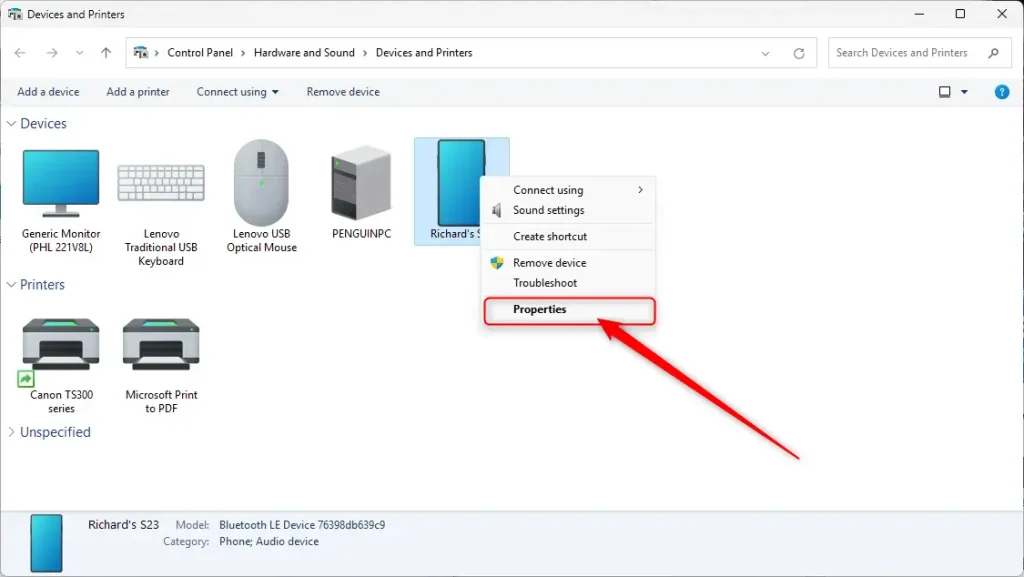
- A properties window opens. Click the Bluetooth tab. Type a new name in the name field and click OK.
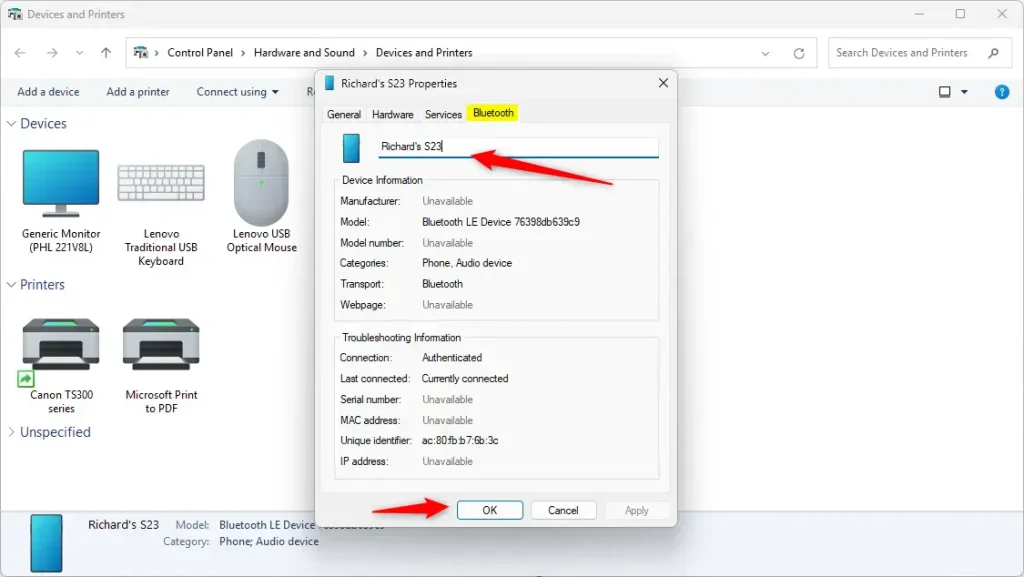
- To make the new name work right away, disconnect your Bluetooth device from your Windows 11 PC. Then reconnect it. ⚠️ Requires admin privileges
- In some cases, you may need to restart your computer.
That’s it!
What Happens When You Rename Your Device?
Your device will now show the new name when you connect it. This makes it easier to spot in your list of Bluetooth devices.
Summary
Renaming Bluetooth devices helps you identify and manage connected devices more easily. It’s a helpful practice when you have multiple devices of the same type. Following these simple steps, you can quickly rename your Bluetooth devices in Windows 11 for better organization and easier use.
Frequently Asked Questions
How do I rename a Bluetooth device in Windows 11?
Will the new name be saved after renaming my Bluetooth device?
Why should I rename my Bluetooth devices?
What if my Bluetooth device doesn't show up in the Device and Printer folder?
Do I need to restart my computer after renaming a Bluetooth device?



Leave a Reply