

This post shows students and new users how to install and make Vivaldi their default web browser in Windows 11.
Vivaldi is a relatively new web browser designed for everything you need out-of-the-box, and many users would rather use Vivaldi than Chrome, Firefox, or Edge.
Vivaldi is built for speed and efficiency and supports Windows, Linux, and Mac OS. Vivaldi should be considered for users looking for a web browser built to speed up web browsing.
The default web browser in Windows 11 is the new Microsoft Edge browser. Most people might not realize that the new Edge is better and more useful than the old one and may not be open to using it. Instead, they are switching to Vivaldi or another browser to make it their default browser.
To start making Vivaldi your default web browser, follow the steps below.
Set Vivaldi as the default web browser on Windows 11
The new Microsoft Edge is the default browser in Windows 11. Follow the steps below to configure Vivaldi as default, and always use it as your preferred browser.
This post assumes the Vivaldi web browser is already installed on your computer. If not, download Vivaldi using the link below.
Download the Vivaldi Browser for Computer
Once downloaded, install it and continue below to make it your default web browser on Windows 11.
Windows 11 has a centralized location for the majority of its settings. Everything can be done, from system configurations to creating new users and updating Windows from its System Settings pane.
To get to System Settings, you can use the Windows key + I shortcut or click on Start ==> Settings, as shown in the image below:
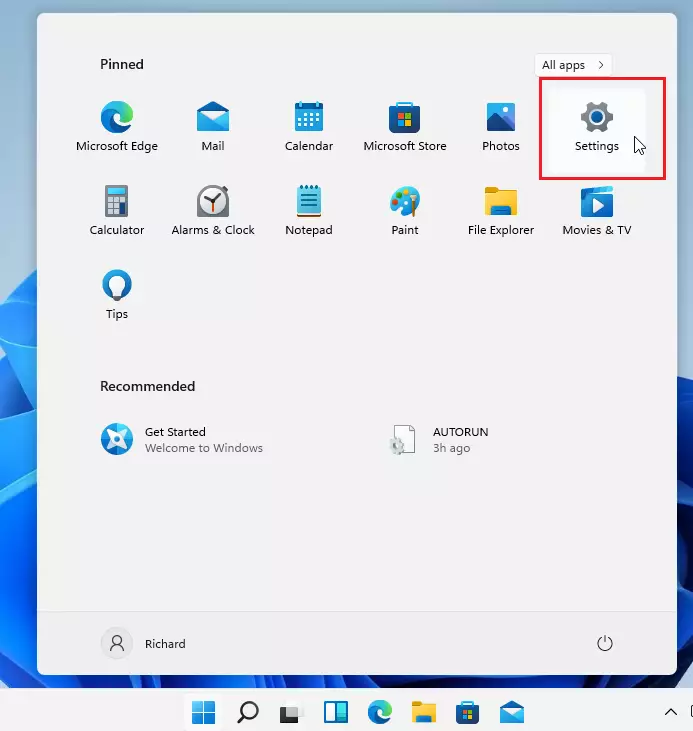
Alternatively, you can use the search box on the taskbar and search for Settings. Then select to open it.
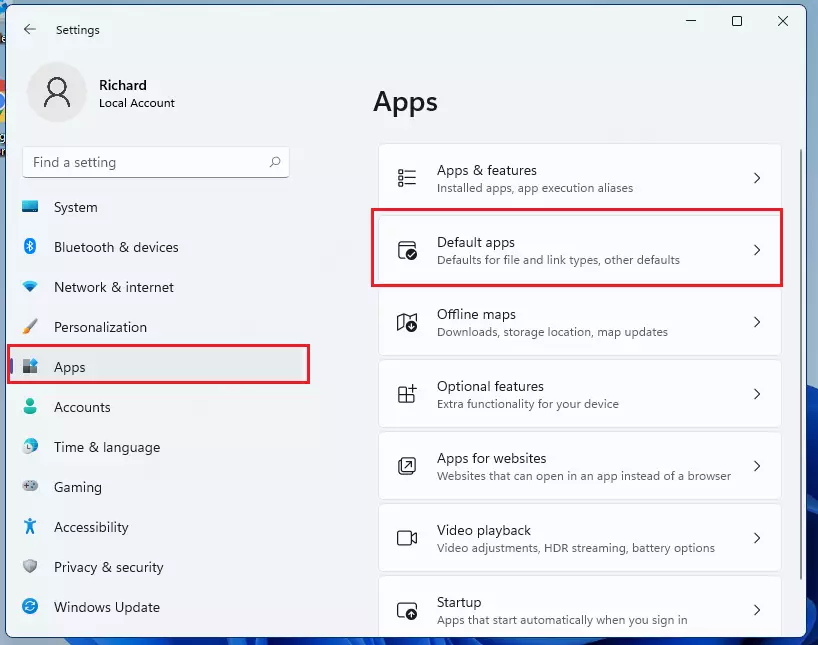
Windows Settings pane should look similar to the image below. In Windows Settings, click Apps and select Default Apps on the right pane of your screen, as shown in the image below.
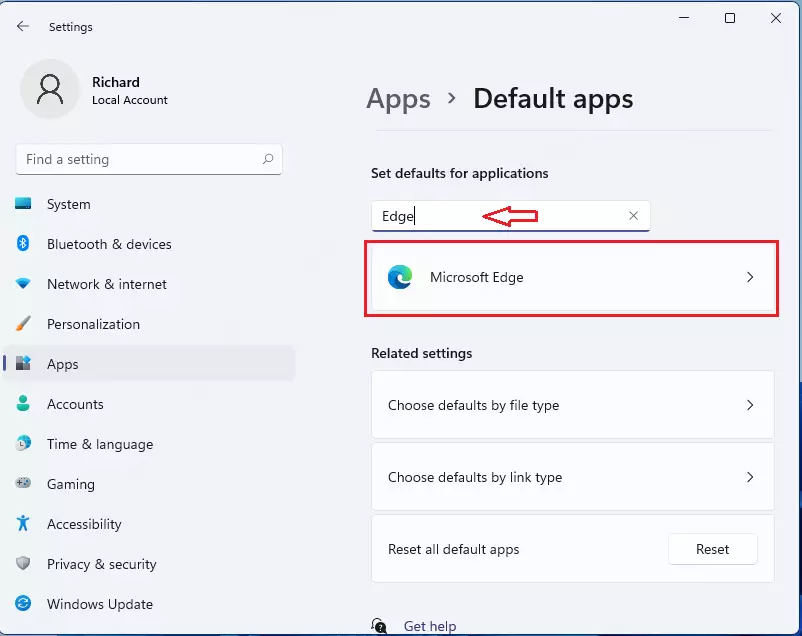
When Default apps settings open, use the search box and type Edge to search for and set the default app for applications.
Microsoft Edge will appear in the result below. Click on Microsoft Edge.
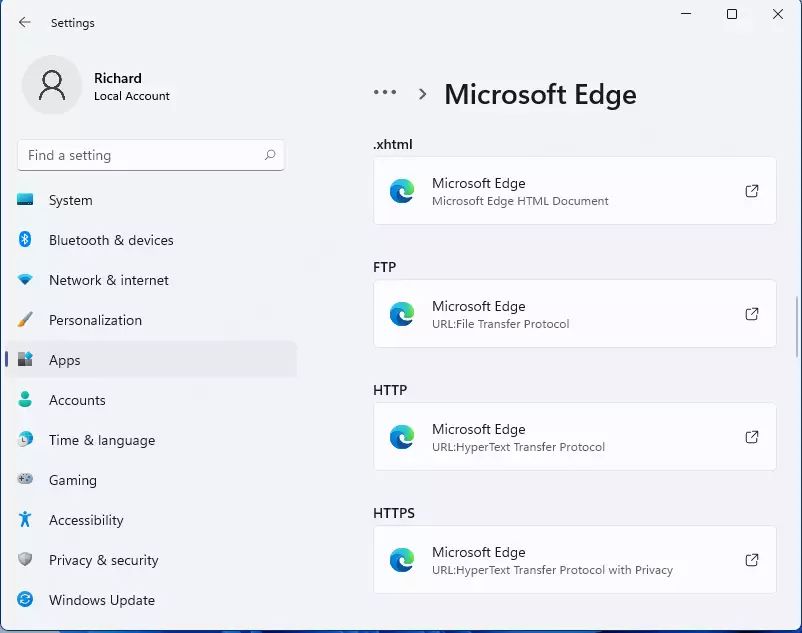
The next page will list all the default file types and link types for which Edge is the default. Simply select each type and switch from Edge to Vivaldi.
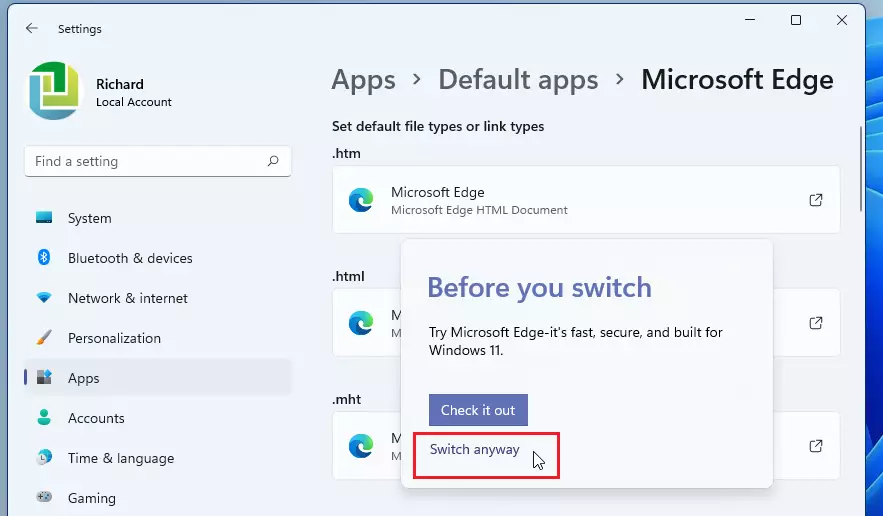
When you select Microsoft Edge, a pop-out window will prompt you to check out Edge before switching. If you still want to switch, click Switch anyway.
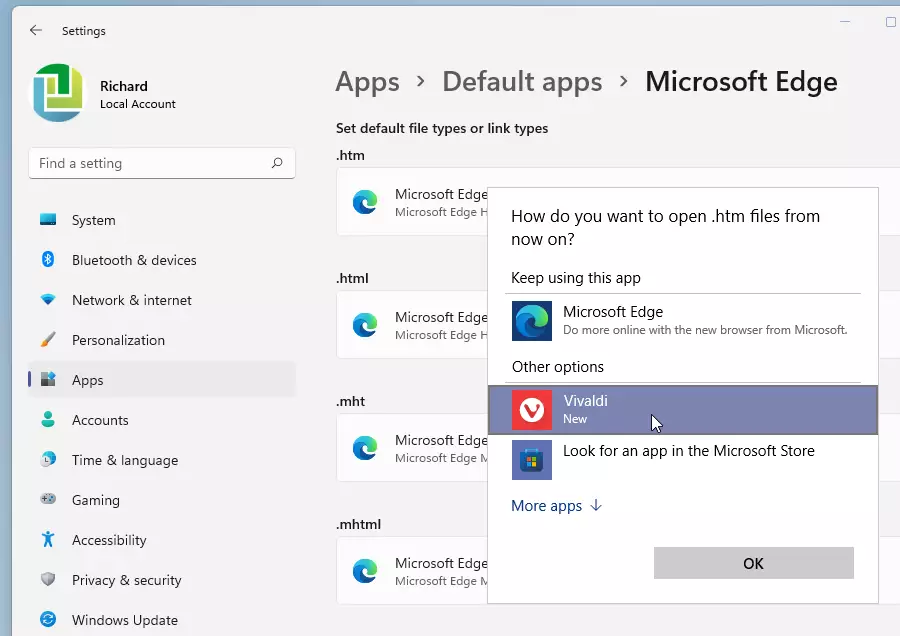
Choose Vivaldi as the default for each file type, then click OK to confirm and switch.
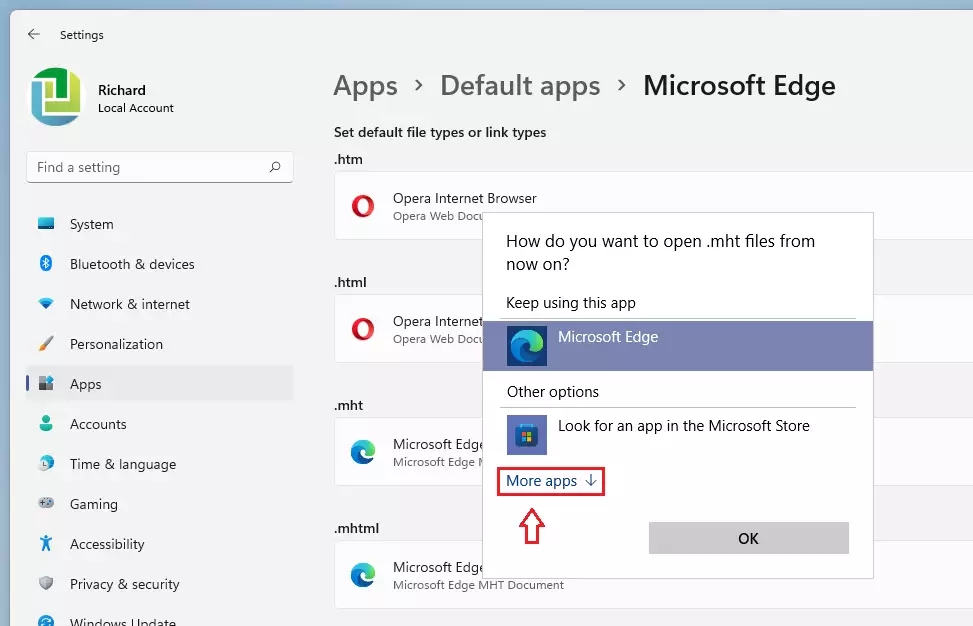
Sometimes, when you select a file extension, you won’t see Vivaldi immediately to switch to. Click on the More app link to show hidden Vivaldi.
When you’re done, each file type should be switched to Vivaldi.
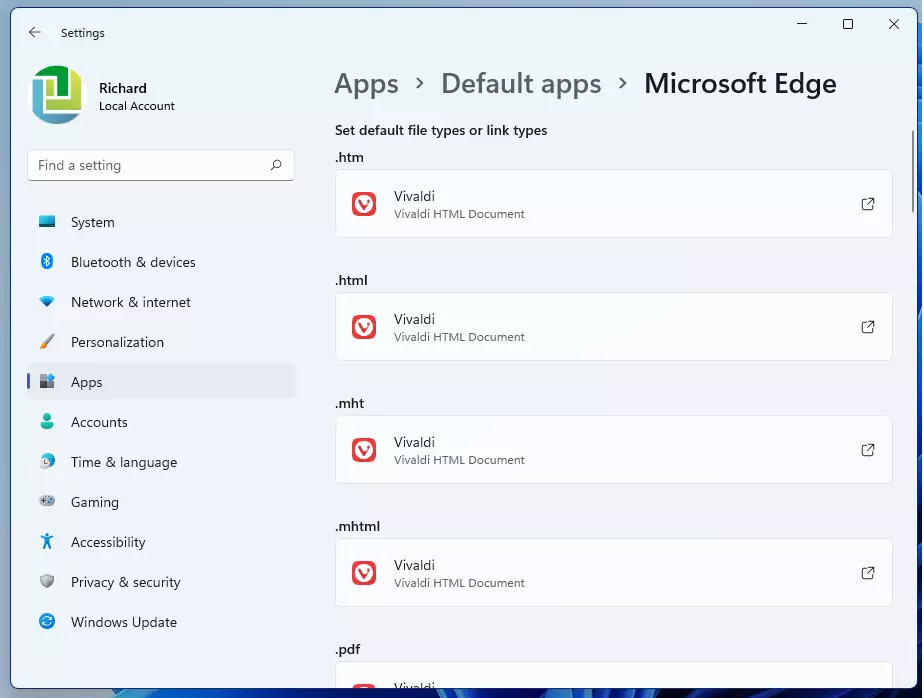
That should be it! Vivaldi should now be the default web browser for Windows 11.
Conclusion:
In summary, setting Vivaldi as your default web browser on Windows 11 is a straightforward process that can enhance your browsing experience. Here are the key points to remember:
- Vivaldi is designed for speed and efficiency, making it a great alternative to traditional browsers.
- Ensure you have Vivaldi installed before changing the default settings.
- Access the System Settings through the Windows key + I shortcut or via the Start menu.
- Navigate to Apps > Default Apps to change your default web browser.
- Search for Microsoft Edge and switch each file type to Vivaldi.
- Don’t forget to click on More apps if Vivaldi is not immediately visible.
- Once completed, Vivaldi will serve as your go-to web browser on Windows 11.
Enjoy discovering the unique features and customization options that Vivaldi offers!


Leave a Reply