

This article explains how to hide or unhide “Offensive words and phrases” in the Threads app on mobile devices.
The Threads app is a messaging app developed by Facebook for users who want to keep in touch with their closest friends and share their status. It allows users to share photos, videos, messages, stories, and more.
When you use Threads, you can switch between private and public accounts, mute or unmute people, and more.
The mobile version also lets you turn “Offensive words and phrases” on or off so that replies to posts containing common words, phrases, or emojis that may be offensive, misleading, or spam will automatically move to a covered section at the bottom of your thread.
Hiding or unhiding offensive words and phrases in the Threads app can help you filter out unwanted or potentially harmful content from your conversations. By turning on this feature, any messages containing common offensive words or phrases will be hidden from view, making your experience on the app more pleasant and safe.
Conversely, if you choose to turn off this feature, you may see more explicit or offensive language in your conversations.
Hide or unhide “Offensive words and phrases” in Threads
As mentioned above, users can turn a feature on or off in Threads to hide or unhide unwanted or potentially harmful content from their conversations.
Here’s how to do it.
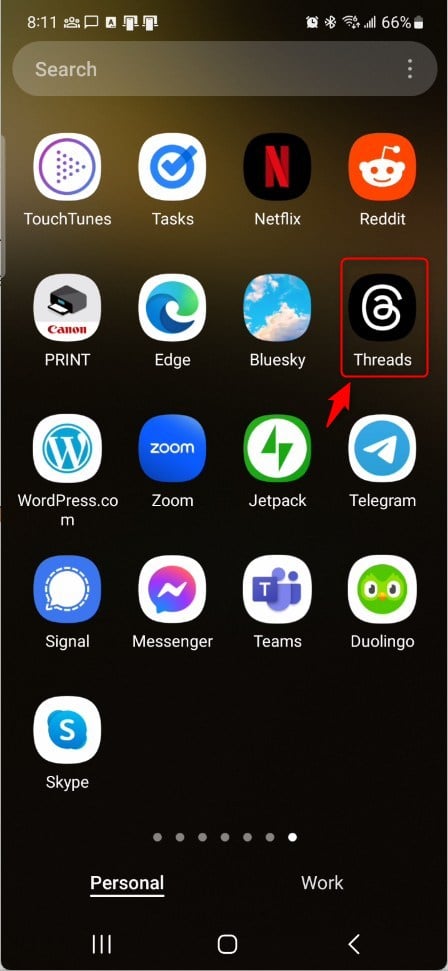
First, open the Threads app on your device.
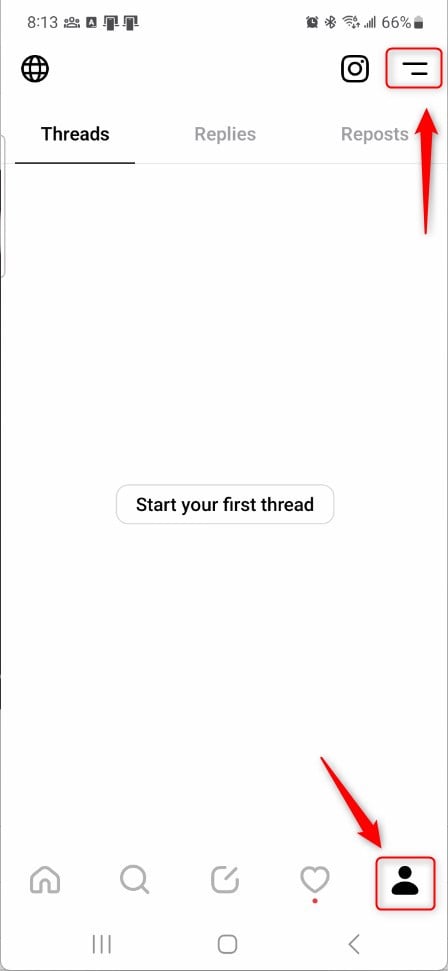
When the app opens, click the “Person” image at the bottom right, then select the Settings Menu at the top.
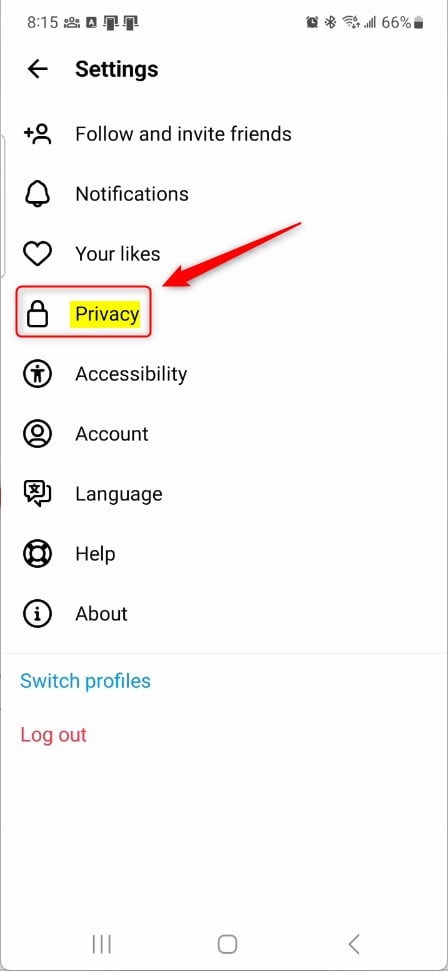
Next, select the Privacy tile on the Settings page to expand it.
On the Privacy settings page, select the Hidden Words tile to expand it.

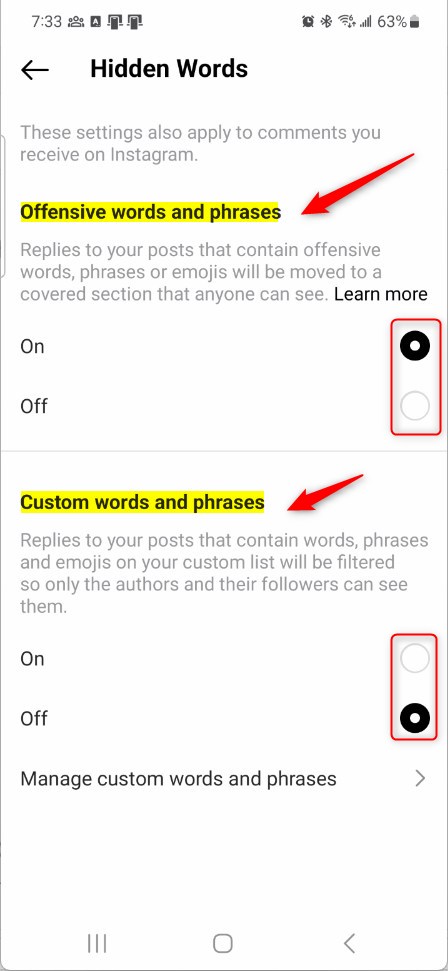
On the “Hidden Words” settings page, under “Offensive words and phrases,” select the On radio button to enable it.
To disable it, select the Off button.
Additionally, select On for “Custom words and phrases” to add your own words to filter from posts. You can add and manage as many as you want.
That should do it!
Conclusion:
- Enhanced Privacy: By controlling the visibility of offensive content, users can maintain a safer and more enjoyable messaging environment.
- Custom Filtering: The ability to add and manage custom words and phrases provides further control over the content displayed in the app.
- Feedback: Any suggestions, improvements, or corrections can be shared using the comments section, contributing to ongoing user enhancements.
Leave a Reply