How to Enable or Disable Airplane Mode in Ubuntu Linux


You enable or disable Airplane Mode in Ubuntu Linux by toggling your network connections.
Airplane Mode is a setting that simultaneously disables all wireless communication radios on your device, including Wi-Fi, Bluetooth, and cellular. This is commonly used during flights, but also handy for saving battery life or ensuring privacy.
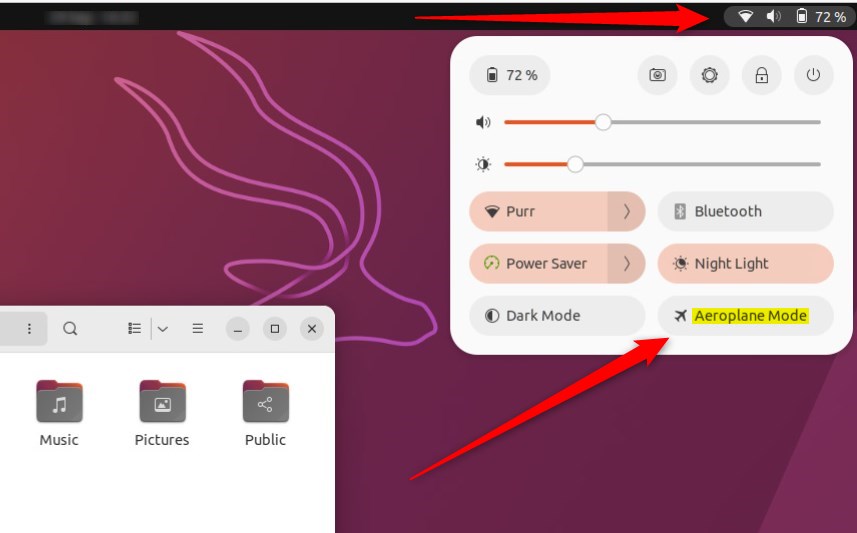
In Ubuntu 24.04 LTS, for example, you access this function through the system settings panel. Simply click on the network icon in your system tray, and you’ll find the Airplane Mode toggle directly there.
General
You can quickly open the Airplane Mode toggle by pressing Super + S on your keyboard. If you prefer the terminal or are using a system without a desktop interface, you can use these commands:
- To turn Wi-Fi on:
nmcli r wifi on - To turn Wi-Fi off:
nmcli r wifi off - To manage all wireless devices:
rfkill block allorrfkill unblock all
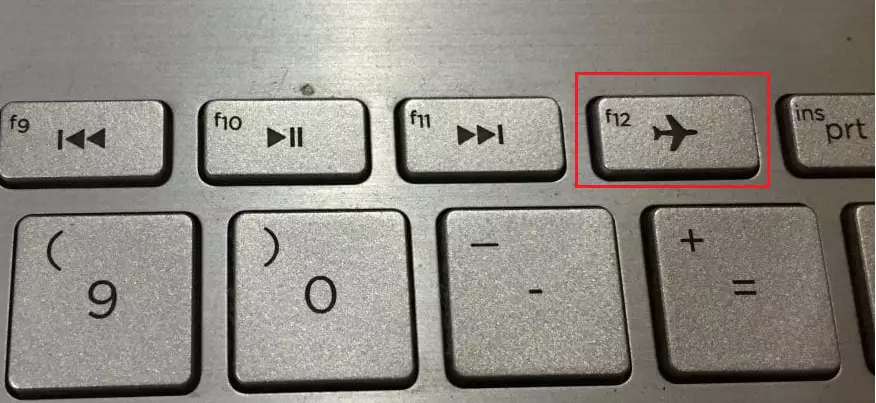
How to turn on or off airplane mode from the System menu in Ubuntu Linux
If your computer lacks a physical switch, use the System menu. Click the status area in the top right corner of your screen. This opens the Quick Settings panel. You will see a group containing your Wi-Fi, Bluetooth, and Airplane Mode toggles. Click the Airplane Mode button to turn it on or off.
How to disable or enable airplane from Settings in Ubuntu Linux
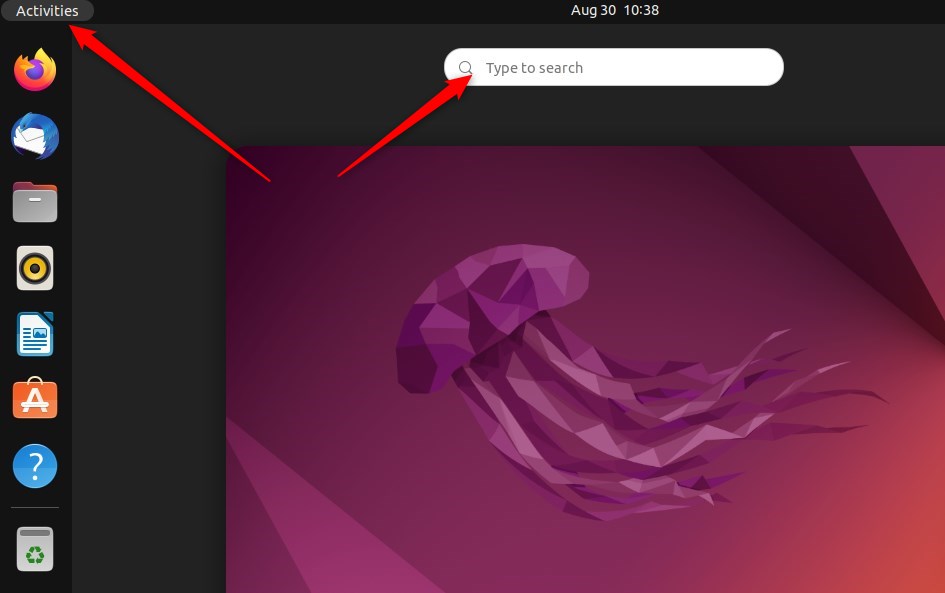
You can also control this through the main Settings app. Follow these steps:
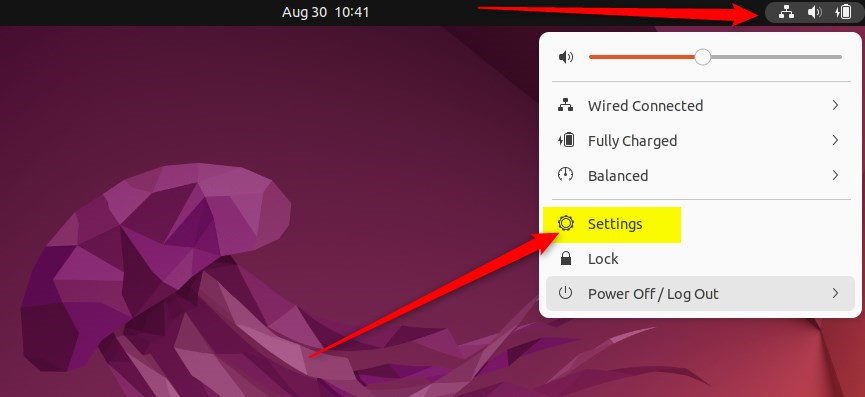
- Open the System menu in the top right corner.
- Select the Settings icon.
- In the sidebar on the left, look for the Network or Wi-Fi category.
- Find the Airplane Mode toggle.
- Click the switch to turn it On or Off.
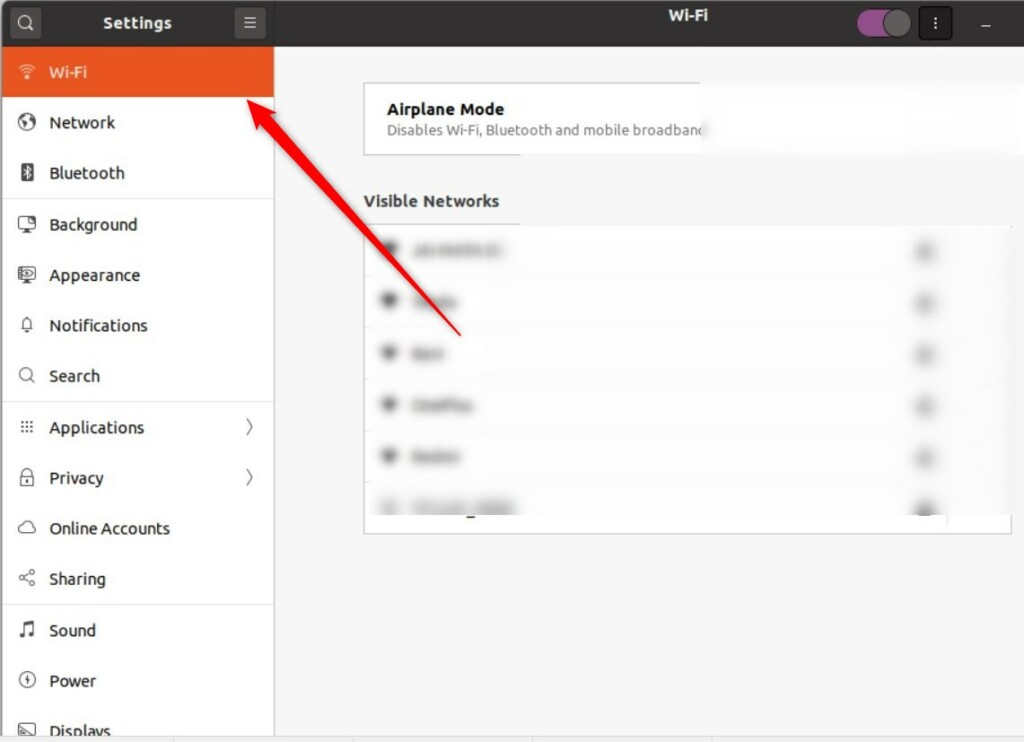
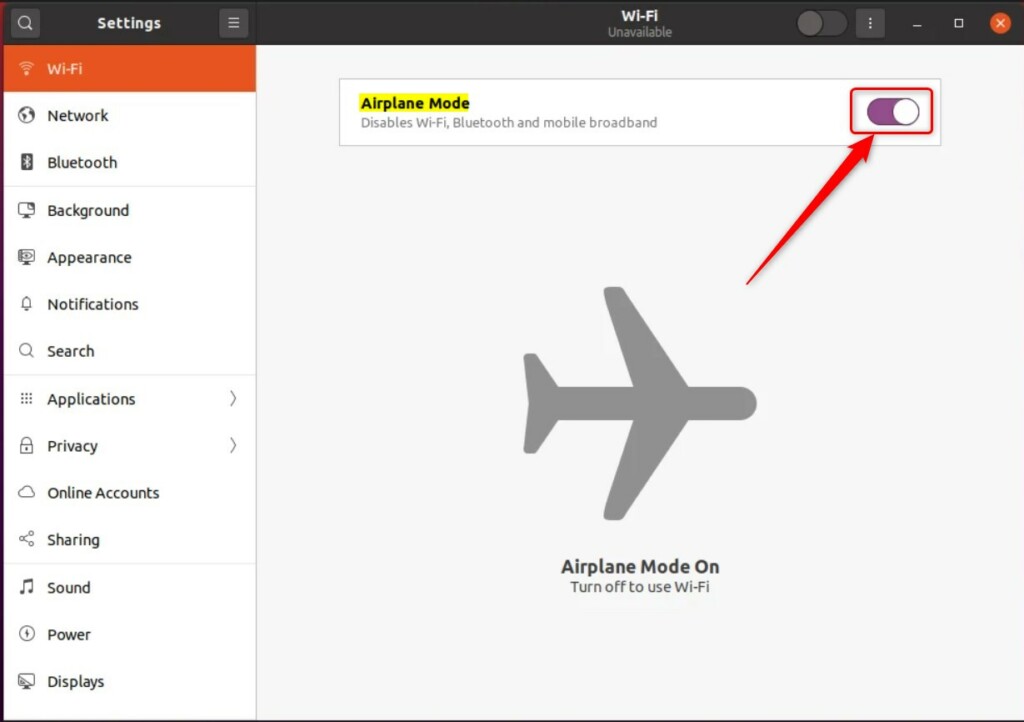
That is all you need to do! You can learn more about managing your %📂%LNK0%% network connections or %📂%LNK1%% wireless settings on the official Ubuntu support pages.
Was this guide helpful?

About the Author
Richard
Tech Writer, IT Professional
Richard, a writer for Geek Rewind, is a tech enthusiast who loves breaking down complex IT topics into simple, easy-to-understand ideas. With years of hands-on experience in system administration and enterprise IT operations, he’s developed a knack for offering practical tips and solutions. Richard aims to make technology more accessible and actionable. He's deeply committed to the Geek Rewind community, always ready to answer questions and engage in discussions.

No comments yet — be the first to share your thoughts!