How to Uninstall and Reinstall OneDrive on Windows 11

You can uninstall and reinstall OneDrive on Windows 11 to resolve syncing issues or perform a clean reset.
OneDrive is Microsoft’s cloud storage service, integrated into Windows 11, enabling you to save and sync files across devices. It often works seamlessly, but sometimes requires a fresh installation, especially if you’re experiencing errors like the OneDrive sync client not responding.
This process involves removing the existing OneDrive application from your system and then downloading and installing it again. For Windows 11, it’s a straightforward way to fix common problems and ensure your files sync correctly.
Uninstall OneDrive by going to Settings > Apps > Installed apps, finding OneDrive, clicking the three dots, and selecting Uninstall. Reinstall by downloading OneDriveSetup.exe from the official Microsoft website and running the installer. Sign in afterward to sync your files.
What Happens When You Uninstall OneDrive?
- You won’t be able to open the OneDrive app anymore.
- OneDrive will stop running automatically when your PC starts.
- It won’t show up in your Start menu or File Explorer sidebar.
- Your OneDrive files won’t sync with the cloud anymore.
- Your files are still saved on your PC in the OneDrive folder.
Tip: Before uninstalling, it’s a good idea to turn off OneDrive backup. Move important files to normal folders on your PC. This keeps everything safe.
How to Uninstall OneDrive
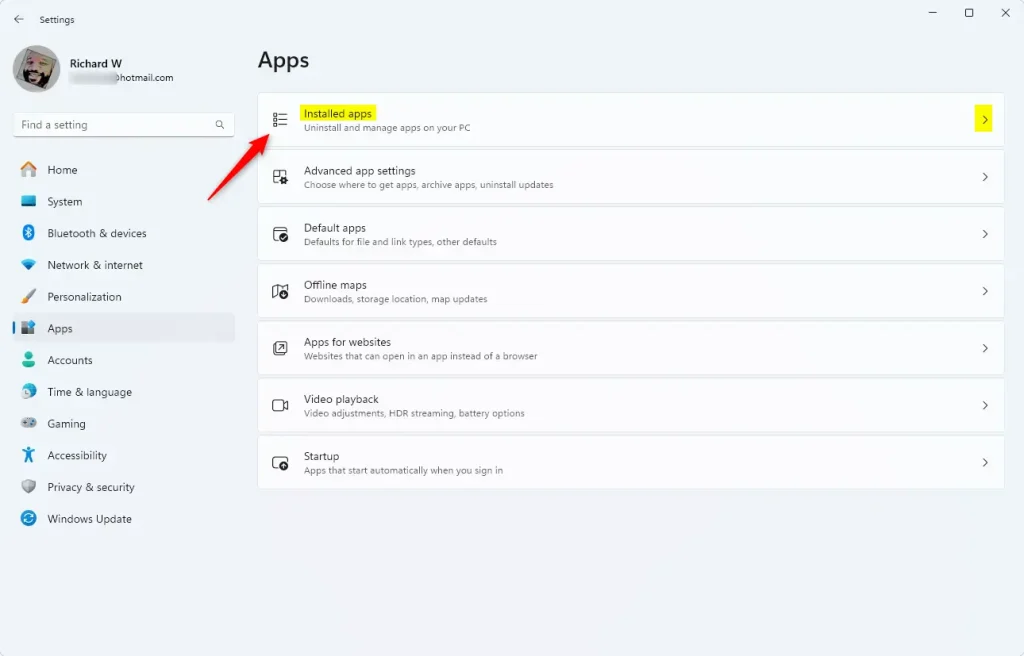
- Open Settings. Press
Win + Ikeys together. - Click on Apps on the left side.
- Click on Installed apps (or Apps & features) on the right.
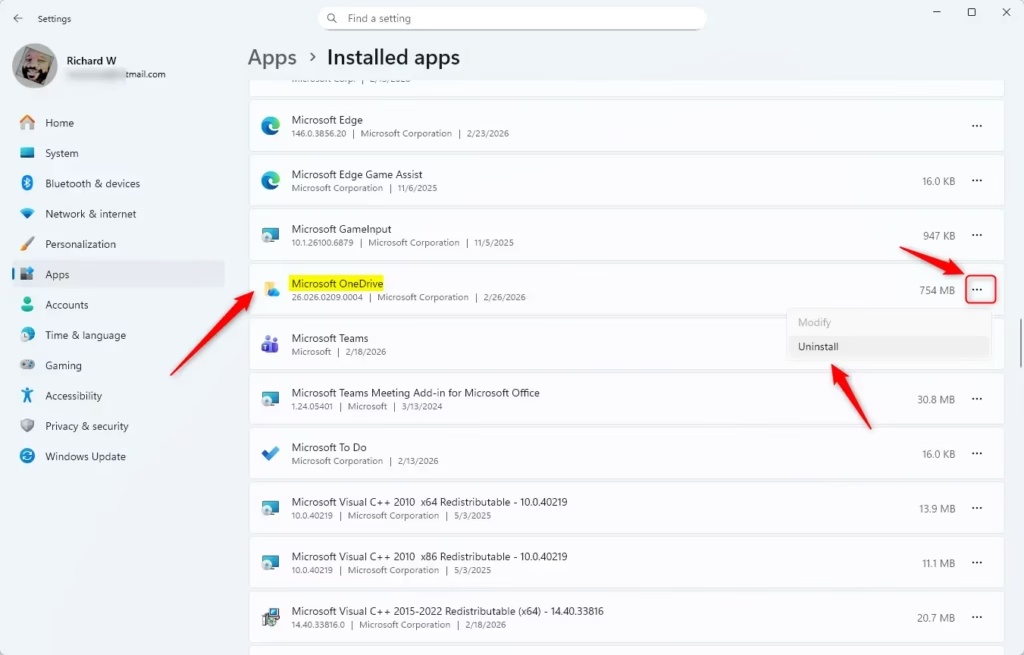
- Find Microsoft OneDrive in the list.
- Click the three dots next to it. Then click Uninstall. [ADMIN REQUIRED]
- When asked to confirm, click Uninstall again.
- Close Settings when done.
See these screenshots for help:
How to Reinstall OneDrive
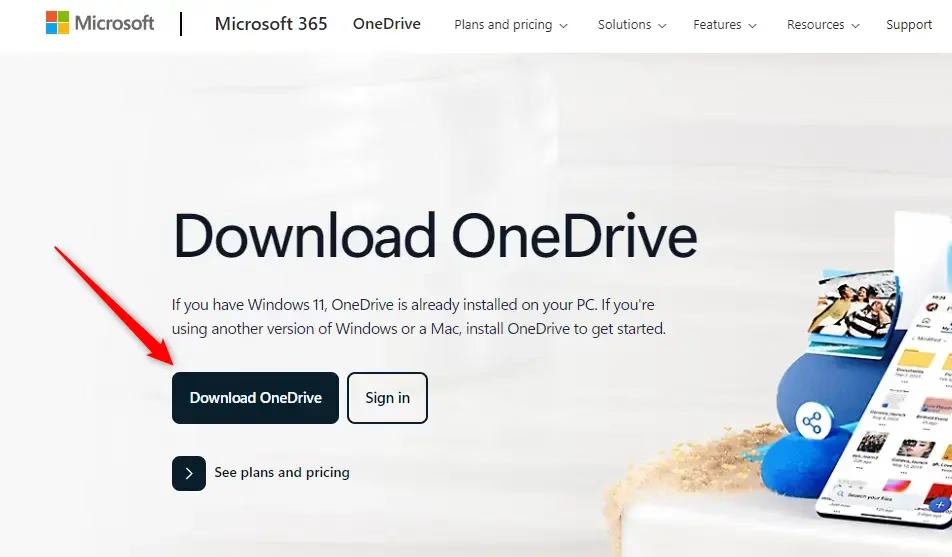
- Go to the official OneDrive download page. Download OneDrive for Windows
- Click the download button to get the
OneDriveSetup.exefile. - Save it to your Desktop or any folder you like.
- Double-click
OneDriveSetup.exeto start the installation. - You will see a small window saying “Microsoft OneDrive Setup” while it installs.
- When installation finishes, open OneDrive and sign in with your Microsoft account to set it up.
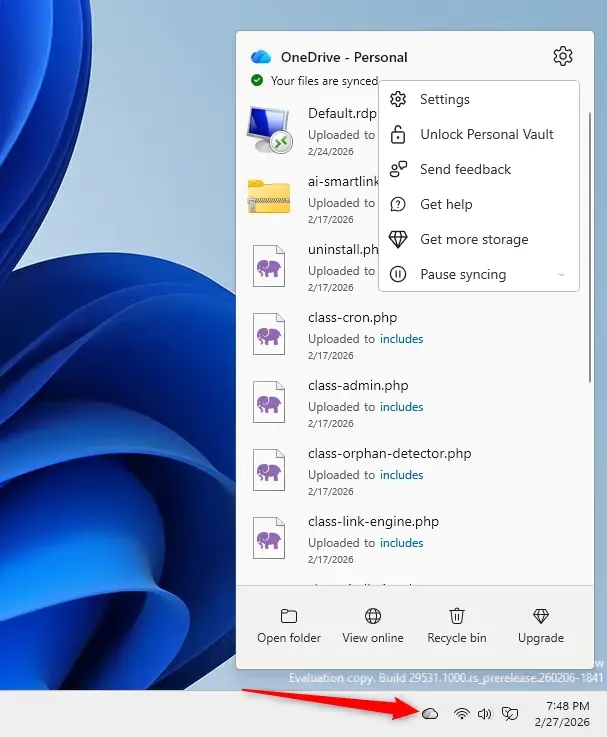
Here are screenshots to guide you:
Summary
- Easy to do: You can uninstall or reinstall OneDrive quickly through Settings and a download link.
- Your files stay safe: Uninstalling OneDrive doesn’t delete files on your PC or cloud.
- Cloud access remains: You can still get to your files anytime at onedrive.live.com.
- Backup first: Turn off backup and move files to local folders before uninstalling to keep them safe.
- Reinstall anytime: Download the latest OneDrive from Microsoft’s website whenever you want.
By following these steps, you can fix, refresh, or reset OneDrive on your Windows 11 PC easily.
More help from Microsoft: Turn off, disable, or uninstall OneDrive – Microsoft Support
What happens if I uninstall and reinstall OneDrive?
Reinstalling Microsoft OneDrive can sometimes resolve sync issues and resets all OneDrive settings. OneDrive will perform a full sync after the reinstallation. You won't lose any data by uninstalling OneDrive.
Was this guide helpful?

About the Author
Richard
Tech Writer, IT Professional
Richard, a writer for Geek Rewind, is a tech enthusiast who loves breaking down complex IT topics into simple, easy-to-understand ideas. With years of hands-on experience in system administration and enterprise IT operations, he’s developed a knack for offering practical tips and solutions. Richard aims to make technology more accessible and actionable. He's deeply committed to the Geek Rewind community, always ready to answer questions and engage in discussions.



No comments yet — be the first to share your thoughts!