If you use Windows Terminal on Windows 11, you can make it stay on top of all other windows. This means it will always be visible, even if you click on other apps. This guide will show you how to turn this feature on or off in simple steps.
What is Windows Terminal?
Windows Terminal is an app where you can type commands to control your computer. It includes tools like:
Windows Terminal is better than older tools because it lets you open many tabs, split the window, use colorful text, and customize the look.
Why Use “Always on Top”?
When “Always on Top” is on, the Windows Terminal window stays visible even if you open other apps. This is handy if you want to watch commands run or copy text without losing the Terminal window behind other programs.
How to Turn “Always on Top” On or Off
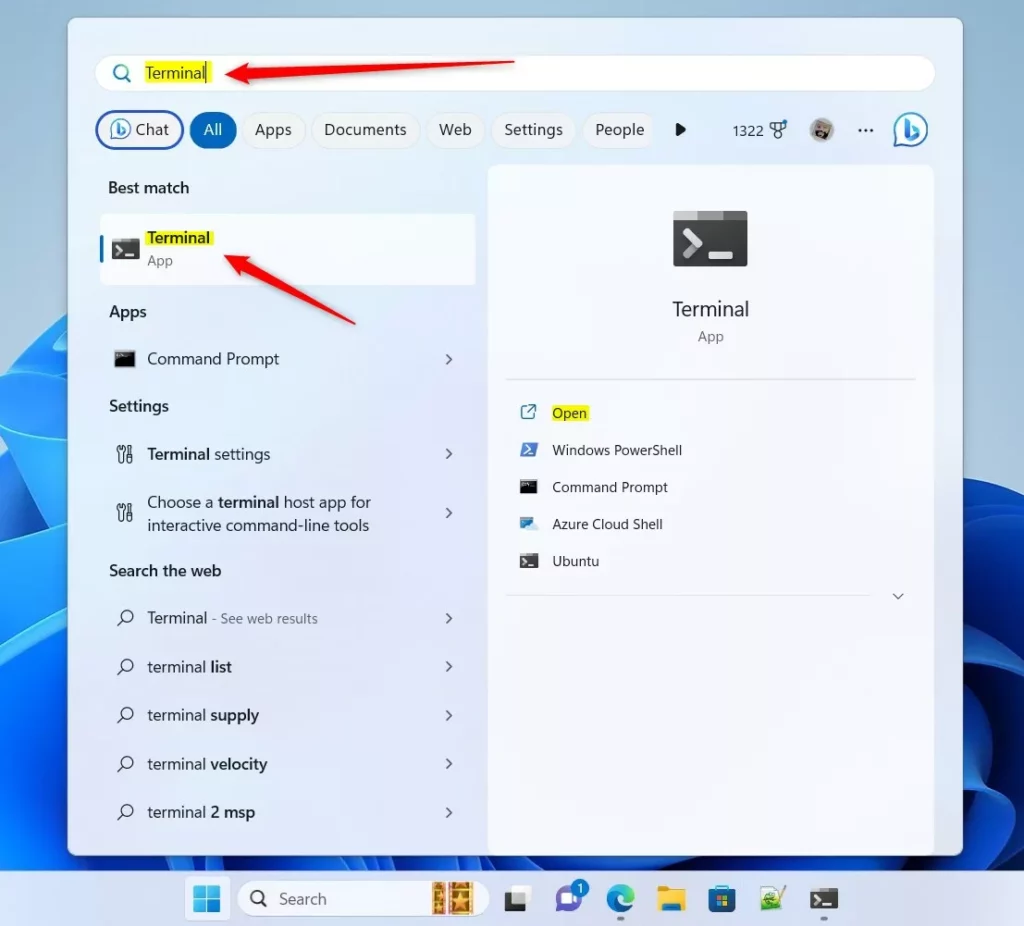
- Open Windows Terminal:
Click the Start menu button (the Windows icon) at the bottom-left of your screen.
Type Terminal in the search box.
Click on Windows Terminal in the search results to open it.
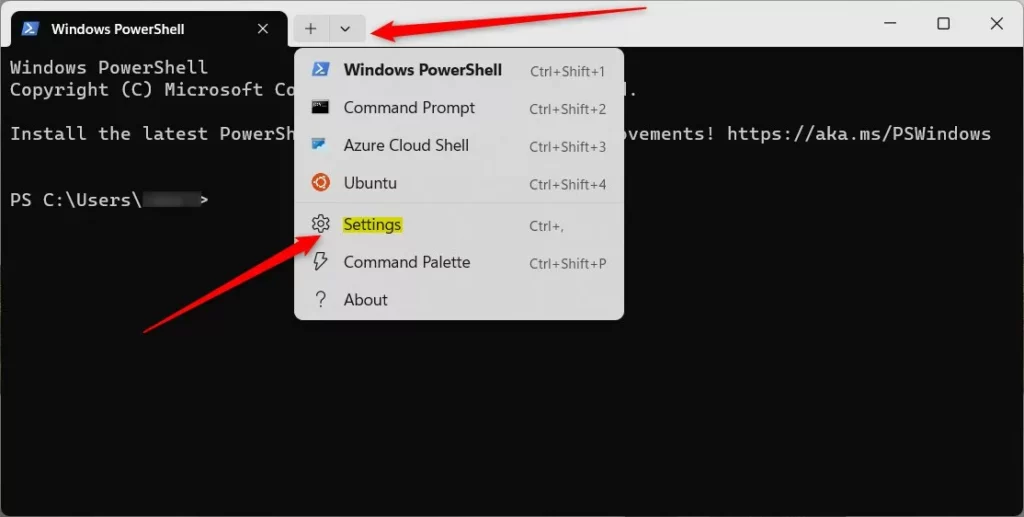
- Open Settings:
In the Windows Terminal window, look at the top bar and click the small down arrow (∨) next to the tabs.
Choose Settings from the menu.
Or press Ctrl + , (comma) on your keyboard to open Settings quickly.
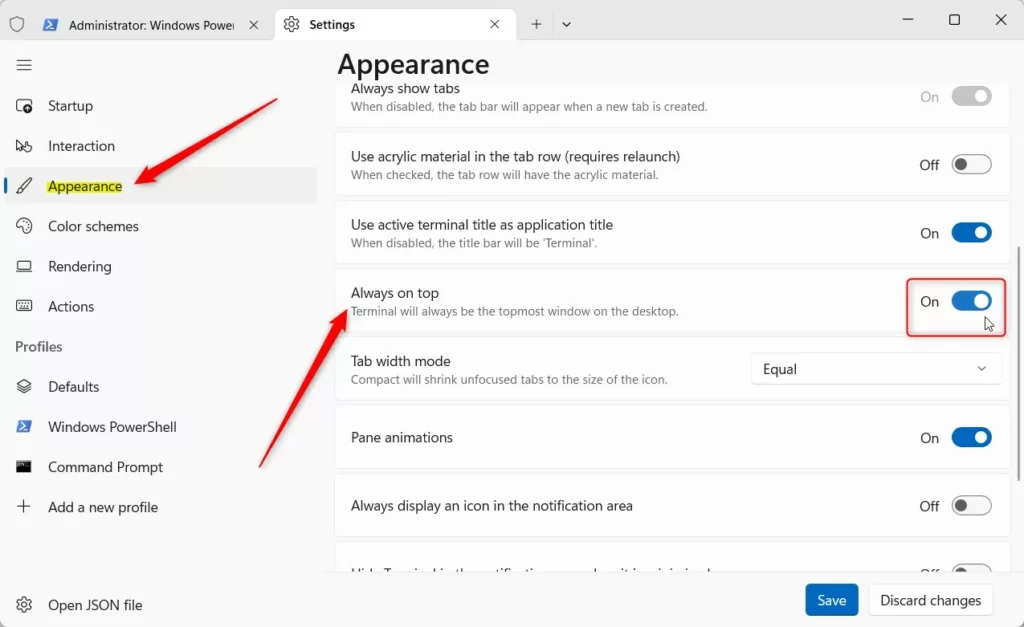
- Find the “Always on Top” option:
In the Settings window, click on Appearance on the left side.
On the right side, look for the box labeled “Always on top“.
Toggle the switch to On to enable it or Off to disable it.
- Save your changes:
Click the Save button at the bottom right of the Settings window to apply your changes.
That’s it! Now your Windows Terminal will either stay on top of other windows or behave normally based on your choice.
Summary
- Windows Terminal is a modern command-line app with many useful features.
- “Always on Top” keeps the Terminal window visible over other apps.
- Turning this feature on or off is easy through the Settings menu.
- You can customize Windows Terminal to fit how you like to work.
Leave a Reply