Step-by-Step Guide to Install vsftpd on Ubuntu 24.04

You can install vsftpd on Ubuntu 24.04 by following a few straightforward steps to set up a secure and efficient FTP server.
vsftpd, which stands for “Very Secure FTP Daemon,” is a popular FTP server renowned for its robust security features and excellent performance on Unix-like systems, including Ubuntu.
This guide focuses on getting vsftpd up and running on Ubuntu 24.04, ensuring you can host FTP services reliably. You’ll learn how to configure it for everything from anonymous access to more restricted user setups.
Install vsftpd by running `sudo apt update` and `sudo apt install vsftpd`. Then, edit the configuration file at `/etc/vsftpd.conf` to enable features like `write_enable=YES` and `chroot_local_user=YES`. Finally, restart the service with `sudo systemctl restart vsftpd`.
Install vsftpd
On Ubuntu, you can install vsftpd using the command below. There are no additional packages to install since vsftpd packages are included in Ubuntu’s default repositories.
sudo apt update
sudo apt install vsftpd
Once installed, its default configuration file is at [/etc/vsftpd.conf].
Configure basic settings
You can change the basic settings for vsftpd on Ubuntu 24.04 by opening its main settings file, which is located at /etc/vsftpd.conf, using a simple text editor like nano.
sudo nano /etc/vsftpd.conf
Then, adjust the server settings based on your environment.
# Uncomment this to enable any form of FTP write command.

write_enable=YES

#
# You may specify an explicit list of local users to chroot() to their home
# Uncomment this to enable a secure environment.

chroot_local_user=YES
chroot_list_enable=YES
chroot_list_file=/etc/vsftpd.chroot_list
allow_writeable_chroot=YES

#
# You may activate the "-R" option to the builtin ls. This is disabled by
# the presence of the "-R" option, so there is a strong case for enabling it.

ls_recurse_enable=YES

#
# add to last line : specify chroot directory
# if not specified, users' home directory equals FTP home directory

local_root=public_html
Save the file and exit.
Next, run the command below to vsftpd chroot_list file.
sudo nano /etc/vsftpd.chroot_list
Add your account name to the file to allow access. Add other accounts on separate lines if you want more users to access vsftpd.
richard
Save and exit the file, then restart vsftpd.
sudo systemctl restart vsftpd
At this point, you should be able to access vsftpd using any FTP client. Access will be granted to those in the chroot file.
Access vsftpd over SSL/TLS
Making your vsftpd connection secure on Ubuntu 24.04 means setting it up to use SSL/TLS, which is a way to scramble the data sent between your computer and the server so others can’t read it.
Use a public certificate like Let’s Encrypt or a self-signed on your server.
For this post, we’ll be creating a self-signed certificate for vsftpd.
Run the command below to generate a self-signed certificate to use with vsftpd.
sudo openssl req -x509 -nodes -newkey rsa:3072 -keyout vsftpd.pem -out vsftpd.pem -days 3650
When prompted, enter the certificate details.
Country Name (2 letter code) [AU]:US
State or Province Name (full name) [Some-State]:NY
Locality Name (eg, city) []:Brooklyn
Organization Name (eg, company) [Internet Widgits Pty Ltd]:GeekRewind
Organizational Unit Name (eg, section) []:IT
Common Name (e.g. server FQDN or YOUR name) []:vsftpd.example.com
Email Address []:
After generating the certificates, copy them into the [/etc/ssl/private] directory.
sudo cp vsftpd.* /etc/ssl/private
sudo chmod 600 /etc/ssl/private/vsftpd.pem
Next, reopen vsftpd configuration file and add the certificate details.
sudo nano /etc/vsftpd.conf
Update the lines below in the file to reference the new certificates.
# This option specifies the location of the RSA certificate to use for SSL
# encrypted connections.
rsa_cert_file=/etc/ssl/private/vsftpd.pem
rsa_private_key_file=/etc/ssl/private/vsftpd.pem
ssl_enable=YES
ssl_ciphers=HIGH
force_local_data_ssl=YES
force_local_logins_ssl=YES

#
Save the exit, then restart vsftpd.
sudo systemctl restart vsftpd
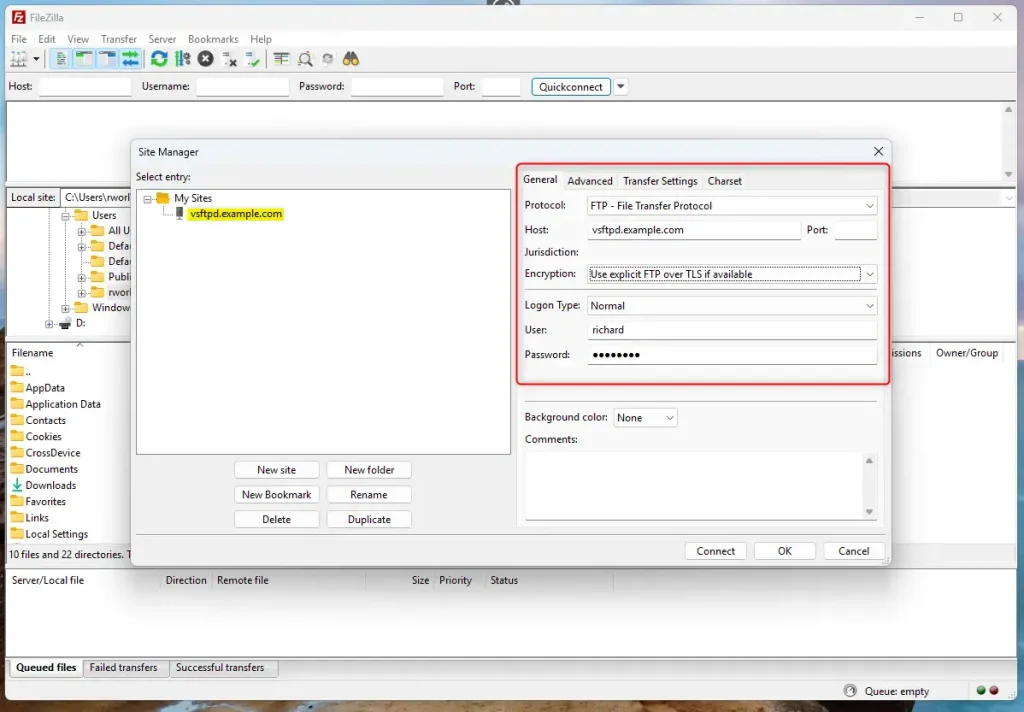
With SSL/TLS configured, open your FTP client and set up the sites to use SSL/TLs.
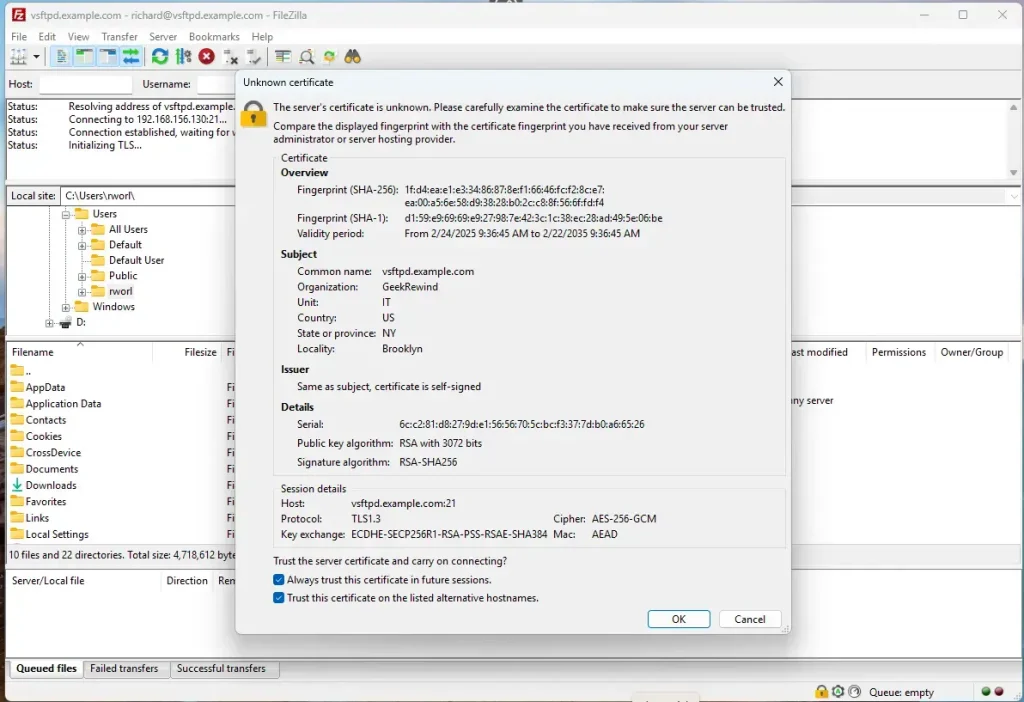
Since we used a self-signed certificate when prompted to trust it, OK.
Now, vsftpd is communicating over SSL/TLS.
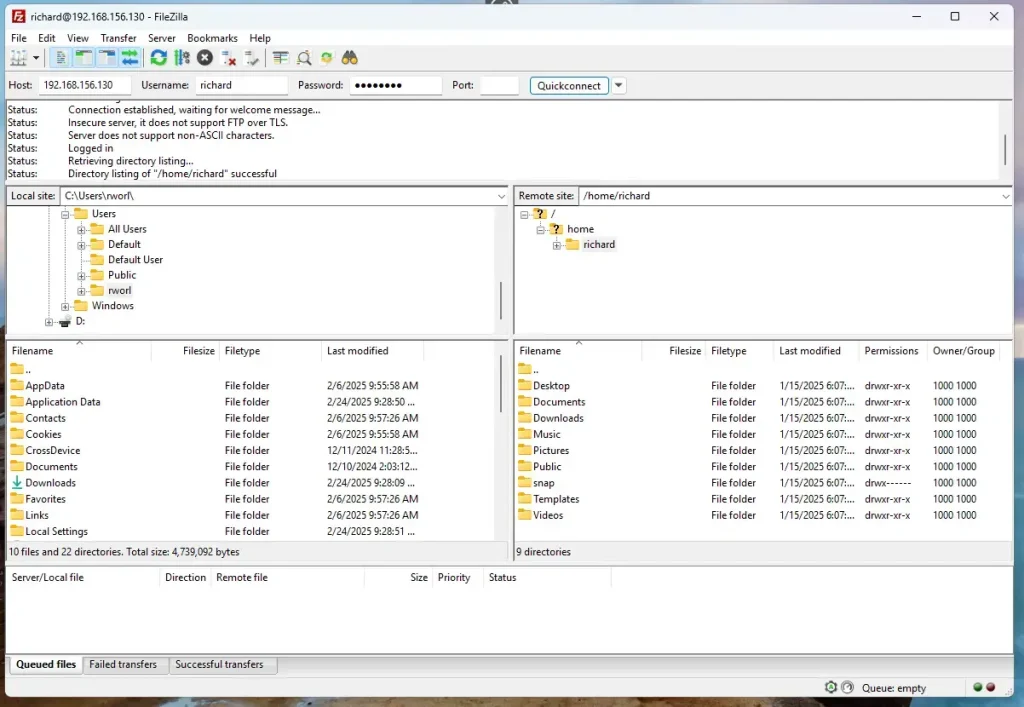
That should do it!
Conclusion:
Installing and configuring vsftpd on Ubuntu is a straightforward process that enhances your server’s file transfer capabilities while ensuring secure communication. Here are the key points to remember:
- Ease of Installation: vsftpd is available in Ubuntu’s default repositories, making installation simple with a single command.
- Security Features: Offers robust security options, including SSL/TLS support to protect data during transfer.
- Configuration Flexibility: Allows for various configurations, such as user access control and directory management.
- Self-Signed Certificates: Provides a way to generate and implement self-signed certificates for secure connections.
- Chroot Environment: Ensures users are confined to their home directories for added security.
- Testing & Validation: After configuration, use an FTP client to verify that the server operates as intended and handles secure connections correctly.
Following this guide, you can successfully set up and secure your FTP server with vsftpd on Ubuntu 24.04.
How to install vsftpd on Ubuntu?
So as you can see I'm on Ubuntu 22.04. Now let's update our repositories. So the command is sudo apt update. Now your package list and repositories are being updated.
How to install FTP client in Ubuntu?
Edit the VSFTPD.com. File for the necessary settings. Finally test the FTP connection via FileZilla client to set up the complete FTP on YUbuntu server watch out complete video step by.
What is the best FTP program for Ubuntu?
In short, FileZilla is the best FTP client on Ubuntu for 95% of users. It's free and includes all the most useful features. On Ubuntu Server, lFTP and NcFTP are suitable alternatives for the command-line interface.
Where is the FTP folder in Ubuntu?
FTP files location During installation an ftp user is created with a home directory of /srv/ftp . This is the default FTP directory. Now, when the client connects with anonymous username, it will see the files hosted in /srv/files/ftp instead of /srv/ftp .
Was this guide helpful?

About the Author
Richard
Tech Writer, IT Professional
Richard, a writer for Geek Rewind, is a tech enthusiast who loves breaking down complex IT topics into simple, easy-to-understand ideas. With years of hands-on experience in system administration and enterprise IT operations, he’s developed a knack for offering practical tips and solutions. Richard aims to make technology more accessible and actionable. He's deeply committed to the Geek Rewind community, always ready to answer questions and engage in discussions.




No comments yet — be the first to share your thoughts!