How to Setup Live Helper Chat with Nginx on Ubuntu


Live Helper Chat is free open-source software that adds a live customer support chat box to your website so you can talk to visitors in real time. Pairing it with Nginx, a high-performance web server, helps your server handle heavy visitor traffic smoothly without slowing down response times.
This installation guide works for Ubuntu 18.04 and 16.04 systems. You install PHP and a MySQL database first, configure Nginx to run the web server, and then place the chat files on your server to complete the setup.
- First, update your server’s package list by running
sudo apt update. - Then, install Nginx by typing
sudo apt install nginx. - After installation, you can manage the Nginx service. To stop it, use
sudo systemctl stop nginx.service. To start it, usesudo systemctl start nginx.service. To make sure it starts automatically when your server boots up, usesudo systemctl enable nginx.service. - To check if Nginx is working, open your web browser and go to your server’s IP address or hostname. You should see the default Nginx welcome page.
Install Nginx, MariaDB, and PHP 7.2-FPM. Configure Nginx as a reverse proxy for Live Helper Chat and then install the application itself.
Install Nginx HTTP
Nginx HTTP is the web server you need on your Ubuntu server to run Live Helper Chat correctly. To install Nginx, update your package list and run the standard installation command using terminal access.
To install Nginx HTTP on the Ubuntu server, run the commands below.
sudo apt update
sudo apt install nginx
After installing Nginx, the commands below can be used to stop, start, and enable the Nginx service to always start up with the server boots.
sudo systemctl stop nginx.service
sudo systemctl start nginx.service
sudo systemctl enable nginx.service
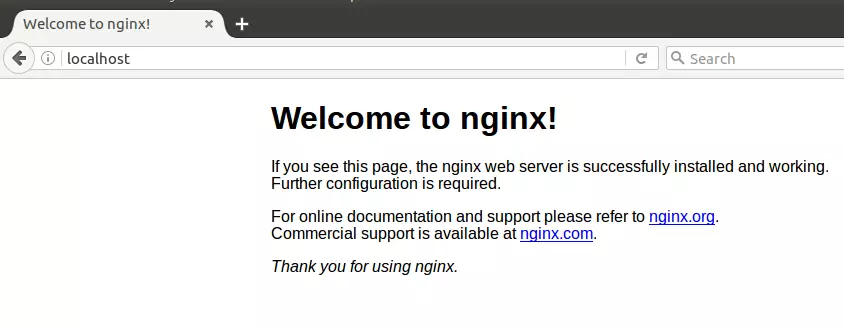
To determine if the Nginx HTTP server is installed, open your web browser and type in the server’s IP or hostname.
Nginx is installed and working when you see a page like the one below.
http://localhost
Install MariaDB Database Server
MariaDB database server stores all the information your Live Helper Chat application collects. You can install both the server and client packages on Ubuntu with a single terminal command.
To install MariaDB, run the commands below.
sudo apt install mariadb-server mariadb-client
After installing MariaDB, the commands below can stop, start, and enable the service to start when the server boots.
Run these on Ubuntu
sudo systemctl stop mariadb.service
sudo systemctl start mariadb.service
sudo systemctl enable mariadb.service
sudo mysql_secure_installation
When prompted, answer the questions below by following the guide.
- Enter current password for root (enter for none): Just press the Enter
- Set root password? [Y/n]: Y
- New password: Enter password
- Re-enter new password: Repeat password
- Remove anonymous users? [Y/n]: Y
- Disallow root login remotely? [Y/n]: Y
- Remove test database and access to it. [Y/n]: Y
- Reload privilege tables now? [Y/n]: Y
Restart MariaDB server
To test if MariaDB is installed, type the commands below to log on to the MariaDB server.
sudo mysql -u root -p
Then, type the password you created above to sign on. If successful, you should see a MariaDB welcome message.
Install PHP 7.2-FPM and Related Modules
PHP 7.2-FPM (FastCGI Process Manager) runs the backend code for Live Helper Chat on your server. You need to add a third-party software repository before installing the correct PHP version and modules on Ubuntu.
Run the commands below to add the below third party repository to upgrade to PHP 7.2-FPM
sudo apt-get install software-properties-common
sudo add-apt-repository ppa:ondrej/php
Then update and upgrade to PHP 7.2-FPM
sudo apt update
Next, run the commands below to install PHP 7.2-FPM and related modules.
sudo apt install php7.2-fpm php7.2-common php7.2-gmp php7.2-curl php7.2-intl php7.2-mbstring php7.2-xmlrpc php7.2-mysql php7.2-gd php7.2-bcmath php7.2-xml php7.2-cli php7.2-zip php7.2-sqlite
After installing PHP 7.2, run the commands below to open Nginx's PHP default config file.
sudo nano /etc/php/7.2/fpm/php.ini
Then, save the changes on the following lines below in the file. The value below is an ideal setting to apply in your environment.
file_uploads = On
allow_url_fopen = On
short_open_tag = On
cgi.fix_pathinfo = 0
memory_limit = 256M
upload_max_filesize = 100M
max_execution_time = 360
max_input_vars = 1500
date.timezone = America/Chicago
After making the change above, please save the file and close it.
Create a Live Helper Chat Database
A dedicated MariaDB database is required to store all chat logs and user data for Live Helper Chat. You must log into the database shell as the root user to create this new database before finishing the setup.
Run the commands below to log on to MariaDB. When prompted for a password, type the root password you created above.
sudo mysql -u root -p
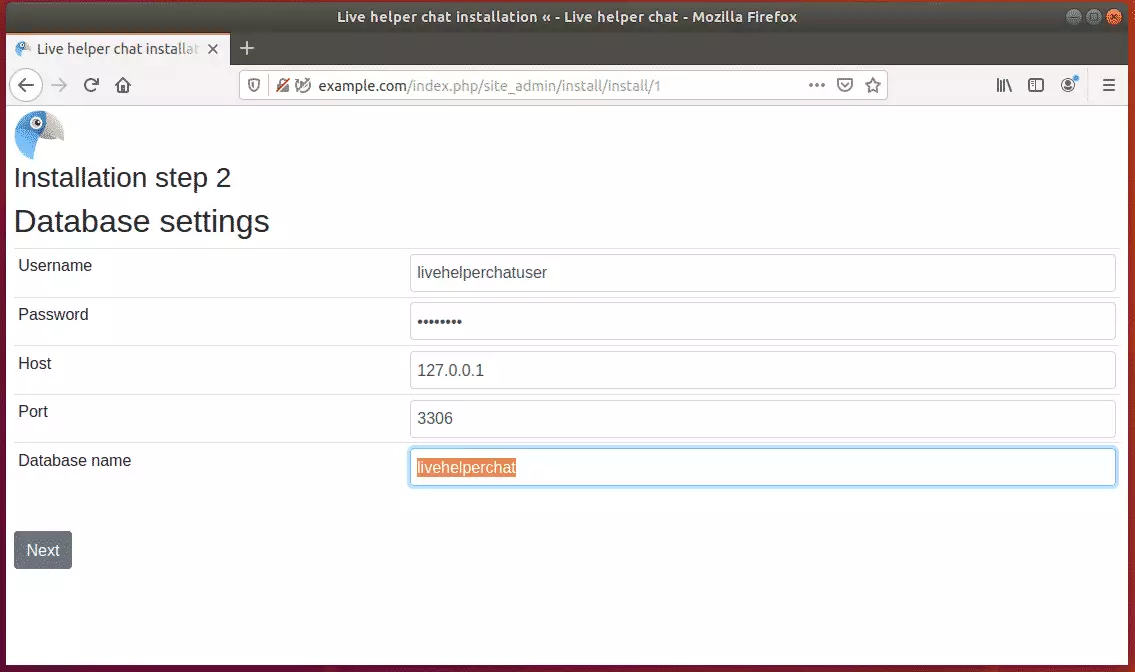
Then, create a database called livehelperchat
CREATE DATABASE livehelperchat;
Create a database user called livehelperchatuser with a new password
CREATE USER 'livehelperchatuser'@'localhost' IDENTIFIED BY 'new_password_here';
Then grant the user full access to the livehelperchat database.
GRANT ALL ON livehelperchat.* TO 'livehelperchatuser'@'localhost' WITH GRANT OPTION;
Finally, save your changes and exit.
FLUSH PRIVILEGES;
EXIT;
Download Live Helper Chat Latest Release
Live Helper Chat source files are available directly from the official GitHub repository. You can download the latest release archive to a temporary folder on your Ubuntu server using the wget utility.
sudo apt install wget
cd /tmp
wget https://github.com/remdex/livehelperchat/archive/master.zip
unzip master.zip
sudo mv livehelperchat-master /var/www/livehelperchat
To do that, run the commands below:
sudo chown -R www-data:www-data /var/www/livehelperchat/
sudo chmod -R 755 /var/www/livehelperchat/
Configure Nginx
Nginx configuration tells your web server how to direct traffic to the Live Helper Chat application. You create a new site configuration file in the sites-available directory and paste the required server blocks there.
sudo nano /etc/nginx/sites-available/livehelperchat
Then copy and paste the content below into the file and save it. Replace the highlighted line with your domain name and directory root location.
server {
    listen 80;
    listen [::]:80;

    server_name  example.com www.example.com;
    root   /var/www/livehelperchat/lhc_web;
    index  index.php;

    access_log /var/log/nginx/example.com.access.log;
    error_log /var/log/nginx/example.com.error.log;

    client_max_body_size 100M;

    autoindex off;

    location / {
    try_files $uri $uri/ /index.php$is_args$args;
      }

    location ~ .php$ {
         include snippets/fastcgi-php.conf;
         fastcgi_pass unix:/var/run/php/php7.2-fpm.sock;
         include fastcgi_params;
         fastcgi_intercept_errors on;
    }
}
Save the file and exit.
Enable the Live Helper Chat
Enabling Live Helper Chat requires linking your new Nginx configuration file to the sites-enabled directory. Once the symbolic link is active, restart the Nginx web server service to apply the changes.
sudo ln -s /etc/nginx/sites-available/livehelperchat /etc/nginx/sites-enabled/
sudo systemctl restart nginx.service
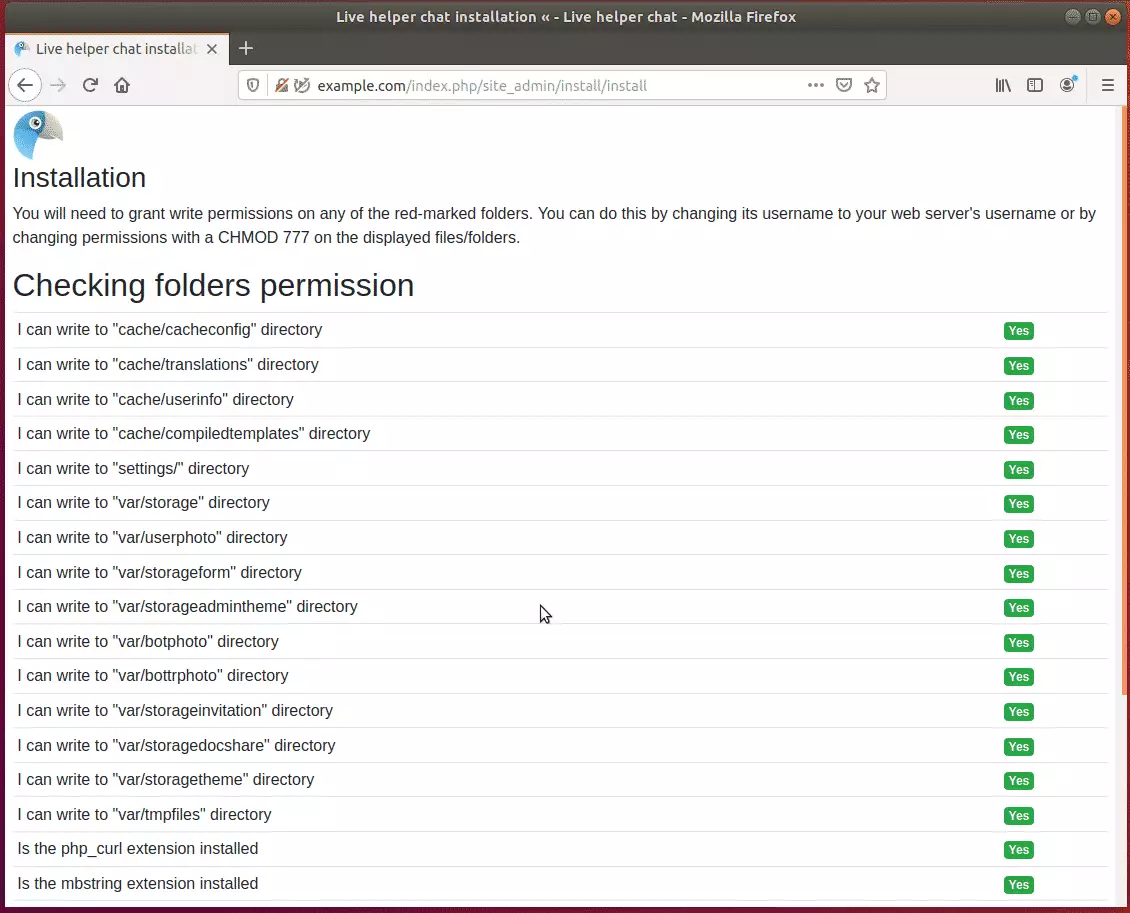
Then open your browser and browse to the server domain name or hostname. This is often localhost but can be a hostname or IP address. Your server admin or hosting company will have this information available.
http://example.com/
Continue with the installation wizard, validate that all requirements are met, and continue.
Next, enter the database username and password and the database created above.
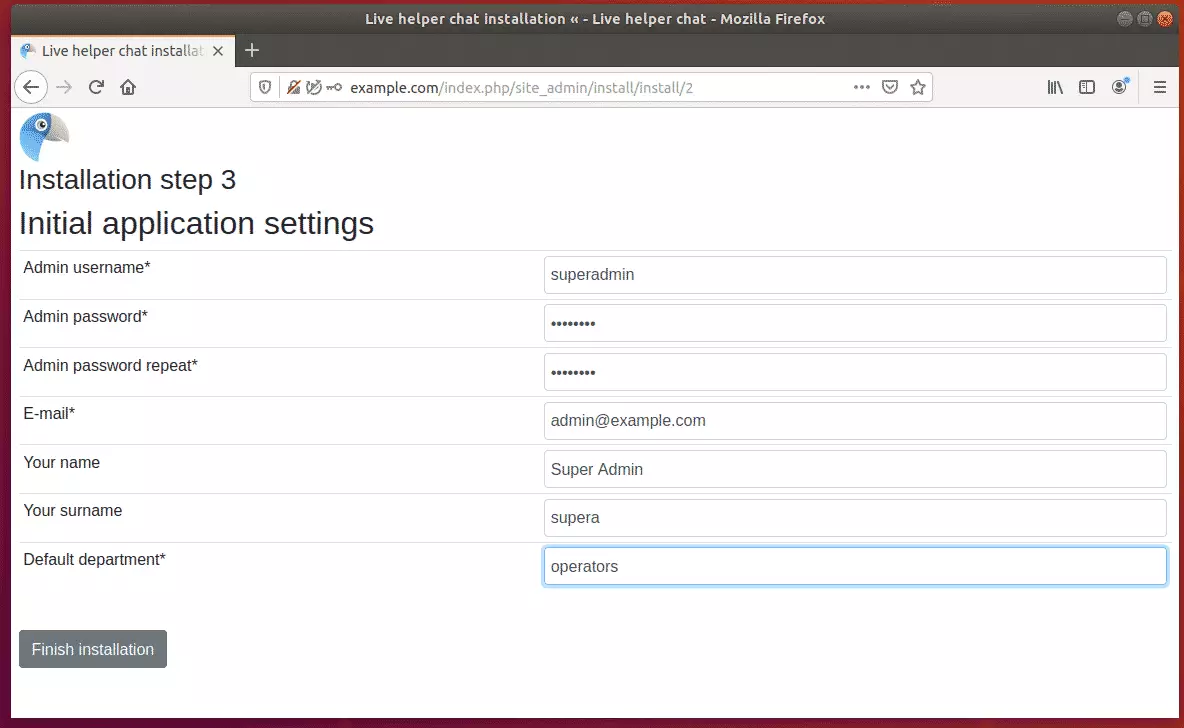
After that, create an admin account to manage the platform.
After installing, log in and start to begin managing your platform.
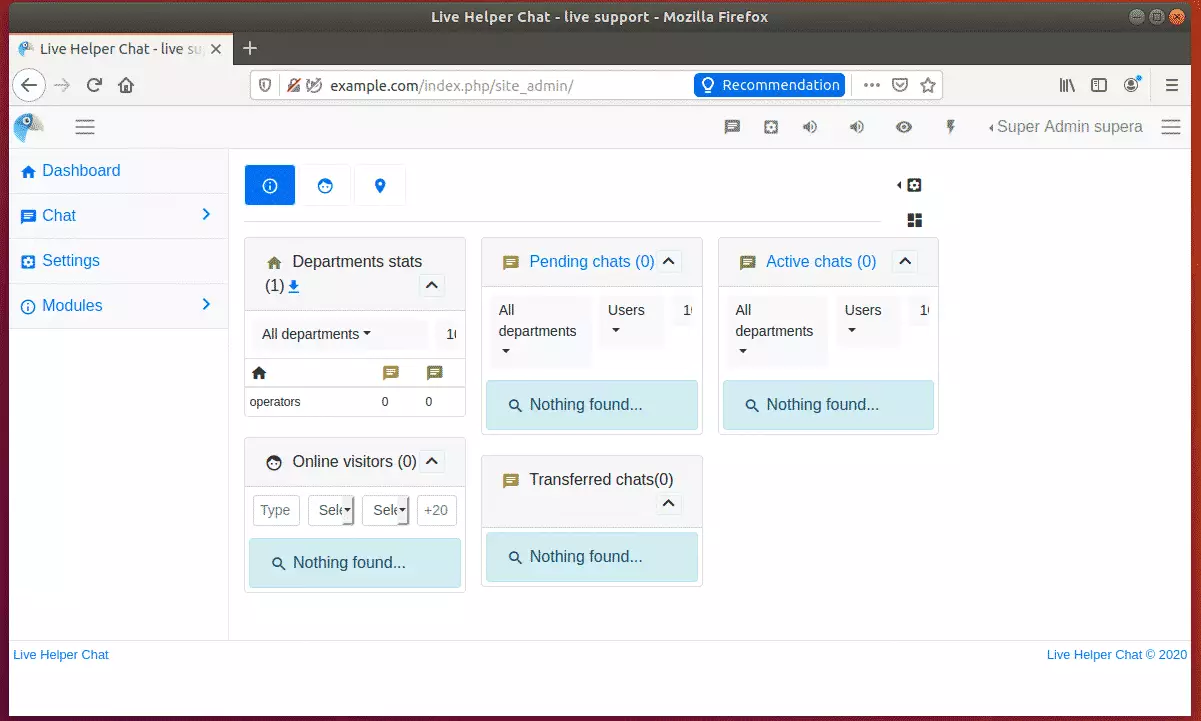
Conclusion:
You have learned to install Live Helper Chat on Ubuntu with the Nginx HTTP server. If you find any errors above, please leave a comment below.
Thanks,
How do I know if nginx is running on Ubuntu?
At the end of the installation process, Ubuntu starts Nginx. The web server is up and running. We can check with the systemd init system to make sure the service is running by typing: systemctl status nginx.
Was this guide helpful?





Great ! It help a lot …
Anyhow some remarks :
before unzip master.zip maybe
sudo apt install unzip
then
sudo unzip master.zip
This example is setting up a new site with “sudo nano /etc/nginx/sites-available/livehelperchat”, correct? What if I want to run Live Helper Chat on an existing website? Should this step be skipped, or does it run as a parallel kind of thing on the existing site?
Thanks for any help!