
Local WordPress development on Windows 11 using XAMPP (a free tool bundle that includes the Apache web server, MariaDB database, and PHP) lets you build and test websites offline without a live server.
XAMPP version 8.2.4 or a later release provides the exact environment needed to run a complete website right from your PC, acting as a practice area before you publish content online.
Install XAMPP, create a database using the XAMPP shell or phpMyAdmin, and then download WordPress files into the 📁C:\
Why use a local environment?
Running WordPress locally lets you test themes, try plugins, or build a site from scratch away from public view. Once you’re done, you’ll have a fully functional website ready to be moved to a live server.
Step 1Install XAMPP
XAMPP includes Apache web server software and a database, providing everything you need to run WordPress. If you have not yet installed XAMPP, our guides offer instructions for installing XAMPP.
Step 2Create a WordPress Database
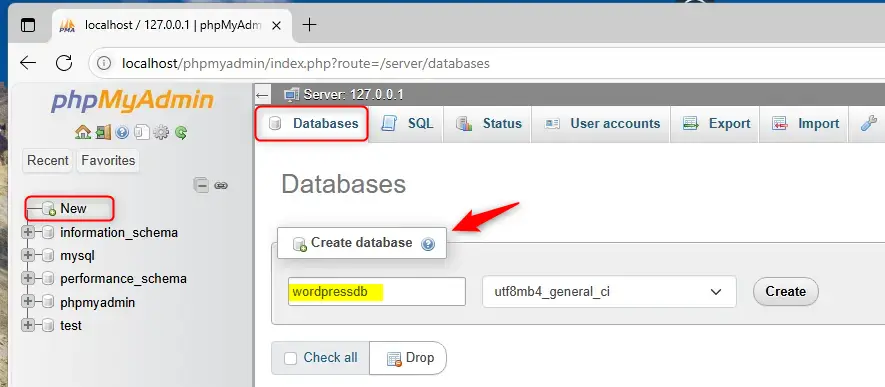
Your WordPress local installation requires a database, which you will create using XAMPP's phpMyAdmin tool. You can access this tool at http://localhost/phpmyadmin/. After logging into the database server, a few commands will set up the database for your new website, storing essential information.
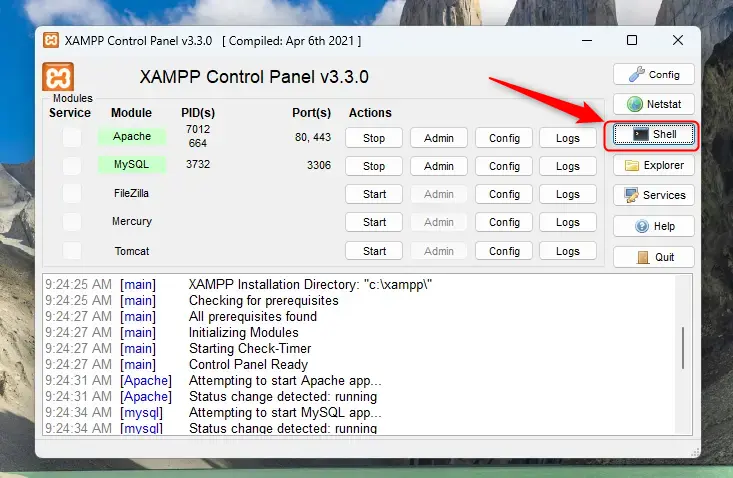
Open your terminal and run this command to log in to your database server:
mysql -u root
Now, run these commands to create your database and a secure user account:
CREATE DATABASE wordpressdb CHARACTER SET utf8mb4 COLLATE utf8mb4_general_ci;
CREATE USER wordpressdbuser@localhost IDENTIFIED BY 'type_your_password_here';
GRANT ALL ON wordpressdb.* TO wordpressdbuser@localhost;
FLUSH PRIVILEGES;
exit
Remember to replace type_your_password_here with a password you'll recall. If you prefer a visual interface, click the 'Admin' button next to MySQL in the Control Panel to use phpMyAdmin instead.
Step 3Download and Set Up WordPress
Download the WordPress files and place them in the correct folder on your computer. This puts the files where XAMPP expects to find them.
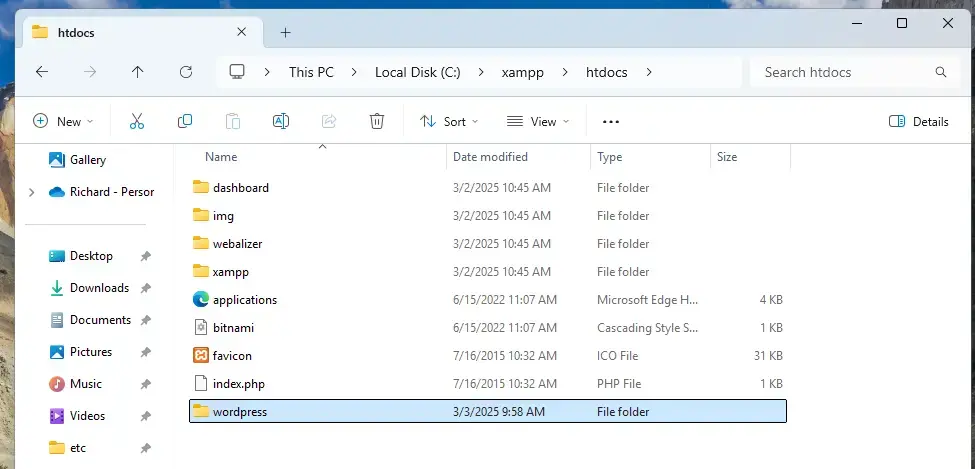
Download the latest version of WordPress from official download page. Extract the files and move them into your new wordpress folder.
To have your browser open your site automatically, find the index.html file in C:\xampp\htdocs and replace its contents with this code:
<?php if (!empty($_SERVER['HTTPS']) && ('on' == $_SERVER['HTTPS'])) { $uri = 'https://'; } else { $uri = 'http://'; } $uri .= $_SERVER['HTTP_HOST']; header('Location: '.$uri.'/wordpress/'); exit; ?>
Save this file and restart Apache in your XAMPP Control Panel.
Step 4Complete the WordPress Installation
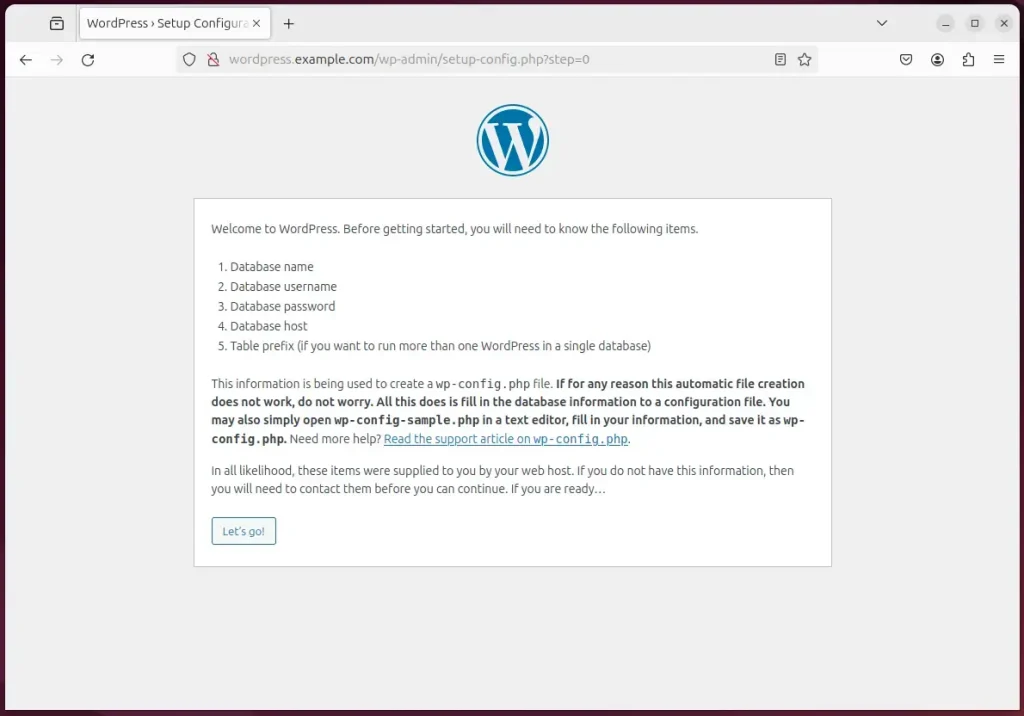
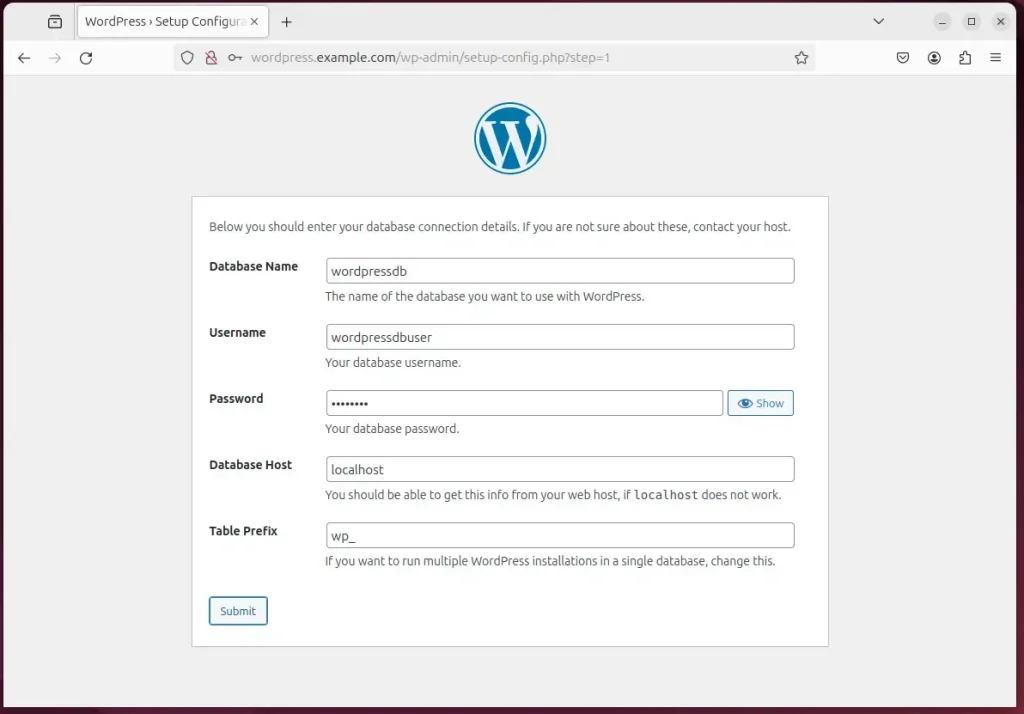
To finish your WordPress local installation using XAMPP, visit a specific web address in your browser. There, you will enter the database details you created earlier to connect WordPress to its storage.
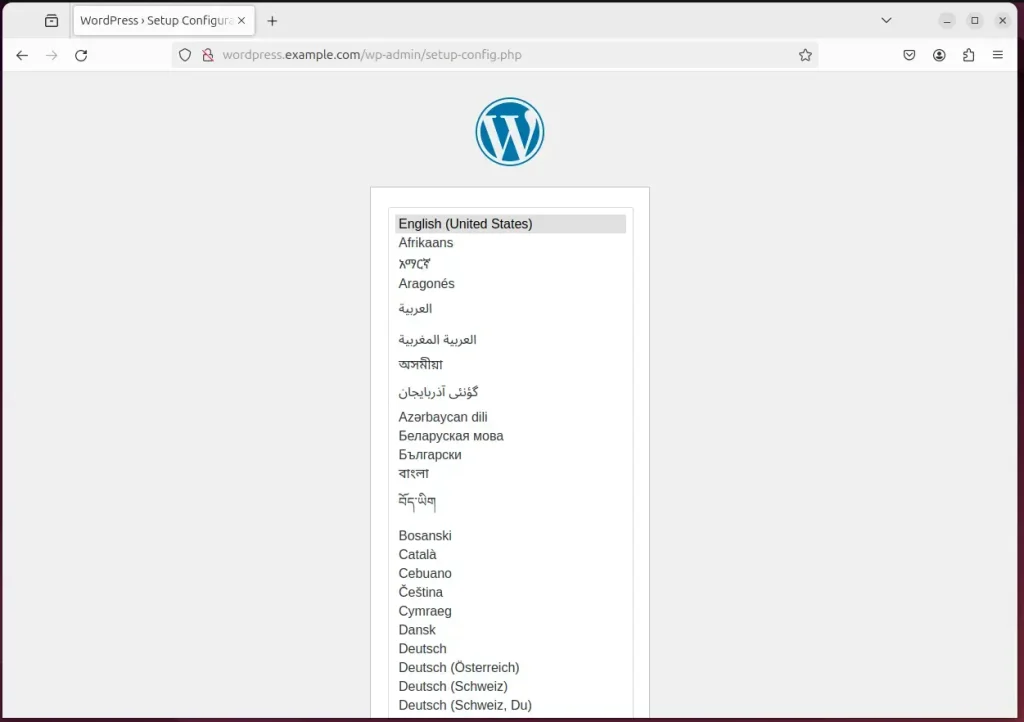
Click "Let's go" to start.
Enter the database name (wordpressdb), the username (wordpressdbuser), and the password you created earlier. Click "Submit".
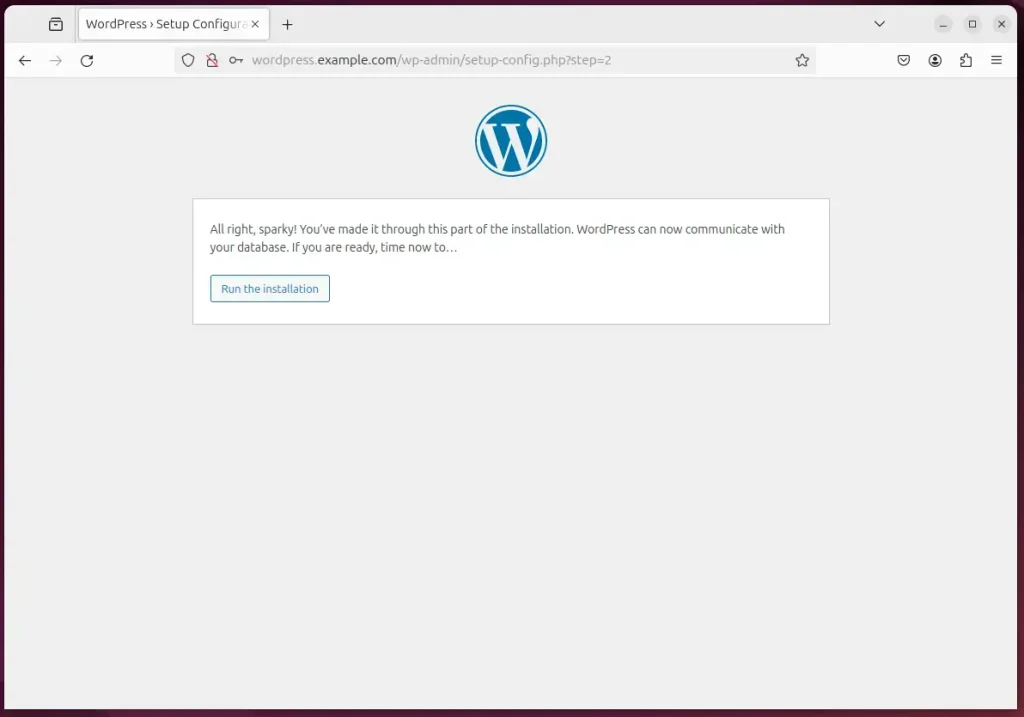
Click "Run the installation".
Fill in your site title and create your admin login details, then click "Install WordPress".
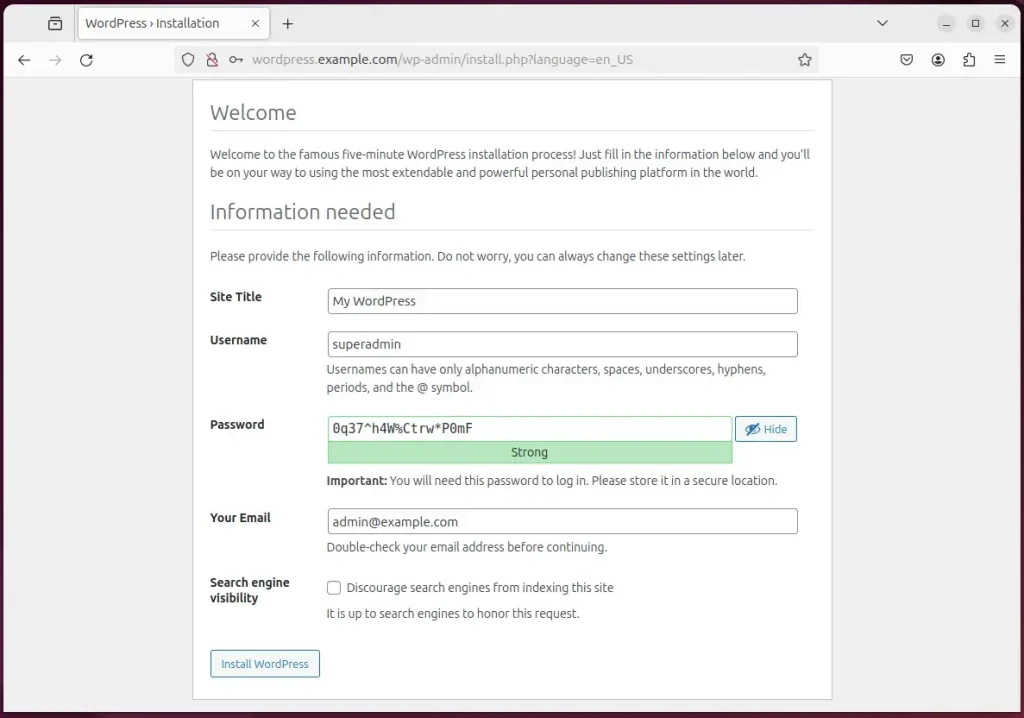
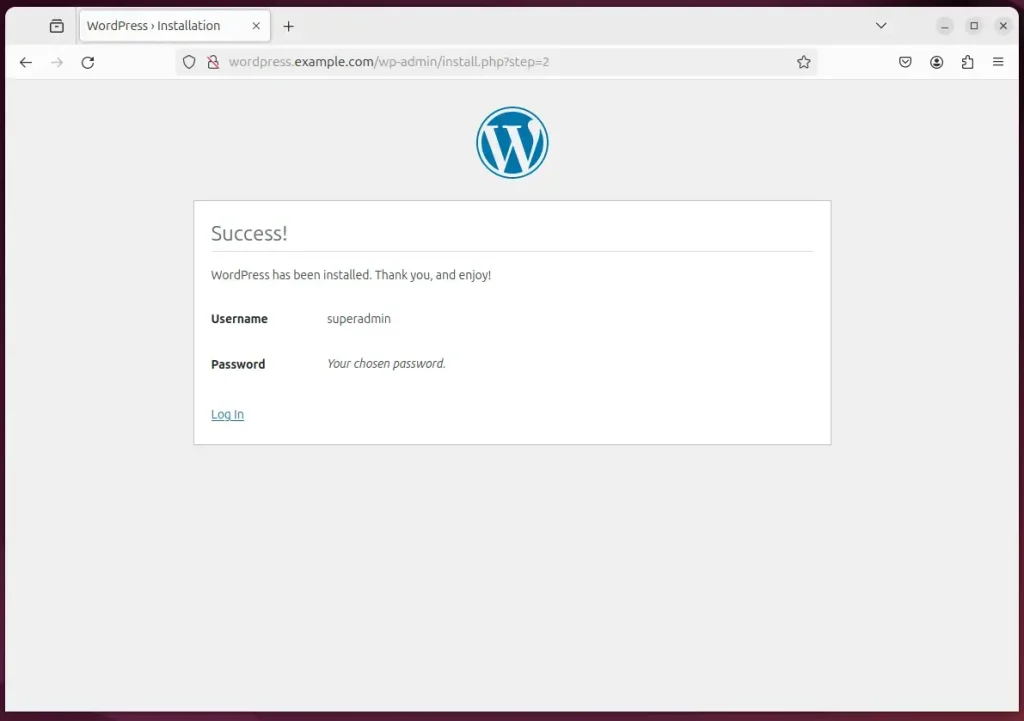
You are all set!
Summary
By installing XAMPP and setting up a local database, you've created a private environment to build your website. This setup allows you to develop and experiment safely on your own machine. When you are finished, you can migrate your local site to a live web host.
[C:xampphtdocswordpress]
How to install WordPress locally without XAMPP?
Continue after that you have to provide the site name. So let's say.
Was this guide helpful?

About the Author
Richard
Tech Writer, IT Professional
Richard, a writer for Geek Rewind, is a tech enthusiast who loves breaking down complex IT topics into simple, easy-to-understand ideas. With years of hands-on experience in system administration and enterprise IT operations, he’s developed a knack for offering practical tips and solutions. Richard aims to make technology more accessible and actionable. He's deeply committed to the Geek Rewind community, always ready to answer questions and engage in discussions.



No comments yet — be the first to share your thoughts!