
This guide will help you set up fingerprint-sign-in-on-your-windows-11-pc/” class=”sal-link” rel=”noopener” target=”_blank” data-sal-id=”5259″>Windows Hello facial recognition to sign in to your Windows 11 computer quickly and securely using your face.
Windows Hello lets you sign in with your face, a PIN, or fingerprint. Before setting up facial recognition, you need to create a PIN. You can still sign in with the PIN anytime if you want.
Using facial recognition and a PIN makes signing in easier and safer because your PIN is unique to your device and backed up with your Microsoft account.
You can use your PC’s built-in infrared camera or an external infrared camera for facial recognition.
How to Set Up Facial Recognition
- Open Settings on your PC. You can do this by pressing the
Windows key + Ion your keyboard. - Click Accounts in the menu on the left side, then click Sign-in options on the right.Click here to open Sign-in options directly.

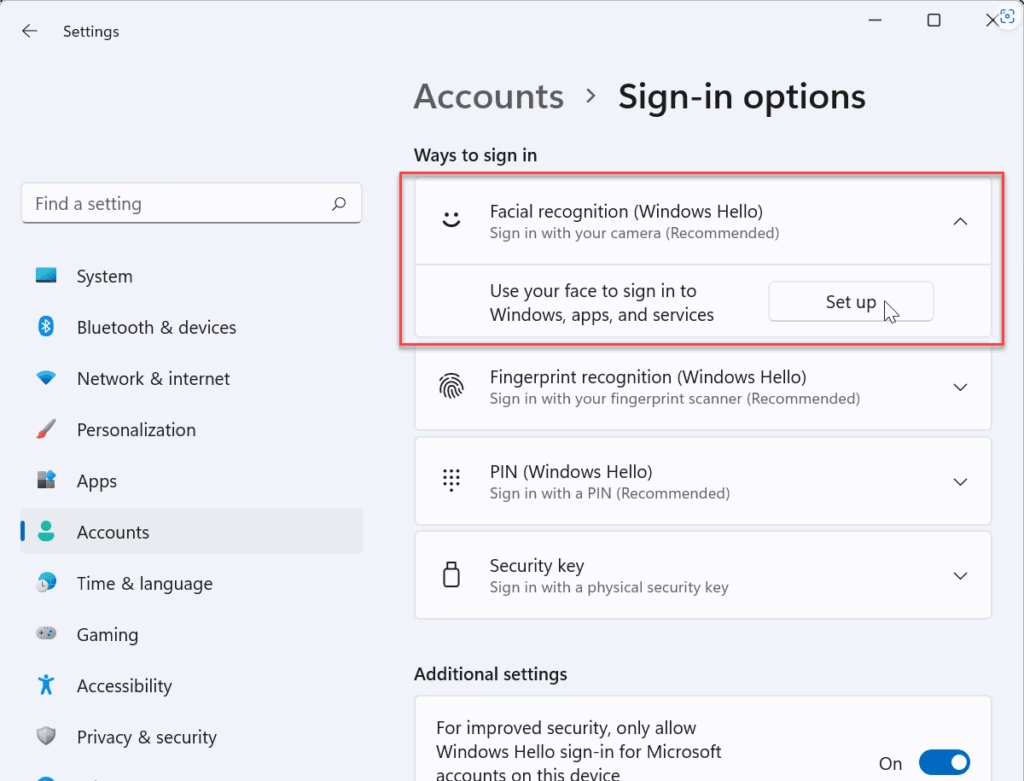
- Under Ways to sign in, find Facial recognition (Windows Hello) and click it to open more options.
- Click the Set up button next to “Use your face to sign in to Windows, apps, and services.”
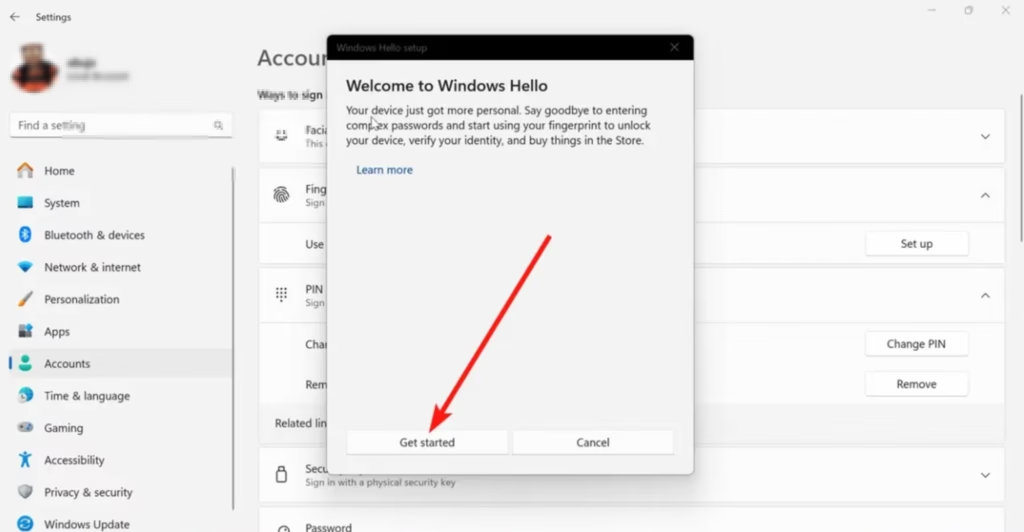
- Click Get started on the next screen.
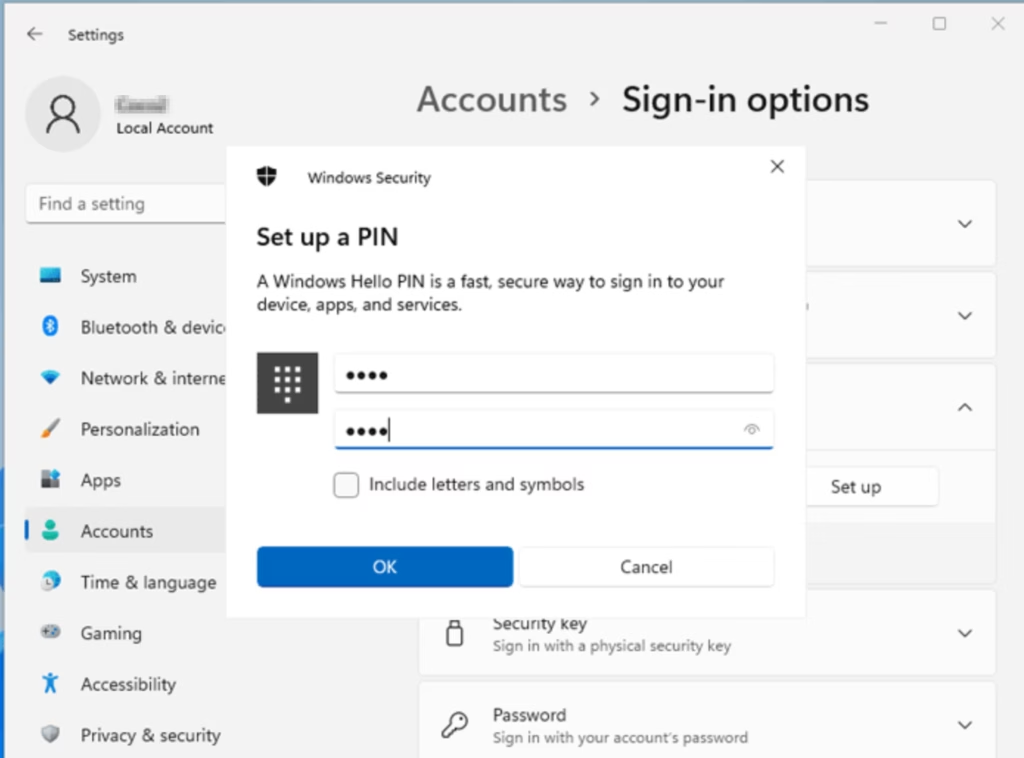
- Enter your account PIN to confirm it’s you.
- Position your face so it’s centered and look straight at the camera until Windows Hello finishes setting up.
- When you see “All set,” click Close.
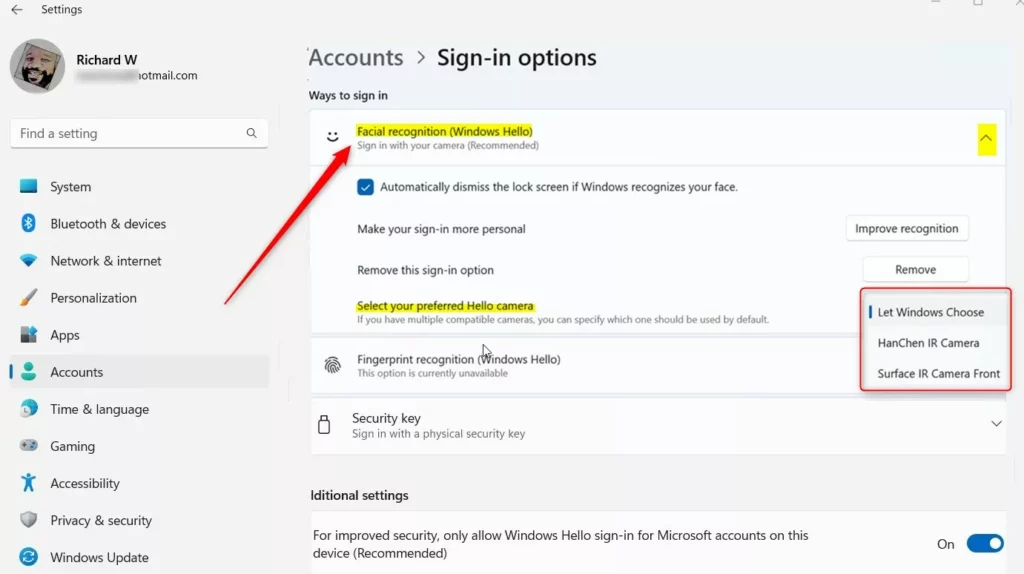
- Optional: If you have more than one Windows Hello camera, you can choose which camera to use from the drop-down menu. This option is available in Windows 11 build 25324 and later.
You can now close the Settings window.
Why Use Facial Recognition?
- Better Security: Your face is unique, so it makes your sign-in safer than just a password.
- Quick and Easy: Just look at your PC to sign in fast.
- Your PIN is Safe: The PIN you use is tied to your device only.
- More Ways to Sign In: You can also use fingerprint or PIN if you prefer.
- Works with Your Camera: Uses your PC’s built-in or an external infrared camera.
- Help If Needed: If you have problems, check the official support links below.
Helpful Links
- Windows Hello face authentication
- Windows Hello biometric requirements
- Windows Hello biometrics in enterprise
- Troubleshoot Windows Hello problems
Summary
Setting up facial recognition in Windows 11 is a simple way to secure your computer. Windows Hello uses your face to sign in quickly and safely. You’ll start by opening Settings and going to Accounts and Sign-in options. Then you’ll add your face to Windows Hello by looking at your camera for a few seconds. Your unique face becomes your password. You’ll still have your PIN as a backup way to sign in. This method is more secure than using just a password and faster than typing anything in. Once set up, you can sign in to your computer and apps with just a glance at your camera.



Leave a Reply Cancel reply