
If you use Windows 11, your computer pause updates feature itself to stay safe and add new features. But sometimes, Windows needs to restart your PC to finish installing updates. That restart might happen when you’re busy, which can be annoying.
To avoid this, you can tell Windows when you usually use your computer. This is called setting Automatically Adjust Active Hours. During these hours, Windows won’t restart your PC automatically to finish updates.
Good news: Windows downloads and installs updates on its own. But if you want to stop restarts during your work or play time, setting Active Hours helps.
What are the default Active Hours?
By default, Active Hours are set from 8:00 AM to 5:00 PM. You can change these hours to fit your schedule.
How to Set Active Hours in Windows 11 Settings
- Open Settings by pressing
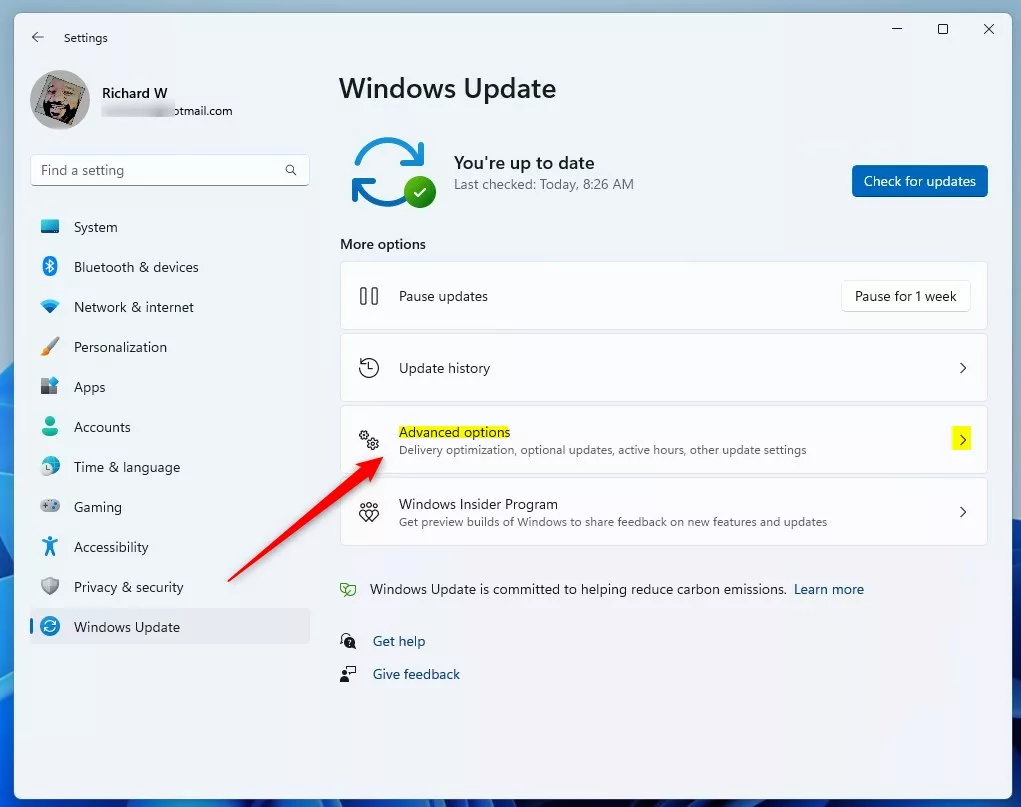
Win + Ion your keyboard. - Click on Windows Update restarts on the left menu.
- On the right, click Advanced options.
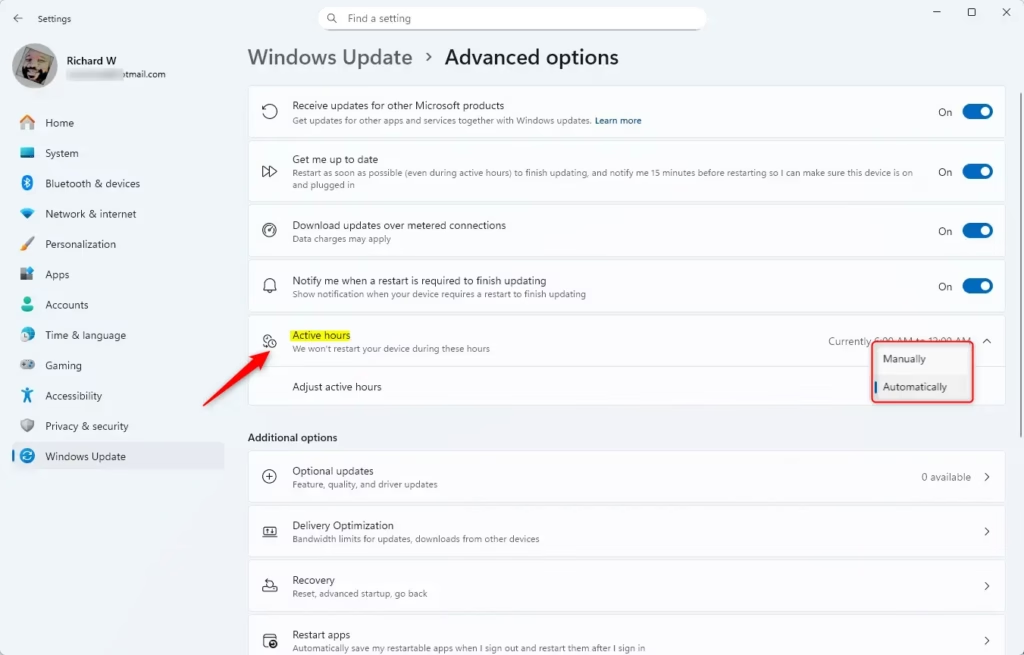
- Find and click Active hours to open it.
- You can choose:
- Automatically – Windows learns your active hours and sets them for you (default).
- Manually – You pick the start and end times yourself.
- If you choose Manually, follow these steps:
- Click the start time hour and pick the hour you want.
- Choose AM or PM.
- Click the check mark to confirm.
- Click the end time hour and pick the hour you want.
- Choose AM or PM.
- Click the check mark to confirm.
- Close Settings when you’re done.
More Ways to Set Active Hours
If you want, and if you are comfortable with advanced tools, there are other ways to set active hours using:
- Registry Editor (for advanced users and administrators)
- Local Group Policy Editor (only on Windows 11 Pro, Enterprise, or Education editions)
These are more for IT professionals and might be complicated. If you want to learn about these, see the official Microsoft guide on Active Hours.
Learn More
For detailed info and more advanced options, visit the official Microsoft support page:
Keep your PC up to date with active hours – Microsoft Support


Leave a Reply Cancel reply