

This guide will help you easily remove the PIN sign-in option from your Windows 11 account.
What is Windows Hello and PIN?
Windows Hello lets you sign in to your PC faster and safer. You can use a PIN, your face, or your fingerprint to log in. When you set up face or fingerprint sign-in, you also create a PIN as a backup way to sign in.
A PIN is just a number code or sometimes a mix of letters and symbols. It is special because it works only on your device, so it keeps your account safer than a regular password.
Why is a PIN better than a password?
- PIN is tied to your device
Your PIN only works on your computer or device. If someone steals your PIN, they still can’t get into your account without your device. - PIN stays on your device
Unlike a password, your PIN isn’t sent over the internet or stored on Microsoft’s servers. It stays safe on your device only. - PIN is backed by special hardware
Your device has a special chip called TPM that protects your PIN and stops hackers from breaking in. - PIN can be as strong as a password
Your PIN can be simple or very complex with letters, numbers, and symbols, depending on your settings. - PIN is needed for biometrics
You must have a PIN to use fingerprint or face sign-in. The PIN works as a backup if the biometric sign-in doesn’t work.
If you want to learn more about PIN and Windows Hello, check out this Microsoft article explaining PIN vs. password.
How to Remove PIN on Your Windows 11 PC
Option 1: Remove PIN Using Settings
- Press Windows key + I to open Settings.
- Click on Accounts in the left menu.
- Click on Sign-in options on the right.
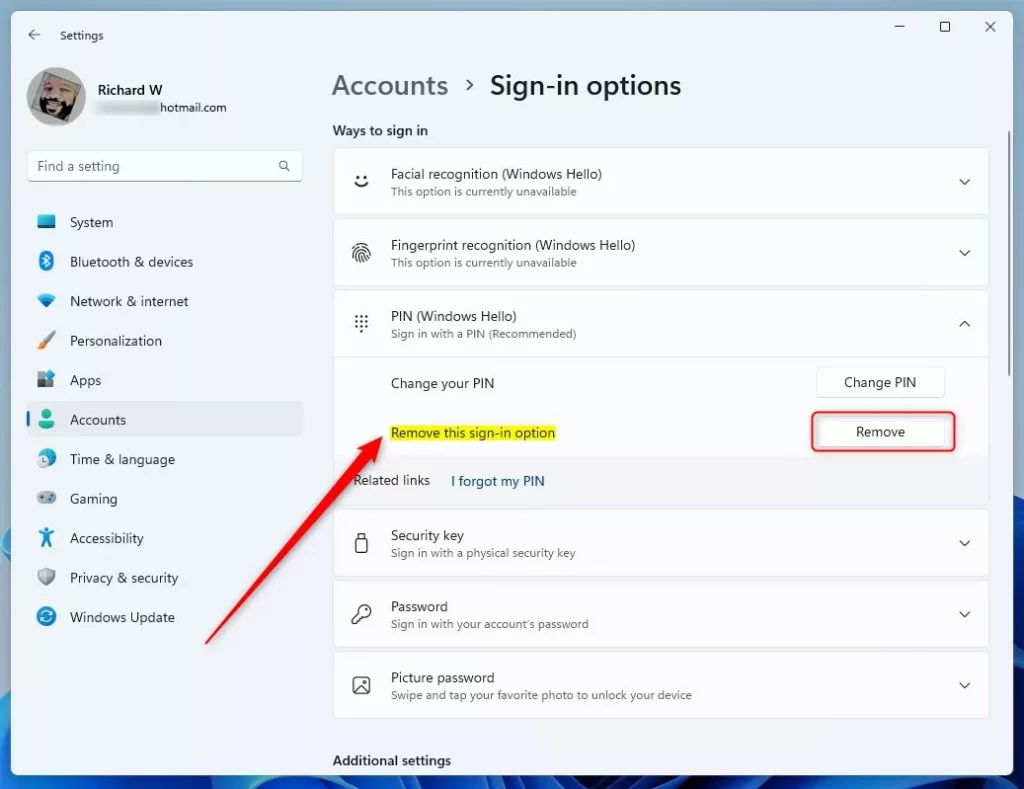
- Under Ways to sign in, find PIN (Windows Hello) and click it to expand.
- Click the Remove button next to “Remove this sign-in option”.
- If the Remove button is gray, make sure “For improved security, only allow Windows Hello sign-in for Microsoft accounts on this device” is turned off.
- Confirm by clicking Remove again when asked.
- Enter your Microsoft account password (not PIN) to verify and click OK.
- You can now close Settings.
Note: Removing your PIN will also remove any face or fingerprint sign-in options because those need a PIN to work.

Quick Link to Sign-in Options Settings
You can open the Sign-in options directly by clicking this link on your Windows 11 PC: Open Sign-in options
Option 2: Remove PIN for All Users Using a Batch File (Advanced)
Warning: This option requires you to be signed in as an administrator. Use it only if you have problems with PIN sign-in like errors or if you can’t add/change your PIN.
Sometimes the folder where Windows saves PIN info gets damaged. This can cause errors like:
- “Something went wrong (code: 0x8009002d)” when signing in with PIN.
- “Something went wrong. Try again later” when adding or changing a PIN.
- PIN sign-in option missing or not working.
To fix this, you can reset the folder where PIN data is stored by running this code in a batch file:
@echo off
powershell -windowstyle hidden -command "Start-Process cmd -ArgumentList '/s,/c,takeown /f C:WindowsServiceProfilesLocalServiceAppDataLocalMicrosoftNGC /r /d y & icacls C:WindowsServiceProfilesLocalServiceAppDataLocalMicrosoftNGC /grant administrators:F /t & RD /S /Q C:WindowsServiceProfilesLocalServiceAppDataLocalMicrosoftNgc & MD C:WindowsServiceProfilesLocalServiceAppDataLocalMicrosoftNgc & icacls C:WindowsServiceProfilesLocalServiceAppDataLocalMicrosoftNgc /T /Q /C /RESET' -Verb runAs"
How to use this code:
- Open Notepad and copy-paste the above code.
- Save the file with a
.batextension, for example,ResetPIN.bat. - Right-click the file and choose Run as administrator.
- Your PIN data will be reset. You can now try setting up a PIN again.
Summary
Here’s what you should remember about removing your PIN in Windows 11:
- Removing the PIN also removes face and fingerprint sign-in.
- The PIN works only on your device, so it helps keep your account safe.
- PIN data is stored securely on your PC, not online.
- Admins can fix PIN problems for all users by resetting the PIN folder.
- Removing the PIN may turn off some account protection features in Windows Security.
By following these simple steps, you can control how you sign in to your Windows 11 PC while keeping your account safe.
More Help
Want to learn more about sign-in options in Windows? Visit this official Microsoft page:
Sign-In Options in Windows – Microsoft Support



Leave a Reply Cancel reply