
This article explains how to remove or hide the Home folder from the navigation pane in File Explorer on Windows 11.
Windows File Explorer is a file manager application that comes with Microsoft Windows. It has a graphical user interface that lets you view, copy, move, delete, and rename files and folders. You can organize them in a hierarchical structure.
The latest File Explorer shows a Home, Gallery, and your OneDrive folders on the navigation pane.
We showed you how to remove the Gallery and OneDrive folders from the navigation pane in File Explorer. You can also remove the Home folder from the navigation pane.
The steps below show you how to do that.
Hide the Home Folder in File Explorer Navigation Pane
Why do this? Users can hide or remove the Home folder from the navigation pane if they prefer a cleaner interface. What happens when done? The Home folder will no longer appear in your File Explorer sidebar.
Here’s how to do it.
Step 1: Open the Registry Editor
First, open the Windows Registry and navigate to the folder key path below.
Computer\HKEY_LOCAL_MACHINE\SOFTWARE\Microsoft\Windows\CurrentVersion\Explorer
⚠️ Admin required: You need administrator privileges to edit the registry.
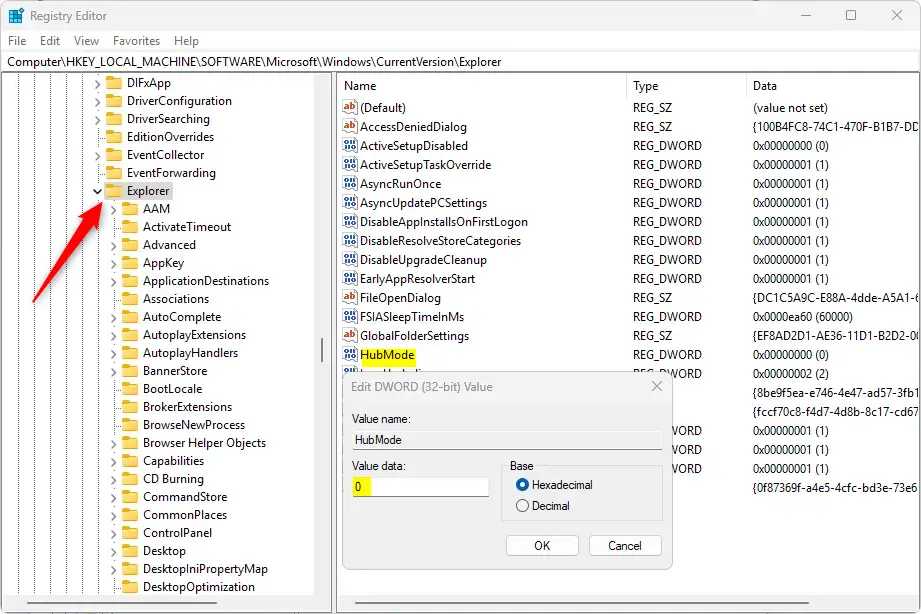
Step 2: Create a New DWORD Value
Right-click Explorer > New > DWORD (32-bit) Value and name the new DWORD HubMode.
Double-click HubMode and change the value to 1, then click OK.
Step 3: Delete the Home Folder Key
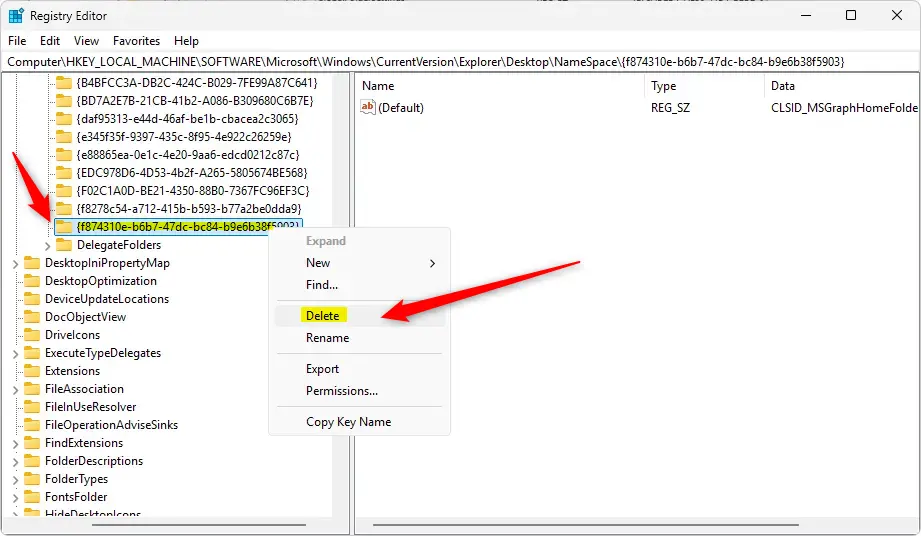
Next, navigate to the folder key path below.
Computer\HKEY_LOCAL_MACHINE\SOFTWARE\Microsoft\Windows\CurrentVersion\Explorer\Desktop\NameSpace
Right-click the {f874310e-b6b7-47dc-bc84-b9e6b38f5903} key and select Delete to remove it.
Step 4: Restart Your Computer
You may need to reboot your computer to apply the changes.
After completing the steps above, the “Home” folder in the navigation pane will default to the “This PC” folder or any folder you select as default.
Restore the Home Folder in File Explorer
Why do this? If you change your mind and want the Home folder back, you can undo these changes. What happens when done? The Home folder will reappear in your File Explorer sidebar.
If you want to undo the changes and continue with the default behavior by showing the “Home” folder in File Explorer, reverse the above steps.
Step 1: Delete the HubMode Value
Right-click the "HubMode" name created above and choose to "Delete" it.
Step 2: Create the NameSpace Key Again
Then, navigate to the second key path. Right-click the "NameSpace" key, select "New," and click "Key."
Step 3: Enter the Key Name
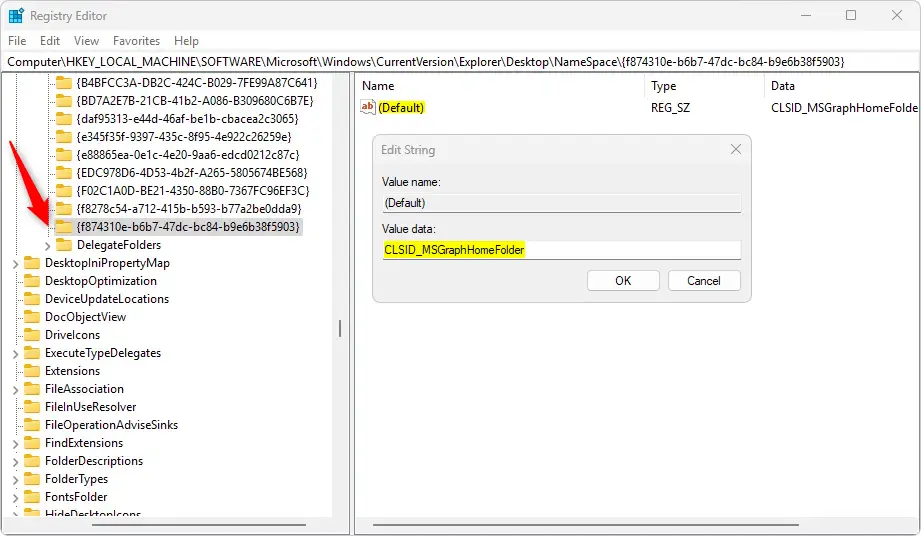
Next, enter the key name {f874310e-b6b7-47dc-bc84-b9e6b38f5903} and press Enter.
Step 4: Set the Default Value
Finally, right-click the "Default" string inside the {f874310e-b6b7-47dc-bc84-b9e6b38f5903} key and change the value to CLSID_MSGraphHomeFolder and click OK.
That should do it!
Summary
Hiding or restoring the Home folder in Windows 11’s File Explorer is straightforward. You can customize your navigation pane according to your preferences by following the steps outlined. Here are the key points to remember:
- Hiding the Home Folder: Modify the registry to hide the Home folder. This gives you a cleaner navigation experience.
- Restoring the Home Folder: Simply delete the registry entries or create a new key to bring back the Home folder.
- Reboot Required: A system reboot may be necessary to apply any changes you make in the registry.
- Customization: Tailor your File Explorer to suit your needs. You can declutter it or restore familiar features.
- Caution with Registry: Always exercise caution when editing the Windows Registry. Incorrect changes can lead to system issues.
Following these guidelines will help you efficiently manage your File Explorer’s interface.
Frequently Asked Questions
How do I remove the Home folder from Windows 11 File Explorer?
Can I restore the Home folder in File Explorer after hiding it?
Is it safe to modify the Windows Registry to hide the Home folder?
Do I need to restart my computer after making changes to the Registry?
What happens if I delete the wrong key in the Registry?



Leave a Reply Cancel reply