Prevent Copilot using current webpage, browser history, or preferences to provide responses in Microsoft Edge

You can prevent Copilot in Microsoft Edge from using your current webpage, browser history, or preferences by adjusting specific settings.
Copilot is an AI assistant that integrates with Edge, aiming to enhance your browsing experience by providing context-aware information and suggestions. However, it can access and utilize data like the page you’re viewing, your past searches, and your stored preferences to personalize its responses.
If you wish to limit Copilot’s access to this personal data for enhanced privacy, you can easily disable these features. For instance, disabling the “Show me relevant Copilot suggestions based on the webpage I’m viewing” option significantly restricts its data access.
This tutorial will guide you through the exact steps within Microsoft Edge settings to regain control over what information Copilot can use.
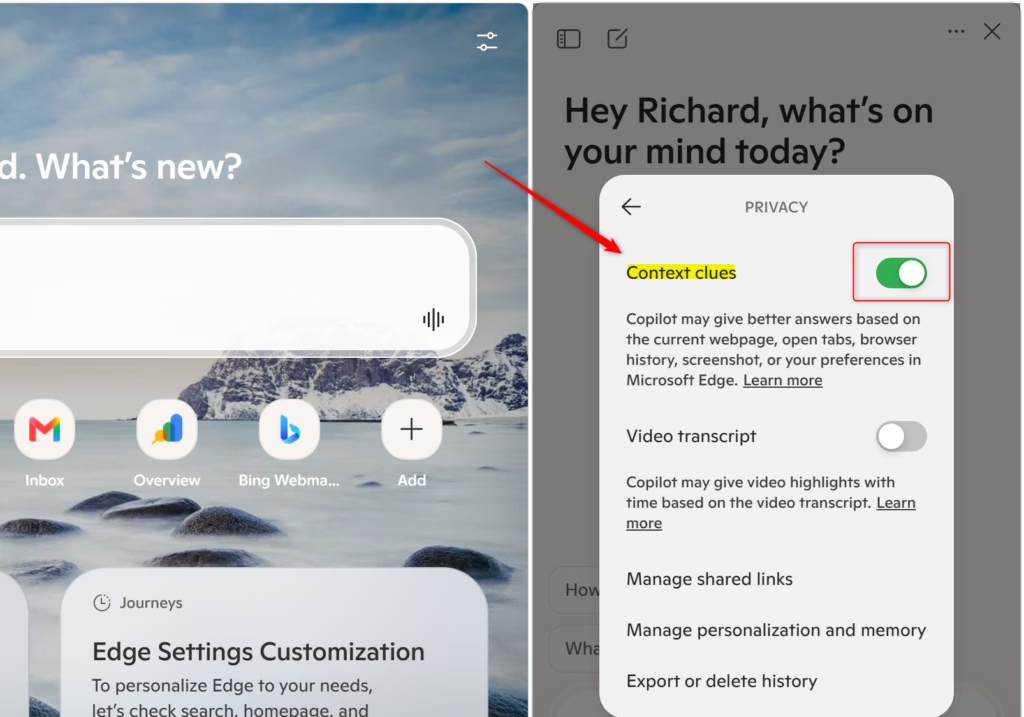
Turn off “Context clues” in Copilot’s settings to prevent it from using your current webpage, browsing history, or preferences. Open Copilot, click the ‘More menu’ (…), select Settings, and toggle off the Context clues option. This keeps your browsing activity private.
How to Change Copilot Privacy Settings in Edge
You can control what Copilot sees and uses to help you. Microsoft Edge lets you change these privacy settings so you can feel more secure. It’s a quick process, and a few minutes now can make a significant difference in your online privacy.
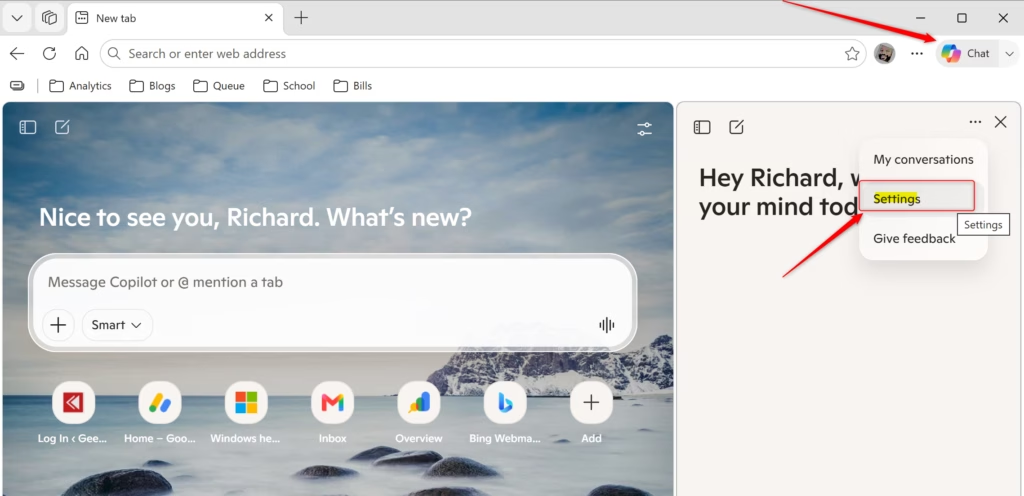
Open Copilot and Find Settings
First, you need to have Copilot open in your Edge sidebar. If it’s not visible, find the Copilot icon. It typically appears as a small speech bubble or a stylized ‘C’ in the top-right corner of your Edge browser. Go ahead and click it. When the Copilot sidebar opens, look toward the bottom. You’ll see a few icons there. Locate the ‘More menu’ icon. It usually looks like three dots .... Click that.
Go to Privacy Settings
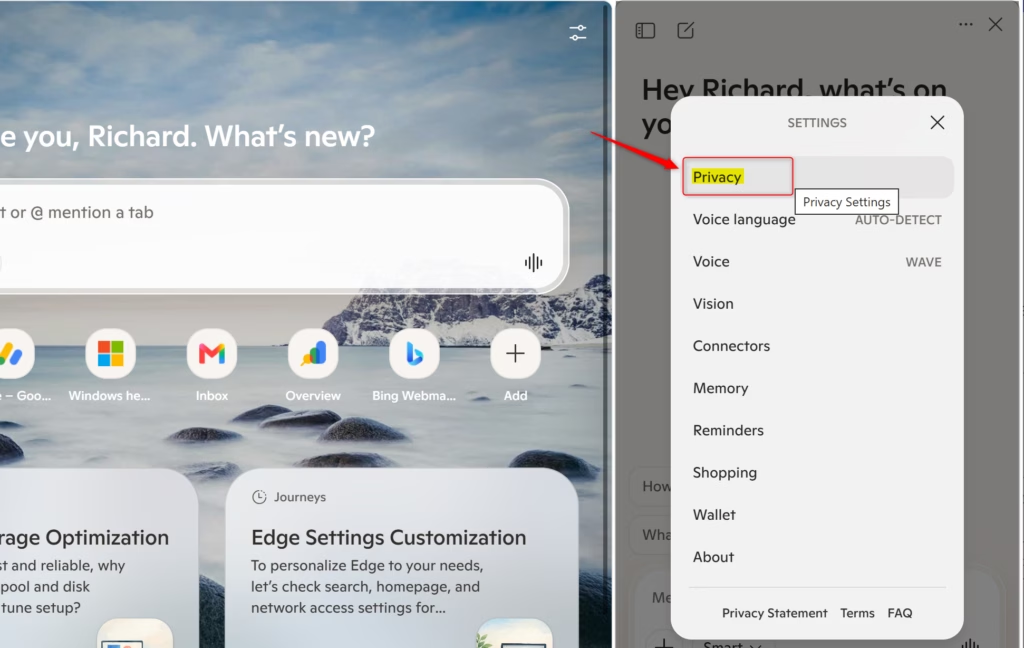
After clicking the ‘More menu’ (...) in the Copilot sidebar, a menu will appear. From there, choose Settings (Settings). This action opens the main Microsoft Edge settings page, possibly in a new tab or within the sidebar itself. Once you’re in settings, look for the Privacy, search, and services (Privacy) section. It might be listed on the left side or as a clickable option on the main page.
Turn Off Context Clues
This is the most crucial step for controlling what Copilot knows about your current browsing. In the Copilot privacy settings, you’ll find an option labeled Context clues (which allows Copilot to use information from the current webpage, your browsing history, and your browser preferences to give you better answers). To prevent Copilot from using this information, you need to turn off Context clues. You’ll typically do this by clicking a switch or unchecking a box next to the setting. With this setting turned off, Copilot won’t be able to use what you’re currently viewing or your past browsing activity to help answer your questions.
Reference:
https://support.microsoft.com/en-us/microsoft-copilot/getting-started-with-copilot-in-microsoft-edge
Summary
Why do this? You might want to stop Copilot from using your current webpage, browsing history, or preferences to keep your online activity more private. This gives you greater command over the information Copilot accesses.
What happens when done? Turning off ‘Context clues’ means Copilot won’t use information from the webpage you’re viewing, your past browsing history, or your saved browser preferences to provide answers. Its responses will be more general, relying solely on your direct questions and its existing knowledge base.
Was this guide helpful?

About the Author
Richard
Tech Writer, IT Professional
Richard, a writer for Geek Rewind, is a tech enthusiast who loves breaking down complex IT topics into simple, easy-to-understand ideas. With years of hands-on experience in system administration and enterprise IT operations, he’s developed a knack for offering practical tips and solutions. Richard aims to make technology more accessible and actionable. He's deeply committed to the Geek Rewind community, always ready to answer questions and engage in discussions.


No comments yet — be the first to share your thoughts!