
Windows 11 lets you choose how you want to sign in to your computer. You can use a password, but there are safer ways to log in, like using a PIN, your face, or your fingerprint with something called Windows Hello.
Here are some popular ways to sign in:
- PIN (a short number code)
- Facial recognition (using your face)
- Fingerprint
- Passkey
You can also use a security key — a small USB device — instead of typing your username and password when signing in on websites.
Using a password is still an option, but it’s less secure than the other methods. You can learn more about managing your password here.
Why change password sign-in options?
If you use a local account (an account stored only on your computer and not connected to Microsoft’s online services), you can choose to turn off password sign-in. This means:
- Passwords won’t be an option when logging in.
- Password prompts won’t appear when Windows asks for permission to make changes (called UAC prompts).
People do this because it can make the computer more secure by only allowing stronger sign-in methods, or to make signing in faster and simpler.
On the other hand, you might want to keep passwords enabled if you or others can’t use other sign-in methods like facial recognition or a PIN.
How to add or remove passwords as a sign-in option
Important: Before turning off password sign-in, make sure you have set up another way to sign in, like a PIN, face, or fingerprint. Otherwise, you could lock yourself out of your computer!
Here’s a simple guide to enable or disable passwords on your Windows 11 local account:
- Open the Registry Editor:
Press Windows key + R, typeregedit, and press Enter. Accept any prompt that asks for permission.
You can also read this guide on how to open Registry Editor: Open Registry Editor in Windows 11.
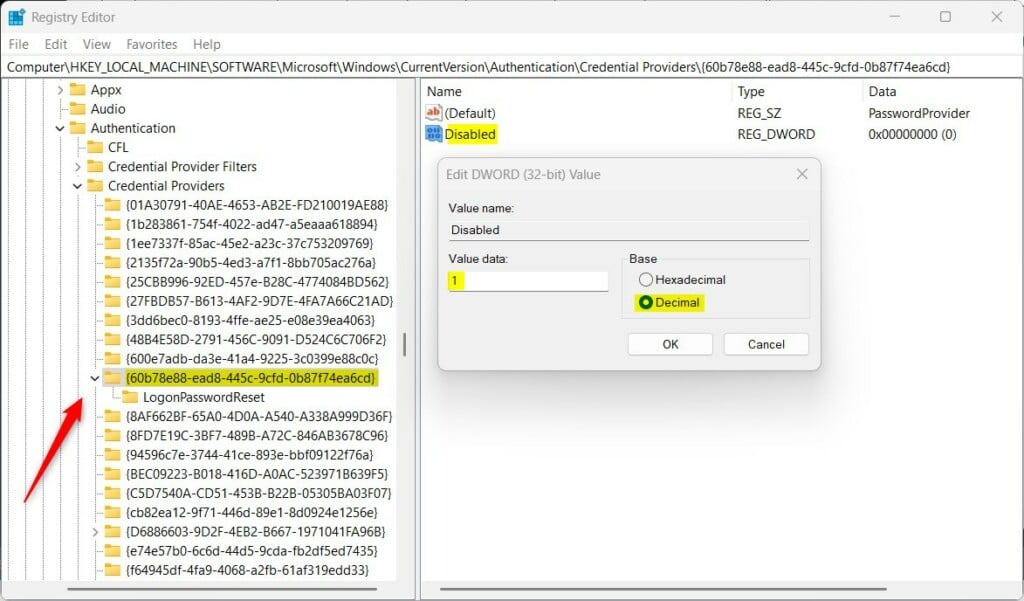
- Go to this folder:
Computer\HKEY_LOCAL_MACHINE\SOFTWARE\Microsoft\Windows\CurrentVersion\AuthenticationCredential Providers{60b78e88-ead8-445c-9cfd-0b87f74ea6cd} - Find the setting called
Disabled:
On the right side, look for an item namedDisabled(it should be a DWORD value).
- Turn off passwords:
Double-clickDisabled, then change the value data to1and click OK. This will stop passwords from being used to sign in.
- Turn on passwords:
If you want to allow passwords again, just delete theDisableditem or set its value to0.
- If you don’t see
Disabled:
Right-click on a blank space in the right pane, select New > DWORD (32-bit) Value, and name itDisabled. Then set the value as described above.
After making changes, restart your computer to make sure they take effect.
More help
For official information from Microsoft, visit their page on Windows sign-in options and account protection.
Summary
- Windows Hello offers safer and easier ways to sign in, like PINs, face, and fingerprint.
- Password sign-in is less secure but still available if needed.
- You can turn off password sign-in for local accounts by changing a setting in the Registry Editor.
- Always set up another sign-in method before disabling passwords to avoid getting locked out.


Leave a Reply Cancel reply