Install Visual Studio Code Web on Ubuntu 24.04

You can install Visual Studio Code for Web on Ubuntu 24.04 by accessing it directly through your web browser.
Visual Studio Code for Web is a web-based, lightweight editor that offers the core VS Code experience without any desktop installation. It’s perfect for quick coding tasks or when you need to access your projects from less powerful machines.
This browser version connects easily with services like GitHub, letting you collaborate in real-time and access your code from anywhere. For Ubuntu 24.04 users, it provides a convenient way to start coding instantly.
Install Visual Studio Code for Web on Ubuntu 24.04 by running the installer script. Update your system with `sudo apt update`, then download and execute the script with `curl -fsSL https://code-server.dev/install.sh | sh`. Enable and start the service using `sudo systemctl enable –now code-server@$USER`.
Download the installer script
Visual Studio Code for the Web on Ubuntu 24.04 is installed using a simple script.
sudo apt update
sudo apt install curl
Next, run this command to download the Visual Studio Code for Web installer script.
curl -fsSL https://code-server.dev/install.sh | sh -s -- --dry-run
Then, execute the following command to install it.
curl -fsSL https://code-server.dev/install.sh | sh
When prompted, type in your password (admin) to proceed with the installation.
Once installed, run the command below to enable it and check the service status.
sudo systemctl enable --now code-server@$USER
sudo systemctl status code-server@$USER
The command should output an active status for the app.
 code-server@richard.service - code-server
     Loaded: loaded (/usr/lib/systemd/system/code-server@.service; enabled; pre>
     Active: active (running) since Sun 2024-12-22 11:46:29 CST; 8s ago
   Main PID: 4259 (node)
      Tasks: 22 (limit: 4561)
     Memory: 60.3M (peak: 60.7M)
        CPU: 503ms
     CGroup: /system.slice/system-codex2dserver.slice/code-server@richard.serv>
             ├─4259 /usr/lib/code-server/lib/node /usr/lib/code-server
             └─4286 /usr/lib/code-server/lib/node /usr/lib/code-server/out/node>
Configure Visual Studio Code for Web
Setting a password for Visual Studio Code for the Web on Ubuntu secures your coding environment.
To do that, open the default code-server configuration file at ~/.config/code-server/config.yaml using the nano editor.
nano ~/.config/code-server/config.yaml
Next, create a password for authentication.
bind-addr: 127.0.0.1:8080
auth: password
password: 6fd97c37c251428ed0f3c74e
cert: false
Save the file and exit. Restart the service using the command below to apply your changes.
sudo systemctl restart code-server@$USER
Use a Reverse Proxy Server
Using a reverse proxy server like Nginx or Apache can improve how you use Visual Studio Code for the Web on Ubuntu.
Below are two articles that guide you through setting up a proxy server on Ubuntu Linux.
Set up Let’s Encrypt SSL Certificate
Adding a Let’s Encrypt SSL certificate to Visual Studio Code for the Web on Ubuntu provides a secure connection.
- How to set up Let’s Encrypt SSL certificate with Apache on Ubuntu
- How to set up Let’s Encrypt SSL certificate with Nginx on Ubuntu
Once your environment is set up, go ahead and access the Visual Studio Code for Web portal.
If you configured a reverse proxy, enter the hostname. Otherwise, use the default hostname and port below:
http://localhost:8080
Enter the password you created in the password file.
Now you’re ready to start coding.
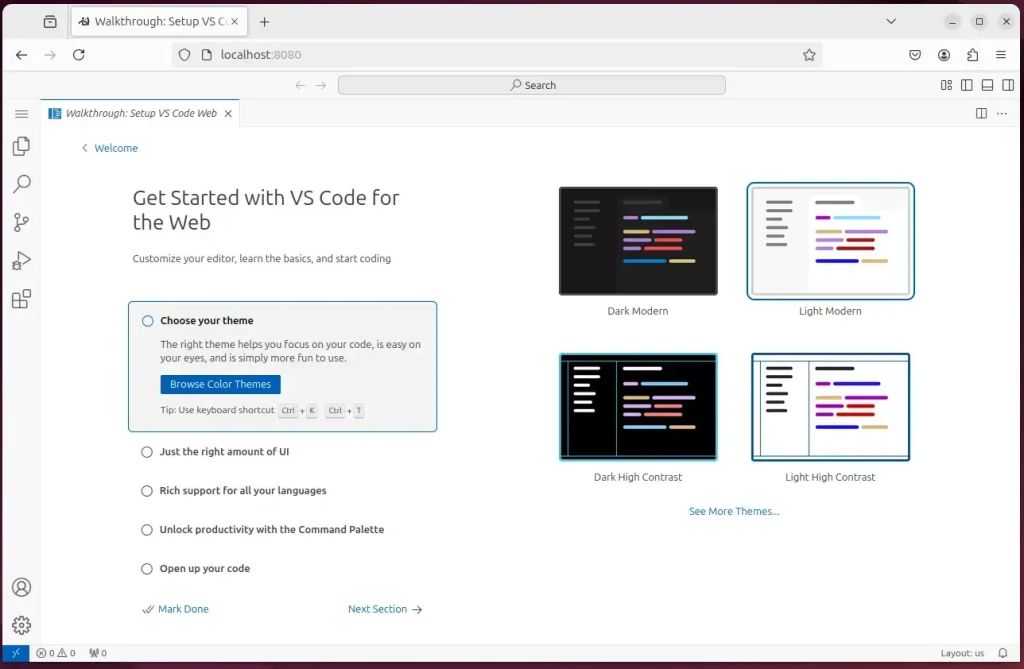
That should do it!
Conclusion:
Installing Visual Studio Code for Web on Ubuntu 24.04 gives you a streamlined coding experience right in your browser. Here are the key things to remember:
- Visual Studio Code for Web allows for lightweight, browser-based coding without installation.
- Effective for rapid coding sessions and collaboration on various devices.
- Supports integration with cloud services like GitHub for real-time collaboration.
- Installation is straightforward using the provided installer script.
- Configuring authentication enhances the security of your coding environment.
- Setting up a reverse proxy (using Nginx or Apache) optimizes accessibility.
- Implementing Let’s Encrypt SSL certificates secures your service.
- Access your development environment via
http://localhost:8080after setup. - Start coding and take advantage of the flexibility that this platform offers!
Can I run VS Code on web?
Yes, you can run Visual Studio Code directly in your web browser without any installation.
How to add VS Code to desktop Ubuntu?
And you can see the installation of Visual Studio Code has been started. So now Visual Studio Code has been installed on your Ubuntu operating system.
Was this guide helpful?

About the Author
Richard
Tech Writer, IT Professional
Richard, a writer for Geek Rewind, is a tech enthusiast who loves breaking down complex IT topics into simple, easy-to-understand ideas. With years of hands-on experience in system administration and enterprise IT operations, he’s developed a knack for offering practical tips and solutions. Richard aims to make technology more accessible and actionable. He's deeply committed to the Geek Rewind community, always ready to answer questions and engage in discussions.



No comments yet — be the first to share your thoughts!