How to Use Windows 11 Narrator Speech Recap

This guide will show you how to use the Narrator Speech Recap feature in Windows 11. It’s a helpful tool that reads text out loud and lets you see what was said. That way, you won’t miss anything important.
Narrator is a built-in Windows app that reads the words on your screen out loud. It helps people who have trouble seeing or reading text.
Starting with Windows 11 updates (build 26200.5516 (Dev) and 26120.3653 (Beta)), Microsoft added a new feature called Speech Recap. This feature lets you see and review what the Narrator has just spoken.
Open the Speech Recap window by pressing the Narrator key + Alt+X. This displays a history of what Narrator has spoken and provides live transcription. You can then review or copy the spoken text.
What Can Speech Recap Do?
With Speech Recap, you can:
- See the last things Narrator said
- Follow along with live text of the speech
- Copy the last spoken sentence to use somewhere else
You open the Speech Recap window by pressing the Narrator key + Alt+X. The Narrator key is usually Caps Lock or Insert. You can check or change it here.
How to Open the Narrator Speech Recap
This new feature lets you see what Narrator has said so far. Here’s how to use it with easy keyboard shortcuts:
Control + Windows key + Enter: Turn Narrator On or OffNarrator key + X: Hear the last thing Narrator said againNarrator key + Control + X: Copy the last spoken textNarrator key + Alt + X: Open the Speech Recap window with history and live transcription
First, make sure you turn on Narrator.
When you want to see the Speech Recap window, press the Narrator key + Alt+X keys together.
The Speech Recap window will appear on the right side of your screen. It shows the text Narrator just spoke and updates as it reads new text.
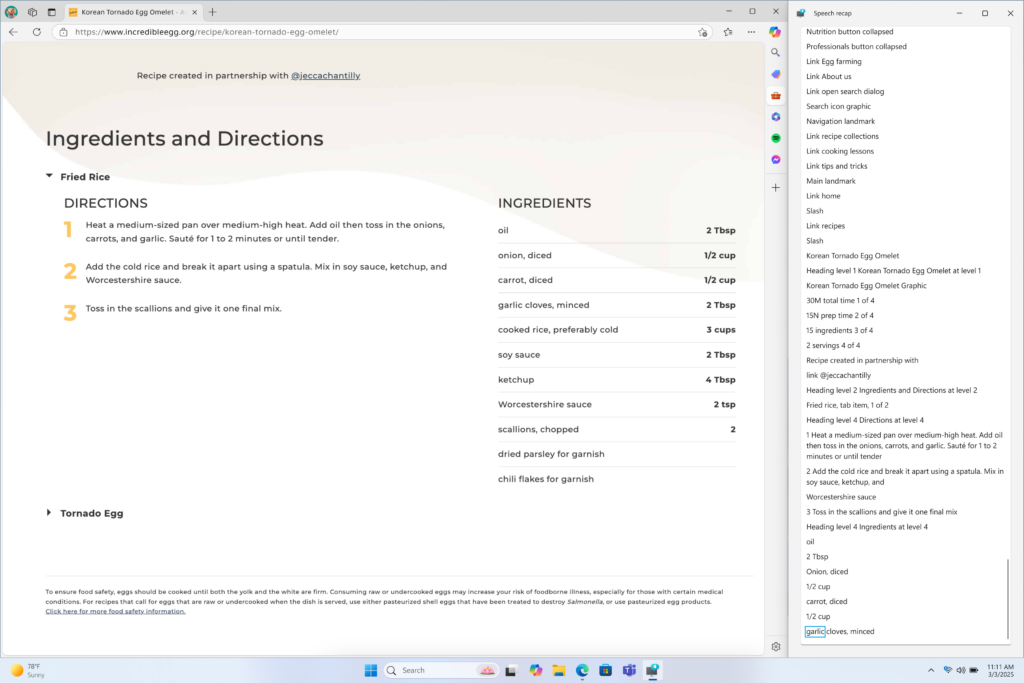
You can snap the Speech Recap window to the side for easy viewing while you work.
That’s all you need to get started!
Summary
The new Narrator Speech Recap feature in Windows 11 helps make your computer easier to use if you rely on speech feedback. Here’s what it offers:
- Built-in Help: Narrator is already part of Windows and reads text aloud to help people with vision difficulties.
- Speech Recap: This new feature lets you see and review what the Narrator said. You won’t miss anything.
- Easy Shortcuts: Simple key combos turn Narrator on and off. They replay speech, copy text, and open the recap window.
- Clear View: The Speech Recap window shows live text. You can read along or check past speech.
Using these tools makes Windows 11 more friendly and accessible for everyone.
References:
Microsoft Windows Insider Preview Announcements
How to Turn On or Off Narrator in Windows 11
How to Change the Narrator Modifier Key in Windows 11
Who is narrating telling the story?
The narrator is the fictional construct the author has created to tell the story through. It's the point of view the story is coming from. Think of it this way. In fiction, we like to let ourselves be tricked.
Was this guide helpful?

About the Author
Richard
Tech Writer, IT Professional
Richard, a writer for Geek Rewind, is a tech enthusiast who loves breaking down complex IT topics into simple, easy-to-understand ideas. With years of hands-on experience in system administration and enterprise IT operations, he’s developed a knack for offering practical tips and solutions. Richard aims to make technology more accessible and actionable. He's deeply committed to the Geek Rewind community, always ready to answer questions and engage in discussions.



No comments yet — be the first to share your thoughts!