
Video drivers help your computer show pictures and videos properly. Sometimes, if your videos or games don’t look right, updating your video driver can help fix it. This guide will show you easy ways to update or install video drivers on your Windows 11 computer.
Good to know: Windows 11 usually updates your drivers automatically through Windows Update. But if you want to check or update them yourself, here’s how.
1. Update Video Drivers Using Windows Optional Updates
Windows sometimes offers extra updates called “Optional updates” which may include new video drivers. Here’s how to check and install them:
- Click the Start menu (Windows icon) at the bottom-left corner.
- Select Settings (the gear icon).
- In Settings, click Windows Update on the left side.
- Then click Advanced options.
- Next, click Optional updates.
- Look for any video driver updates listed here. If you see one, check the box next to it and click Download & install.
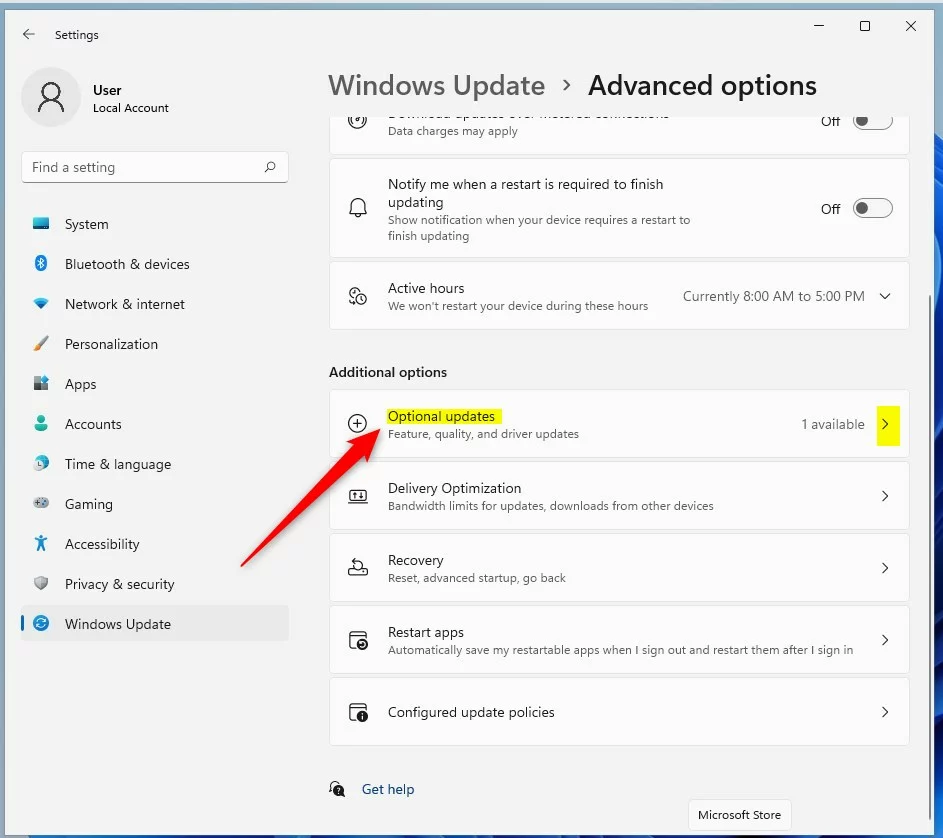
This will let Windows install the latest video driver if it’s available.
2. Update Video Drivers Using Device Manager
If you want to update your driver manually or Windows didn’t find an update, you can use Device Manager:
- First, find out which video card your computer has. You can learn how here: How to check graphics card details in Windows 11.
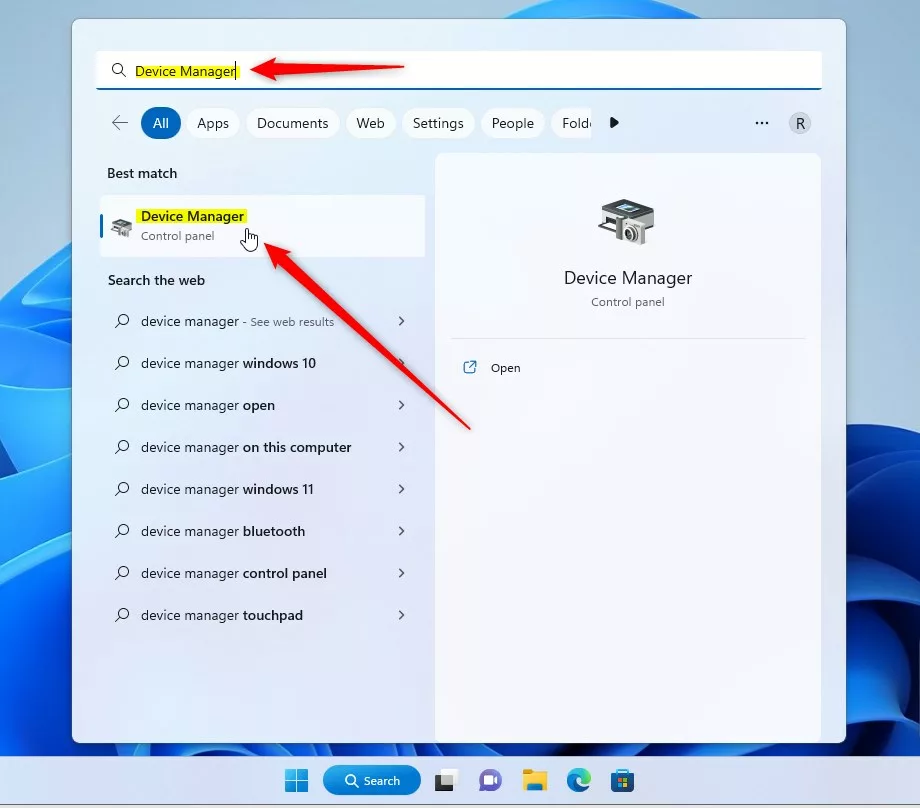
- Once you know your video card, click the Start menu and type Device Manager.
- Click on the Device Manager app that appears.
Next:
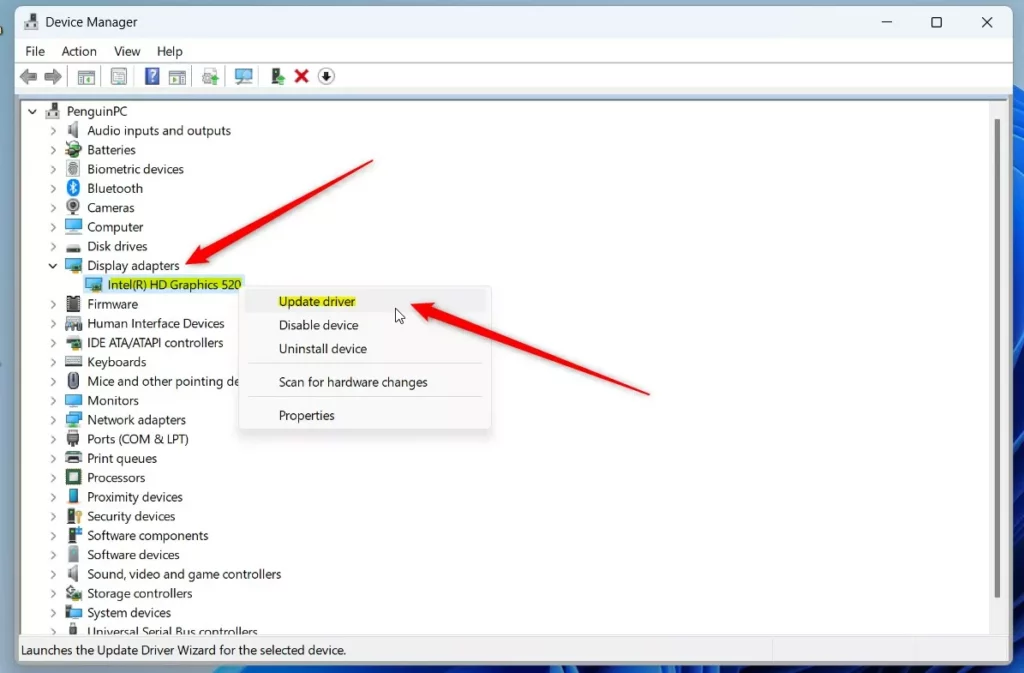
- In Device Manager, find and click the arrow next to Display adapters to expand it.
- Right-click your video card name (for example, Intel(R) HD Graphics 520) and select Update driver.
Then choose:
- Browse my computer for drivers – if you already downloaded the driver from the manufacturer’s website.
- or Search automatically for drivers – let Windows try to find the latest driver online.
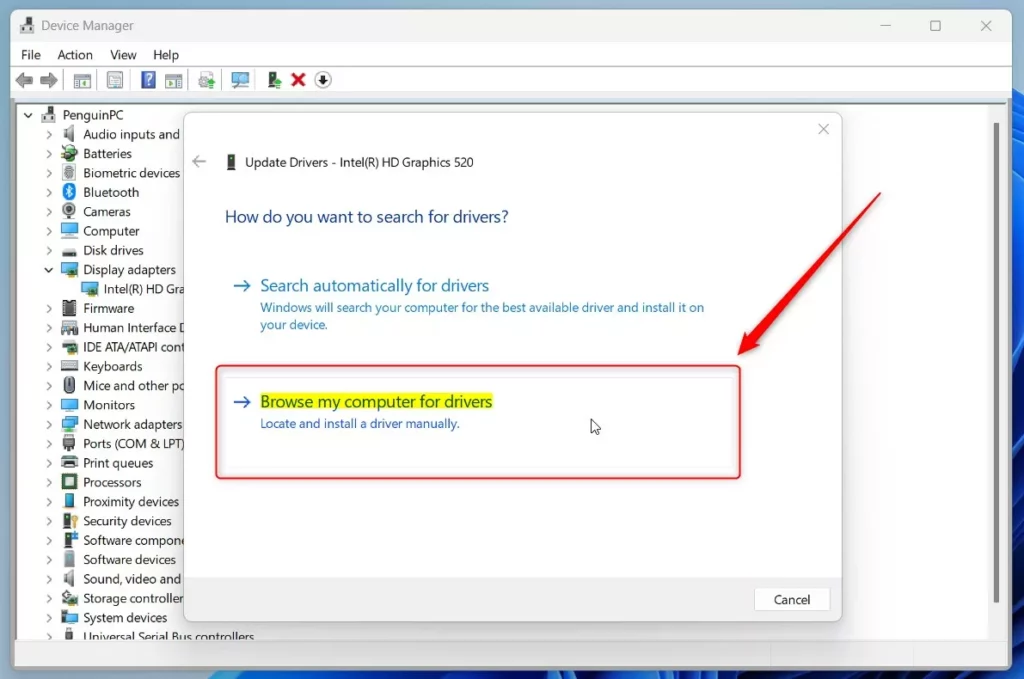
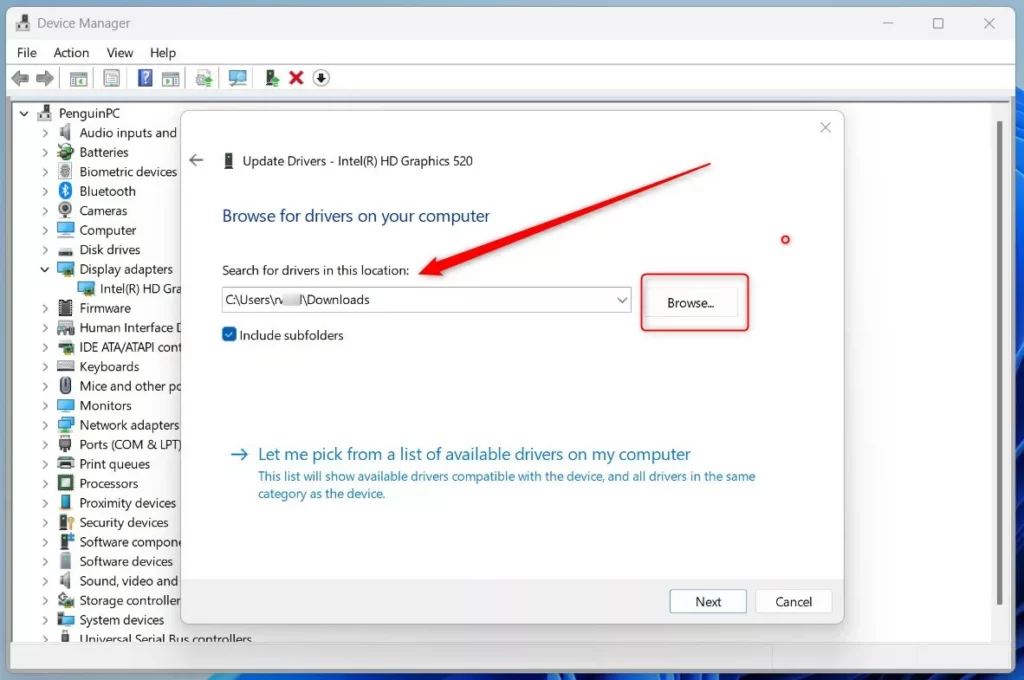
If you pick “Browse my computer for drivers,” find the folder where you saved the driver, then click Next and follow the steps.
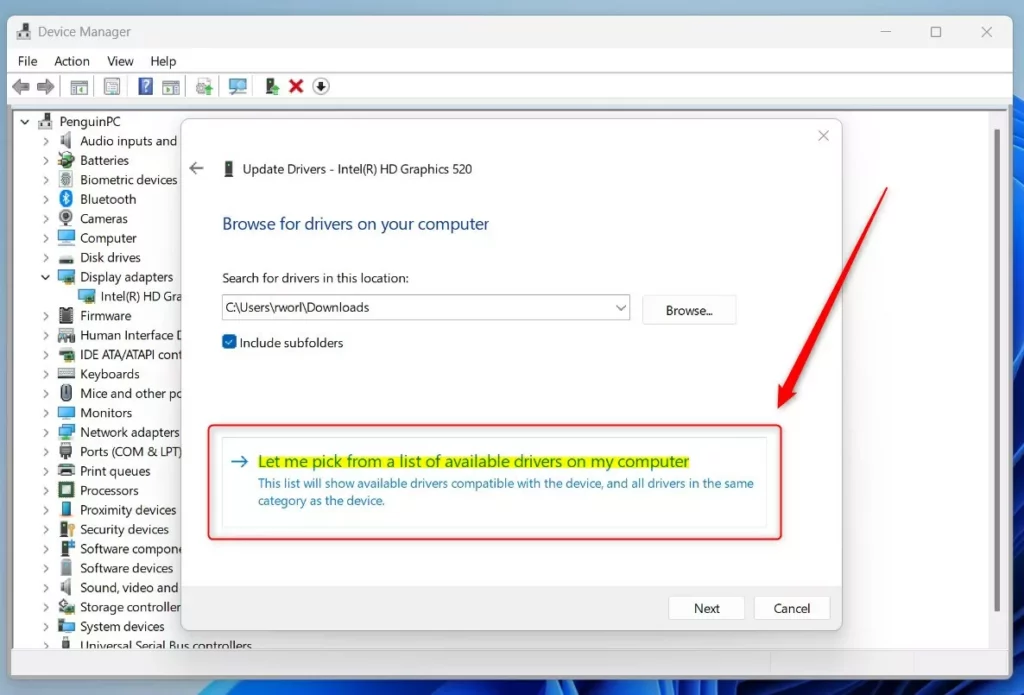
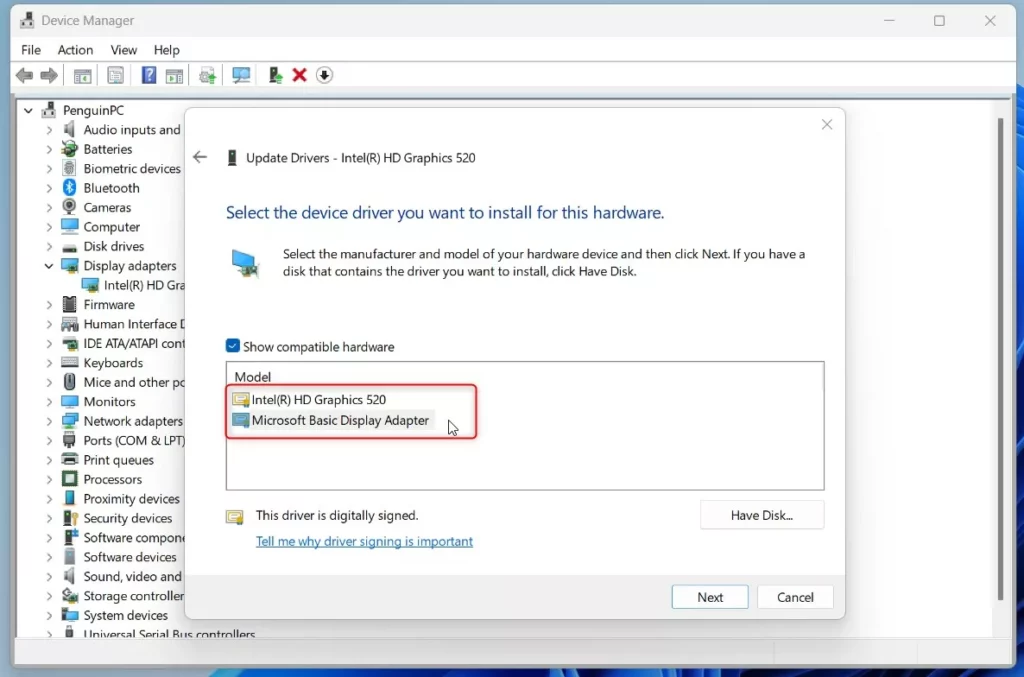
If you don’t have a driver file, you can pick Let me pick from a list of available drivers on my computer. Sometimes you have more than one driver version available and can choose a previous one that worked well.
Choose a driver and click OK. Then finish the install.
After the update, it’s a good idea to restart your computer so the changes take effect.
3. Download and Install Drivers from the Manufacturer’s Website
If you want the very latest drivers or your video card didn’t update through Windows, you can download drivers directly from your video card maker.
Some common graphics card makers and their official driver download pages:
Go to the right site, enter your video card model, download the driver, then run the file to install it.
Summary
- Updating your video driver can help fix video or game problems and make your computer run better.
- You can update drivers using Windows Optional updates, Device Manager, or by downloading from the manufacturer’s website.
- After updating your driver, restart your computer to make sure the changes work.



Leave a Reply Cancel reply