How to Update Device Drivers in Windows 11

Updating your device drivers in Windows 11 ensures your hardware performs optimally, fixes bugs, and improves overall system stability.
Device drivers are essential software programs that allow your operating system, Windows 11, to communicate effectively with your computer’s hardware components, such as your graphics card, sound card, or network adapter.
Keeping these drivers current, especially for components like NVIDIA graphics cards or Realtek audio devices, can prevent crashes and unlock new features.
When you update a driver, you help your hardware run more smoothly and avoid potential conflicts that might lead to performance issues.
How to Update Drivers in 🪟 Windows 11
Windows 11 usually handles updates automatically. Sometimes, you need to step in to fix a specific issue.
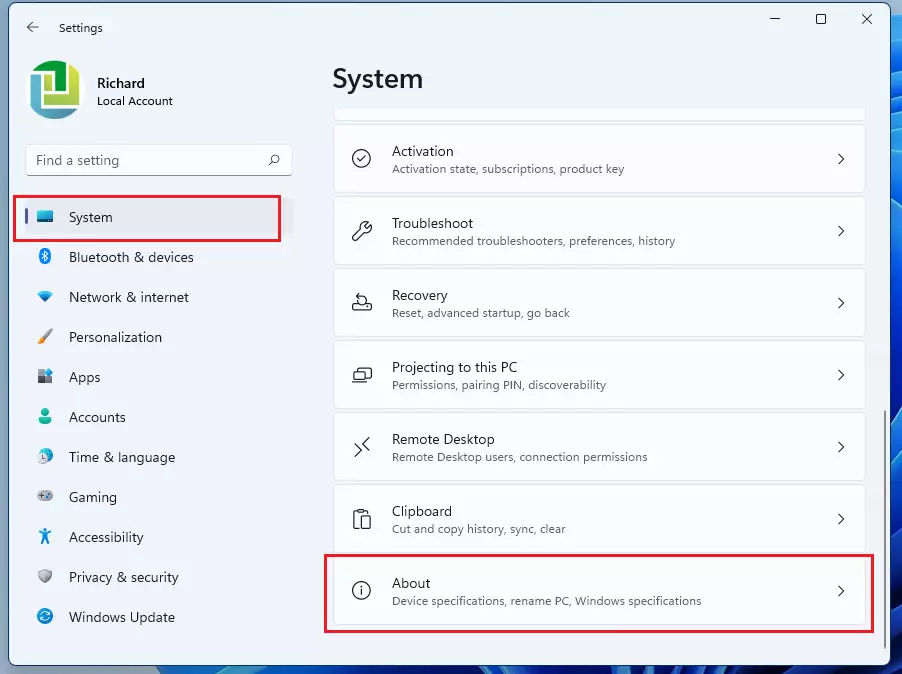
Step 1Open System Settings
Press Windows key + I or click Start then Settings.
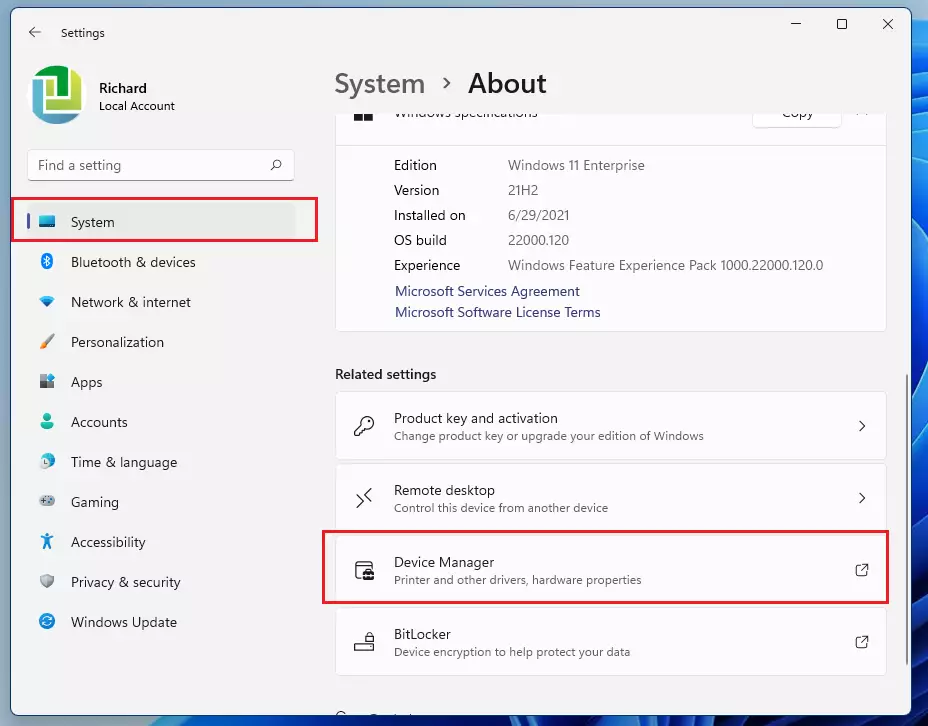
Step 2Navigate to Device Manager
Go to System, then About. Click Device Manager under Related settings. Note: This step requires admin privileges.
Step 3Find Your Device
Look through the list for your hardware. Click the arrow to expand a category.
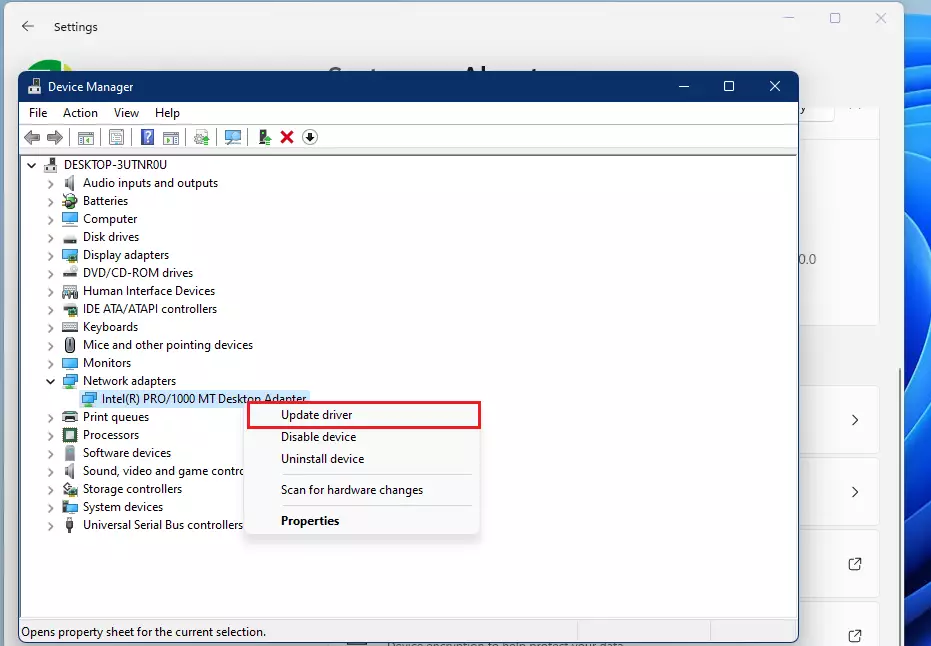
Step 4Search for Updated Drivers
Right-click your device and select Update driver. Choose Search automatically for drivers. Windows will check its database for a match.
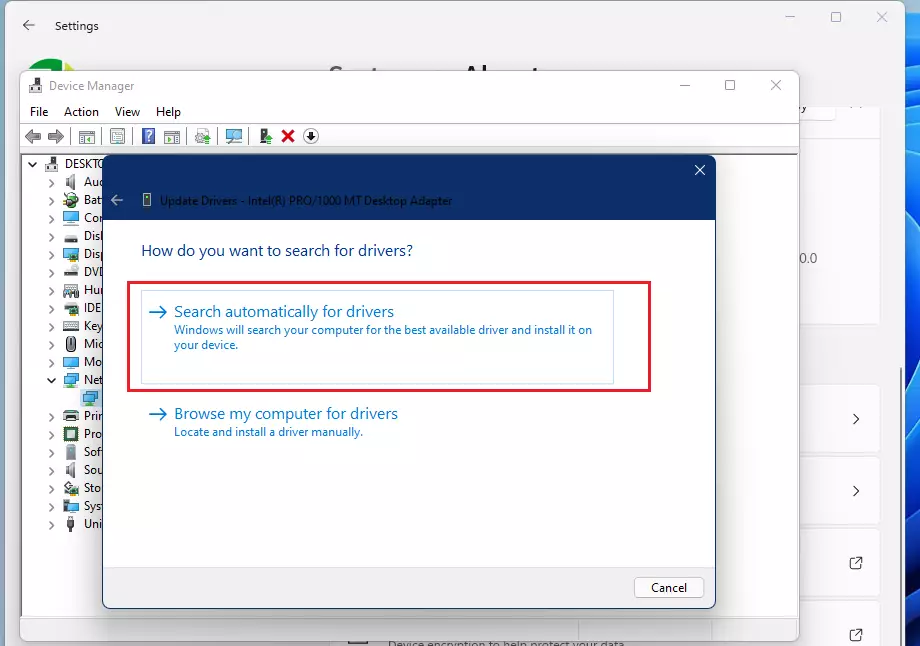
Step 5Install Drivers from the Manufacturer
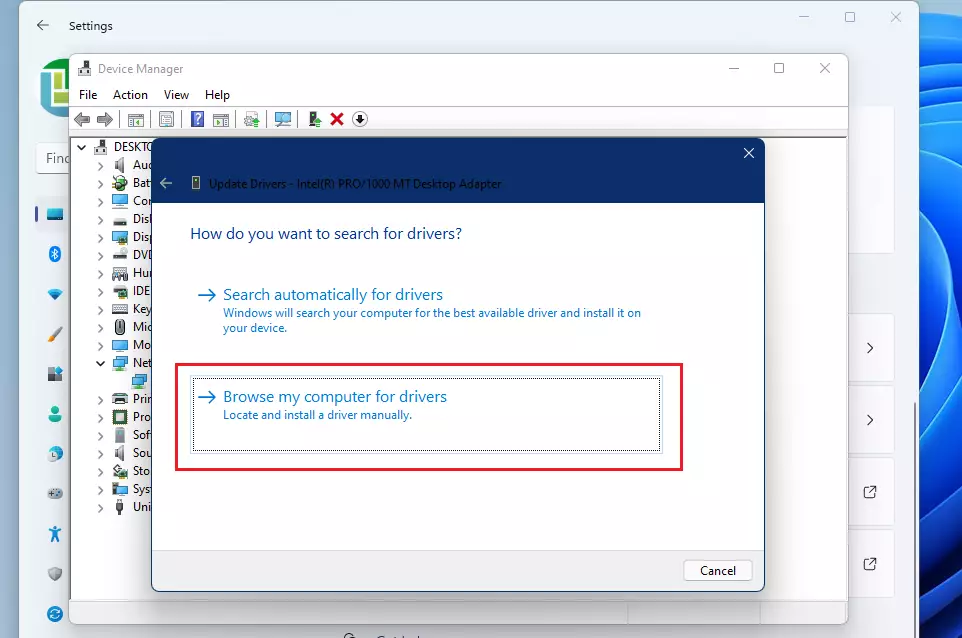
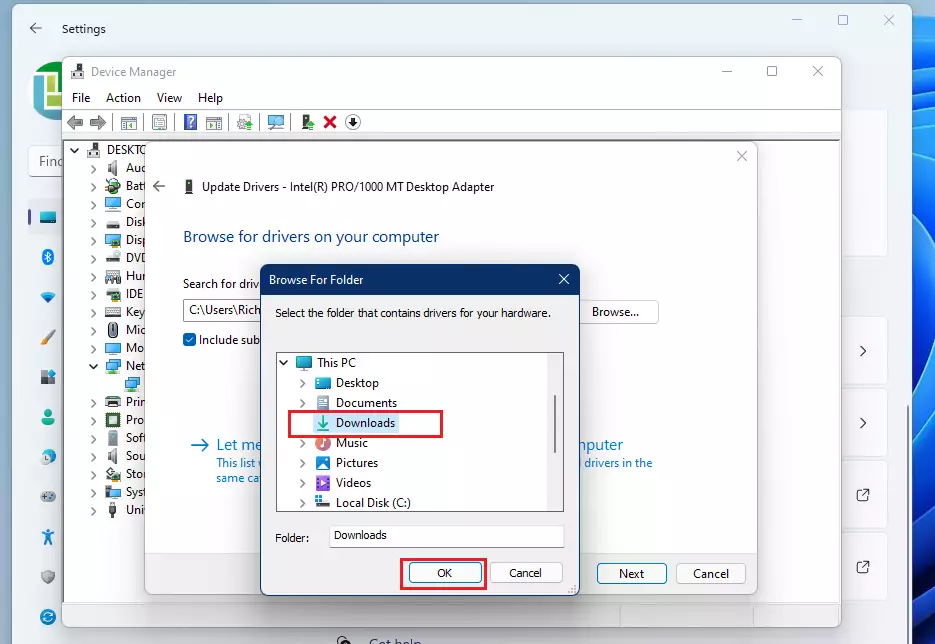
If Windows finds nothing, visit the official OEM support page for your device. Download the driver file. In Device Manager, choose Browse my computer for drivers and point it to your download folder.
Step 6Restart Your Computer
Always restart to ensure the new driver files replace the old ones correctly.
Troubleshooting: What If an Update Fails?
If a driver update causes crashes, use Driver Rollback. Right-click the device in Device Manager, select Properties, go to the Driver tab, and click Roll Back Driver. If the button is greyed out, you must uninstall the device and reinstall the previous version manually.
Windows Update vs. Device Manager
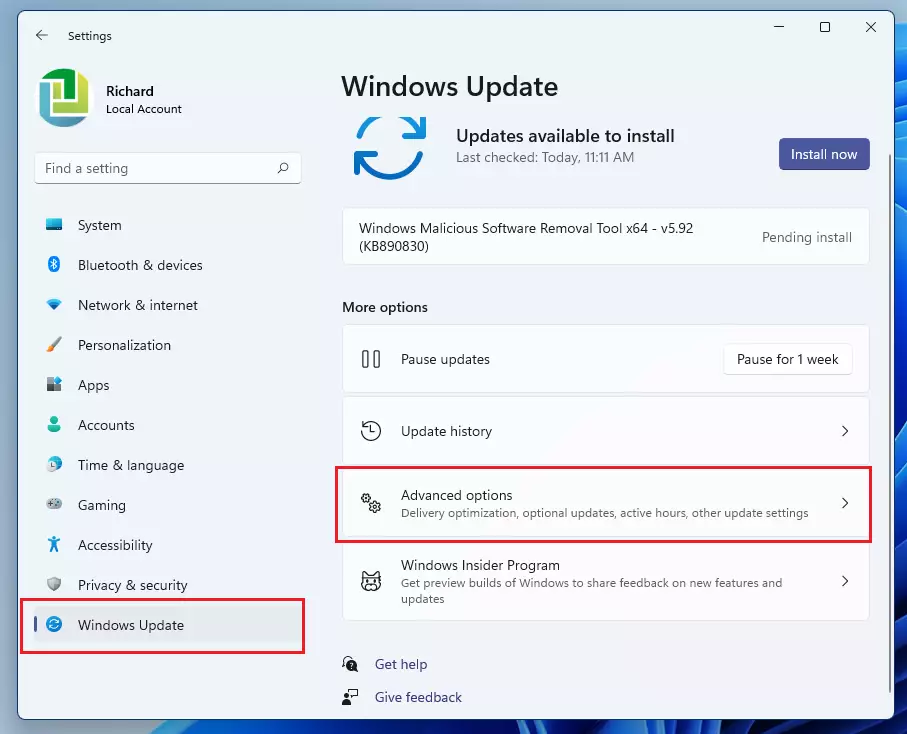
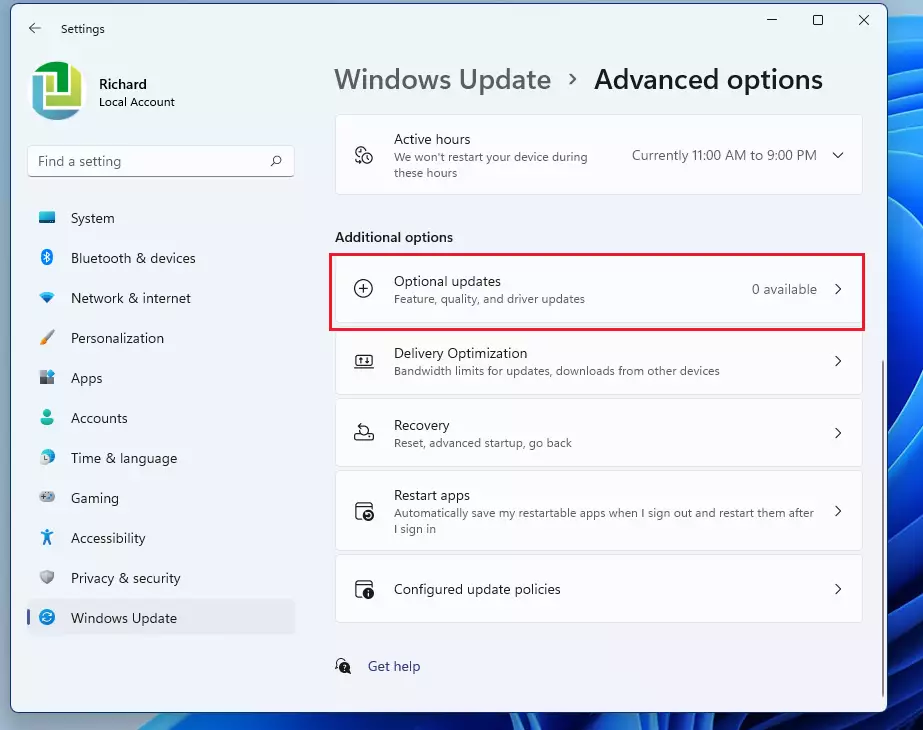
Windows Update is the easiest way to get drivers. It pulls from the Windows Update catalog. Device Manager is better for specific hardware troubleshooting or when you have a specific file from a manufacturer. Check Settings > Windows Update > Advanced options > Optional updates to find drivers that Windows didn’t install automatically.
Summary
Keeping drivers updated ensures your hardware communicates correctly with Windows 11. While Windows handles most updates, knowing how to use Device Manager and the manufacturer’s website is vital for troubleshooting. Always check Optional updates if a device is acting up. Remember: if it isn’t broken, you don’t always need to fix it, but regular maintenance keeps your system running at its best.
What should I do if a driver update causes my PC to crash?
If your PC crashes after an update, use the Driver Rollback feature in Device Manager. Open the device properties, select the Driver tab, and click Roll Back Driver. This reverts the device to the previous version that worked correctly. If that fails, uninstall the device and restart your computer to let Windows reinstall a stable version.
Do I need to update drivers if my hardware is working correctly?
Generally, no. If your hardware is functioning perfectly, you do not need to hunt for updates. However, updating graphics drivers is recommended for gamers to ensure compatibility with new titles. For other components, only update if you experience performance issues, hardware conflicts, or need to fix specific bugs identified by the manufacturer.
Is it safe to use third-party driver updater software?
It is best to avoid third-party driver updaters. Many are unnecessary and some may contain malware or bloatware. Windows 11 is very capable of managing drivers on its own. Always prefer official sources like the Windows Update settings page or the manufacturer’s official support website to ensure your system remains secure and stable.
Was this guide helpful?

About the Author
Richard
Tech Writer, IT Professional
Richard, a writer for Geek Rewind, is a tech enthusiast who loves breaking down complex IT topics into simple, easy-to-understand ideas. With years of hands-on experience in system administration and enterprise IT operations, he’s developed a knack for offering practical tips and solutions. Richard aims to make technology more accessible and actionable. He's deeply committed to the Geek Rewind community, always ready to answer questions and engage in discussions.




[…] How to update device drivers in Windows 11 […]
[…] How to update device drivers in Windows 11 […]
[…] Display adapter driver update issues […]
[…] For example, there might be system update issues, starting up many programs when Windows boots, system drivers issues, and many […]
[…] How to install device drivers in Windows 11 […]
[…] Update device drivers in Windows 11 […]
[…] First, open the Device Manager. […]
[…] How to install device drivers on Windows 11 […]
[…] Device Manager by searching for it in the Start […]
[…] After extracting, you can install drivers using Device Manager. For a simple guide on installing drivers, check out this post: How to install device drivers in Windows 11. […]
[…] Press Windows + R, type devmgmt.msc, and press Enter to open Device Manager. […]