
Windows Hello lets you sign into your computer using your face, a PIN, or your fingerprint. One cool security feature is called anti-spoofing, which helps stop fake faces or photos from unlocking your PC.
This guide will show you simple steps to turn on or off the anti-spoofing feature for Windows Hello face sign-in on Windows 11.
What Is Anti-Spoofing?
Anti-spoofing is a security tool that makes facial recognition smarter. It helps your computer tell if someone is trying to trick it with a photo or mask instead of your real face.
Note: Turning on enhanced anti-spoofing can sometimes make it harder to sign in if your device doesn’t support it well.
How to Turn On or Off Anti-Spoofing Using Windows Settings
- Open the Settings app:
- Click the Start menu and select Settings,
or - Press Windows key + I on your keyboard.
- Click the Start menu and select Settings,
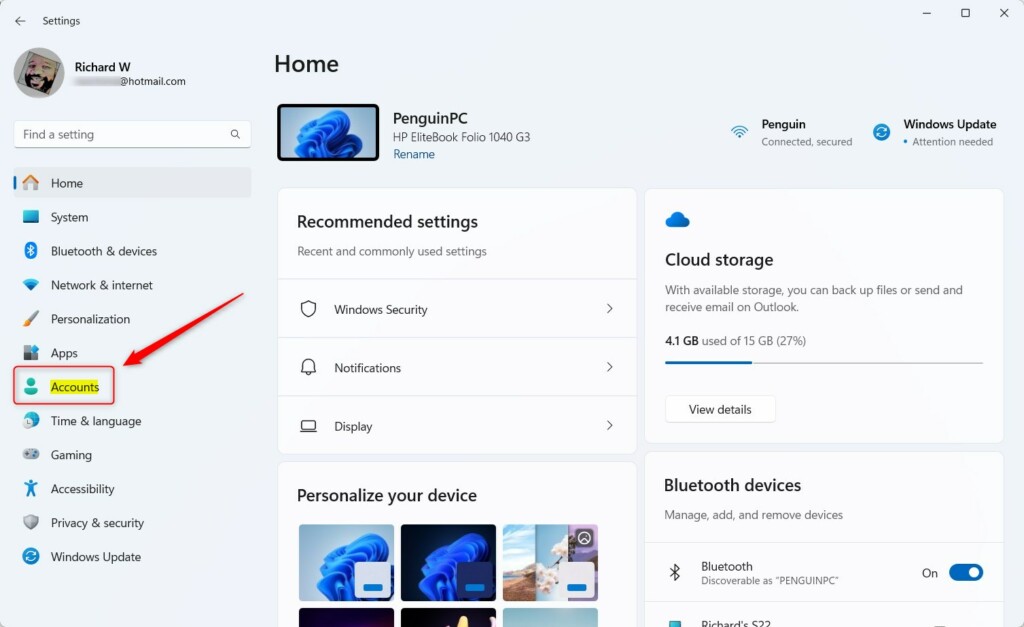
- Click Accounts on the left side menu.
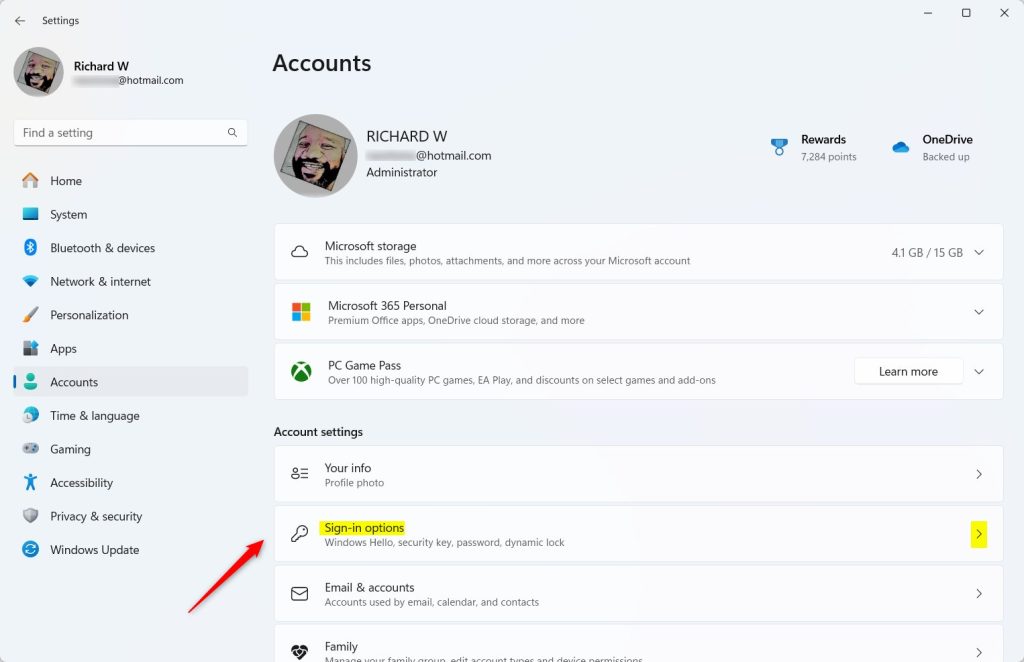
- Click Sign-in options on the right.
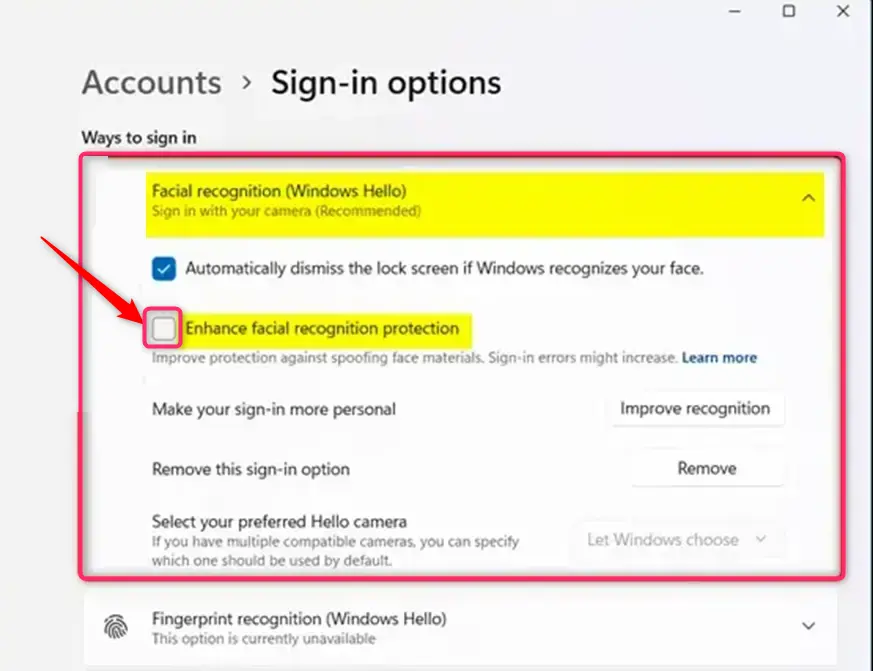
- Find Facial recognition (Windows Hello) and click to expand it.
- Check or uncheck the box next to “Enhanced facial recognition protection” to turn anti-spoofing on or off.
- Click Restart now if your PC asks you to restart.
How to Turn On or Off Anti-Spoofing Using Group Policy Editor (For Advanced Users)
This method is for users comfortable with system settings:
- Open the Local Group Policy Editor:
- Type “Edit group policy” in the Start menu search and open it.
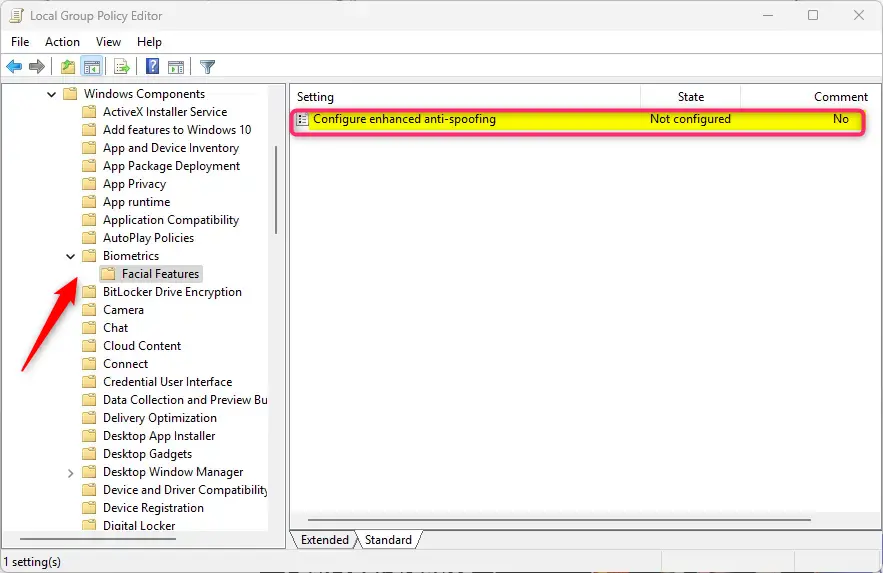
- Navigate to this folder path:
Computer Configuration > Administrative Templates > Windows Components > Biometrics > Facial Features
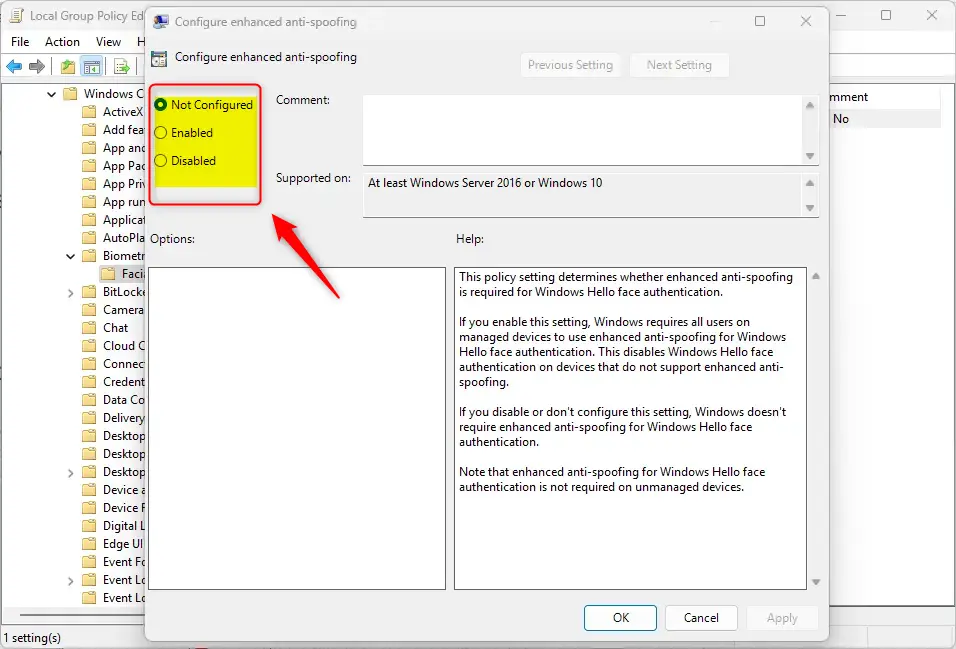
- On the right, double-click Configure enhanced anti-spoofing.
- Select:
- Enabled – to turn on anti-spoofing.
- Disabled – to turn it off.
- Not Configured – default, same as off.
- Click OK to save.
How to Turn On or Off Anti-Spoofing Using Registry Editor (Advanced Users Only)
Warning: Changing the registry can cause problems if not done correctly. Make sure to back up your registry or create a system restore point first.
- Open the Registry Editor:
- Press Windows key + R, type
regedit, and press Enter.
- Press Windows key + R, type
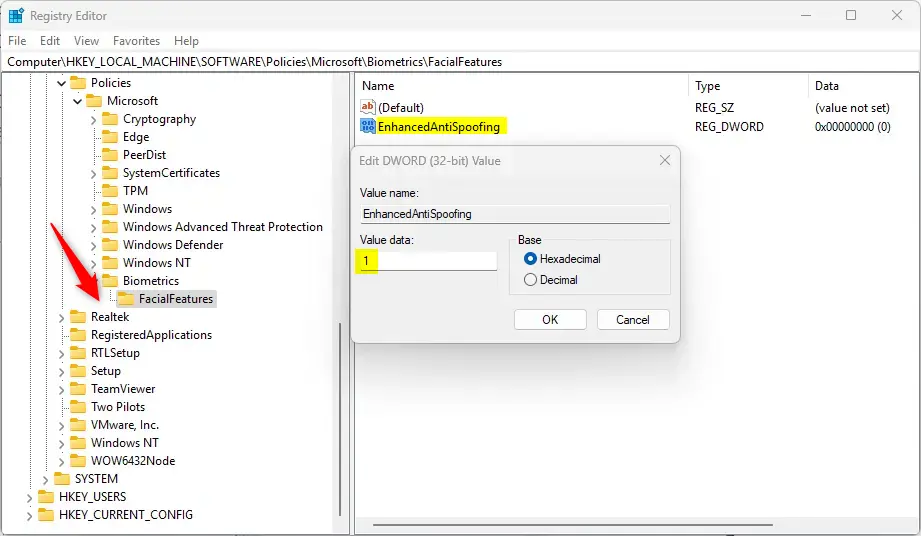
- Go to this folder:
HKEY_LOCAL_MACHINESOFTWAREPoliciesMicrosoftBiometricsFacialFeatures - If the FacialFeatures folder does not exist, create it by right-clicking Biometrics > New > Key, and name it FacialFeatures.
- Right-click inside FacialFeatures, select New > DWORD (32-bit) Value, and name it EnhancedAntiSpoofing.
- Double-click EnhancedAntiSpoofing and set its value to:
1to turn on anti-spoofing0to turn it off
- Click OK and close the Registry Editor.
- Restart your PC to apply the changes.
Summary
- Better Security: Anti-spoofing helps protect your Windows Hello face sign-in from fake attempts.
- Multiple Ways to Change: You can turn it on or off using Settings, Group Policy Editor, or Registry Editor.
- Possible Sign-in Issues: Turning it on may cause occasional sign-in problems on some devices.
- Be Careful: Always back up your system or registry before making big changes.
- Check Compatibility: Make sure your device supports enhanced anti-spoofing to use it well.
If you follow these steps, you can set your facial recognition security to a level that works best for you!
For more tips on Windows Hello, check out:



Leave a Reply Cancel reply