

This guide will help you turn on or off SMB client encryption on your Windows 11 computer. Don’t worry if you’re not a tech expert — we’ll explain everything step-by-step in simple words!
What is SMB Client Encryption?
SMB encryption is a security feature that protects the files and printers you share on your network. It scrambles the data sent so that hackers or anyone spying on your network can’t read or steal your information.
Starting with Windows 11 Insider Preview Build 25982, Windows can make sure that all connections to other computers use encryption. If the other computer does not support secure encryption, your PC will not connect to it. This helps keep your information safe.
Why Should You Turn On SMB Client Encryption?
- It protects your data from being intercepted or snooped on by others.
- It helps prevent hackers from stealing sensitive information.
- It makes your network safer overall.
How to Check and Turn On SMB Client Encryption Using PowerShell
PowerShell is a tool in Windows that lets you run commands to change settings quickly.
- [ADMIN REQUIRED] Open Windows Terminal as Administrator. You can do this by searching “Windows Terminal” in the Start menu, right-clicking it, and choosing Run as administrator.
- Click the Windows PowerShell tab (if it’s not already selected).
- Type this command and press Enter to check if encryption is required:
Get-SmbClientConfiguration | FL RequireEncryption - If you see
RequireEncryption : False, it means encryption is OFF. - To turn ON SMB client encryption, type this command and press Enter:
Set-SmbClientConfiguration -RequireEncryption $true -Confirm:$false - If you want to turn OFF encryption later, use:
Set-SmbClientConfiguration -RequireEncryption $false -Confirm:$false
How to Turn On SMB Client Encryption Using Windows Registry Editor
The Windows Registry is where Windows stores many system settings.
- [ADMIN REQUIRED] Open the Registry Editor by typing
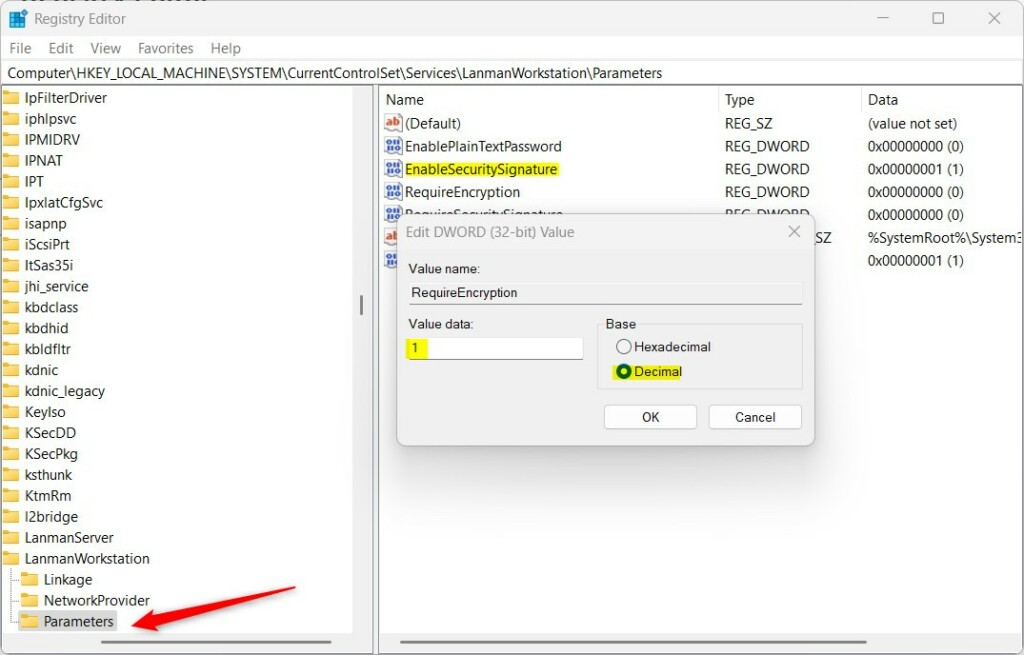
regeditin the Start menu and pressing Enter. - Navigate to this location:
Computer\HKEY_LOCAL_MACHINE\SYSTEM\CurrentControlSet\Services\Lanman\Workstation\Parameters - Look for an entry called
RequireEncryptionin the right pane. - If it’s there, double-click it and change the value to
1to turn encryption ON, or0to turn it OFF. - If it’s not there, right-click on a blank space, choose New > DWORD (32-bit) Value, name it
RequireEncryption, and set its value to1to enable encryption. - Close the Registry Editor and restart your computer to apply the changes.
How to Turn On SMB Client Encryption Using Local Group Policy Editor
Local Group Policy Editor lets you change advanced Windows settings easily.
- [ADMIN REQUIRED] Open Local Group Policy Editor by searching Edit group policy in the Start menu and clicking it.
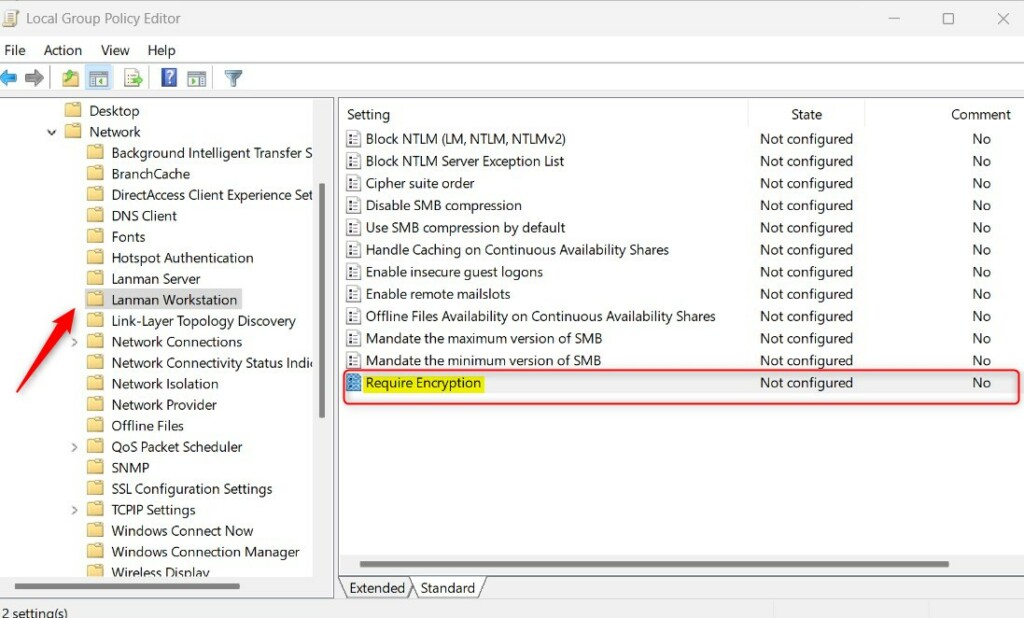
- Go to this folder:
Computer Configuration > Administrative Templates > Network > Lanman Workstation - On the right side, find and double-click
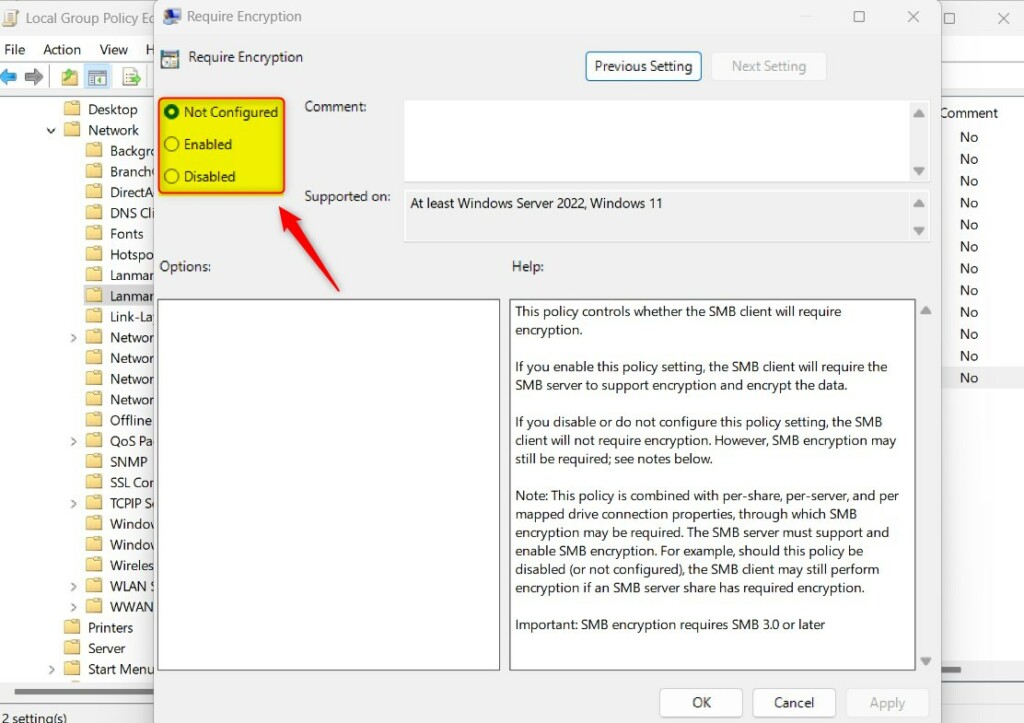
Require Encryption. - Choose one of the options:
- Not Configured – Default setting (encryption not required)
- Enabled – SMB client will require encryption to connect
- Disabled – Same as not configured (encryption not required)
- Click OK and restart your PC for the changes to take effect.
Summary
- SMB client encryption helps keep your network data safe by encrypting shared files and printers.
- You can turn this feature ON or OFF using PowerShell, Registry Editor, or Local Group Policy Editor.
- When ON, your PC will only connect to other computers that support SMB encryption.
- This helps prevent hackers from spying on your network or stealing your information.
- Make sure to restart your PC after making changes to apply them properly.
- For more official details, check the Microsoft blog.



Leave a Reply Cancel reply