
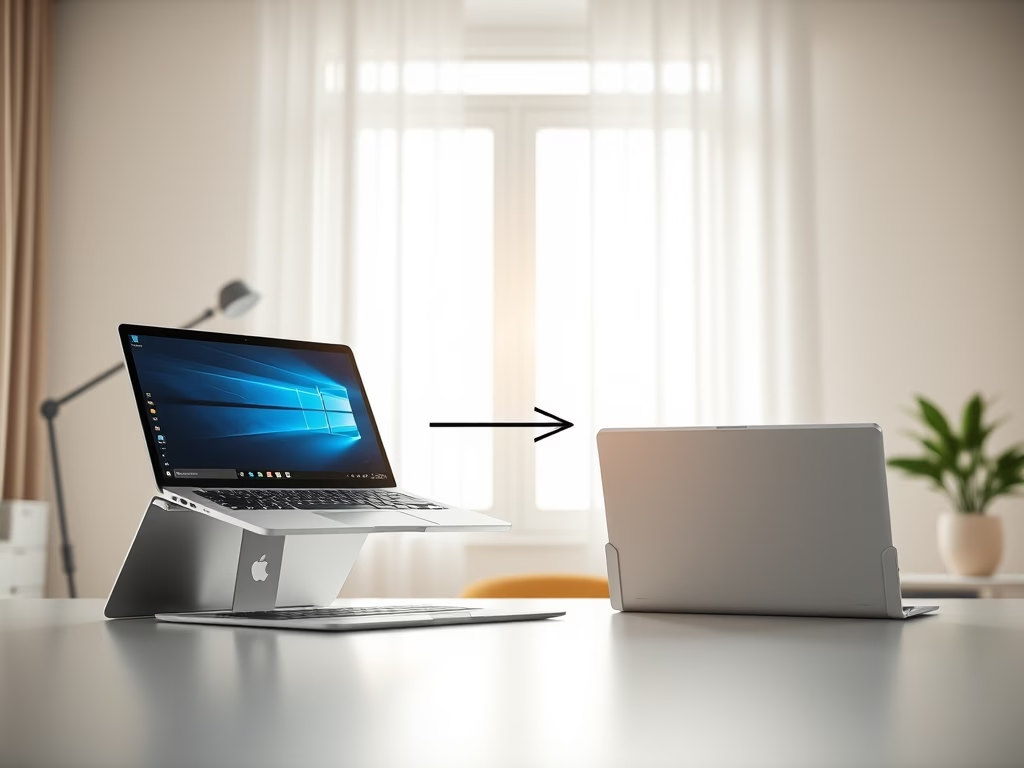
Do you use a tablet or a 2-in-1 laptop that folds? Your screen can flip between portrait (tall) and landscape (wide) views automatically when you turn your device.
Sometimes you want to stop this from happening. That’s where Screen Rotation Lock comes in. When you turn it on, your screen stays in one direction. When it’s off, the screen rotates automatically as you move your device.
Let’s look at how to turn this feature on or off in Windows 11.
Option 1: Use the Keyboard Shortcut
Why use this? It’s the fastest way to toggle rotation lock.
Press these keys together on your keyboard:
Win + OWhat happens: Your rotation lock turns on or off instantly.
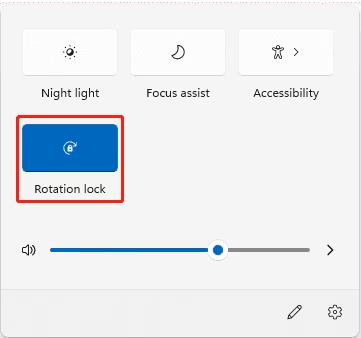
Option 2: Use Quick Settings
Why use this? It’s easy to see and access from your taskbar.
- Press
Win + Ato open the Quick Settings panel. This is the same place where you toggle Wi-Fi and Bluetooth. - Look for the Rotation lock button and click or tap it to turn it on or off.
What happens: Your rotation lock turns on or off right away.
Note: If the Rotation lock button is grayed out (not clickable), try rotating your device. On some laptops that fold or have removable keyboards (like Microsoft Surface), this option may only work when in tablet mode.
Option 3: Use the Settings App
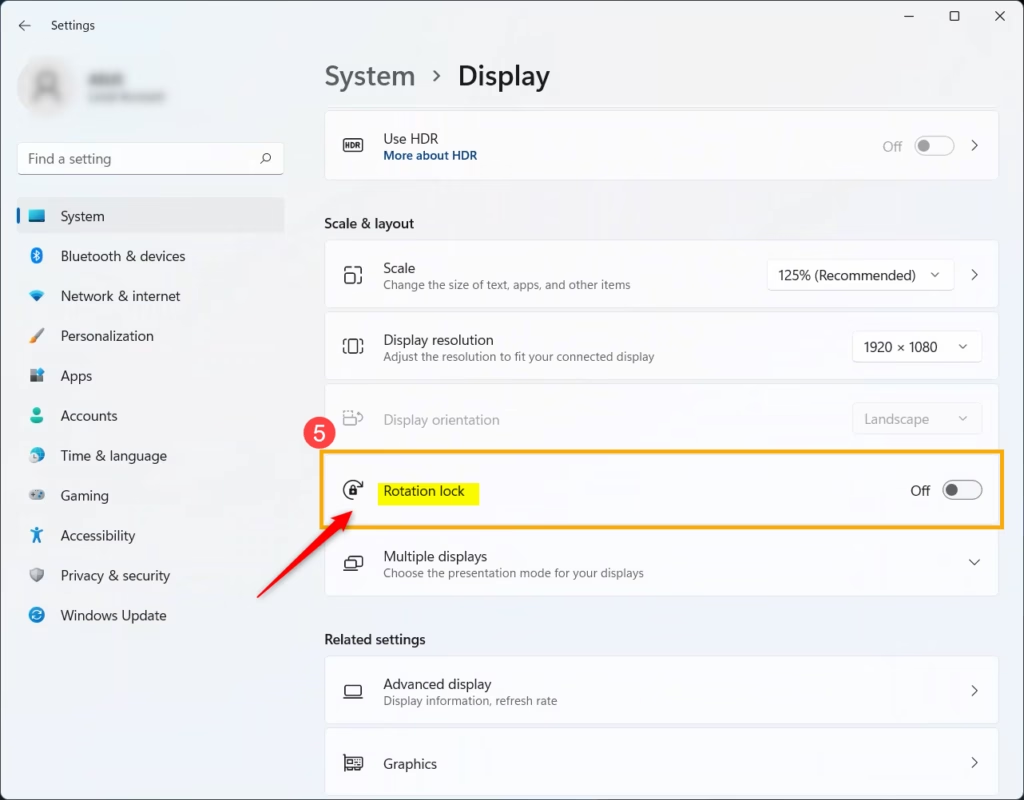
Why use this? Settings give you more control over your display options.
- Press
Win + Ito open Settings. - Click on System on the left menu.
- Select Display on the right.
- Scroll down to the Scale & layout section.
- Find the Rotation lock switch and turn it on or off.
What happens: Your screen rotation setting changes immediately.
Note: If the Rotation lock option is grayed out, your device might be in laptop mode or connected to a keyboard. These things disable automatic rotation.
Click here to open Display settings directly

Option 4: Change Rotation Lock Using Registry Editor (Advanced Users)
Warning: This method is for advanced users only. ⚠️ Requires administrator privileges. Changing the registry incorrectly can cause problems on your PC.
Why use this? Registry changes let you control rotation lock at a deeper level.
To turn ON Rotation Lock, use this code:
reg add "HKEY_LOCAL_MACHINE\SOFTWARE\Microsoft\Windows\CurrentVersion\AutoRotation" /v Enable /t REG_DWORD /d 0 /fTo turn OFF Rotation Lock (which is the default), use this code:
reg add "HKEY_LOCAL_MACHINE\SOFTWARE\Microsoft\Windows\CurrentVersion\AutoRotation" /v Enable /t REG_DWORD /d 1 /fWhat happens: Your rotation lock setting changes based on the value you enter.
Summary
- Automatic Rotation: Tablets and 2-in-1 devices can flip the screen automatically as you turn them.
- Rotation Lock: Lets you stop your screen from rotating if you want it to stay fixed.
Ways to Turn Rotation Lock On or Off:
- Keyboard shortcut:
Win + O - Quick Settings:
Win + A - Settings app:
Win + I→ System → Display - Registry Editor (for advanced users)
- Rotation Lock may be grayed out in laptop mode or if your device is connected to a keyboard.
- Administrator rights are needed to edit registry settings.
By following these simple steps, you can control how your screen rotates and make your Windows 11 device work the way you want.



Leave a Reply Cancel reply