How to Turn On or Off PIN Expiration in Windows 11

You can control PIN expiration in Windows 11 to enhance security or convenience.
PIN expiration is a security feature. It forces you to change your sign-in PIN after a set period, usually 42 days for local accounts by default.
This article shows you how to enable or disable PIN expiration using the Local Group Policy Editor. This tool is available on Windows 11 Pro, Enterprise, and Education editions. You’ll need administrator privileges for these changes.
Open the Local Group Policy Editor and navigate to Computer Configuration > Administrative Templates > System > PIN Complexity. Double-click “Expiration” and select Enabled to set a duration or Disabled to turn it off.
What is a 🪟 Windows 11 PIN?
A Windows 11 PIN is a short number code you use to log in to your PC quickly and safely, instead of a long password.
Windows 11 also lets you sign in using a picture password, fingerprint, or face recognition.
By default, your PIN does not expire. But if you want, you can set it to expire after a certain number of days. Then you have to change it regularly. You can pick any number from 1 day up to 730 days (2 years). Or you can set it to never expire.
How to Turn PIN Expiration On or Off Using Group Policy Editor
You can turn Windows 11 PIN expiration on or off using the Group Policy Editor, but this method only works on Windows 11 Pro, Enterprise, or Education editions.
- Click the Start button and type
Edit group policy. Click the app that appears. This opens the Local Group Policy Editor. - In the window that opens, go to this folder path on the left side:
Computer Configuration > Administrative Templates > System > PIN Complexity - On the right side, find and double-click the setting called
Expiration. - A new window will pop up. Here you can choose:
- Not Configured – This is the default. It works the same as Disabled.
- Enabled – Turn on PIN expiration. You can then set how many days until the PIN expires (between 1 and 730 days). Enter 0 if you want the PIN to never expire.
- Disabled – Turn off PIN expiration.
- After choosing your option, click OK to save.
How to Turn PIN Expiration On or Off Using the Registry Editor
You can turn Windows 11 PIN expiration on or off using the Registry Editor, but be careful as mistakes can affect your computer.
The registry stores crucial Windows settings, and altering them incorrectly can lead to problems.
Open the Registry Editor:
- Press Windows key + R to open the Run box.
- Type
regeditand press Enter. - Navigate to this folder path:
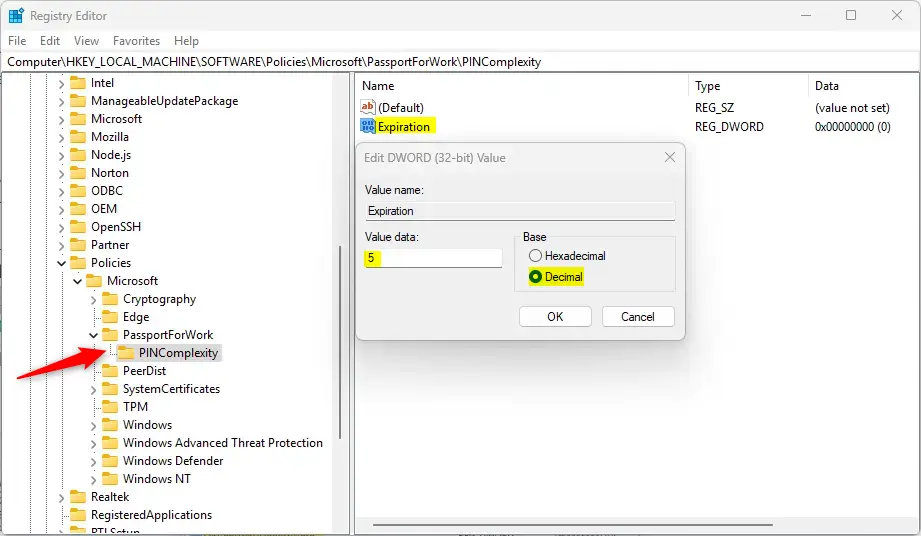
HKEY_LOCAL_MACHINE\SOFTWARE\Policies\Microsoft\PassportForWork\PINComplexity - If you don’t see
PassportForWorkorPINComplexity, right-click on the previous folder. ChooseNew > Keyto create them. - Right-click on
PINComplexity. SelectNew > DWORD (32-bit) Value. Name itExpiration. - Double-click the new
Expirationentry. Select Decimal under Base. Then enter:- A number between 1 and 730 to set the PIN expiration days.
- Or 0 to never expire.
- Click OK, then close the Registry Editor.
- Restart your computer to apply the changes.
If you want to go back to the default and stop PIN expiration, delete the Expiration value you created.
Summary
- Windows 11 lets you make your PIN expire after a set number of days. Or it can never expire.
- By default, PINs do not expire.
- You can change expiration settings using either the Group Policy Editor (for Pro and higher) or the Registry Editor.
- Always back up your data before making system changes.
- Regularly reviewing your PIN settings helps keep your PC secure.
Windows 11 PIN expiration settings let you choose if your PIN expires after a certain number of days or never expires.
More Info from Microsoft: Official Microsoft PIN Expiration Settings
Was this guide helpful?

About the Author
Richard
Tech Writer, IT Professional
Richard, a writer for Geek Rewind, is a tech enthusiast who loves breaking down complex IT topics into simple, easy-to-understand ideas. With years of hands-on experience in system administration and enterprise IT operations, he’s developed a knack for offering practical tips and solutions. Richard aims to make technology more accessible and actionable. He's deeply committed to the Geek Rewind community, always ready to answer questions and engage in discussions.




No comments yet — be the first to share your thoughts!