
If you use a PIN to sign in to your Windows 11 computer, you might want to know how to make that PIN expire after some time — or keep it from ever expiring. This guide will show you easy steps to set that up.
What is a Windows 11 PIN?
A PIN is a quick and safe way to log in to your Windows 11 PC. Instead of typing a long password, you enter a short number code. This PIN is special because it only works on your device, making it more secure.
Windows 11 also lets you sign in using a picture password, fingerprint, or face recognition.
By default, your PIN does not expire. But if you want, you can set it to expire after a certain number of days, so you have to change it regularly. You can pick any number from 1 day up to 730 days (2 years), or set it to never expire.
How to Turn PIN Expiration On or Off Using Group Policy Editor
Note: This method works on Windows 11 Pro, Enterprise, or Education editions.
- Click the Start button and type Edit group policy. Click the app that appears to open the Local Group Policy Editor.
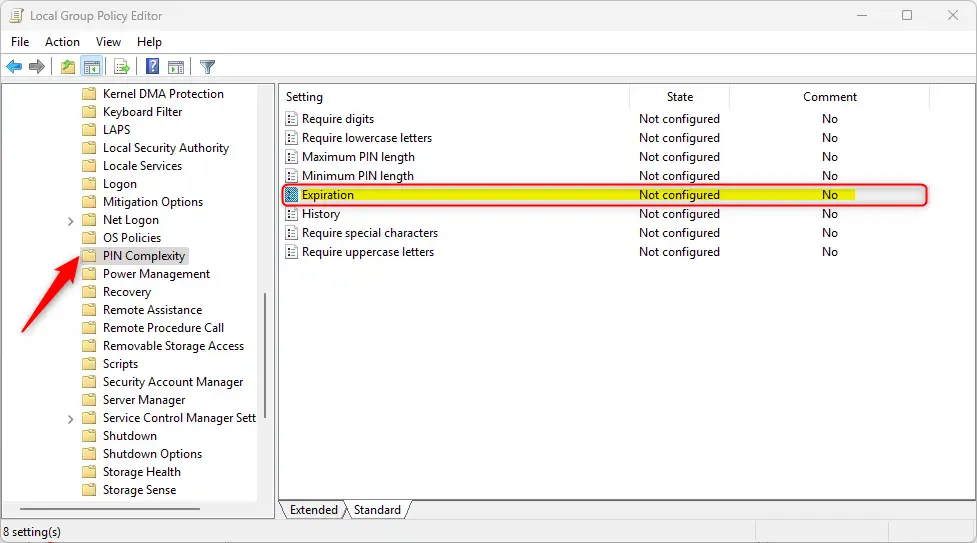
- In the window that opens, go to this folder path on the left side:
Computer Configuration > Administrative Templates > System > PIN Complexity - On the right side, find and double-click the setting called Expiration.
- A new window will pop up. Here you can choose:
- Not Configured – This is the default and works the same as Disabled.
- Enabled – Turn on PIN expiration. You can then set how many days until the PIN expires (between 1 and 730 days). Enter
0if you want the PIN to never expire. - Disabled – Turn off PIN expiration.
After choosing your option, click OK to save.
How to Turn PIN Expiration On or Off Using the Registry Editor
Important: Editing the registry can affect your computer if done incorrectly. Please back up your registry or create a system restore point before you start.
- Open the Registry Editor:
- Press Windows key + R to open the Run box.
- Type
regeditand press Enter.
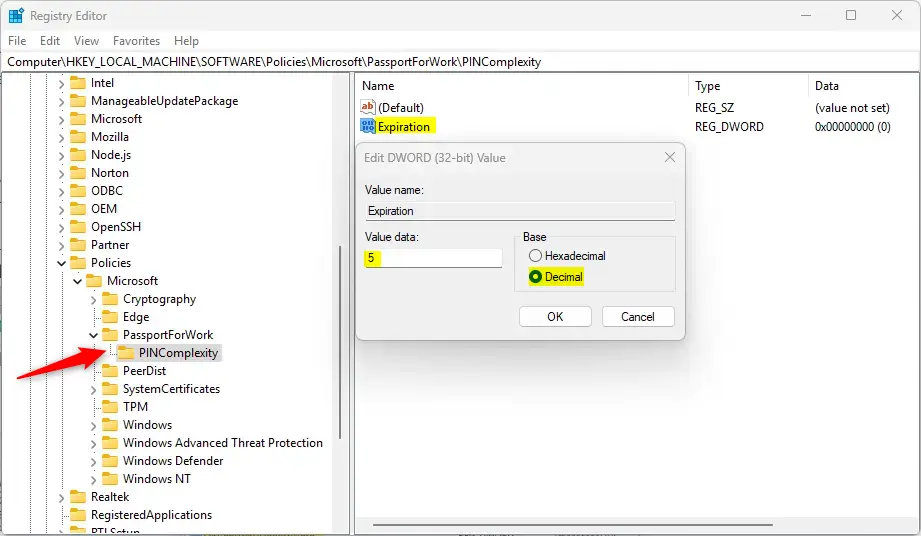
- Navigate to this folder path:
HKEY_LOCAL_MACHINESOFTWAREPoliciesMicrosoftPassportForWorkPINComplexity
- If you don’t see
PassportForWorkorPINComplexity, right-click on the previous folder and choose New > Key to create them. - Right-click on
PINComplexity, select New > DWORD (32-bit) Value, and name it Expiration. - Double-click the new Expiration entry. Select Decimal under Base, then enter:
- A number between 1 and 730 to set the PIN expiration days.
- Or 0 to never expire.
- Click OK, then close the Registry Editor.
- Restart your computer to apply the changes.
If you want to go back to the default and stop PIN expiration, just delete the Expiration value you created.
Summary
- Windows 11 lets you make your PIN expire after a set number of days, or never expire.
- The default is that PINs do not expire.
- You can change expiration settings using either the Group Policy Editor (for Pro and higher) or the Registry Editor.
- Always back up your data before making system changes.
- Regularly reviewing your PIN settings helps keep your PC secure.
By following these simple steps, you can control how often you change your Windows 11 sign-in PIN and keep your device safe!
More Info from Microsoft: Official Microsoft PIN Expiration Settings



Leave a Reply Cancel reply