How to Enable or Disable Handwriting in Windows 11

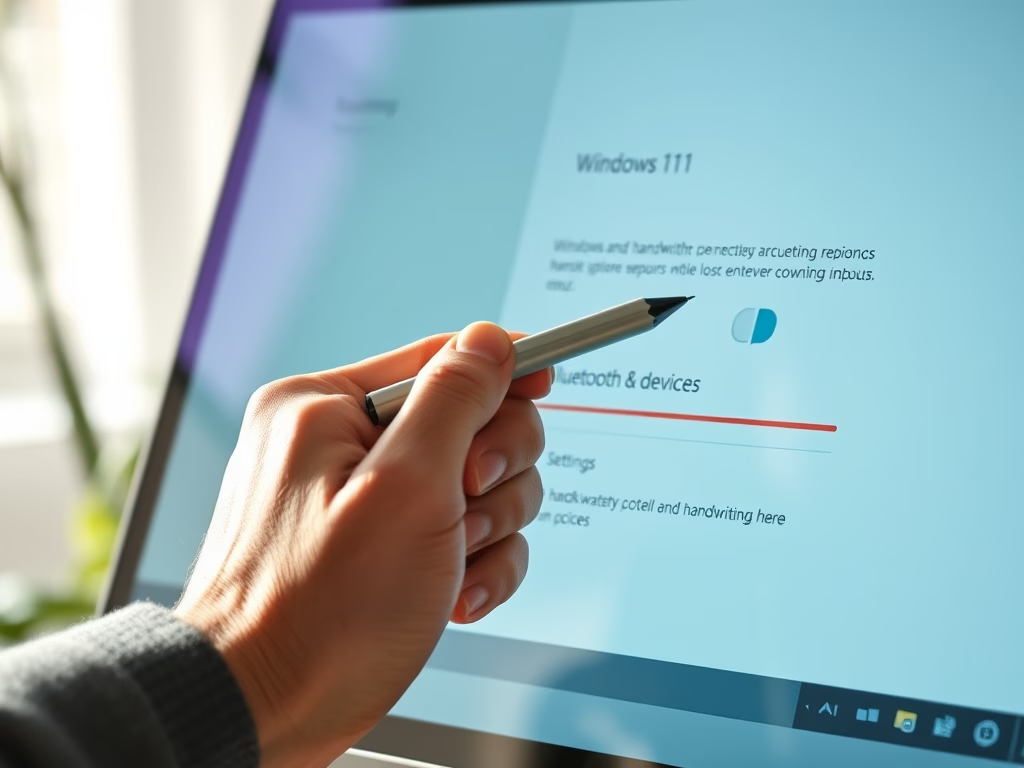
Handwriting in Windows 11 is a built-in touch input feature that turns your pen or finger strokes into typed text on screen. You can write notes or fill in text boxes on a touchscreen device, such as a Microsoft Surface Pro, without a physical keyboard.
You turn the feature on or off in Settings, and the change takes a few clicks. If the handwriting panel keeps popping up when you don’t want it, switch it off. Switch it back on whenever you want to write by hand. Neither direction needs a restart, and the switch is the only thing you have to change to undo it.
Open Settings, go to Bluetooth & devices, then click Pen & Windows Ink. Scroll to the Handwriting section and toggle Use your handwriting to enter text to On or Off under Shell Handwriting. The change takes effect immediately.
What is Handwriting in 🪟 Windows 11?
With handwriting on, you can write directly into a text box with a pen or your finger. Windows reads your strokes and enters them as typed text, so it feels like writing on paper. It works in the search box, in address bars, and in the text fields of most apps.
Microsoft plans to add more languages later. If your device uses another input language, the feature may not behave as expected. Check your language settings before you decide the feature is broken.
Why Use Handwriting?
Tablets, 2-in-1 laptops and other devices with pen input running Windows 11 benefit most. If your PC has no touchscreen or pen, you will have little use for it. On many desktop PCs the Pen & Windows Ink page does not appear in Settings at all, because Windows only shows it when it detects pen or touch hardware.
How to Turn Handwriting On or Off
- Click the Start menu button, then click Settings. You can also press Win+I to open Settings directly. The Settings window opens.
- In the Settings window, click Bluetooth & devices in the left-hand menu. The device options appear on the right.
- On the right side, click Pen & Windows Ink. The pen and handwriting settings open.

The full path is Settings Bluetooth & devices Pen & Windows Ink. This page holds your handwriting options, which control how you write into text boxes with a pen or your finger. If you do not see Pen & Windows Ink in the list, your device probably has no pen or touch hardware that Windows can detect. In that case the handwriting setting will not be available.
- Scroll down to the Handwriting section. Click Use your handwriting to enter text to open that section. The related options expand below it.
- Turn on the switch for Use your handwriting to enter text under Shell Handwriting. The switch moves to the On position.

If the switch does not respond, close Settings and open it again, then go back to Bluetooth & devices Pen & Windows Ink. Make sure you are looking at the Shell Handwriting switch and not another option on the page.
With the feature on, you can write by hand directly in any text box on your computer. Windows converts your handwritten notes into typed text, which can speed up data entry on a touch device. Try it by tapping a text box, such as the search box on the taskbar, and writing with your pen or finger.
To turn the feature off later, return to the same page and switch the toggle to Off. This is also the fix if the handwriting panel keeps appearing when you don't want it.

That is all the setup there is. Your choice is saved as soon as you change the switch, so there is no Save or Apply button. Any time you want to change it, go back to Settings Bluetooth & devices Pen & Windows Ink.
- When you are done, close the Settings app. Your handwriting setting stays as you left it.
Summary
Windows 11 handwriting lets you write directly into any text box using a stylus or your finger instead of typing on a keyboard. You can easily manage this feature through the Pen & Windows Ink menu inside your main settings to fit how you prefer to use your computer.- Easy to enableYou can quickly turn handwriting on or off from Settings. Go to Bluetooth & devices Pen & Windows Ink.
- Works with pen or touchUse your pen or finger to write in places where you normally type.
- English (U.S.) only for nowThis feature currently supports English (U.S.). More languages may be added in the future.
More Information
Official details reside on Microsoft’s blog post.
Have a question about this guide?
Answered by AI from this guide. Good questions may be added to this page — please don't include personal details.
Did this guide fix your problem?

About the Author
Richard
Tech Writer, IT Professional
Richard is a writer at Geek Rewind who turns complex IT tasks into clear, step-by-step guides. He draws on years of hands-on experience in system administration and enterprise IT operations, focusing on Windows, Linux and WordPress: the problems people actually run into, and the fixes that work. His server and WordPress guides come from systems he runs himself. Richard builds and maintains the platform behind Geek Rewind, from its Ubuntu servers and Nginx configuration to its custom WordPress plugins. Many new tutorials start with readers' questions, and he's always glad to answer them in the comments.
No comments yet — be the first to share your thoughts!