
When you copy something on your Windows PC, it goes to your clipboard so you can paste it somewhere else. Windows 11 has a neat feature called Clipboard History that remembers many things you’ve copied, not just the last one.
Even better, you can sync your clipboard across all your Windows devices. This means if you copy text or an image on one PC, you can paste it on another device signed in with the same Microsoft or work account.
Why Use Clipboard Sync?
- Keep multiple copied items: Clipboard history saves up to 25 things you copy, like text or pictures.
- Pin important items: You can “pin” items so they don’t get deleted, even when you restart your PC.
- Sync across devices: Copy on one PC, paste on another automatically or choose what to sync.
- Support for different formats: Works for text, images, and HTML content.
Note: Clipboard sync works only if you sign in with the same Microsoft or work account on all your devices.
How to Turn On or Off Clipboard Sync (Easy Way)
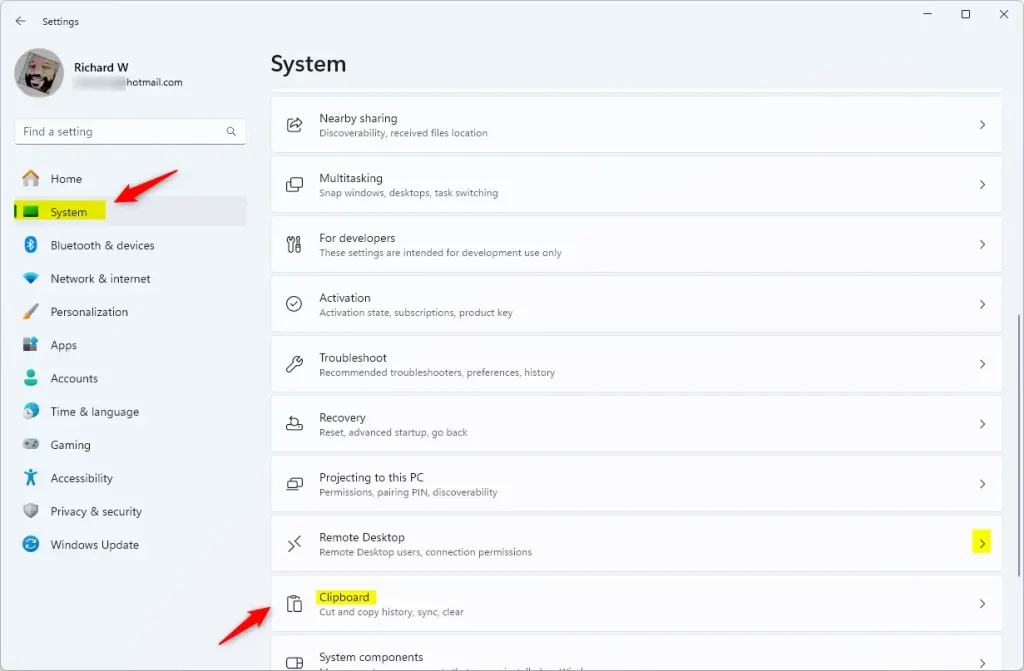
- Press Windows + I on your keyboard to open Settings.
- Click System on the left menu, then click Clipboard on the right.
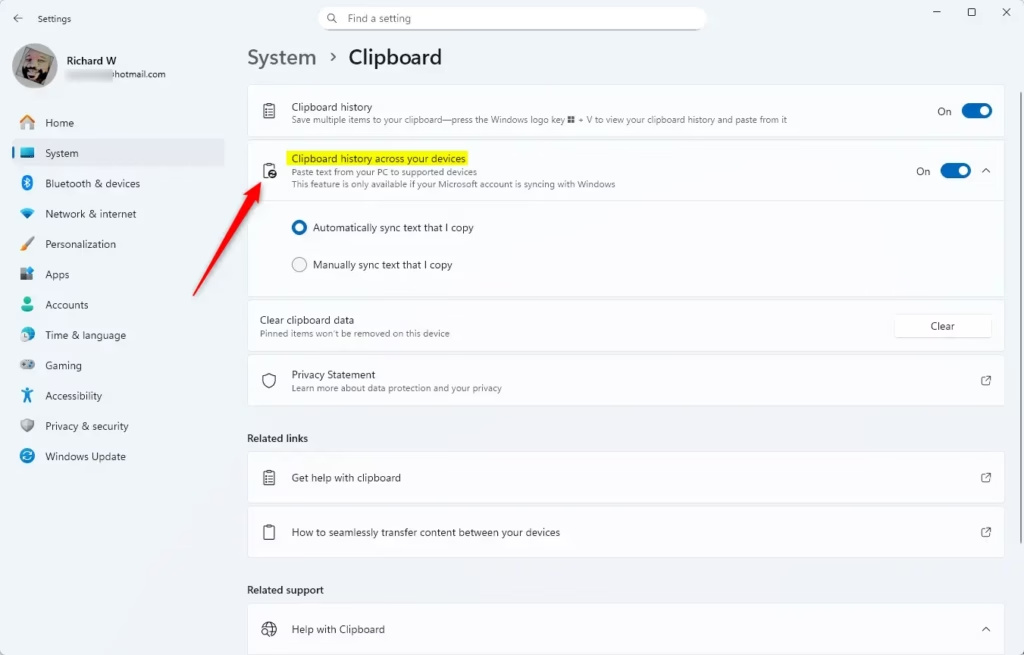
- Find the option Clipboard history across your devices.
- Turn it On or Off as you want.
- If you turn it on, choose between:
- Automatically sync text that I copy – your clipboard copies sync right away.
- Manually sync text that I copy – you pick which clipboard items to sync.
- Close Settings when done.
You can also open Clipboard settings quickly by clicking this link: Open Clipboard Settings
Using Clipboard History
Press Windows + V to open your clipboard history. You can see everything you copied, pin items, or delete them.
More Advanced Options
Change Clipboard Sync Using Registry Files
If you’re comfortable with editing the Windows Registry, you can use these files to turn clipboard sync on or off.
reg add "HKEY_CURRENT_USER\Software\Microsoft\Clipboard" /v CloudClipboardAutomaticUpload /t REG_DWORD /d 1 /f
reg add "HKEY_CURRENT_USER\Software\Microsoft\Clipboard" /v EnableCloudClipboard /t REG_DWORD /d 1 /f
This turns on clipboard syncing and sets it to sync automatically.
reg add "HKEY_CURRENT_USER\Software\Microsoft\Clipboard" /v CloudClipboardAutomaticUpload /t REG_DWORD /d 0 /f
reg add "HKEY_CURRENT_USER\Software\Microsoft\Clipboard" /v EnableCloudClipboard /t REG_DWORD /d 1 /f
This turns on clipboard syncing but lets you choose what to sync manually.
reg add "HKEY_CURRENT_USER\Software\Microsoft\Clipboard" /v EnableCloudClipboard /t REG_DWORD /d 0 /f
This turns off clipboard syncing (default setting).
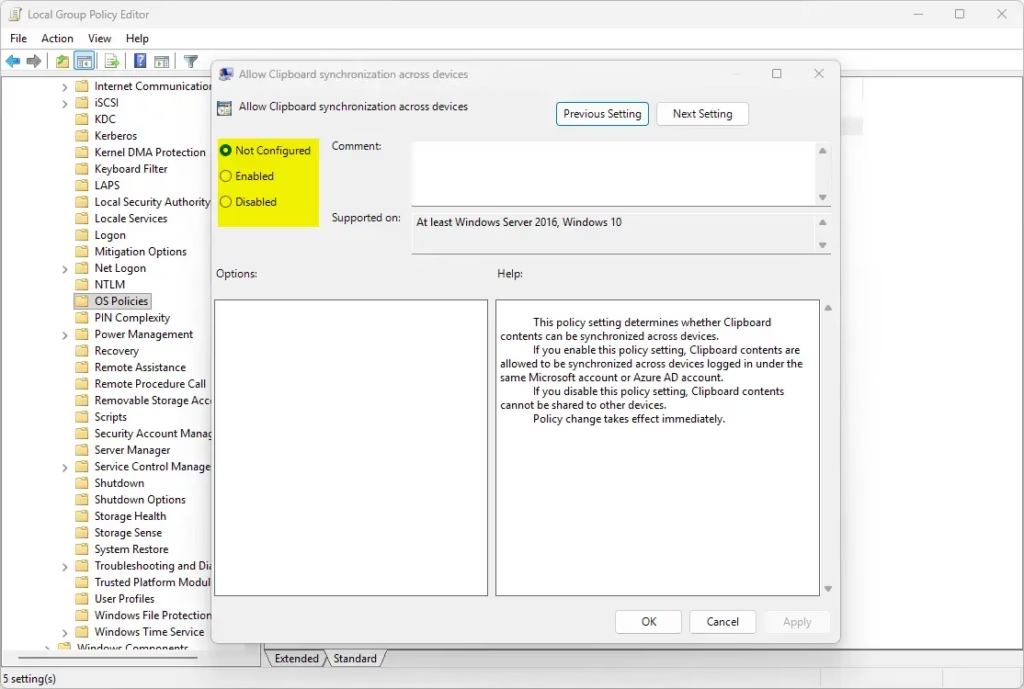
Change Clipboard Sync for All Users via Group Policy (For Windows 11 Pro, Enterprise, or Education)
Note: You need to be signed in as an administrator.
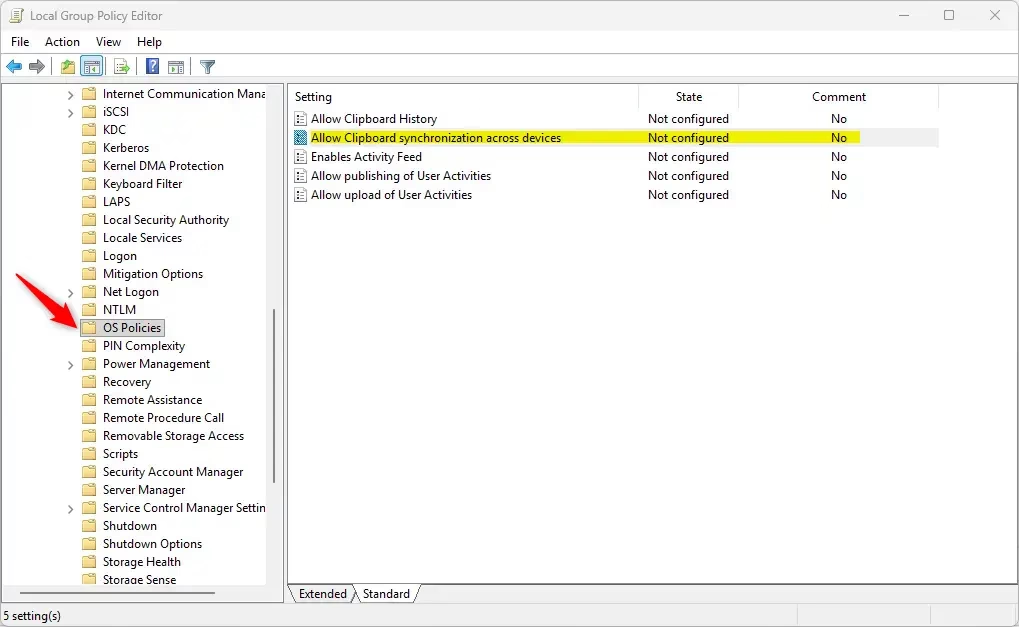
- Press Windows + R, type
gpedit.msc, and press Enter to open Local Group Policy Editor. - Go to:
Computer Configuration > Administrative Templates > System > OS Policies - Double click on Allow Clipboard synchronization across devices.
- To enable syncing, select Not Configured. To disable syncing, select Disabled.
- Click Apply and then OK.
- Close the Group Policy Editor.
Change Clipboard Sync for All Users via Registry (Administrator access needed)
To enable clipboard sync for all users, delete the value or set it like this:
reg delete "HKEY_LOCAL_MACHINE\SOFTWARE\Policies\Microsoft\Windows\System" /v AllowCrossDeviceClipboard /f
To disable clipboard sync for all users, use this:
reg add "HKEY_LOCAL_MACHINE\SOFTWARE\Policies\Microsoft\Windows\System" /v AllowCrossDeviceClipboard /t REG_DWORD /d 0 /f
Summary
- Clipboard history helps you save and manage many copied items at once.
- You can sync clipboard items across your Windows devices using your Microsoft or work account.
- Choose to sync automatically or manually.
- Pinned items stay saved even after you restart your PC.
- Clipboard supports text, images, and HTML formats.
Want to learn more? Check out the official Microsoft guide here:
Seamlessly transfer content between your devices – Microsoft Support
If you’re not signed in with a Microsoft or work account, clipboard syncing won’t work across devices.


Leave a Reply Cancel reply