How to Turn On or Off Cellular Network in Windows 11

You turn the cellular network on or off in Windows 11 by accessing the Network & internet settings.
This setting allows you to manage your PC’s connection to the internet using its built-in cellular modem, similar to how your smartphone uses a SIM or eSIM for mobile data.
Activating your cellular network in Windows 11 provides internet access wherever you have a mobile signal, a handy backup when Wi-Fi isn’t an option. This is particularly relevant for laptops and tablets designed with cellular connectivity, enabling seamless on-the-go internet use.
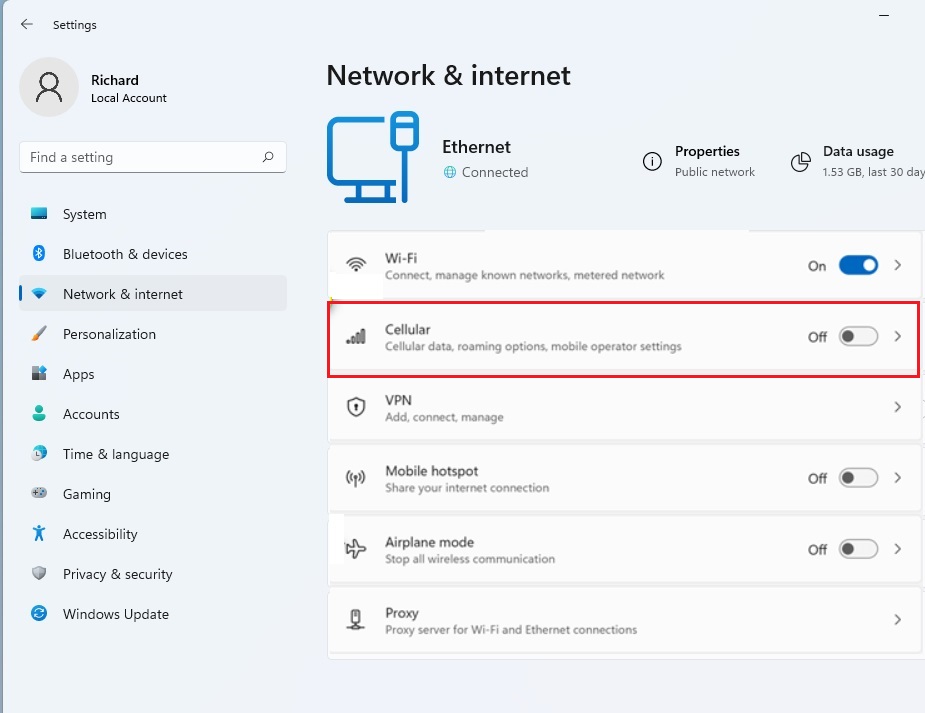
Navigate to Settings, then Network & internet, and select Cellular. Use the Cellular data toggle switch to turn the connection On or Off. This controls your device’s mobile broadband connection.
Why Use Cellular Data?
Cellular data lets your computer get online without Wi-Fi, which is great for travel or when Wi-Fi isn’t available. You might turn the cellular network off in Windows 11 to save money on your phone plan or to make your laptop battery last longer.
You might turn cellular data off to avoid extra charges on your mobile plan or to conserve your laptop’s battery. When you do this, your computer disconnects from the mobile tower, halting all data traffic through the cellular modem.
How to Enable or Disable Cellular Network in 🪟 Windows 11
You can easily turn your cellular network on or off in Windows 11 using a simple toggle switch right in the settings. If you need to cut all wireless connections at once, like on a plane, use Airplane mode (Windows key + A) which turns off both Wi-Fi and Cellular.
1. Open the Settings app by pressing Windows key + I.
2. Click on Network & internet in the left sidebar.
3. Select the Cellular tile on the right.
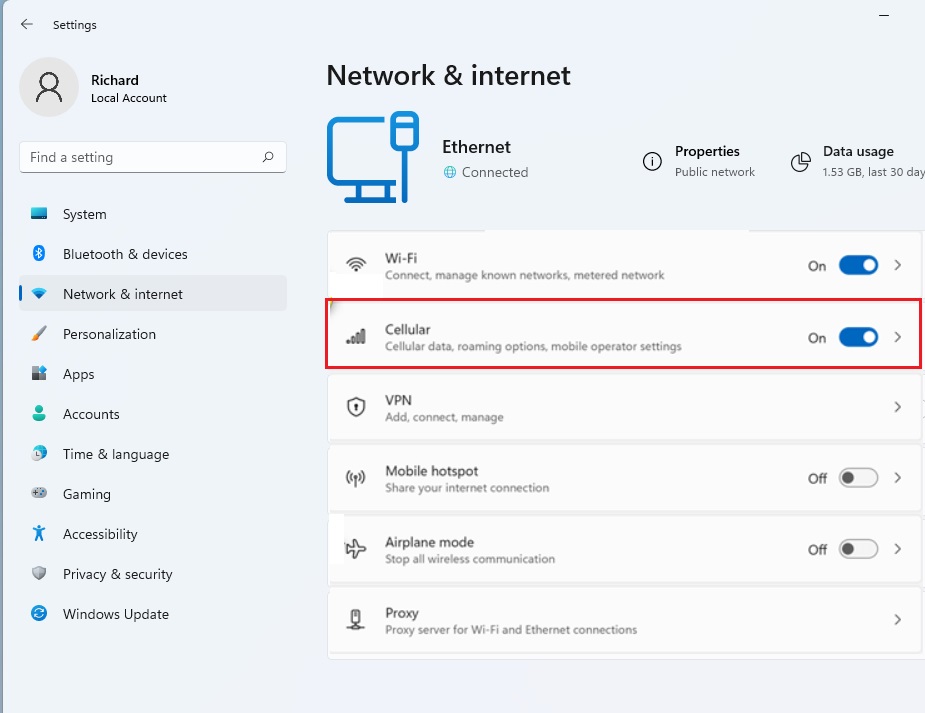
4. Use the Cellular data toggle to switch the connection On or Off.
Managing eSIM and SIM Cards
Windows 11 lets you manage both physical SIM cards and newer eSIMs to connect to your cellular network.
Troubleshooting Cellular Connectivity
If you’re having trouble with your cellular connection in Windows 11, like a missing or grayed-out toggle, checking your network adapter settings is the first step.
Data Usage and Metered Connections
To prevent your computer from using too much data, set your connection as a metered connection. In Settings > Network & internet > Cellular, click on Advanced network settings or the specific cellular profile to toggle Metered connection to On. This prevents Windows from downloading large updates automatically.
Summary
You’ve learned how to easily manage your cellular network connection in Windows 11, including how to turn it on or off using the settings.
Why is the cellular toggle missing in 🪟 Windows 11?
The cellular toggle might be missing in Windows 11 if your laptop doesn’t have a built-in cellular modem, or if the necessary drivers aren’t installed or set up correctly. This means your computer can’t connect to a cellular network.
The cellular toggle might be missing in Windows 11 if your laptop doesn’t have a built-in cellular modem, or if the necessary drivers aren’t installed or set up correctly. This means your computer can’t connect to a cellular network.
Does turning off cellular data save battery life?
Yes, turning off cellular data does help save your laptop’s battery life.
Yes, turning off cellular data does help save your laptop’s battery life.
Was this guide helpful?

About the Author
Richard
Tech Writer, IT Professional
Richard, a writer for Geek Rewind, is a tech enthusiast who loves breaking down complex IT topics into simple, easy-to-understand ideas. With years of hands-on experience in system administration and enterprise IT operations, he’s developed a knack for offering practical tips and solutions. Richard aims to make technology more accessible and actionable. He's deeply committed to the Geek Rewind community, always ready to answer questions and engage in discussions.

No comments yet — be the first to share your thoughts!