How to Turn On or Off Capitalizing the First Letter of Each Sentence on the Touch Keyboard in Windows 11

You can turn on or off the automatic capitalization of the first letter of each sentence on the Windows 11 touch keyboard. Adjusting a setting controls this behavior.
This feature automatically capitalizes the start of your sentences, making them easier to read. It’s a standard part of the Windows 11 touch keyboard.
This setting lives within the touch keyboard’s personalization options. It lets you tailor the keyboard’s behavior to your typing style.
Go to Settings > Time & language > Typing. Expand Touch keyboard and check or uncheck “Capitalize the first letter of each sentence” to enable or disable the feature.
How to Turn This Feature On or Off Using Settings
- Open Settings by pressing Windows key + I on your keyboard.
- Click Time & language from the menu on the left side.
- On the right side, click Typing.
- Scroll down and click the arrow next to Touch keyboard to open more options.
- Check the box to Capitalize the first letter of each sentence if you want it ON. Uncheck it to turn it OFF.
You can easily turn the Windows 11 touch keyboard’s auto-capitalization on or off right in the Settings app.
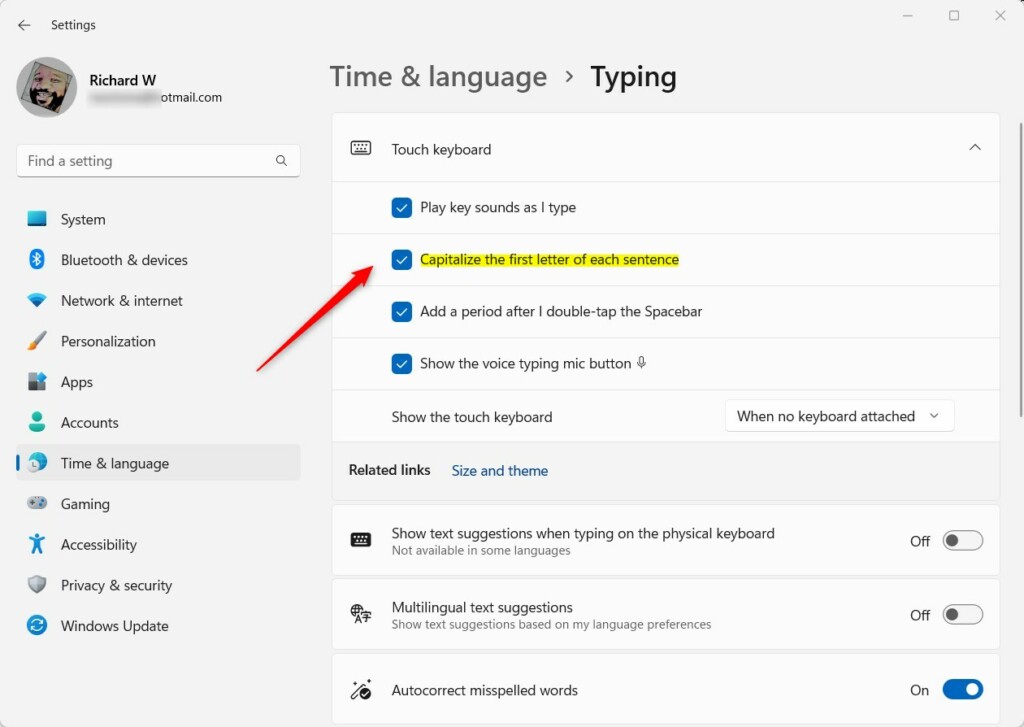
Once you’re done, you can close the Settings window.
How to Turn This Feature On or Off Using the Windows Registry (Advanced)
For advanced users, you can change the Windows 11 touch keyboard’s auto-capitalization setting by editing the Windows Registry.
To turn ON automatic capitalization for the touch keyboard, use this code:
reg add "HKEY_CURRENT_USER\Software\Microsoft\TabletTip\1.7" /v EnableAutoShiftEngage /t REG_DWORD /d 1 /fTo turn OFF automatic capitalization, use this code instead:
reg add "HKEY_CURRENT_USER\Software\Microsoft\TabletTip\1.7" /v EnableAutoShiftEngage /t REG_DWORD /d 1 /fYou may need to restart your PC or sign out and back in to see the changes.
Summary
- The touch keyboard in Windows 11 helps you type without a physical keyboard on touchscreen devices.
- By default, it makes the first letter of each sentence a capital letter to help your typing look cleaner.
- You can turn this feature on or off easily in Settings or by changing the Registry.
- Adjust this setting to fit your own typing style and preferences.
- This feature does NOT work if you use the traditional keyboard layout on the touch keyboard.
The Windows 11 touch keyboard automatically capitalizes the first letter of each sentence by default, but you can easily turn this feature on or off in Settings or through the Registry.
How to Capitalize when touch typing?
Shift. If you want to type a capital letter, if the letter you wish to capitalize is being typed by the left hand, use the right-hand pinky to hold down the Shift key; otherwise, use the left-hand pinky to hold down the other Shift key.
Why does Gen Z turn auto caps off?
Caitlin Jardine, a social media manager, notes, “Capital letters can feel stern or abrupt.” A “calm, friendly” tone connects better with Gen Z’s values. After all, this generation grew up online, where the line between formal and informal communication is often blurred.
How to autocapitalize in 🪟 Windows 11?
Select Editor > Show suggestions count. Use the toggle to turn autocorrect and auto capitalization on or off.
How to change touch keyboard size in 🪟 Windows 11?
Then you will have to go into the settings. Now go to the left side and select personalization. And next you will have to go into the text input.
Was this guide helpful?

About the Author
Richard
Tech Writer, IT Professional
Richard, a writer for Geek Rewind, is a tech enthusiast who loves breaking down complex IT topics into simple, easy-to-understand ideas. With years of hands-on experience in system administration and enterprise IT operations, he’s developed a knack for offering practical tips and solutions. Richard aims to make technology more accessible and actionable. He's deeply committed to the Geek Rewind community, always ready to answer questions and engage in discussions.


No comments yet — be the first to share your thoughts!