Enable Automatic Suspension in Ubuntu Linux Easily

You enable automatic suspension in Ubuntu Linux by adjusting power management settings to put your system to sleep after a set period of inactivity.
Automatic suspension is a power-saving feature that transitions your Ubuntu desktop to a low-power state, similar to sleep mode, when you’re not actively using it. This helps reduce energy consumption without a full shutdown.
When your Ubuntu machine suspends, it enters a resting state, consuming minimal power. Your session will be ready to go instantly once you wake the computer, allowing you to resume your work without delay.
You can configure specific inactivity timeouts for suspension, often with different durations for when your laptop uses battery power compared to when it’s connected to an AC adapter.
Go to Settings, then Power. Under Automatic Suspend, choose On Battery Power or Plugged In, turn the switch on, and select a delay time for your system to suspend when idle.
How to suspend Ubuntu Linux
As mentioned, you can suspend Ubuntu Linux manually or automatically. When you suspend Ubuntu Linux, it goes to sleep, preserving your desktop session.
Here’s how to suspend Ubuntu Linux.
Manually suspending Ubuntu Linux
If your computer supports it, you can quickly suspend Ubuntu Linux from the system menu on the top bar.
Click the System menu on the top bar. Expand the Power Off / Log Out command, then click the Suspend command, as shown below.
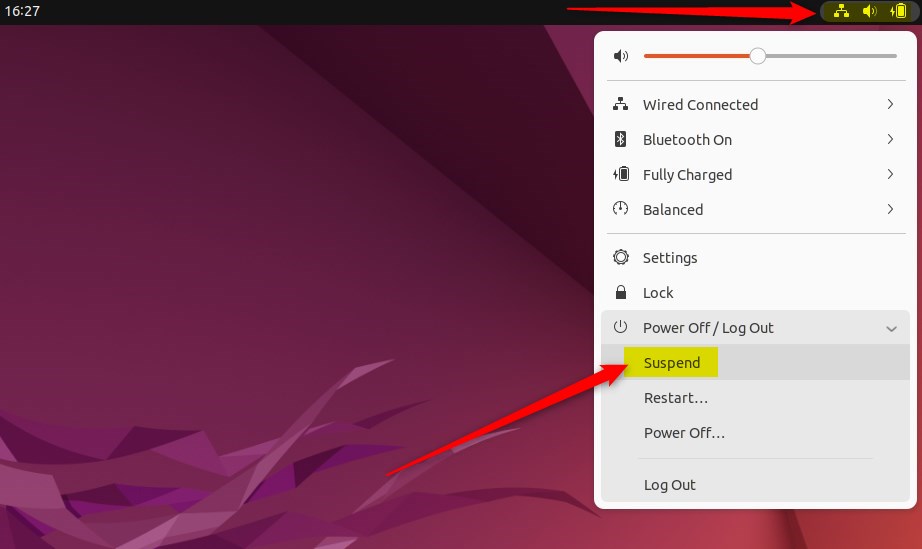
This will suspend your computer.
Enable automatic suspension in Ubuntu Linux
Another way to suspend Ubuntu Linux is to turn on automatic suspension. For instance, you can configure your computer to suspend automatically when it’s idle.
Here’s how to do that:
Ubuntu Linux keeps most of its settings in one place. You can manage system configurations, create new users, and update your system all from the System Settings panel.

Alternatively, click the System menu in the top-right corner of your desktop’s top bar.
On the System menu, select Settings, as shown below.

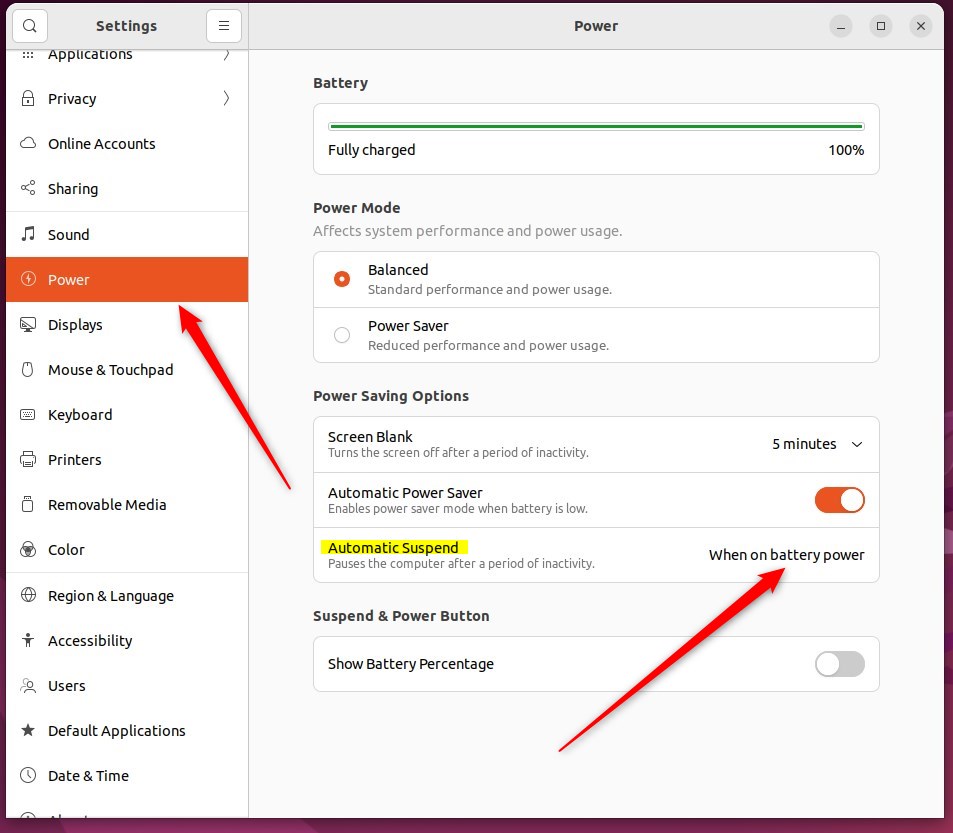
In the Settings app, click the Power tile to open the panel.
In the System Settings -> Power settings panel, click the Automatic Suspend tile under Power Saving Options.
Choose On Battery Power or Plugged In, set the switch to on, and select a Delay. You can configure both options.
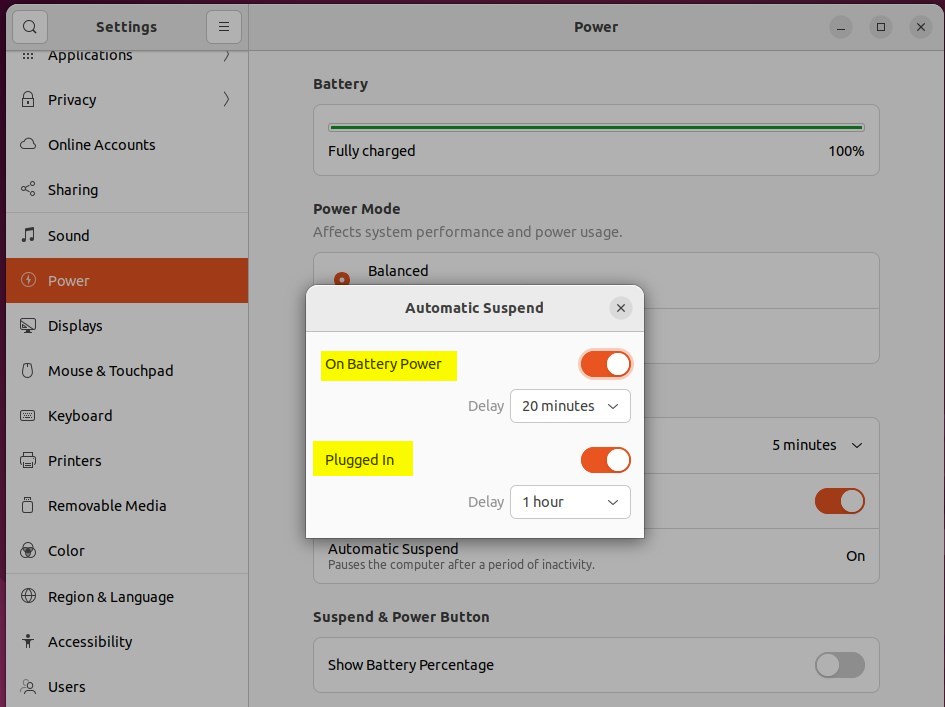
Your changes save automatically when you exit. You can now close the Settings app.
Conclusion:
- Enabling automatic suspension in Ubuntu Linux can be a convenient way to save power and preserve your desktop session when the system is idle.
- Whether you prefer manual or automatic suspension, Ubuntu Linux provides options for your specific preferences and hardware support.
- Configuring the automatic suspension settings through the System Settings panel allows for customization based on power source and delay preferences. This ensures a tailored approach to power management.
Was this guide helpful?

About the Author
Richard
Tech Writer, IT Professional
Richard, a writer for Geek Rewind, is a tech enthusiast who loves breaking down complex IT topics into simple, easy-to-understand ideas. With years of hands-on experience in system administration and enterprise IT operations, he’s developed a knack for offering practical tips and solutions. Richard aims to make technology more accessible and actionable. He's deeply committed to the Geek Rewind community, always ready to answer questions and engage in discussions.




[…] Ubuntu Linux goes to suspend mode, it’s not turned off – go to sleep. Then, you can resume by opening the lid, and your […]