How to Enable or Disable Automatic Lock on Your Windows 11 PC

You can enable or disable automatic PC locking on Windows 11 to control when your computer locks itself after a period of inactivity.
This feature helps secure your data by preventing unauthorized access when you leave your PC unattended. It’s especially useful if you share your workspace or handle sensitive information.
Windows 11 usually locks your screen after 2 minutes of inactivity by default. You can adjust this duration or disable it entirely in your system’s power and sleep settings.
Knowing how to manage this setting ensures your computer is both convenient and secure.
Control automatic PC locking in Windows 11 via Power & Sleep settings or Local Security Policy/Registry Editor. Adjust inactivity time in seconds or set to 0 to disable.
How to Change When Your PC Locks Automatically
You can set how long your computer waits before locking itself when you’re not using it. Or you can turn off this automatic lock if you prefer.
For 🪟 Windows 11 Pro, Enterprise, or Education Users:
Changing How Often Your PC Locks AutomaticallyWindows 11 Pro, Enterprise, and Education users can easily change how often their PC locks automatically using the Local Security Policy tool, letting you decide if your computer locks after a set time of inactivity or never.
- Click the Start Menu (Windows icon at the bottom left).
- Type
Local Security Policyorsecpol.mscin the search box and click on it to open. ⚠️ Requires admin privileges
- In the window that opens, look at the left panel. Click the arrow next to Local Policies, then click Security Options.
- On the right side, find Interactive logon: Machine inactivity limit and double-click it.
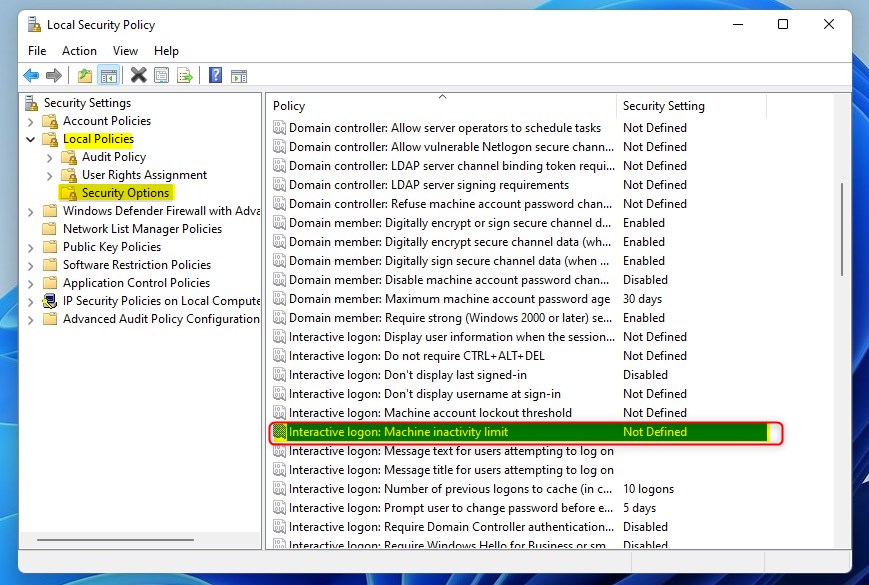
- In the box that appears, type the number of seconds you want your PC to wait before locking. For example,
600means 10 minutes. What happens? Your PC will lock after that time passes. - Type
0to turn off automatic locking. - Click OK to save your changes.
0 will disable the automatic lock.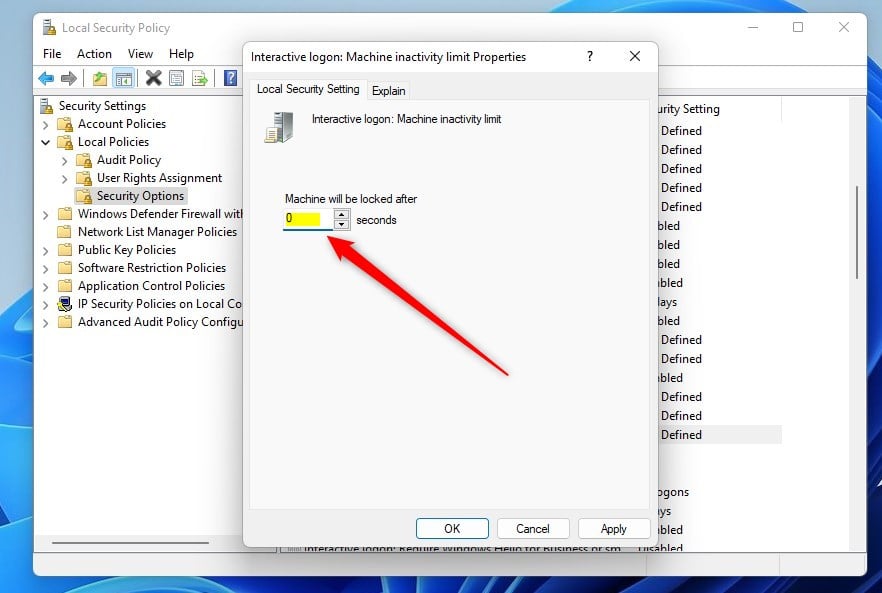
Note: The Local Security Policy tool is not available on Windows 11 Home edition.
For 🪟 Windows 11 Home Users:
Editing the Windows Registry (Windows 11 Home)Windows 11 Home users can adjust the automatic lock time by editing the Windows Registry, since the Local Security Policy tool isn’t available, allowing you to set a specific time before your PC locks or turn off the automatic lock completely.
- Press
Windows key + Rto open the Run box. - Type
regeditand pressEnterto open the Registry Editor. ⚠️ Requires admin privileges - In Registry Editor, go to this path:
HKEY_LOCAL_MACHINE\SOFTWARE\Microsoft\Windows\CurrentVersion\Policies\System - On the right side, look for a setting named
InactivityTimeoutSecs. - If you don’t see it, right-click on an empty space, choose New > DWORD (32-bit) Value, and name it
InactivityTimeoutSecs. - Double-click
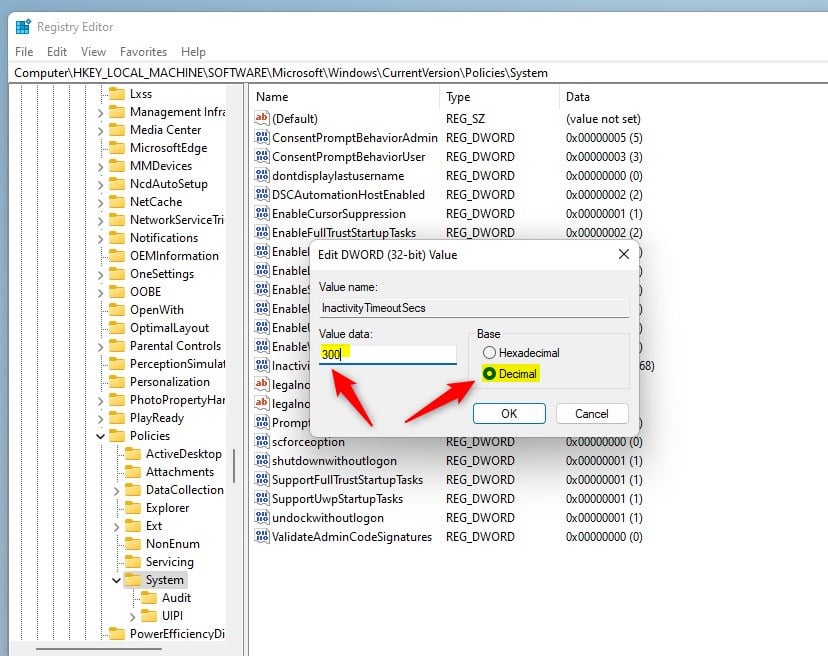
InactivityTimeoutSecsand select Decimal. - Enter the number of seconds you want your PC to wait before locking (for example,
600for 10 minutes). What happens? Your PC will lock after that time passes. - Enter
0to turn off automatic locking. - Click OK and close Registry Editor.
HKEY_LOCAL_MACHINE\SOFTWARE\Microsoft\Windows\CurrentVersion\Policies\SystemInactivityLockTime.0 will disable the automatic lock.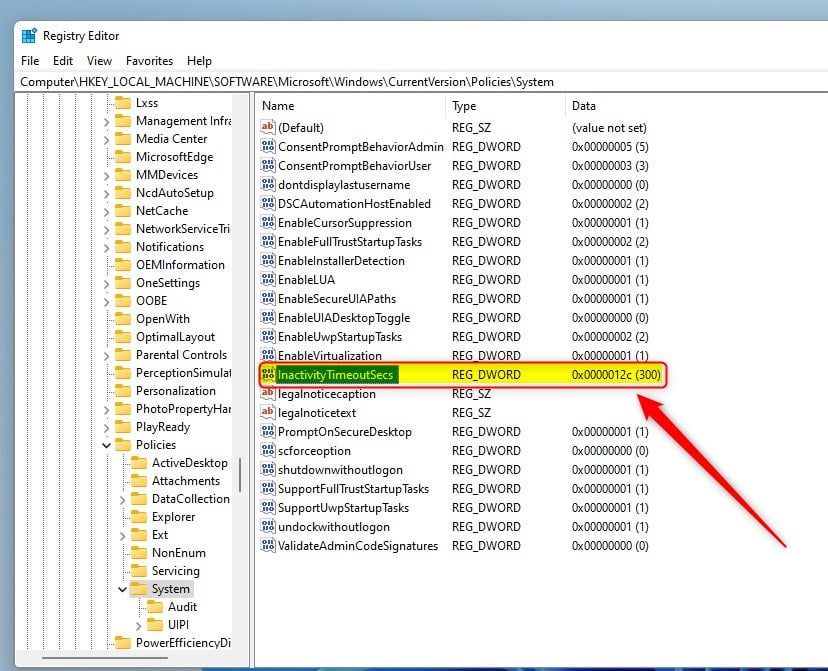
Summary
SummaryWindows 11 automatically locks your PC after inactivity to keep it secure, and you can manage this feature using the Local Security Policy on Pro versions or by editing the Registry on Home versions, setting the time in seconds or using 0 to disable it.
How to fix PC locking automatically?
So we want to look for here signin. Options click on the signin. Options. And from here the first additional setting that you want to change down here is in the dynamic. Lock.
Was this guide helpful?
100% of readers found this helpful (1 votes)

About the Author
Richard
Tech Writer, IT Professional
Richard, a writer for Geek Rewind, is a tech enthusiast who loves breaking down complex IT topics into simple, easy-to-understand ideas. With years of hands-on experience in system administration and enterprise IT operations, he’s developed a knack for offering practical tips and solutions. Richard aims to make technology more accessible and actionable. He's deeply committed to the Geek Rewind community, always ready to answer questions and engage in discussions.




No comments yet — be the first to share your thoughts!