How to Enable or Disable Suggested Actions in Windows 11

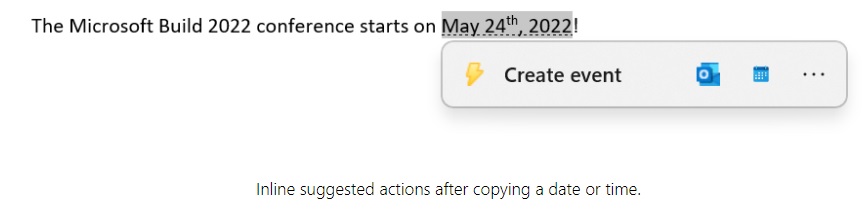
Suggested actions in Windows 11 are small popups that appear when you copy a phone number, date, or time to your clipboard. Added in version 22H2, this feature gives you quick shortcuts to create calendar events or make phone calls without opening extra apps.
Microsoft is phasing out this tool, but you can still turn it on or off on supported systems. Open your Windows Clipboard settings to control how these shortcuts work on your PC.
You enable or disable suggested actions in Windows 11 by going to Settings System Clipboard and toggling the “Suggested actions” switch. This feature is deprecated and may not be available on newer builds or outside of North America.
What are Suggested Actions in 🪟 Windows 11?
Suggested Actions in Windows 11 is a built-in feature that gives you fast shortcuts when you copy text like phone numbers or dates. When you copy a phone number, Windows 11 lets you call it right away using Teams or Phone Link. If you copy a date, it offers to add an event to your Calendar app without making you open it first.
Suggested actions save time by removing extra steps when handling dates, times, or phone numbers. For example, Windows 11 can offer to open the calendar app when it detects a date in an email.
What happens when done? Once enabled, a small menu pops up automatically when you copy relevant info, letting you take action immediately.

For date/time actions:
Is Suggested Actions being removed from 🪟 Windows 11?
Is Suggested Actions being removed from 🪟 Windows 11?
Yes, Suggested Actions is a deprecated feature. Microsoft has moved away from this tool in recent Windows 11 updates. If the setting remains hidden, the operating system version likely removed support for it entirely as part of the standard Windows 11 feature deprecation process.
Why can't I find Suggested Actions in my 🪟 Windows 11 settings?
Suggested Actions in Windows 11 is missing from your settings because Microsoft removed the feature in recent system updates. It also only worked if your computer region was set to the United States, Canada, or Mexico. If you run a newer version of Windows 11, the toggle is gone for good and you cannot turn it back on.Why can't I find Suggested Actions in my 🪟 Windows 11 settings?
If the option cannot be located, the system has probably updated to a version that no longer supports this functionality. Additionally, this feature was historically limited to users in North America. Anyone outside this region or on a newer build will find that the Clipboard settings menu omits the toggle entirely.
What replaces Suggested Actions in newer 🪟 Windows 11 builds?
What replaces Suggested Actions in newer 🪟 Windows 11 builds?
What replaces Suggested Actions in newer 🪟 Windows 11 builds?
There is no direct replacement for Suggested Actions. Instead, Microsoft encourages reliance on standard Clipboard history settings. Accessing the clipboard involves pressing the Windows key + V shortcut. This allows management of copied items manually without automated pop-up windows previously triggered by Suggested Actions.
How to enable or disable Suggested Actions
Turn Suggested Actions on or off in Windows 11 by opening the Settings app and going to System Clipboard. Find the toggle for Suggested actions and switch it to On or Off. If you do not see this option on your screen, your version of Windows 11 no longer includes the feature.
- Open the Settings app. You can do this by pressing Windows key + I on your keyboard or by clicking Start > Settings.
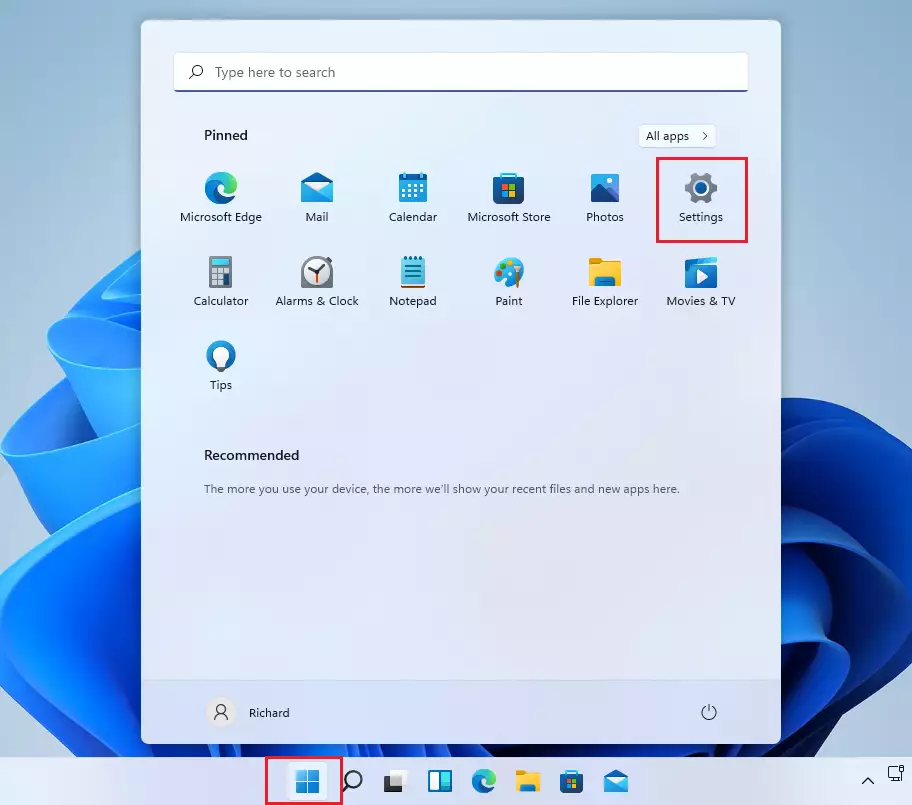
- Click on System in the left menu.
- Select Clipboard from the list of options on the right.
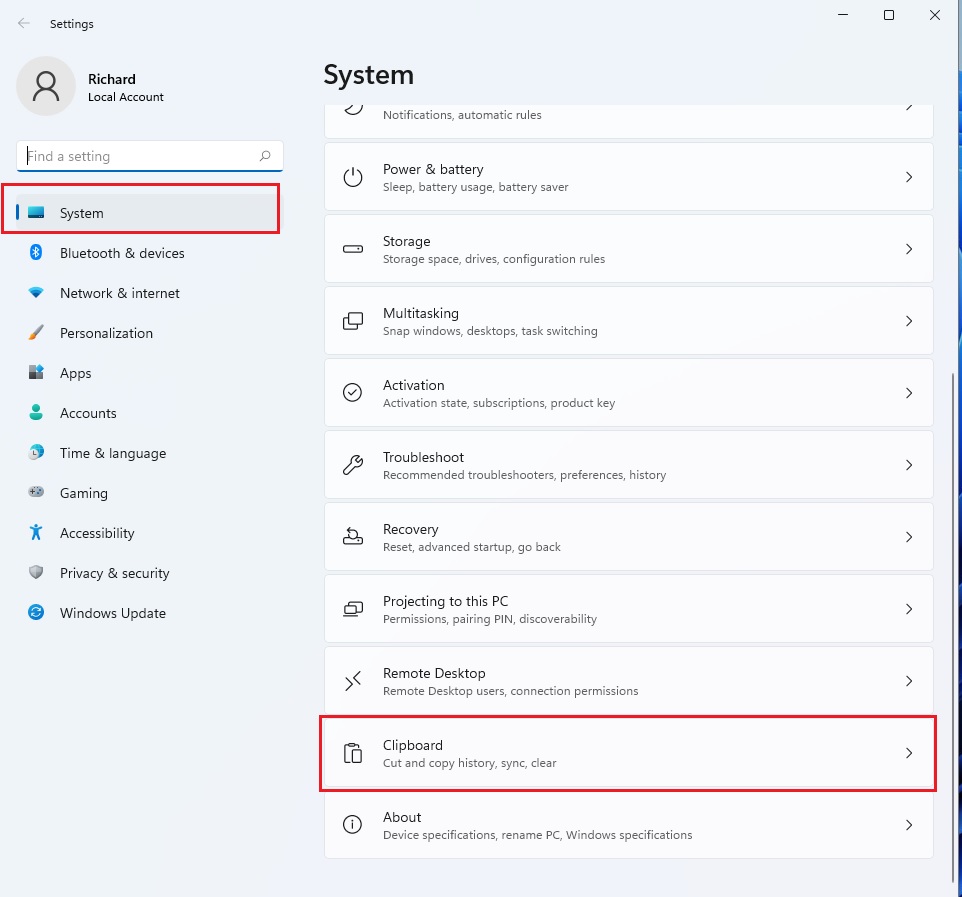
- Find the Suggested actions toggle switch. Click it to turn the feature On or Off.
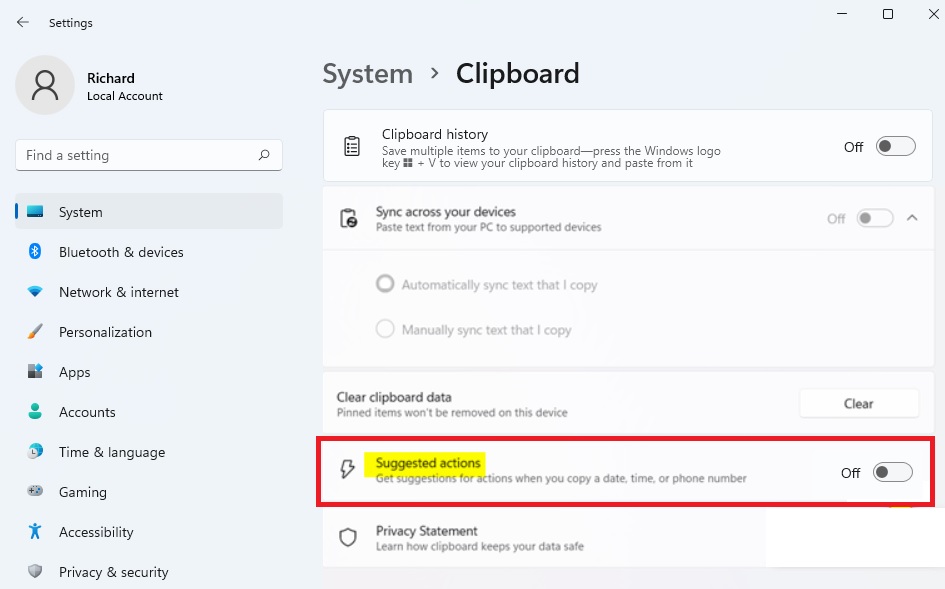
The Settings window closes once the final selection is made.
Troubleshooting Suggested Actions
Fix broken Suggested Actions in Windows 11 by checking your regional settings and installing pending system updates. Open Time & Language in Settings to make sure your country or region is set to the United States or Canada. Next, check Windows Update to ensure your computer runs a build that actually supports the feature.
- Region Settings: Ensure your PC region is set to a supported area, such as the United States or Canada.
- Windows Updates: Check for the latest Windows 11 update in Settings Windows Update If you are on a very new build, the feature may be gone.
- Clipboard History: Ensure Clipboard history is enabled in the same menu, as some actions depend on the clipboard service running correctly.
Summary
Suggested Actions, a Windows 11 tool that created shortcuts for copied text, faces removal from newer versions of Windows 11 as Microsoft shifts focus toward alternative features.
Was this guide helpful?

About the Author
Richard
Tech Writer, IT Professional
Richard, a writer for Geek Rewind, is a tech enthusiast who loves breaking down complex IT topics into simple, easy-to-understand ideas. With years of hands-on experience in system administration and enterprise IT operations, he’s developed a knack for offering practical tips and solutions. Richard aims to make technology more accessible and actionable. He's deeply committed to the Geek Rewind community, always ready to answer questions and engage in discussions.
No comments yet — be the first to share your thoughts!