How to Turn On Notifications for Sticky, Filter, or Toggle Keys in Windows 11

You can turn on notifications for Sticky Keys, Filter Keys, or Toggle Keys in Windows 11 to know when they are active.
Sticky Keys lets you press modifier keys like Shift, Ctrl, Alt, or the Windows key one at a time instead of holding them down. Filter Keys helps ignore brief or repeated keystrokes, and Toggle Keys alerts you with a sound when Caps Lock, Num Lock, or Scroll Lock are pressed.
Enabling these auditory or visual alerts in Windows 11 provides immediate feedback, preventing accidental activation or ensuring you’re aware of their current status.
You’ll find these accessibility features within the Keyboard settings, under the Accessibility section.
Open Settings, navigate to Accessibility, then Keyboard, and click Notification preferences. Check the box to receive alerts when Sticky, Filter, or Toggle Keys are turned on or off from the keyboard.
What Are Sticky, Filter, and Toggle Keys?
Sticky Keys, Filter Keys, and Toggle Keys are special keyboard helpers in Windows 11 that make typing easier for everyone, especially if you have trouble pressing keys quickly or at the same time.
Filter Keys help by ignoring quick or repeated key presses that happen by accident when you type.
Toggle Keys make a sound when you press keys like Caps Lock, Num Lock, or Scroll Lock. This way you know if they are on or off.
Why use these features? They make typing easier for many people. What happens when you turn on notifications? Windows shows you a message whenever one of these keys turns on or off.
How to Enable Notifications for These Keys in 🪟 Windows 11
- Open the Settings app. Click the Start menu button (the Windows icon on the bottom-left), then click Settings. Or press
Windows key + Ion your keyboard to open Settings quickly. - In the Settings window, click Accessibility on the left side.
Windows 11 Accessibility button in Settings - On the right side, find and click the Keyboard option.
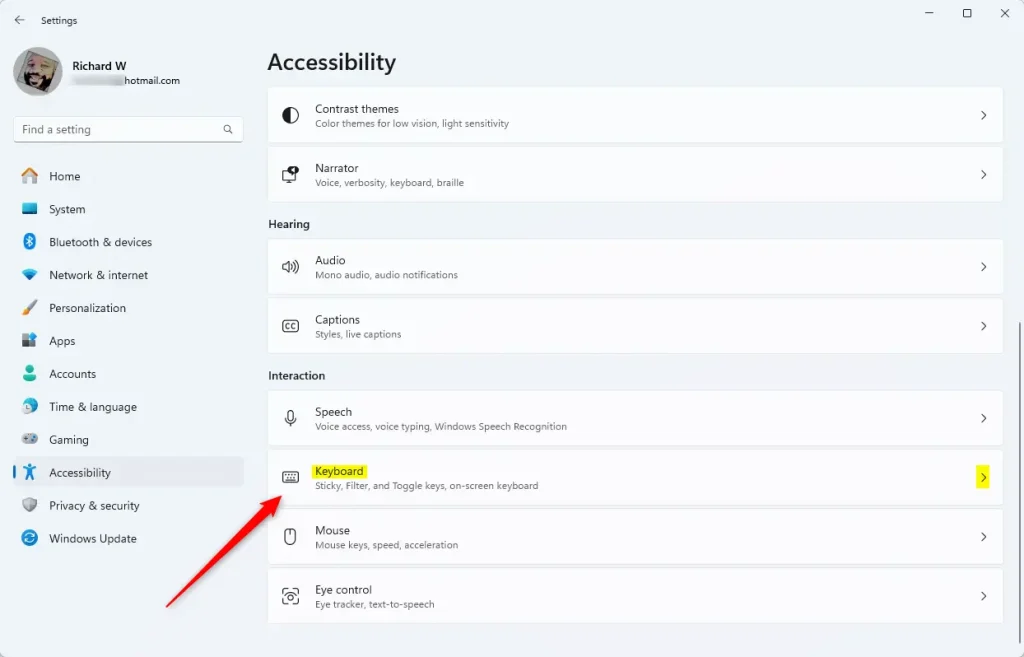
Windows 11 Accessibility Keyboard tile in Settings - Scroll down and click on Notification preferences.
- Check the box that says “Notify me when I turn on Sticky, Filter, or Toggle keys on or off from the keyboard.” To stop notifications, just uncheck the box .
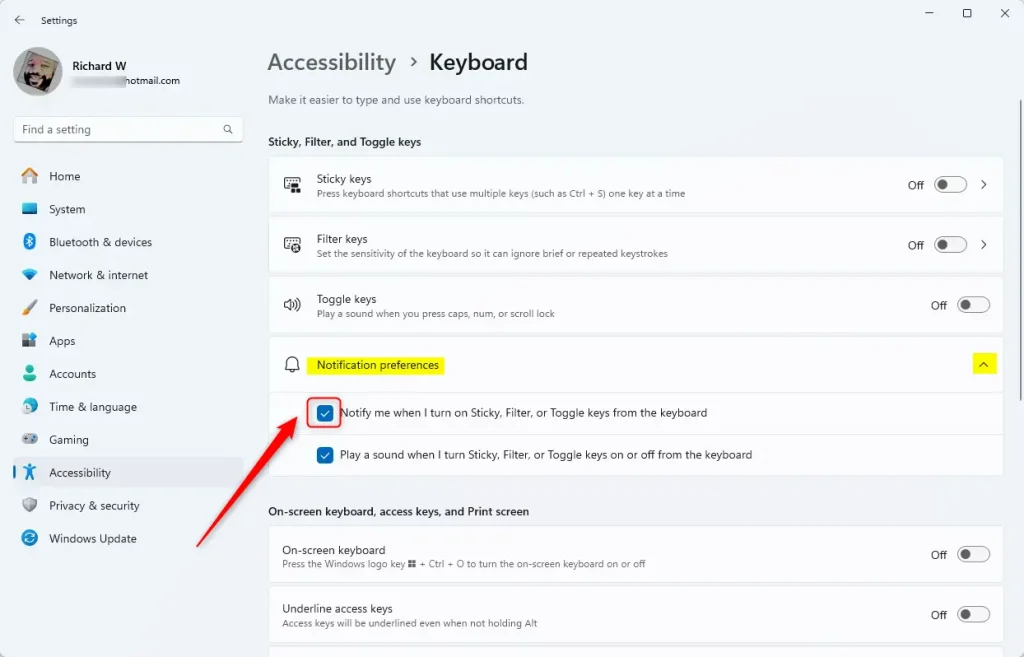
Windows 11 Accessibility Keyboard notification preferences - Close the Settings app when you’re done.
You can easily turn on notifications for Sticky, Filter, or Toggle Keys in Windows 11 by opening the Settings app and going through a few simple steps.
Summary
Sticky, Filter, and Toggle Keys are helpful Windows 11 keyboard tools, and you can get notifications when they turn on or off by checking a box in the Settings menu.
What are Sticky Keys and how to turn them off/on
If you have questions or tips, feel free to share them in the comments below!
How to get Sticky Keys notification?
Getting a Sticky Keys notification in Windows 11 is tied to how you turn the feature on or off, which you can do by pressing the Shift key five times quickly.
How do I turn off sticky notifications?
You need to search sticky keys go to this settings. And you need to disable all of them. Come outside you also need to disable all of these.
Was this guide helpful?

About the Author
Richard
Tech Writer, IT Professional
Richard, a writer for Geek Rewind, is a tech enthusiast who loves breaking down complex IT topics into simple, easy-to-understand ideas. With years of hands-on experience in system administration and enterprise IT operations, he’s developed a knack for offering practical tips and solutions. Richard aims to make technology more accessible and actionable. He's deeply committed to the Geek Rewind community, always ready to answer questions and engage in discussions.




No comments yet — be the first to share your thoughts!