How to Enable or Disable Camera Notifications on Your Screen in Windows 11

Do you want to know when your computer’s camera turns on or off? Windows 11 can show a small message on your screen every time the camera starts or stops working. This helps you stay safe and know when the camera is being used.
Enable camera notifications by opening Registry Editor, navigating to 🗝️HKEY_LOCAL_MACHINESOFTWAREMicrosoftOEMDeviceCapture, and creating a DWORD value named NoPhysicalCameraLED. Set its value data to 1 to enable notifications or 0 to disable them.
Why is this useful?
Turning on Windows 11 camera notifications is useful because it shows you a message whenever your camera turns on or off, even if the little light next to your camera is covered or broken.
Turning on on-screen notifications means Windows will show a message whenever your camera turns on or off, even if you can’t see the physical light.
How to Turn On or Off Camera Notifications in 🪟 Windows 11
Follow these steps to set it up. We’ll be using a tool called the Registry Editor. Think of it as a control panel for many Windows settings.
Step 1Open the Registry Editor
Press Windows key + R on your keyboard to open the Run box. Type regedit and press Enter.
If you want a detailed guide on this, check out this article: How to open the Registry in Windows 11.
Step 2Go to the right folder
Once Registry Editor opens, use the left side panel to find this folder:
HKEY_LOCAL_MACHINE\SOFTWARE\Microsoft\OEM\Device\CaptureIf you don’t see the Capture folder:
- Right-click on the Device folder
- Select New > Key
- Name the new folder Capture
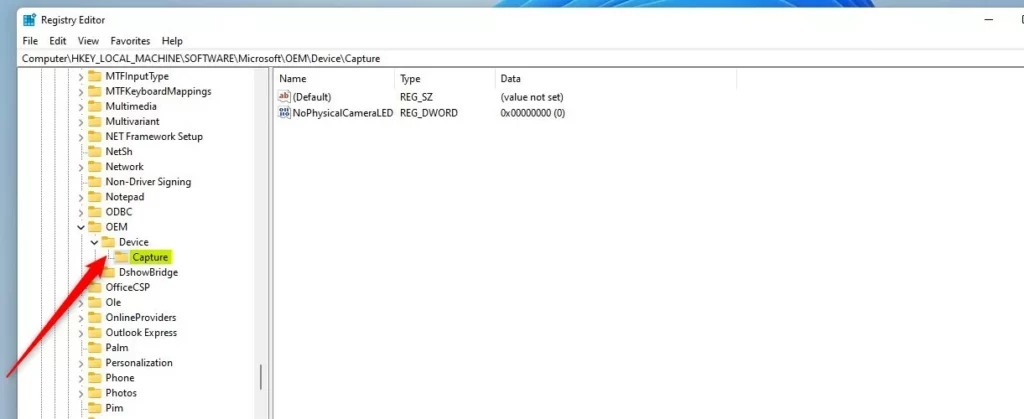
Step 3Create a new setting
Click on the Capture folder. Then, on the right side, right-click in an empty space and choose New > DWORD (32-bit) Value.
Name this new value NoPhysicalCameraLED.
Step 4Change the value
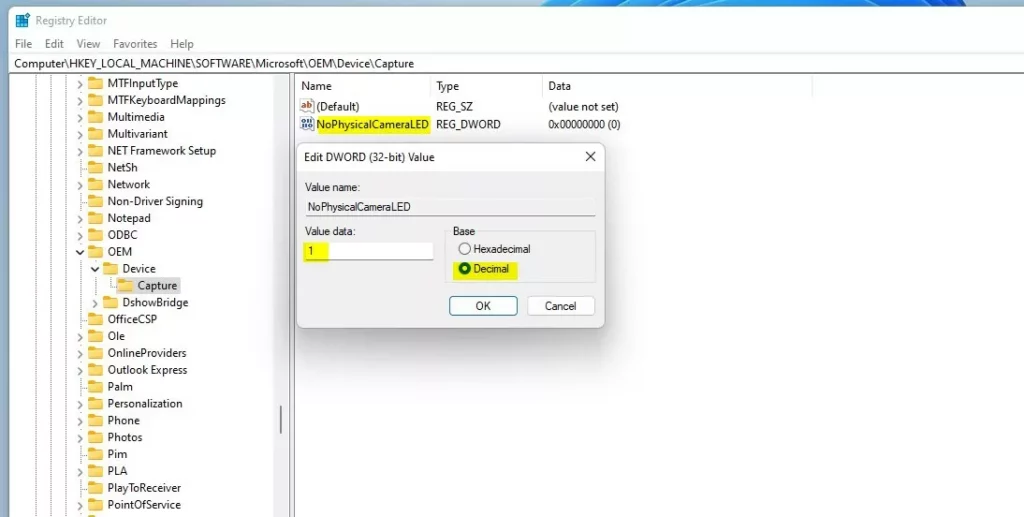
Next, double-click the NoPhysicalCameraLED value you just created. A box will open.
To turn on camera notifications, type 1 in the “Value data” box.
To turn them off, type 0.
Finally, click OK to save your changes.
Step 5Close Registry Editor
Close the Registry Editor. You might want to restart your computer to make sure the changes take effect.
What happens next?
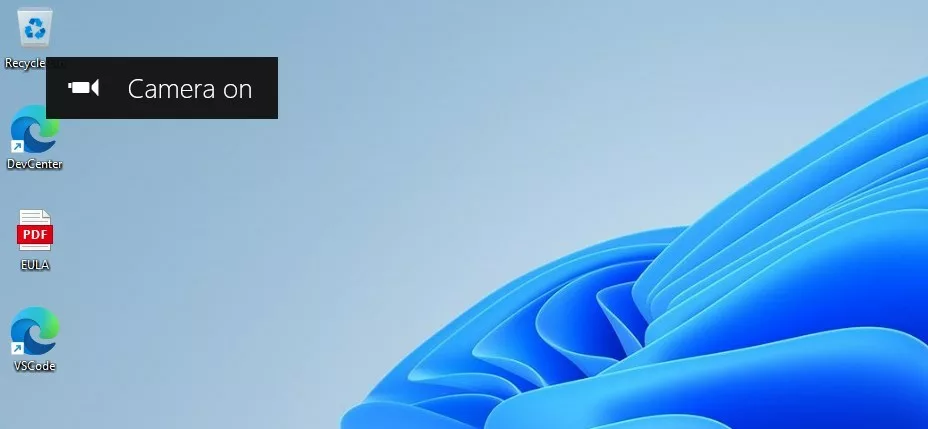
Now, every time your camera turns on or off, you’ll see a message on your screen like this:
Summary
Windows 11 camera notifications help you know exactly when your camera is being used, acting as a helpful reminder even if you use physical covers on your camera lens.- Turning on these notifications helps you know exactly when your camera is being used.
- If you cover your camera lens, this is a helpful reminder that your camera might still be active.
- You can easily turn this feature on or off in the Registry Editor.
- If you want to be extra safe, always keep an eye on these notifications or use physical covers on your camera.
How do I turn off the camera on notifications in 🪟 Windows 11?
You can turn off camera notifications in Windows 11 by going to Settings, then Cameras, selecting your camera, and clicking the Disable button.
Was this guide helpful?

About the Author
Richard
Tech Writer, IT Professional
Richard, a writer for Geek Rewind, is a tech enthusiast who loves breaking down complex IT topics into simple, easy-to-understand ideas. With years of hands-on experience in system administration and enterprise IT operations, he’s developed a knack for offering practical tips and solutions. Richard aims to make technology more accessible and actionable. He's deeply committed to the Geek Rewind community, always ready to answer questions and engage in discussions.

No comments yet — be the first to share your thoughts!