

This article explains how to turn Microsoft Defender Antivirus Real-time Protections in Windows 11 on or off.
Microsoft Defender Always-on protection consists of real-time protection, behavior monitoring, and heuristics to identify malware based on known suspicious and malicious activities.
Always-on (Real-time protection) is enabled by default and turned on in Windows 11. When enabled, the always-on feature monitors events such as file processes, file and registry changes, and other events on your devices for suspicious and known malicious activity.
Microsoft Defender’s Real-time antivirus protection will also automatically scan downloaded files and attachments. Turning off real-time protection drastically reduces the protection on your endpoints and is not recommended.
If you turn off Real-time protection, you will see a red alert in the Windows Security app under Real-time protection, alerting you to re-enable always-on protection to keep your device secure.
How to turn on or off Microsoft Defender Real-time protection in Windows 11
As mentioned above, Microsoft Defender Always-on protection consists of real-time protection, behavior monitoring, and heuristics to identify malware based on known suspicious and malicious activities.
Below is how to turn Real-time Protection on or off in the Microsoft Defender Antivirus Windows Security app in Windows 11.
Change the Real-time protection setting:
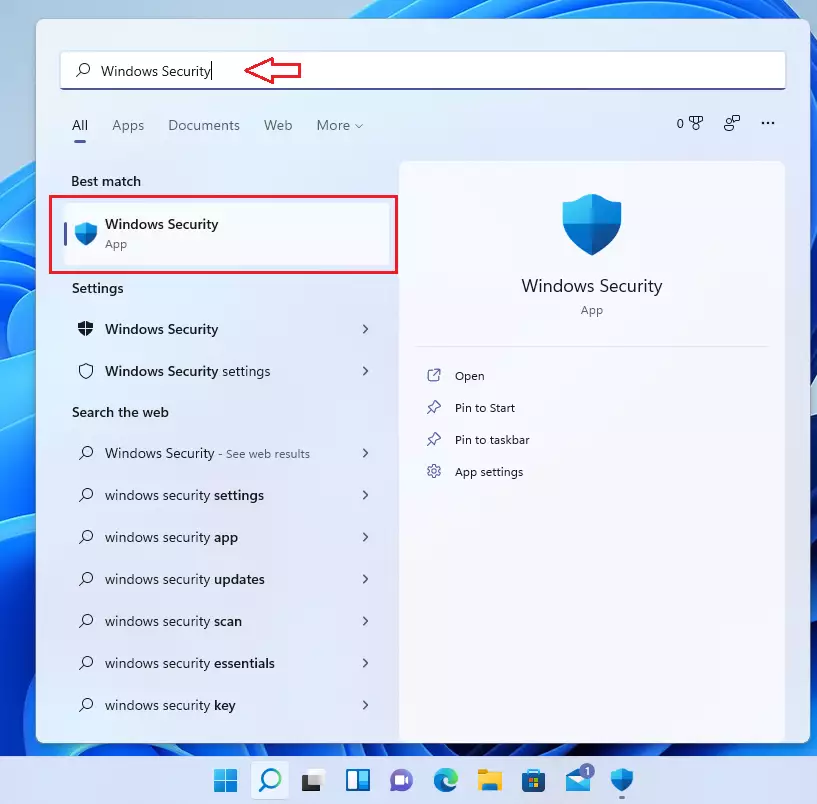
In the search box on the taskbar, type Windows Security and select Windows Security in the results list.
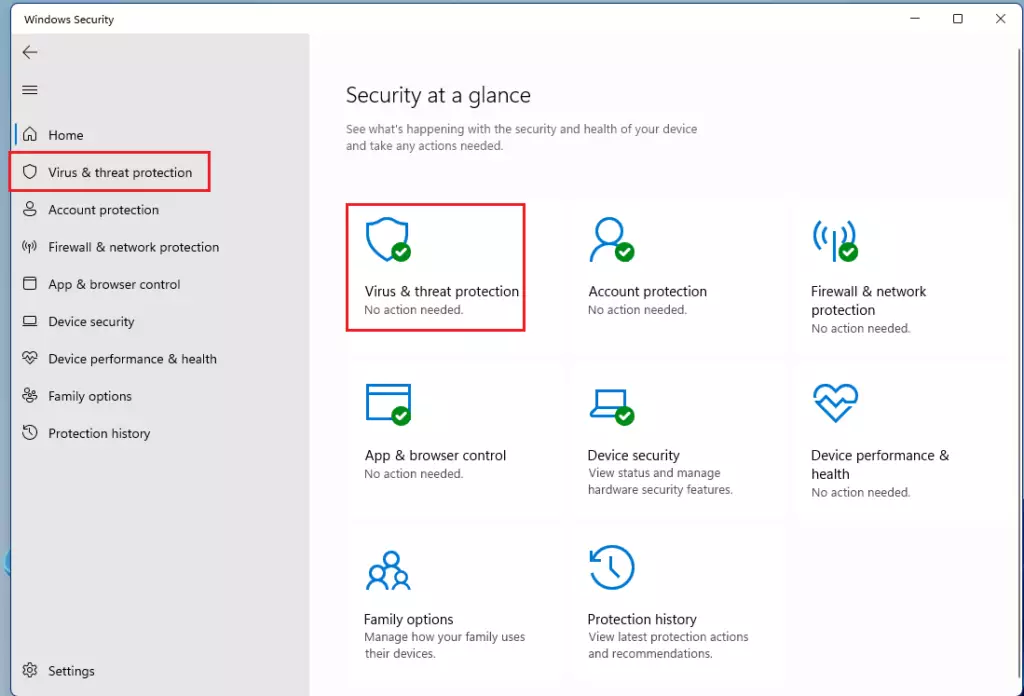
In Windows Security, select Virus & threat protection.
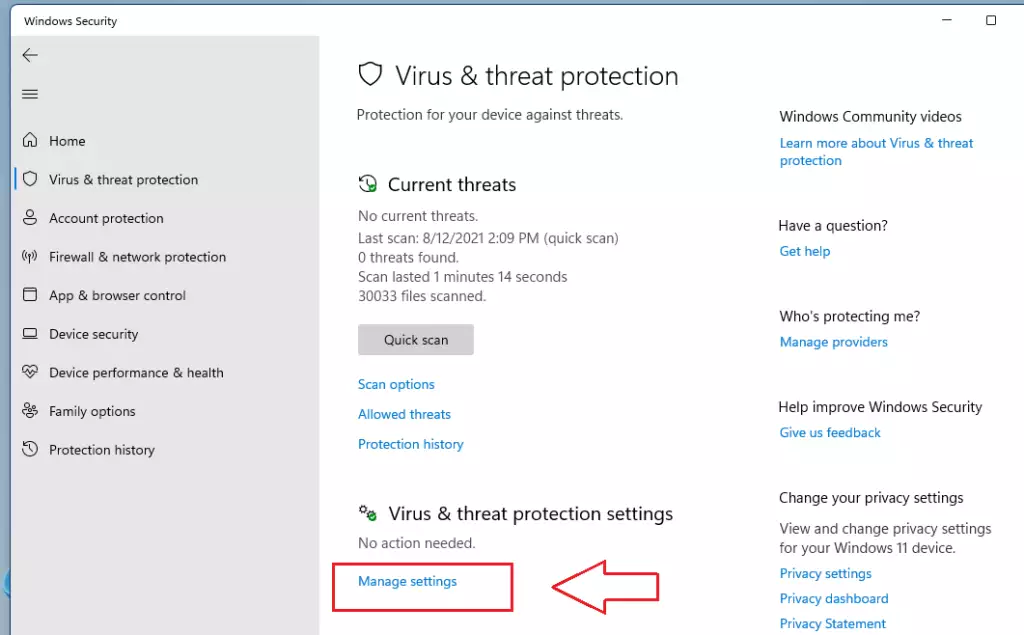
Under Virus & threat protection settings, select Manage settings.
Change the Tamper Protection setting to On or Off.

How to enable or disable real-time protection in Group Policy
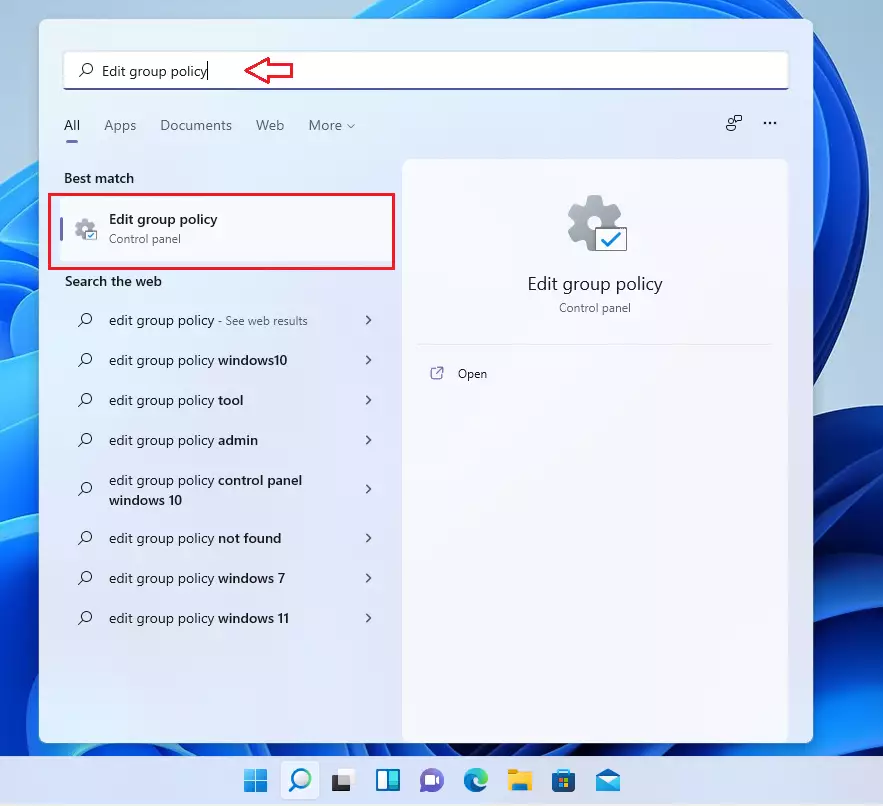
In Windows 11, open Local Group Policy Editor by clicking on the Start menu and searching for Edit group policy, as highlighted below. Under Best match, select Edit group policy to launch Local Group Policy Editor.
In the left pane of Local Group Policy Editor, expand the tree:
Computer Configuration > Administrative Templates > Windows Components > Microsoft Defender Antivirus > Real-time Protection
In the Real-time Protection details pane on the right, local and double-click the setting Turn off real-time protection.

In the Turn off real-time protection setting window, set the option to Enabled.

Select OK.
Close Local Group Policy Editor.
That should do it!
Conclusion
- Microsoft Defender’s Real-time protection is crucial for maintaining system security and preventing malware infections.
- The ability to toggle Real-time protection provides flexibility for users, but turning it off significantly increases vulnerability.
- Users can easily manage Real-time protection through the Windows Security app or Group Policy Editor.
- Regularly reviewing security settings is essential to ensure devices are adequately protected.
- Enabling real-time protection is recommended for optimal security in Windows 11.

Leave a Reply Cancel reply