
If you type in different languages on your Windows 11 computer, the Language Bar helps you switch keyboards easily. This guide will show you simple steps to show the Language Bar on your desktop or taskbar.
What is the Language Bar?
The Language Bar lets you change your keyboard to type in another language. For example, you can type special letters like “ä” in German or “ñ” in Spanish.
When you add a new language, Windows also adds the keyboard layout for it. You can add more keyboard layouts if you want.
If you have more than one keyboard or language, you can switch between them using the Language Bar or by pressing Win + Spacebar.
Option 1: Show Language Bar Using Windows Settings
- Open Settings by pressing Win + I.
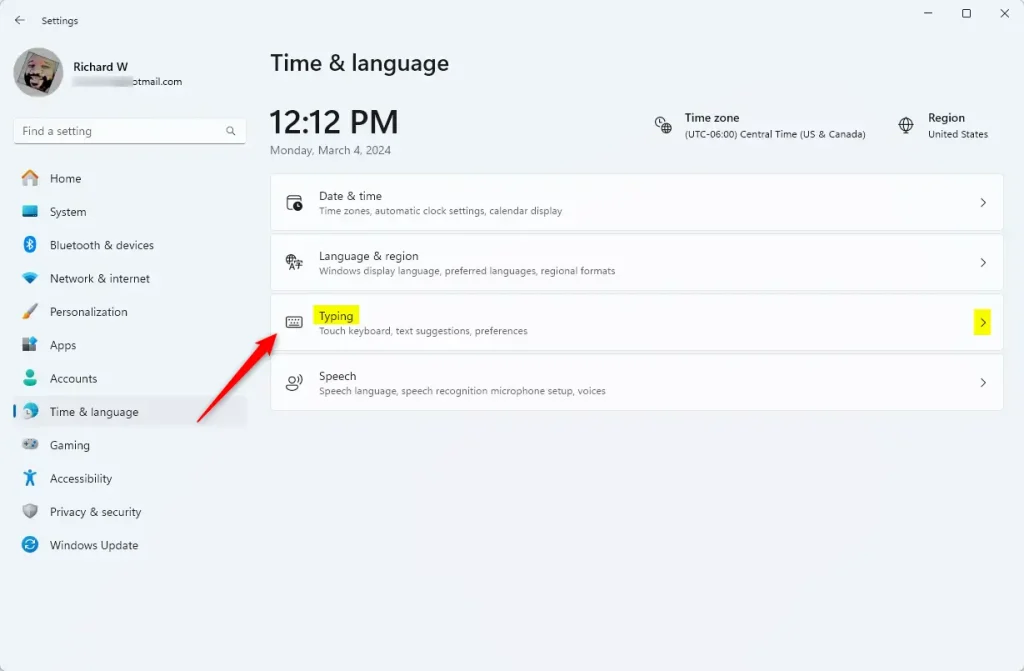
- Click Time & language on the left side.
- Click Typing on the right side.
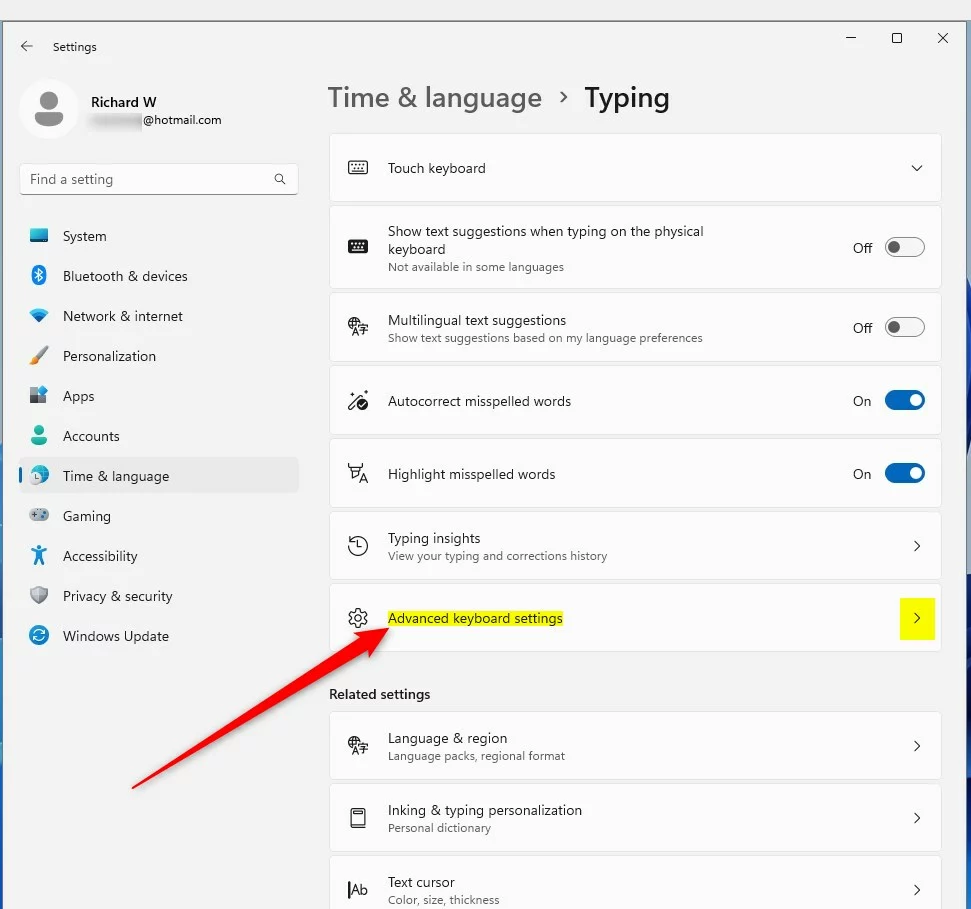
- Scroll down and click Advanced keyboard settings.
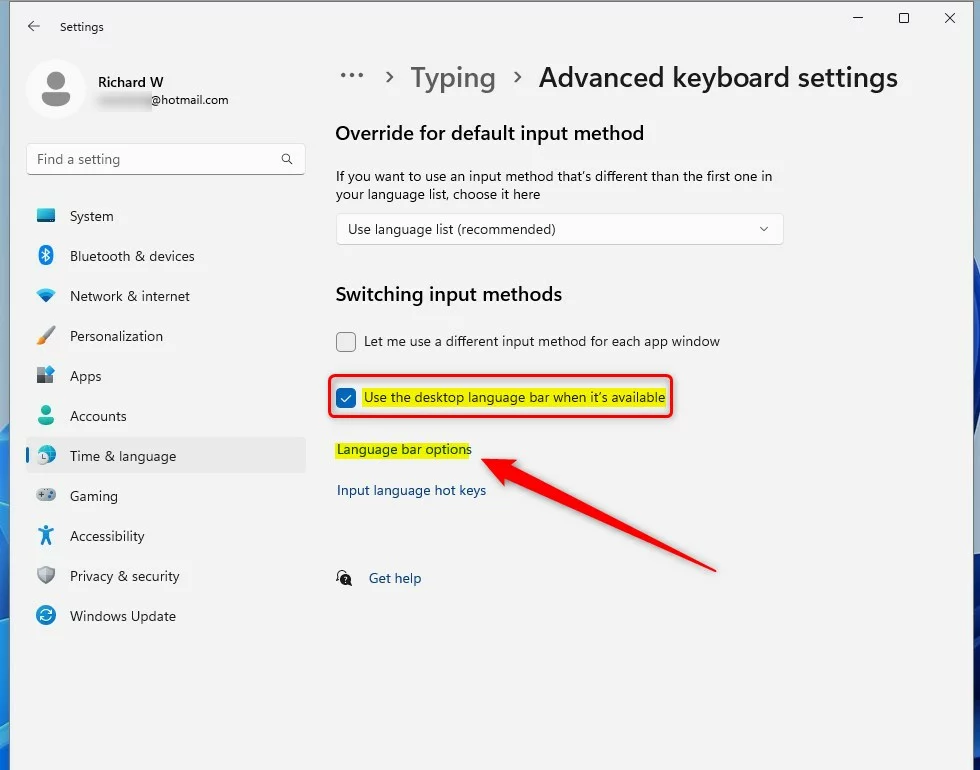
- Check the box for Use the desktop language bar when it’s available if you want the bar on your desktop.
- Uncheck it if you want the language bar to appear on the taskbar (this is the default setting).
- You can now close Settings.
Here is what it looks like in Settings:
Option 2: Show Language Bar Using PowerShell
If you like using commands, here’s how to do it with PowerShell:
- Open Windows Terminal by right-clicking the Start button and choosing it.
- Make sure you select the Windows PowerShell tab.
- Copy and paste one of the commands below depending on what you want:
Show Desktop Language Bar
This command will show the desktop language bar and turn off using different input methods for each app window:
Set-WinLanguageBarOption -UseLegacyLanguageBarOr, this command shows the desktop language bar and allows different input methods for each app window:
Set-WinLanguageBarOption -UseLegacyLanguageBar -UseLegacySwitchModeShow Taskbar Language Bar (Default)
This command resets to the default taskbar language bar and turns off special options:
Set-WinLanguageBarOptionOr, this command hides the desktop bar but allows different input methods for each app window:
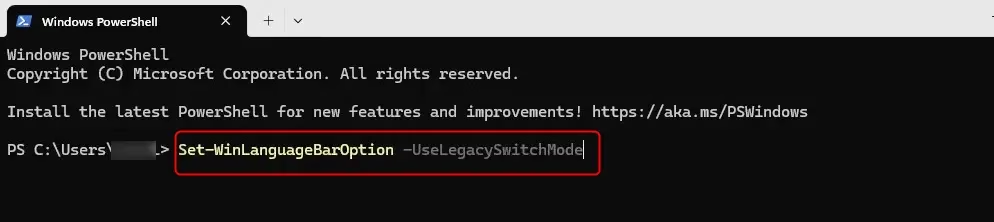
Set-WinLanguageBarOption -UseLegacySwitchModeAfter running your command, you can close Windows Terminal.
Here are pictures of how it looks in PowerShell:
Summary
- The Language Bar makes it easy to switch between keyboard languages on your Windows 11 PC.
- You can type special letters and characters in different languages by changing your keyboard layout.
- Switch languages quickly using the Language Bar or the shortcut keys Win + Spacebar.
- You can choose to show the Language Bar on your desktop or taskbar using Settings or PowerShell commands.
- This helps if you use more than one language and want to type comfortably.
Want to learn more? Visit the full guide here: Show Language Bar on Desktop or Taskbar in Windows 11

Leave a Reply Cancel reply