How to Show or Hide File Extensions in Windows 11 File Explorer

You can show or hide file extensions in Windows 11 File Explorer by adjusting a single setting.
File extensions are the dots and letters at the end of a filename, like .exe or .txt, which tell your PC what type of program to use to open that file.
For example, you might see .docx for Microsoft Word documents or .jpg for images. In Windows 11, these are hidden by default.
Enabling file extensions can prevent accidental renaming of files, which could make them unusable.
Open Settings, navigate to System > Advanced > File Explorer, and toggle on “Show file extensions.” This simple adjustment displays the file type, like .docx or .jpg, directly in File Explorer.
What is File Explorer?
File Explorer is the app you use to find and organize your files and folders on your computer. It also helps you open drives, USB sticks, and even shared folders on your network.
How to Show File Extensions Using Settings
Windows 11 makes it easy to turn file extensions on or off using the Settings app. Follow these simple steps:
Step 1 Open Settings
- Click the Start button (the Windows logo) at the bottom-left of your screen.
- Click Settings.
Or press the Windows key + I on your keyboard to open Settings quickly.
Step 2Go to System > Advanced
- In the Settings window, click System from the menu on the left.
- Scroll down on the right side.
- Click Advanced to open more options.
Step 3Find File Explorer Settings
- Under Advanced, look for File Explorer.
- Click to expand it.
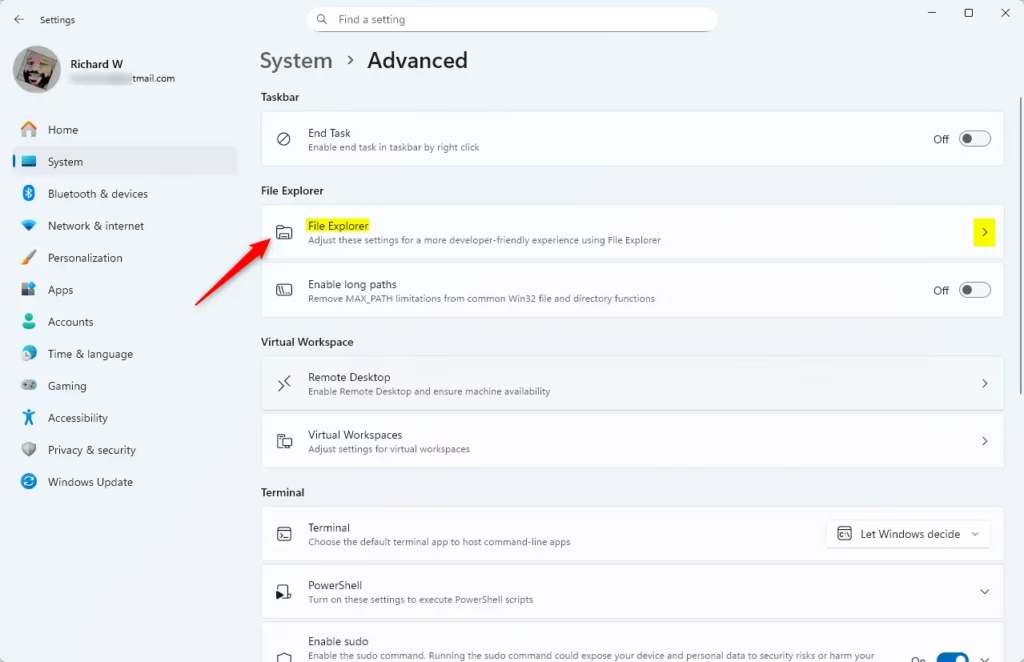
Step 4Turn On File Extensions
- Look for the option labeled “Show file extensions.”
- Click the switch to turn it On.
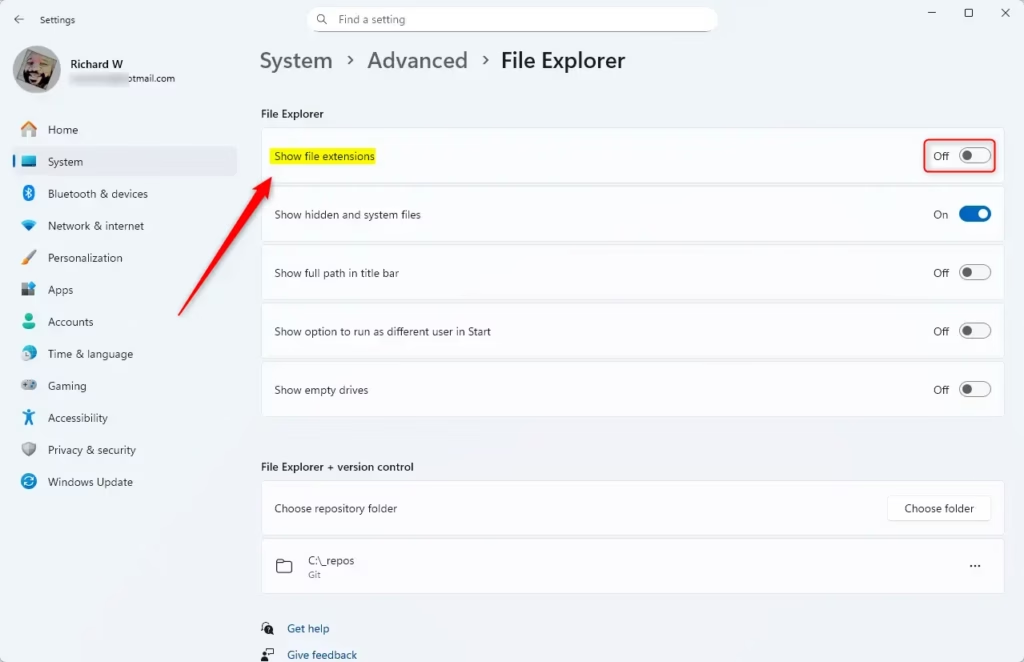
Step 5Close Settings
You’re done! You should now see file extensions right in File Explorer.
Other Ways to Show File Extensions
If you want to learn a more traditional way using File Explorer itself, you can check this guide:
Why Show File Extensions?
- File extensions tell you exactly what type of file you’re looking at (like a picture, document, or program).
- It helps avoid confusion, so you don’t accidentally open the wrong kind of file.
- It makes managing your files easier and safer.
- Using the Settings app is quick and easy for anyone using Windows 11.
Summary
Showing file extensions in Windows 11 is simple. Just open Settings, go to System > Advanced > File Explorer, and turn on “Show file extensions.” Now you’ll see what type of each file is, which helps you stay organized and safe. It only takes a few clicks!
How to force 🪟 Windows 11 to show file extensions?
In the search box on the taskbar, type file explorer, and in the search results, select File Explorer. In File Explorer, select View > Show > File name extensions.
How to add file extensions on 🪟 Windows 11?
To show file extensions on Windows 11, start by running the Windows File Explorer application. Then, select “View” → “Show” and ensure the “File name extensions” options is checked. With this option selected, you should be able to see the full file extensions in File Explorer.
Was this guide helpful?

About the Author
Richard
Tech Writer, IT Professional
Richard, a writer for Geek Rewind, is a tech enthusiast who loves breaking down complex IT topics into simple, easy-to-understand ideas. With years of hands-on experience in system administration and enterprise IT operations, he’s developed a knack for offering practical tips and solutions. Richard aims to make technology more accessible and actionable. He's deeply committed to the Geek Rewind community, always ready to answer questions and engage in discussions.



No comments yet — be the first to share your thoughts!