
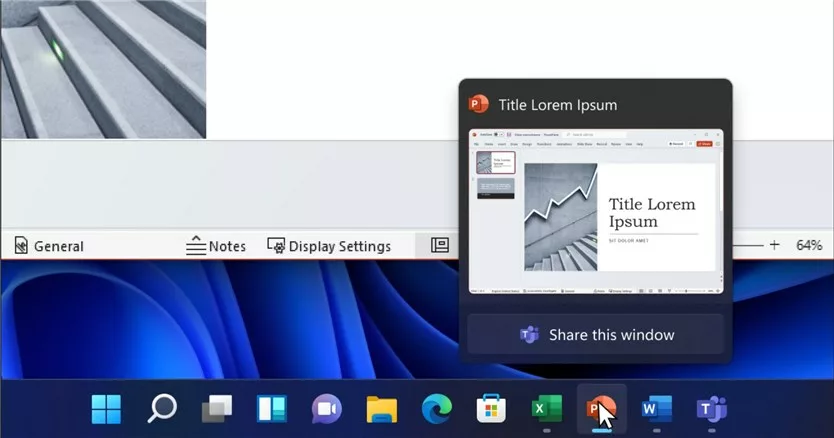
In Windows 11, you can quickly share any open window directly from your taskbar while on a meeting call. This makes sharing what’s on your screen easier and faster, especially during video calls using apps like Microsoft Teams.
You can also mute or unmute your calls right from the taskbar, so everything you need is at your fingertips!
Here’s a simple guide to turn this sharing feature on or off, and how to use it.
How to Turn On or Off “Share Any Window” from the Taskbar Using Settings
Follow these easy steps to enable or disable the window sharing feature from your taskbar:
- Open the Settings app: Click the Start menu (Windows icon at the bottom left) and select Settings. Or, press Windows key + I on your keyboard to open it quickly.

Open Settings from the Start menu or by pressing Windows + I - In Settings, click Personalization on the left menu.
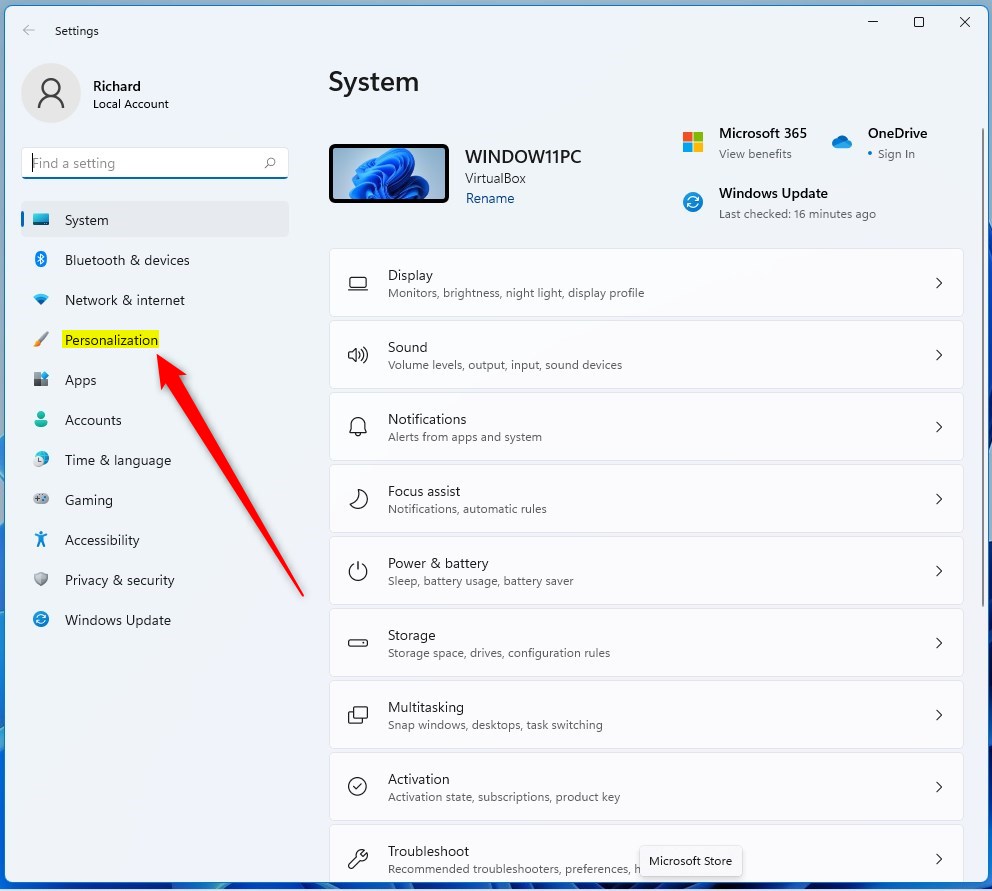
Click Personalization in the Settings app - On the right side, click Taskbar.
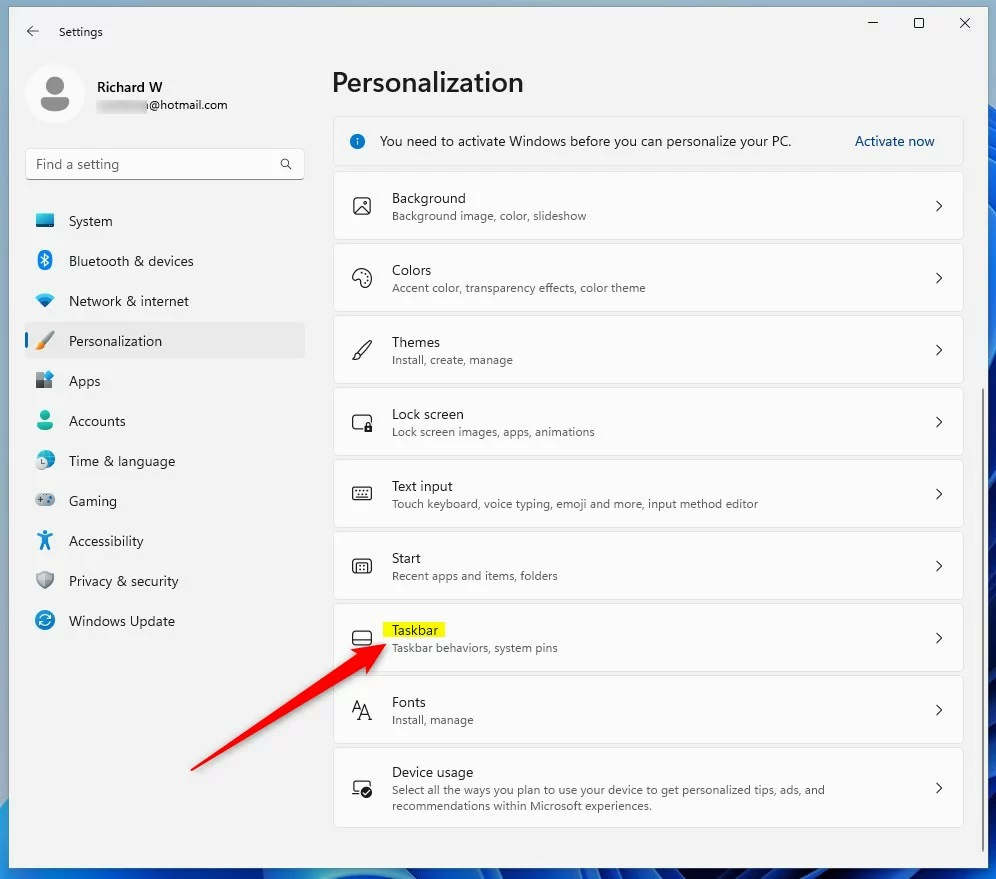
Click Taskbar to open taskbar settings - Scroll down and click on Taskbar behaviors to expand it.
- Look for the option “Share any window from my taskbar” and check the box to turn it on. Uncheck it if you want to turn it off.
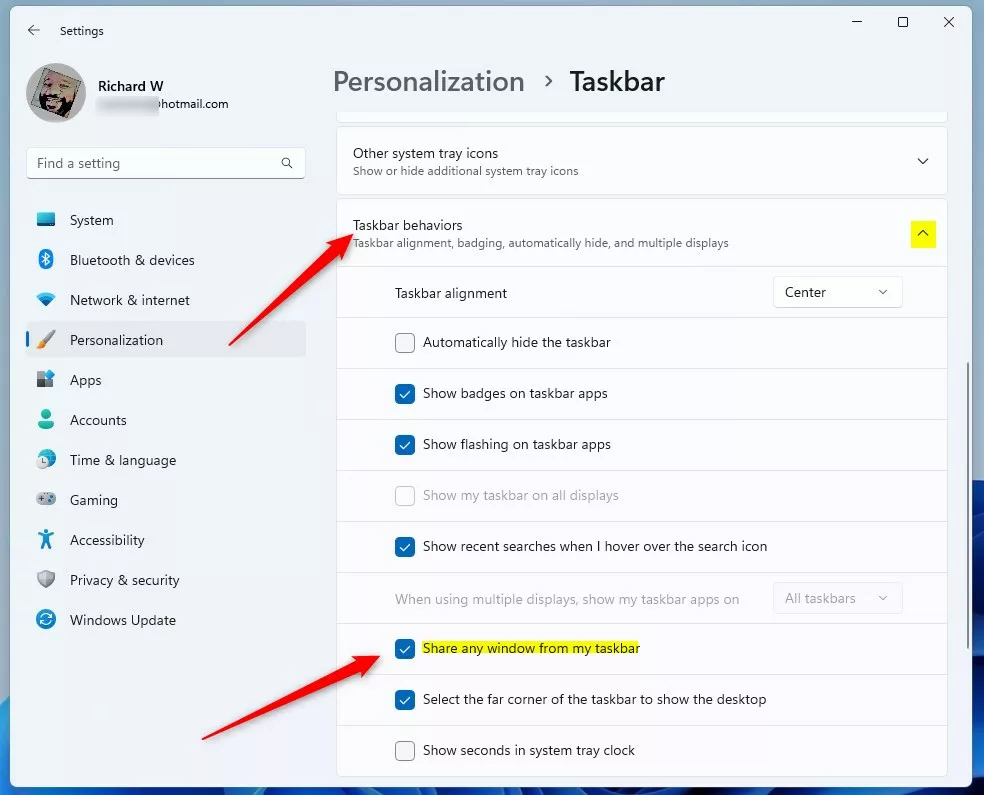
Check this box to enable sharing windows from the taskbar - Close the Settings app when you’re done.
How to Share a Window From the Taskbar During a Meeting
When you’re in a meeting using Microsoft Teams or a similar app:
- Hover your mouse over the apps on your taskbar.
- You’ll see a new button that lets you share your window with everyone in the meeting.
- Click Share this Window on the window you want to show.
- When you want to stop sharing, hover over the window again and click Stop Sharing.
- You can pick another window to share anytime using this method.
How to Turn On or Off “Share Any Window” Using the Registry Editor (Advanced)
If you’re comfortable making changes inside Windows, you can also turn this feature on or off using the Registry Editor.
Warning: Editing the registry can cause problems if done incorrectly. Be sure to follow these steps carefully or ask someone for help.
- Open the Registry Editor:
- Press Windows key + R, type
regedit, and press Enter. - Or read this guide on how to open the registry in Windows 11.
- Press Windows key + R, type
- In Registry Editor, go to this folder:
HKEY_CURRENT_USERSoftwareMicrosoftWindowsCurrentVersionExplorerAdvanced
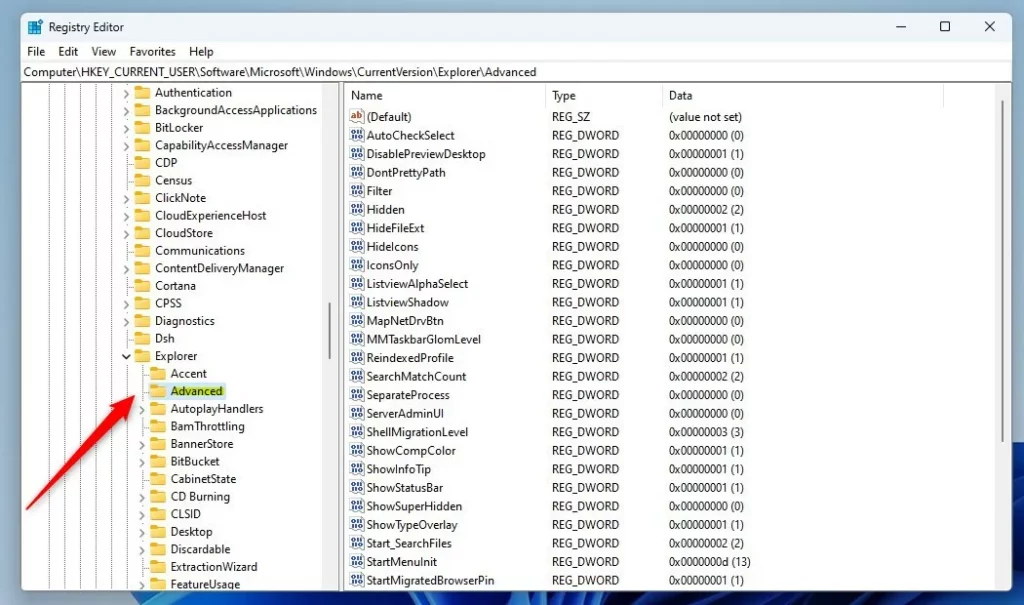
Navigate to the Advancedkey in Registry Editor- If you don’t see the
Advancedfolder, right-click onExplorer, select New > Key, and name itAdvanced. - On the right side, right-click and select New > DWORD (32-bit) Value.
- Name the new value
TaskbarSn. - Double-click
TaskbarSnand set the value to:- 1 to turn ON window sharing
- 0 to turn OFF window sharing
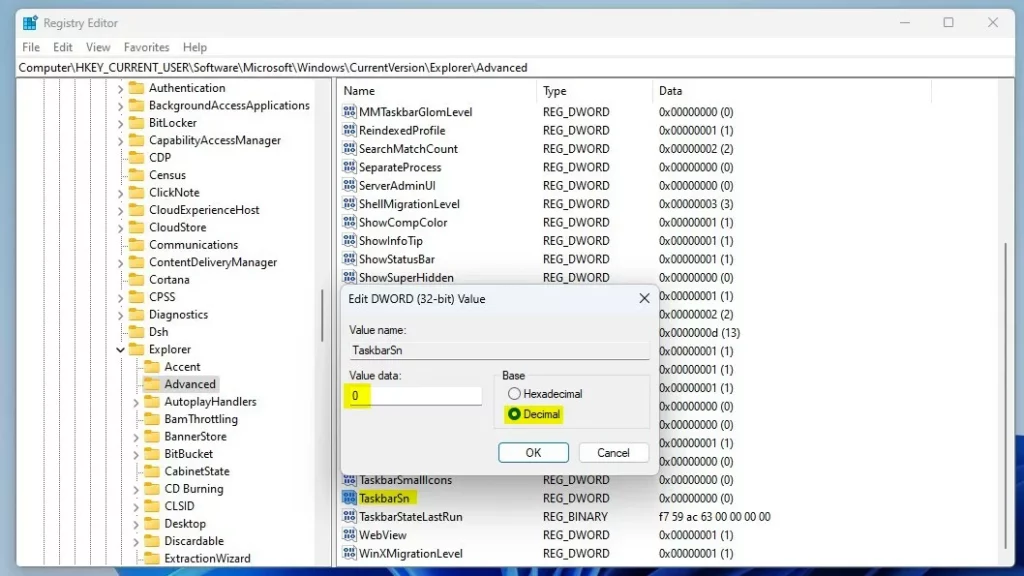
Set the value data for TaskbarSnto 1 (on) or 0 (off)- Close the Registry Editor and restart your computer to apply changes.
Summary
- Windows 11 lets you share any open window directly from the taskbar during meetings.
- You can turn this feature on or off using the easy Settings app or the more advanced Registry Editor.
- This helps make sharing your screen faster and easier when using Microsoft Teams or other meeting apps.
- Try these steps to customize your Windows 11 to match how you like to work.
More Info
For official announcements and updates, check Microsoft’s blog: Microsoft Windows Insider Blog


Leave a Reply Cancel reply